
The Google Home Mini is a compact yet powerful smart speaker designed to streamline daily tasks through voice control. It plays music, answers questions, controls smart home devices, and manages schedules—all through simple voice commands. But like any electronic device, it can occasionally freeze, fail to respond, or disconnect from Wi-Fi. When your Google Home Mini stops listening or replying, a reset often resolves the issue. Understanding how to properly reset the device—whether soft, hard, or factory—is essential for restoring functionality without losing critical settings unnecessarily.
Understanding Why Your Google Home Mini Stops Responding
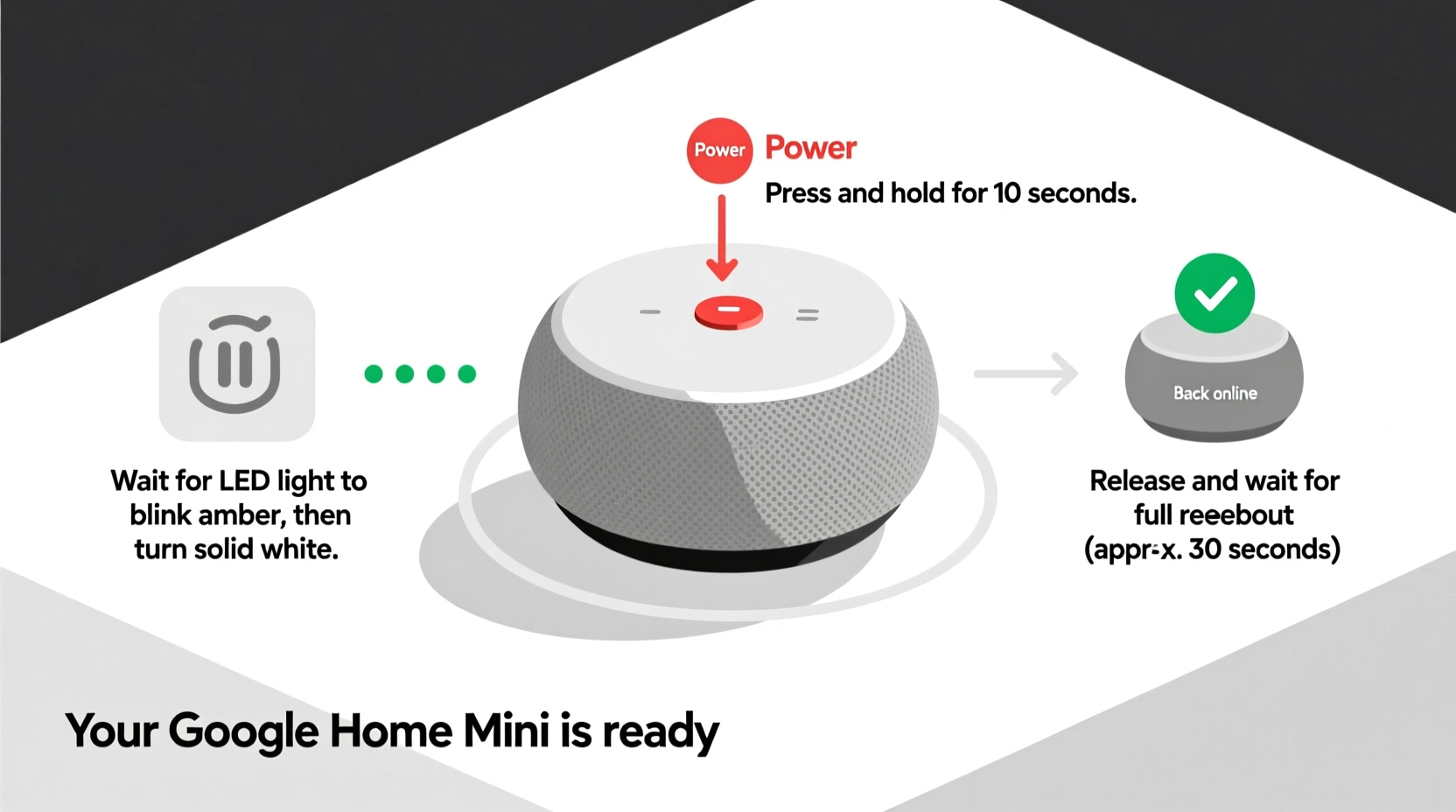
Before initiating a reset, it's important to recognize the common causes behind unresponsiveness. A non-responsive Google Home Mini doesn't always require a full reset—sometimes simpler fixes apply.
- Wi-Fi Disconnection: If the device loses internet connectivity, it cannot process voice requests that require online data.
- Microphone Mute: The physical mute switch on the back may have been accidentally engaged, disabling voice input.
- Software Glitch: Temporary bugs in firmware or app sync issues can cause delays or complete non-response.
- Overloaded Device: Running too many background processes or connected apps may slow performance.
- Power Supply Issues: Using an underpowered or damaged USB cable can lead to inconsistent operation.
Identifying the root cause helps determine whether a quick reboot suffices or if a full factory reset is necessary. Jumping straight to a factory reset may erase personalized settings unnecessarily, so preliminary checks are recommended.
Step-by-Step Guide to Soft Reset Your Google Home Mini
A soft reset (also known as a restart) reboots the device without erasing any settings or preferences. This method should be attempted first when dealing with minor glitches or temporary freezes.
- Locate the power cable connected to the back of your Google Home Mini.
- Gently unplug the USB cable from the power adapter or outlet.
- Wait for at least 15 seconds. This pause ensures capacitors fully discharge and clears residual memory.
- Reconnect the power cable firmly into the adapter and outlet.
- Wait 30–45 seconds for the device to reboot. You’ll hear a startup chime and see the LED light cycling during boot-up.
- Test by saying, “Hey Google, what time is it?”
If the device responds correctly, the soft reset was successful. No further action is needed unless the problem recurs frequently, which may indicate deeper instability.
“Restarting smart speakers every few weeks can prevent memory leaks and maintain optimal responsiveness.” — David Lin, IoT Support Engineer at SmartHome Labs
Performing a Hard Reset Using the Button Combo
When a soft reset fails, a hard reset forces the device to refresh its internal state and reconnect to your network. Unlike a factory reset, this method preserves most settings but clears temporary cache and reinitializes core services.
To perform a hard reset:
- Ensure the Google Home Mini is powered on and plugged in.
- Press and hold both the Microphone Mute button and the Volume Down button simultaneously.
- Continue holding for about 15 seconds until the LED ring turns amber.
- Release the buttons. The device will restart automatically.
- After reboot, the LED will pulse blue while searching for Wi-Fi, then turn solid white upon connection.
This process typically takes up to two minutes. During this time, avoid speaking to the device. Once restarted, test basic commands to confirm functionality.
| Reset Type | Duration | Data Lost? | When to Use |
|---|---|---|---|
| Soft Reset | 30–60 seconds | No | Minor lag, temporary disconnection |
| Hard Reset | 1–2 minutes | Minimal (cache only) | Unresponsive unit, failed soft reset |
| Factory Reset | 2–3 minutes | Yes (all settings, Wi-Fi, preferences) | Selling device, persistent errors, setup failure |
Executing a Full Factory Reset
A factory reset returns the Google Home Mini to its original out-of-the-box condition. All personal data, Wi-Fi credentials, voice match profiles, and linked services are erased. Use this method only when other resets fail or when preparing to transfer ownership.
There are two ways to perform a factory reset: via physical button or through the Google Home app.
Method 1: Physical Button Reset
- Keep the device plugged in.
- Press and hold the Microphone Mute button for approximately 15–20 seconds.
- Watch the LED ring—it will change from pulsing white to solid red, then begin spinning red.
- Once the red light spins continuously, release the button.
- The device will emit a series of tones and reset itself within 90 seconds.
- After completion, the LED will flash orange, indicating it’s ready for initial setup.
Method 2: App-Based Reset (via Google Home App)
- Open the Google Home app on your smartphone or tablet.
- Tap the device tile representing your Google Home Mini.
- Tap the gear icon (Settings) in the top-right corner.
- Scroll down and select Settings > Device info > Remove device.
- Confirm removal. This deletes the device from your account and triggers a remote reset.
- For complete hardware reset, follow with the physical button method above if reusing the device.
After a factory reset, you must go through the full setup process again using the Google Home app, including reconnecting to Wi-Fi and re-enabling routines or integrations.
Troubleshooting Common Post-Reset Issues
Even after a successful reset, some users encounter problems during reactivation. Here are frequent post-reset scenarios and their solutions:
- Device Not Appearing in App: Make sure Bluetooth is enabled on your phone and that Location Services (Android) or Location Permissions (iOS) are turned on, as these are required for device discovery.
- Stuck on Orange Flashing Light: This indicates setup mode. If it persists beyond 5 minutes, unplug and repeat the factory reset process.
- Wi-Fi Won’t Connect: Avoid 5GHz-only networks. Google Home Mini supports only 2.4GHz Wi-Fi bands. Also, ensure your router allows new device connections and isn’t blocking MAC addresses.
- “No Response” After Setup: Check if Do Not Disturb mode is active in the app settings. Disable it to restore voice feedback.
Mini Case Study: Resolving a Frozen Unit in a Busy Household
Sarah, a mother of two in Austin, Texas, noticed her Google Home Mini stopped responding each evening around dinner time. Despite multiple voice attempts, the device remained silent. She tried unplugging it briefly, but the issue returned within hours. Upon investigation, she realized that her children were frequently yelling commands over one another, causing the device to queue overlapping requests and eventually freeze. After performing a hard reset using the mute and volume-down buttons, the device resumed normal function. To prevent recurrence, Sarah enabled Voice Match and set usage limits through the Family Link integration, reducing command overload. The reset solved the immediate issue; behavioral adjustments prevented future crashes.
Checklist: How to Reset Your Google Home Mini – Action Plan
Follow this checklist to systematically address unresponsiveness:
- ✅ Confirm the microphone is not muted (red line visible? If yes, unmute).
- ✅ Verify Wi-Fi connectivity on your phone and router.
- ✅ Perform a soft reset by unplugging and replugging the device.
- ✅ Test voice response after reboot.
- ✅ If still unresponsive, initiate a hard reset using Mute + Volume Down buttons.
- ✅ Wait for full restart and retest.
- ✅ As last resort, execute a factory reset via long-press mute button.
- ✅ Reconfigure device using Google Home app.
- ✅ Restore routines, smart home links, and preferences manually.
Frequently Asked Questions
Will resetting my Google Home Mini delete my voice recordings?
No, resetting the device does not directly delete stored voice recordings in your Google Account. However, unlinking or removing the device may affect access to recent interactions. To permanently delete voice history, visit My Activity in your Google Account settings and filter by Assistant activity.
Can I reset Google Home Mini without the app?
Yes. All types of resets—soft, hard, and factory—can be performed using only the physical buttons on the device. The Google Home app is useful for diagnostics and reconfiguration but not required for resetting.
How often should I reset my Google Home Mini?
There’s no need for routine resets unless performance degrades. However, restarting the device once every 4–6 weeks can help maintain responsiveness, especially in homes with heavy usage or numerous connected smart devices.
Conclusion: Restore Control with Confidence
When your Google Home Mini stops responding, it disrupts more than just music playback—it affects lighting, security, communication, and daily convenience. Knowing how to reset the device properly empowers you to resolve issues quickly and independently. Start with the least invasive option—a soft restart—and progress to harder methods only when necessary. Each reset type serves a distinct purpose, and understanding their differences prevents unnecessary data loss. With the right steps and a bit of patience, your Google Home Mini can return to seamless operation in minutes.




 浙公网安备
33010002000092号
浙公网安备
33010002000092号 浙B2-20120091-4
Comments
No comments yet. Why don't you start the discussion?