
Slow internet can turn everyday tasks into frustrating delays—buffering videos, dropped video calls, or pages that take forever to load. Before calling your ISP or upgrading your plan, try the simplest and most effective solution: resetting your router. A proper router reset clears temporary glitches, refreshes network connections, and often restores full speed within minutes. This guide walks you through the correct method, explains why it works, and helps you avoid common mistakes that could make things worse.
Why Resetting Your Router Works
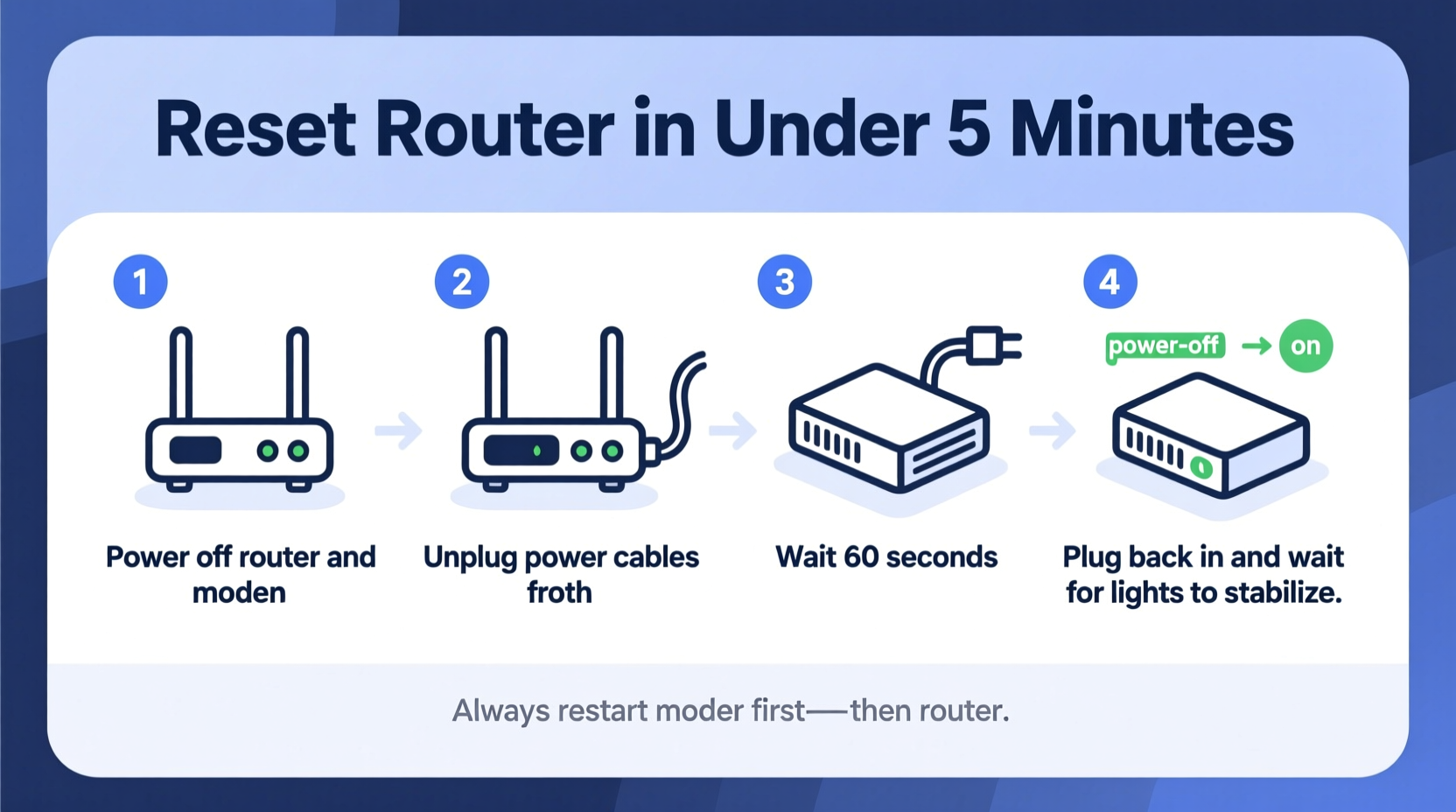
Routers are small computers managing data flow between your devices and the internet. Like any computer, they can experience memory leaks, software hiccups, or overheating after running continuously for days or weeks. Over time, these issues degrade performance, leading to lag, disconnections, or reduced bandwidth.
A reset forces the router to reboot its operating system, clear cached data, re-establish connections with your modem and ISP, and reallocate IP addresses. This process resolves many common networking problems without requiring technical knowledge or tools.
“Most home network issues aren’t caused by infrastructure failures but by transient software states. A well-timed router reset is like hitting ‘refresh’ on your entire internet experience.” — Dr. Alan Reyes, Network Systems Engineer at NetSecure Labs
Step-by-Step Guide to Properly Reset Your Router
Not all resets are equal. Power cycling incorrectly—or too frequently—can cause more harm than good. Follow this five-minute procedure precisely to maximize results and protect your equipment.
- Save open work and pause active downloads
Any ongoing transfers will be interrupted. Close large file downloads, cloud backups, or video calls before proceeding. - Locate your router’s power cord
Identify where it connects to the wall outlet or power strip. Avoid yanking cables—grip the plug, not the wire. - Unplug the power cable
Remove it completely from the outlet. Do not use the power button if available; a full disconnect ensures a complete reset. - Wait exactly 30 seconds
This is critical. Waiting allows capacitors inside the router to discharge fully, clearing residual memory and ensuring a clean restart. - Reconnect the power cable
Plug it back in firmly. Watch for lights to begin flashing—this indicates startup sequence initiation. - Wait 2–3 minutes for full boot-up
Do not attempt to connect yet. The router must reacquire an IP address from your ISP and stabilize signal strength. - Test your connection
Open a browser or run a speed test using a wired or Wi-Fi device. Compare results to pre-reset performance.
Router Reset Checklist: What to Do (and Not Do)
To ensure success and prevent damage, follow this checklist every time you reset your router.
| Action | Do | Don't |
|---|---|---|
| Power Cycle Method | Unplug the power cable entirely | Use only the power button or switch |
| Waiting Time | Pause for at least 30 seconds | Replug immediately or after just a few seconds |
| Testing Connection | Wait until all status lights stabilize | Try connecting during initial boot-up flashes |
| Frequency | Reset once every 1–2 months as maintenance | Reset multiple times per day unnecessarily |
| Physical Environment | Ensure ventilation and upright placement | Place near heat sources or enclosed spaces |
When a Simple Reset Isn’t Enough: Hard Reset vs. Soft Reset
There are two types of resets: soft and hard. Most users need only perform a soft reset (power cycle), which temporarily restarts the device. A hard reset, however, erases all custom settings and returns the router to factory defaults.
Only consider a hard reset if:
- You’ve changed settings and forgotten passwords
- The router won’t connect to the internet even after repeated soft resets
- You suspect malware or unauthorized access
To perform a hard reset:
- With the router powered on, locate the recessed “Reset” button (usually on the back).
- Use a paperclip or pin to press and hold the button for 10–15 seconds.
- Release when all lights blink simultaneously.
- Wait 3 minutes for reboot.
- Reconfigure Wi-Fi name (SSID), password, and security settings via the admin interface (typically accessed at
192.168.1.1or192.168.0.1).
Real Example: How Sarah Fixed Her Streaming Issues in Minutes
Sarah, a remote worker and parent in Austin, Texas, noticed her Zoom meetings kept freezing every afternoon. Her kids also complained about YouTube buffering during homework breaks. She called her ISP twice, who confirmed no outages in her area. Frustrated, she tried restarting her laptop and phone—but nothing helped.
One evening, she read about router resets and decided to try it. At 7:45 PM, she unplugged her router, waited 30 seconds, then plugged it back in. By 7:50 PM, everything was back online. She ran a speed test: her download speed jumped from 12 Mbps to 89 Mbps—close to her plan’s advertised 100 Mbps.
The culprit? Her router had been running nonstop for 11 days. It was overheating slightly and struggling to manage multiple simultaneous connections. Since then, Sarah schedules a weekly reset every Sunday night and hasn’t had an issue since.
Signs You Should Reset Your Router Immediately
Don’t wait for total failure. These warning signs suggest a reset may resolve the issue quickly:
- Web pages load slowly across all devices
- Wi-Fi signal shows full bars but no internet access
- Devices disconnect randomly
- Online games have high ping or frequent lag spikes
- Smart home devices (like cameras or speakers) go offline unexpectedly
- Only one device has issues? That’s likely not the router—focus troubleshooting there instead.
“Routine reboots are the single most overlooked maintenance task in home networking. They cost nothing and solve over half of reported slowdowns.” — Lisa Tran, Customer Support Lead at ConnectHome ISP
Maximizing Results: Best Practices After a Reset
A successful reset is just the beginning. To maintain optimal performance, follow these post-reset steps:
- Update firmware
Log into your router’s admin panel and check for updates. Manufacturers release patches to improve stability and security. - Change default login credentials
If you haven’t already, set a strong password for the admin interface to prevent unauthorized changes. - Optimize placement
Keep the router central, elevated, and away from metal objects, microwaves, or thick walls. - Limit interference
Other wireless devices (cordless phones, baby monitors) can disrupt signals. Use the 5 GHz band for faster, less crowded connections. - Schedule monthly maintenance
Add a recurring calendar reminder to unplug and reset your router once a month.
Frequently Asked Questions
Will resetting my router delete my Wi-Fi password?
No—performing a soft reset (unplugging and replugging) does not change your settings. Only a hard reset (holding the reset button) erases configurations like SSID and password.
How often should I reset my router?
For most households, a monthly reset is sufficient. If you stream heavily, work from home, or have many connected devices, consider every 2–3 weeks. Frequent resets aren’t harmful but aren’t necessary unless problems arise.
My internet is still slow after resetting. What next?
If speeds don’t improve, contact your ISP to check for line issues. Also, test with a wired Ethernet connection to rule out Wi-Fi interference. If the problem persists across multiple resets, your router may be outdated and due for replacement.
Conclusion: Take Control of Your Internet Experience
Slow internet doesn’t have to mean expensive upgrades or technician visits. In most cases, a simple, properly executed router reset can restore full speed in under five minutes. By understanding the difference between soft and hard resets, recognizing early warning signs, and maintaining your equipment proactively, you gain reliable control over your home network.
This isn’t a temporary fix—it’s a fundamental skill for modern digital life. Whether you're working, learning, streaming, or gaming, a few seconds of deliberate action can transform your connectivity. Don’t tolerate sluggish performance when the solution is literally at your fingertips.




 浙公网安备
33010002000092号
浙公网安备
33010002000092号 浙B2-20120091-4
Comments
No comments yet. Why don't you start the discussion?