
If you’ve ever lost access to precious memories—whether due to a broken phone, accidental deletion, or syncing issues—the ability to retrieve and recover your photos from Google can be a lifeline. Millions of users rely on Google Photos as their primary photo storage solution, trusting it with family moments, travel adventures, and everyday snapshots. But knowing how to efficiently access and restore those images when needed is critical. This guide walks you through the most reliable methods to get your photos back fast, whether they’re archived, deleted, or simply misplaced.
Understanding Google’s Photo Ecosystem
Google Photos serves as both a cloud backup service and a media management platform. When enabled, it automatically uploads photos and videos from your devices to the cloud, making them accessible across smartphones, tablets, and computers. Your media is tied to your Google account, meaning recovery starts there—not on your device.
The key features that support photo retrieval include:
- Backup & Sync: Automatically saves media from your devices.
- Trash (Bin): Stores deleted items for 30 days before permanent removal.
- Archive: Hides photos without deleting them.
- Albums and Search: Helps locate photos by date, location, or object.
Because Google Photos operates across platforms, you can recover your images via web browser, Android, or iOS—with nearly identical functionality.
Step-by-Step Guide to Retrieve Recently Deleted Photos
Accidentally deleted a photo? Don’t panic. Google keeps deleted items in the Trash for 30 days, giving you a generous window to restore them.
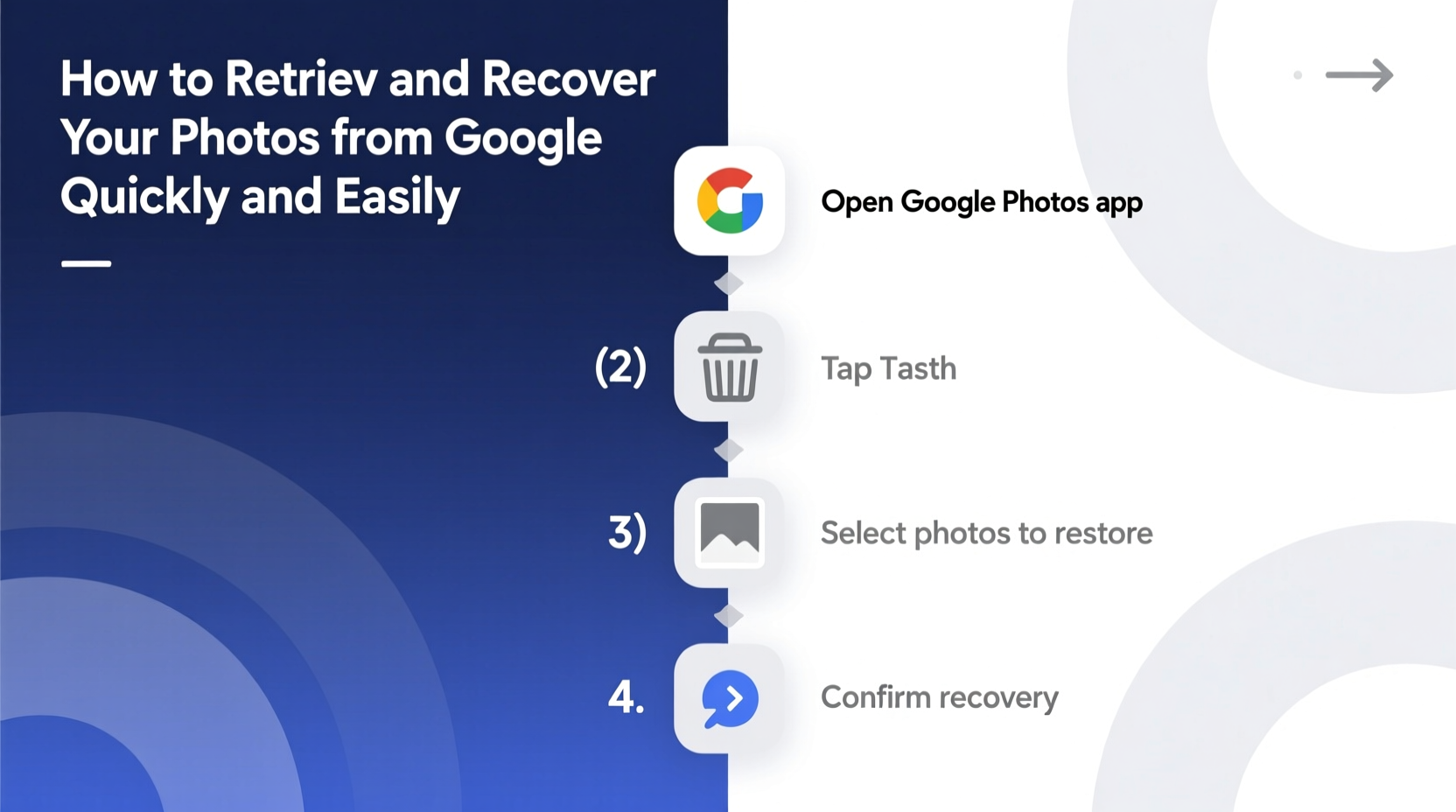
- Open the Google Photos app or visit photos.google.com.
- Tap or click the Menu icon (☰) in the top-left corner.
- Select Trash from the menu.
- Browse or search for the photo(s) you want to recover. Items are listed in chronological order, with the most recent deletions at the top.
- Select the photo(s), then tap or click Restore.
The restored photos will reappear in your main library, albums, and device gallery if sync is enabled. You can restore multiple files at once by selecting them all before clicking “Restore.”
“Many users don’t realize that deleted photos aren’t gone forever—they’re just in limbo. The Trash folder is your first line of defense.” — Lena Park, Cloud Data Specialist at TechGuard Solutions
Recovering Permanently Deleted or Older Photos
If more than 30 days have passed since deletion, the photo may no longer appear in Trash. However, recovery is still sometimes possible under specific conditions:
- Family Sharing: If you're part of a Google Family Group, check if another member has a copy.
- Email Attachments: Search your Gmail for past photo shares—you might find an old attachment.
- Linked Accounts: Some Android phones auto-upload to manufacturer clouds (e.g., Samsung Cloud), which could retain duplicates.
- External Backups: If you used third-party apps like Dropbox or OneDrive, check synced folders.
For enterprise or education accounts, administrators may have audit logs or backup systems in place. Contact your IT department if applicable.
Real Example: Recovering Wedding Photos After Phone Damage
Sarah accidentally dropped her phone in water the day after her wedding. Though devastated, she remembered enabling Google Photos backup months earlier. She logged into photos.google.com from a friend’s laptop and searched “June 15 wedding.” Within seconds, every ceremony and reception photo appeared—over 800 images fully intact. A few were missing, but she found them later in her “Recently Deleted” folder. Thanks to automatic syncing, Sarah didn’t lose a single memory.
How to Prevent Future Photo Loss
Proactive habits reduce the risk of losing photos permanently. Use this checklist to safeguard your digital memories:
- ✅ Enable Backup & Sync in Google Photos settings
- ✅ Set upload quality to “High Quality” or “Original”
- ✅ Regularly review the Trash folder
- ✅ Avoid clearing app data without checking local-only photos
- ✅ Use strong passwords and two-factor authentication on your Google account
- ✅ Export important albums annually using Google Takeout
One often-overlooked step is verifying what’s actually backed up. Open Google Photos and scroll through your library. If recent photos aren’t showing, check your Wi-Fi connection or mobile data settings—backup may be paused.
Comparing Recovery Methods: What Works When
| Scenario | Best Method | Time Required | Success Rate |
|---|---|---|---|
| Photo deleted within last 29 days | Restore from Trash | 2–5 minutes | 99% |
| Photo missing but never deleted | Search by date/location | 3–10 minutes | 95% |
| Phone lost or factory reset | Log in to Google Photos on new device | 5–15 minutes | 98% |
| Deleted over 30 days ago | Gmail search, external backups | 15+ minutes | 40–60% |
| Account compromised or locked | Google Account recovery process | Hours to days | 70%* |
*Success depends on verification method availability and account security settings.
Frequently Asked Questions
Can I recover photos if I turned off Backup & Sync?
If Backup & Sync was disabled before deletion, only photos uploaded prior to disabling can be recovered from the cloud. Any local-only photos not backed up are unrecoverable unless stored elsewhere (e.g., SD card, computer).
Does Google keep photos forever if I don’t delete them?
Yes—photos that remain in your library are stored indefinitely as long as your account is active and complies with Google’s policies. Even free accounts enjoy permanent storage for High Quality uploads (though Original Quality counts against your 15GB free quota).
What happens to my photos if I delete my Google account?
All associated data—including photos, emails, and documents—is permanently erased after a grace period (usually 2 weeks). Once deleted, recovery is impossible. Always export your data via Google Takeout before closing an account.
Final Steps: Take Control of Your Digital Memories
Retrieving photos from Google doesn’t have to be stressful. With the right knowledge, you can recover lost images in minutes. Whether you’re restoring a single snapshot or rebuilding an entire gallery after device failure, Google’s ecosystem offers powerful tools—if you use them wisely.
Start today by checking your backup status, reviewing your Trash folder, and ensuring your account security is up to date. For irreplaceable moments—birthdays, graduations, vacations—consider downloading full archives annually. Digital preservation isn’t just about technology; it’s about protecting what matters most.




 浙公网安备
33010002000092号
浙公网安备
33010002000092号 浙B2-20120091-4
Comments
No comments yet. Why don't you start the discussion?