
Chromebooks are designed for simplicity, collaboration, and cloud-based efficiency. However, as users come and go—whether in homes, schools, or workplaces—managing accounts properly becomes essential. Improperly handled profiles can lead to data exposure, login conflicts, or reduced device performance. Safely removing a Chromebook account isn’t just about freeing up space; it’s about protecting privacy, maintaining system integrity, and ensuring smooth transitions for the next user.
This guide walks through the correct procedures, common pitfalls, and strategic approaches to managing multiple user profiles on a Chromebook. Whether you're a parent removing a child's account, an IT administrator handling school devices, or someone preparing to sell or donate your machine, these steps will help you act confidently and securely.
Understanding Chromebook User Profiles
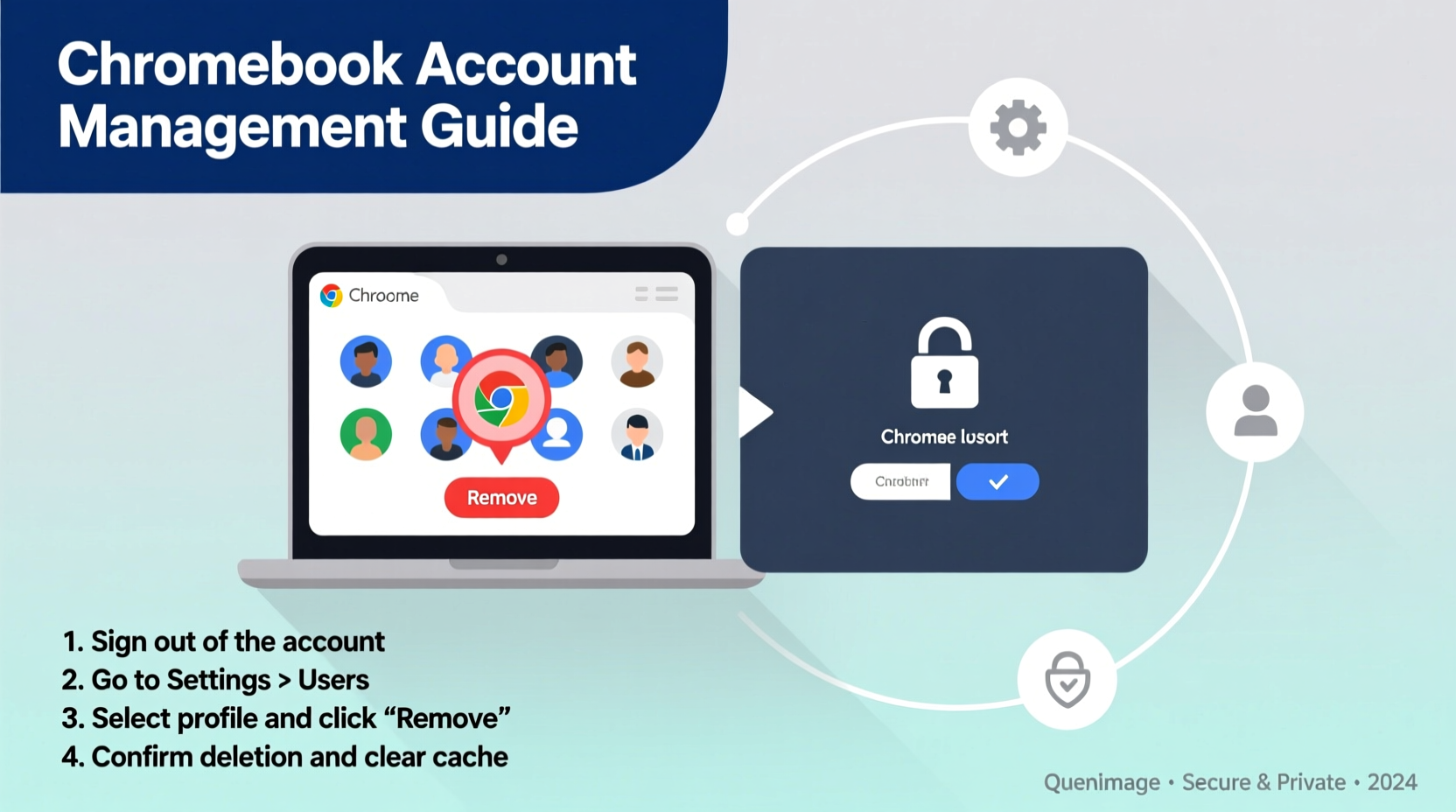
Each Google account signed into a Chromebook creates a unique user profile. These profiles store individual settings, app data, browsing history, and cached files. Unlike traditional operating systems, Chrome OS ties each profile directly to a Google Account, syncing preferences across devices while isolating user environments locally.
When a profile remains active on a shared Chromebook, it continues to sync data—even if not actively used. This poses privacy risks, especially if the device is later accessed by others. Removing a profile severs this local connection without affecting the Google Account itself, unless further action is taken.
Step-by-Step: How to Remove a Chromebook Account
Removing a user account from a Chromebook is straightforward but must be done correctly to ensure complete data removal and prevent reconnection.
- Sign in to the Chromebook using an administrator account. Only admins can remove other users.
- Click on the profile icon in the bottom-left corner of the screen.
- Select Settings (gear icon).
- Navigate to Device > Manage other people.
- Locate the user profile you want to remove and click Remove.
- Confirm the action when prompted. The system will erase all local data associated with that profile.
After removal, the former user will no longer appear at the login screen. Their synced data remains intact in their Google Account but is erased from the device.
“Proper profile management is critical in educational and enterprise settings where device turnover is high. A clean removal prevents accidental data leaks.” — Jordan Lee, EdTech Infrastructure Specialist
Managing Multiple User Profiles Effectively
Many households and classrooms use one Chromebook across several users. While convenient, this setup requires careful oversight to avoid clutter, confusion, and performance slowdowns.
Consider these strategies:
- Limits per device: Chromebooks support up to 8 user profiles. Exceeding regular usage beyond 4–5 users may impact startup speed and storage availability.
- Designate primary vs. guest access: For occasional users, encourage Guest Mode instead of creating full profiles.
- Regular audits: Periodically review active profiles and remove those no longer needed.
- Supervised users: Parents and educators can enable Family Link to monitor and manage younger users’ activity and screen time.
Do’s and Don’ts of Profile Management
| Do | Don’t |
|---|---|
| Use Guest Mode for temporary users | Create permanent profiles for visitors |
| Remove inactive profiles monthly | Leave old student or family member accounts |
| Enable screen lock and auto-signout | Allow automatic login for shared devices |
| Back up important files to Google Drive | Store critical documents only locally |
Real-World Scenario: School Device Reset Before Summer Break
A middle school in Oregon manages 300 Chromebooks used by students across grades 6–8. Each spring, IT staff must prepare devices for summer storage and reassign them in the fall. In past years, leftover profiles caused login errors and privacy concerns when new students inherited machines.
The district implemented a standardized protocol: after final grades, teachers remind students to back up work. Over two weeks, technicians log into each device with admin credentials and remove all student profiles. They verify removal via a checklist and perform a quick firmware update. As a result, device readiness improved by 70%, and helpdesk tickets related to login issues dropped significantly.
This case illustrates how proactive profile management scales efficiently—even in large deployments.
What Happens to Data After Account Removal?
A common concern is whether removing a profile deletes personal files. The answer depends on where the data was stored:
- Google Drive, Gmail, Photos: These remain in the user’s cloud account and are unaffected.
- Downloads folder: Files saved locally are permanently deleted from the Chromebook.
- Offline app data: Apps like Google Keep or Docs in offline mode lose unsynced changes upon removal.
Preparing a Chromebook for Sale or Donation
If you’re giving away or selling your Chromebook, simply removing a user isn’t enough. You must perform a full powerwash—essentially a factory reset—to eliminate all traces of previous usage.
- Sign in as the owner (primary) user.
- Go to Settings > Advanced > Reset settings.
- Click Powerwash > Restart.
- Follow prompts to confirm. The process takes 5–10 minutes.
- After reboot, the device returns to initial setup mode, like it was unboxed.
Note: Powerwash removes all local data, apps, and settings. It does not disable Activation Lock if the original owner hasn't removed their account first. Always sign out before powerwashing.
Checklist: Secure Chromebook Account Removal
- ✅ Back up important files to Google Drive or external storage
- ✅ Sign in with an administrator account
- ✅ Navigate to Settings > Manage other people
- ✅ Select and remove unwanted user profiles
- ✅ Confirm deletion for each profile
- ✅ For resale: Perform a Powerwash after removing all accounts
- ✅ Verify no old profiles appear at login
Frequently Asked Questions
Can I recover a deleted Chromebook user profile?
No. Once a profile is removed, all locally stored data—including downloaded files, extensions, and browser history—is permanently erased from the device. Cloud-stored data remains accessible by signing into the same Google Account on another device.
Does removing a user deactivate their Google Account?
No. Removing a profile only disconnects the account from that specific Chromebook. The Google Account remains fully functional elsewhere. To deactivate the account, the user must do so separately through Google’s account settings.
Is Guest Mode safe for public use?
Yes. Guest Mode provides a private, temporary session with no access to previous users’ data. All browsing history and cookies are wiped when the session ends. It’s ideal for libraries, shared workspaces, or short-term use.
Final Thoughts
Safely removing a Chromebook account is more than a technical task—it’s a practice in digital responsibility. Whether you're streamlining a family device, supporting students, or passing along your laptop, taking the time to manage profiles thoughtfully protects privacy and enhances performance.
With clear routines, regular maintenance, and awareness of how Chrome OS handles user data, anyone can keep their Chromebook running smoothly and securely. Apply these steps today to ensure every login—and logout—is handled with care.




 浙公网安备
33010002000092号
浙公网安备
33010002000092号 浙B2-20120091-4
Comments
No comments yet. Why don't you start the discussion?