
Smart home technology brings convenience, efficiency, and control to modern living. From voice-controlled thermostats to AI-powered security cameras, these devices rely on firmware—the embedded software that controls their operation. Over time, manufacturers release firmware updates to patch security vulnerabilities, improve functionality, and fix bugs. However, updating firmware incorrectly can lead to bricked devices, network instability, or security gaps. Knowing how to perform a safe, reliable firmware update is essential for maintaining a secure and functional smart home ecosystem.
Why Firmware Updates Matter
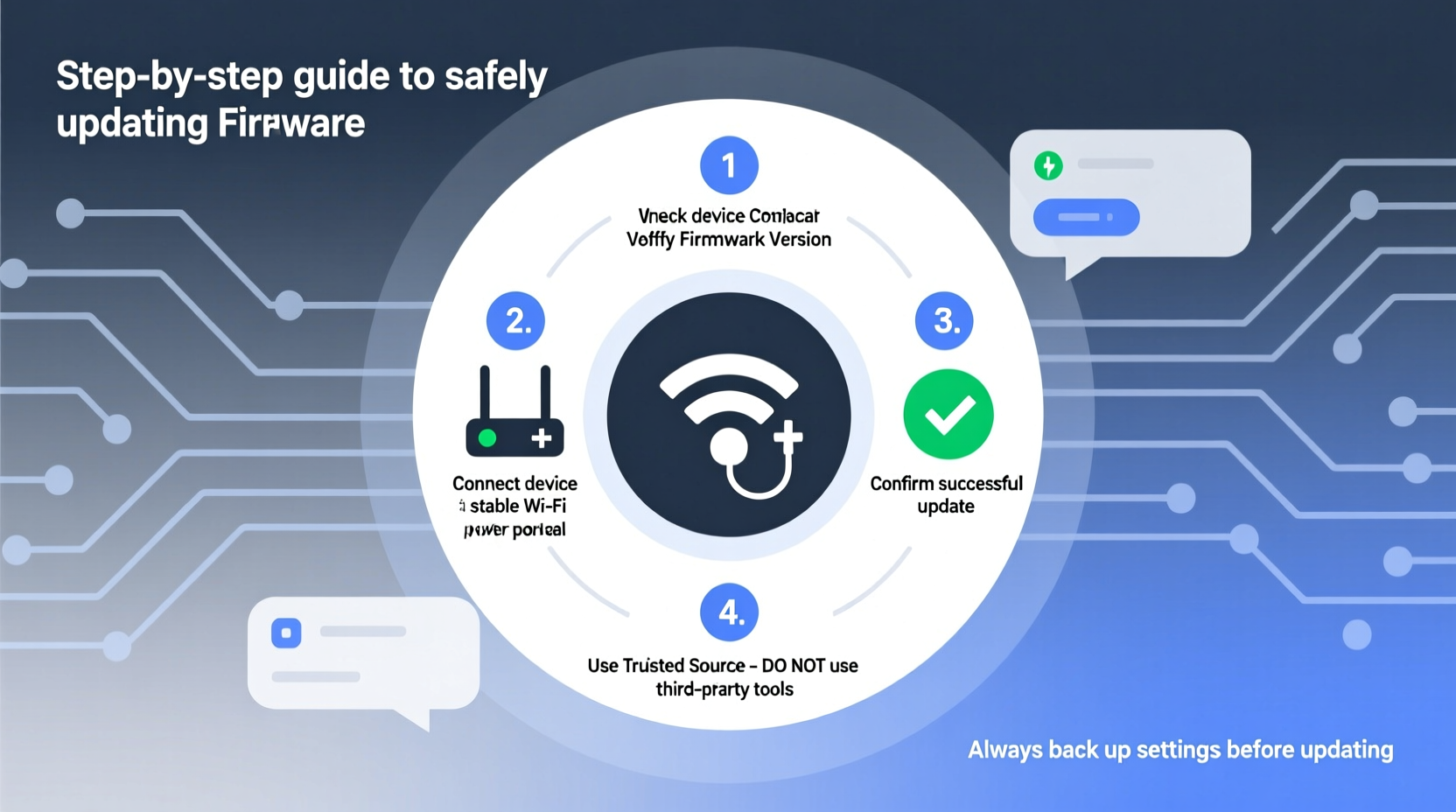
Firmware acts as the bridge between your smart device’s hardware and its user-facing features. Unlike mobile apps or web services, firmware isn’t updated automatically in many cases—especially with budget or older models. Yet neglecting these updates poses real risks:
- Security flaws: Unpatched firmware may contain known vulnerabilities exploitable by hackers.
- Performance issues: Bugs in outdated firmware can cause crashes, lag, or unresponsiveness.
- Limited compatibility: New platforms (like Apple Home or Google Home) may drop support for older firmware versions.
- Missed features: Manufacturers often roll out new capabilities through firmware—not hardware.
“Firmware is the foundation of any connected device. Ignoring updates is like leaving your front door unlocked in a high-crime neighborhood.” — Dr. Lena Torres, Cybersecurity Researcher at IoT Secure Labs
Regularly updating firmware ensures your devices operate securely and efficiently. But unlike app updates, which are typically seamless, firmware updates require careful handling. A failed update can render a device unusable—a situation known as “bricking.”
The Risks of Improper Firmware Updates
While the goal of an update is improvement, the process itself carries inherent risks if not managed correctly:
- Power interruption: Losing power during an update can corrupt the firmware image, making recovery difficult.
- Network instability: A dropped Wi-Fi connection mid-update may result in partial installation.
- Incompatible versions: Installing firmware meant for a different model or region can damage the device.
- Unverified sources: Downloading firmware from third-party sites increases the risk of malware injection.
These risks are particularly pronounced with headless devices—those without screens or direct interfaces—such as smart plugs, sensors, or door locks. Once bricked, they often require manufacturer-level intervention or replacement.
Real Example: The Case of the Bricked Smart Thermostat
A homeowner in Portland installed a scheduled firmware update on their smart thermostat via the companion app. The update began overnight, coinciding with a brief power fluctuation caused by a nearby transformer issue. The device rebooted mid-process and failed to restart. Despite resetting the circuit breaker and attempting factory resets, the thermostat remained unresponsive. After contacting customer support, it was confirmed that the firmware had partially written and corrupted the boot partition. A replacement unit was required, resulting in two weeks without climate automation and additional costs.
This scenario underscores the importance of timing, environmental conditions, and backup planning when performing firmware updates.
Step-by-Step Guide to Safely Update Firmware
Safety begins with preparation. Follow this sequence to minimize risk and ensure a smooth update process across all your smart home devices.
- Inventory Your Devices: List all smart devices in your home, including brand, model number, current firmware version, and update method (app-based, web portal, manual upload).
- Check Manufacturer Support Pages: Visit each manufacturer’s official website to confirm whether newer firmware versions are available and read the release notes carefully.
- Review Release Notes: Look for mentions of bug fixes, security patches, new features, or known issues. Avoid updates labeled “beta” unless you're prepared for potential instability.
- Ensure Stable Power: Plug devices into surge protectors or battery backups. For non-plug devices (e.g., doorbells), ensure batteries are fully charged or hardwired connections are stable.
- Stabilize Network Connection: Use a 5 GHz Wi-Fi band for faster, more reliable transfers. If possible, temporarily disable bandwidth-heavy activities (streaming, downloads) during the update.
- Back Up Device Settings: Some devices allow configuration export. Save settings locally in case a reset becomes necessary post-update.
- Update One Device at a Time: Never batch-update multiple devices simultaneously. Isolate issues quickly and reduce strain on your network.
- Monitor the Process: Stay near the device during the update. Do not close the app or navigate away until confirmation of completion.
- Verify Functionality Post-Update: Test core features—connectivity, responsiveness, automation triggers—to ensure nothing broke.
- Document Changes: Record the new firmware version and date applied. This helps track patterns if future issues arise.
Best Practices Checklist
To streamline your firmware maintenance routine, use the following checklist every time you prepare for an update:
- ✅ Confirmed device model and compatible firmware version
- ✅ Read and understood the update’s release notes
- ✅ Connected to stable Wi-Fi or wired network
- ✅ Device powered continuously (no battery below 50%)
- ✅ Other network-intensive tasks paused
- ✅ Backup of current settings completed (if supported)
- ✅ No planned power outages or storms expected
- ✅ Dedicated time window set aside (15–30 minutes minimum)
- ✅ Companion app updated to latest version
- ✅ Emergency reset instructions on hand
Do’s and Don’ts of Firmware Updating
| Do’s | Don’ts |
|---|---|
| Always download firmware from official sources | Never install firmware from third-party forums or file-sharing sites |
| Double-check model compatibility before installing | Don’t assume firmware is universal across product lines |
| Keep a log of update dates and versions | Avoid skipping multiple versions; some updates require sequential application |
| Use a UPS or battery backup during updates | Never unplug a device mid-update, even if it appears frozen |
| Test automations and integrations afterward | Don’t ignore post-update glitches—address them immediately |
Handling Manual Firmware Updates
Some devices—particularly IP cameras, NAS drives, or advanced hubs—require manual firmware updates via file upload. These processes demand extra caution:
- Download only from the manufacturer’s official support section using HTTPS.
- Verify checksums (MD5, SHA-256) if provided to confirm file integrity.
- Name and store downloaded files clearly (e.g., “Ring_Floodlight_Cam_v3.42.bin”).
- Access the device’s admin interface through a wired connection if possible.
- Upload the file directly; do not extract or modify it.
- Wait patiently—manual updates can take 5–15 minutes with no visible progress.
If the device reboots multiple times after the update, this is usually normal. However, if it fails to reconnect within 30 minutes, consult the manufacturer’s recovery guide—some offer boot mode procedures using button combinations.
FAQ: Common Firmware Questions Answered
How often should I check for firmware updates?
Check every 4–6 weeks for most devices. High-security devices like cameras, door locks, and routers should be reviewed monthly. Enable notifications in your device apps if available.
Can firmware updates make my device slower?
Rarely, but possible. Larger firmware may strain underpowered processors. However, performance drops are usually temporary and resolved in subsequent patches. Always weigh minor slowdowns against critical security improvements.
What if my device doesn’t support automatic updates?
You’ll need to manage updates manually. Create a calendar reminder to review firmware status quarterly. Consider upgrading to models with auto-update support for mission-critical devices like entry-point sensors or alarms.
Conclusion: Make Firmware Maintenance a Habit
Your smart home is only as strong as its weakest link—and outdated firmware is often that link. By treating firmware updates with the seriousness they deserve, you protect your privacy, enhance reliability, and extend the lifespan of your investments. Safety doesn’t come from avoiding updates, but from executing them thoughtfully and consistently.
Start today: audit one device in your home. Check its firmware version, compare it to the manufacturer’s latest release, and apply the update using the steps outlined here. Turn this into a recurring habit—your future self will thank you when your home stays secure, responsive, and seamlessly integrated.




 浙公网安备
33010002000092号
浙公网安备
33010002000092号 浙B2-20120091-4
Comments
No comments yet. Why don't you start the discussion?