
Router firmware updates are essential for security, performance, and stability. They often include patches for vulnerabilities, improved Wi-Fi range, better device handling, and enhanced features. However, many users avoid updating because of a justified fear: one wrong move can leave them without internet access, sometimes for hours or even days. The good news is that with the right preparation and process, you can update your router’s firmware confidently—without risking connectivity.
This guide walks through a proven method to perform firmware updates safely, including pre-update checks, backup strategies, step-by-step execution, and recovery options if something goes wrong. Whether you're managing a home network or supporting a small office, these practices will help you maintain uptime while keeping your network secure and efficient.
Why Firmware Updates Matter
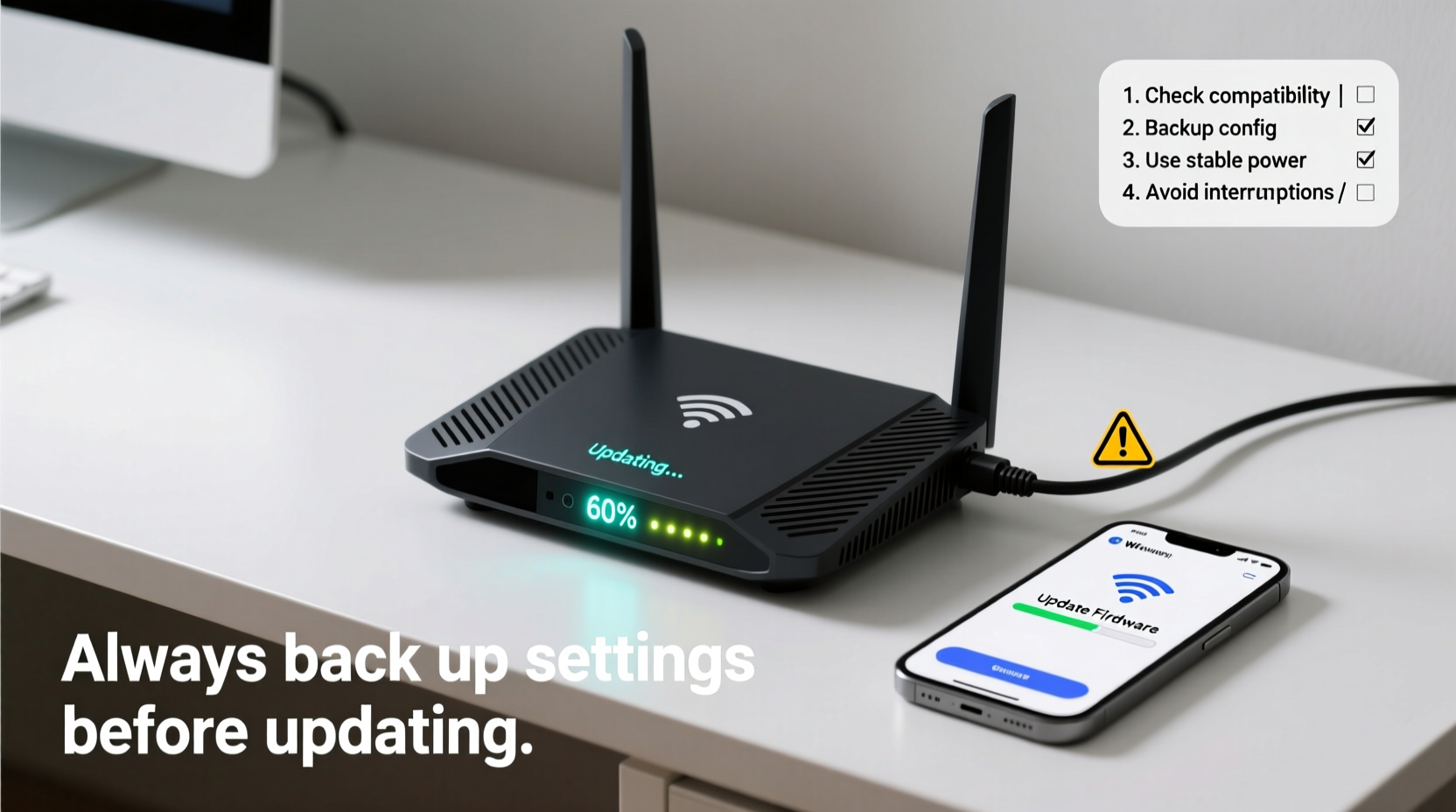
Firmware is the embedded software that controls your router’s hardware. Unlike apps or operating systems, it doesn’t get updated automatically on most consumer routers. Manufacturers release updates periodically to address bugs, improve compatibility with new devices, and close security holes exploited by hackers.
A 2023 report from the U.S. Cybersecurity and Infrastructure Security Agency (CISA) identified outdated router firmware as one of the top entry points for home network breaches. Routers running old firmware are vulnerable to DNS hijacking, remote code execution, and botnet recruitment—all of which can compromise personal data and slow down your internet.
“Keeping firmware current is not optional—it's foundational to network hygiene.” — Dr. Lena Patel, Network Security Researcher at MITRE Corporation
Despite these risks, nearly 60% of home users never manually update their router firmware, according to a survey by Consumer Reports. Fear of bricking the device or losing internet access tops the list of reasons. But avoiding updates creates far greater risk than performing them correctly.
Preparation: The Key to a Safe Update
The safest firmware updates begin long before you click “Install.” Proper preparation reduces the chance of failure and ensures quick recovery if issues arise. Follow this checklist to prepare your network environment:
Firmware Update Preparation Checklist
- Identify your router’s exact model number (usually on the bottom label)
- Visit the manufacturer’s official support site to confirm available updates
- Download the correct firmware file to your computer (not just the browser tab)
- Ensure your computer is plugged into the router via Ethernet
- Disable any power-saving settings on your laptop (e.g., sleep mode)
- Reboot the router 15 minutes before starting to clear temporary glitches
- Note down current network settings: SSID, password, IP reservation rules
- Have a secondary internet source ready (mobile hotspot, neighbor’s network)
One common mistake is assuming the router’s admin interface will always show the latest firmware. Some ISPs customize firmware and block public updates. Always cross-check with the manufacturer’s website using your model number and hardware version.
Step-by-Step: Updating Firmware Without Downtime
With preparation complete, follow this timeline-based procedure to execute the update safely. This method minimizes risk and allows for immediate troubleshooting.
- Time the update during low-usage hours – Avoid peak streaming or work times. Early evening or weekends are ideal.
- Log in to your router’s admin panel – Usually accessible via
192.168.1.1or192.168.0.1. Use your admin credentials. - Navigate to the firmware update section – Often under “Administration,” “Advanced,” or “System Tools.”
- Verify current firmware version – Compare it with the downloaded file to ensure you’re upgrading, not downgrading.
- Upload the firmware file – Use the “Browse” or “Choose File” button to select the .bin or .img file you downloaded.
- Begin the update – Click “Apply,” “Upgrade,” or “Update.” Do not navigate away or refresh the page.
- Wait silently – The router will reboot automatically. This can take 3–7 minutes. Lights may blink erratically—this is normal.
- Confirm success – Once the router stabilizes, reconnect and log back in. Check the firmware version under system status.
What Happens If the Router Doesn’t Come Back?
If the router fails to reboot or remains unresponsive, don’t panic. Most modern routers support recovery modes. For example:
- TP-Link: Hold the reset button for 7 seconds during boot to enter TFTP recovery mode.
- Netgear: Use Netgear’s Genie app or a TFTP client to reflash the firmware.
- ASUS: Enable firmware restoration by pressing and holding the WPS button during startup.
Always refer to your model’s manual for specific recovery instructions. Having a second device connected to the same network can help you access documentation even if Wi-Fi is down.
Do’s and Don’ts of Firmware Management
| Do’s | Don’ts |
|---|---|
| Always download firmware from the official manufacturer site | Never install firmware meant for a different model or region |
| Keep a written record of firmware versions and update dates | Don’t assume automatic updates are enabled (most aren’t) |
| Use a UPS or battery backup to prevent power loss during update | Don’t update during thunderstorms or unstable power conditions |
| Test critical services (video calls, smart devices) post-update | Don’t ignore post-update configuration resets |
| Clear your browser cache after logging into the admin panel | Don’t reuse outdated bookmarks to the router interface |
One overlooked issue is regional firmware variants. A router sold in Europe may have different wireless channel regulations than its U.S. counterpart. Installing the wrong variant can disable Wi-Fi or violate local laws. Always match the firmware to your geographic region.
Real-World Example: Recovering from a Failed Update
Mark, a freelance graphic designer in Portland, attempted a firmware update on his aging Linksys EA7500. He skipped the preparation steps, used Wi-Fi to upload the file, and left his laptop on battery power. Midway through the update, his laptop went to sleep. The process failed, and the router wouldn’t boot—no lights, no signal.
For two days, Mark worked from coffee shops while trying to diagnose the issue. Eventually, he found the recovery guide on Linksys’ support site. Using a friend’s PC and a Cat6 cable, he entered TFTP recovery mode and reflashed the firmware. It took three attempts, but the router came back online.
Since then, Mark keeps a printed copy of his router’s recovery procedure taped inside his desk drawer. He also invested in a small UPS to protect against power fluctuations. “I lost less than I feared,” he said, “but the stress wasn’t worth skipping five minutes of prep.”
“Downtime isn’t measured in minutes offline—it’s measured in lost productivity and peace of mind.” — Carlos Mendez, IT Consultant and Small Business Advisor
Frequently Asked Questions
How often should I update my router’s firmware?
There’s no fixed schedule. Check every 3–6 months, or immediately if a security advisory is issued. High-risk vulnerabilities, like those involving remote access, should be patched within days of availability.
Can updating firmware improve my internet speed?
Not directly—but it can improve stability, reduce latency, and optimize traffic handling. Some updates enhance beamforming, MU-MIMO efficiency, or QoS algorithms, which may result in perceived speed gains, especially on congested networks.
What if my router model is no longer supported?
If the manufacturer has discontinued firmware updates, consider replacing the device. Unsupported routers become increasingly vulnerable over time. Look for models with automatic updates or open-source firmware support (like DD-WRT or OpenWrt).
Final Steps: Building a Sustainable Update Habit
Safely updating firmware isn’t a one-time task—it’s part of ongoing network maintenance. Just as you update your phone or laptop, your router deserves the same attention. The key is integrating updates into a routine that prioritizes safety and continuity.
Create a digital note or calendar reminder to review firmware every quarter. Bookmark your router manufacturer’s support page. Keep a USB drive with recovery tools and documentation. Treat your router like any other critical device: maintain it proactively, not reactively.




 浙公网安备
33010002000092号
浙公网安备
33010002000092号 浙B2-20120091-4
Comments
No comments yet. Why don't you start the discussion?