
Selling your old Android phone can be a smart way to recoup some of the cost of your next device. But before you list it on eBay, Craigslist, or any secondhand marketplace, one critical step must not be overlooked: completely and securely erasing all personal data. A factory reset may seem sufficient, but without proper precautions, sensitive information like passwords, messages, photos, and banking details could still be recoverable by tech-savvy buyers or malicious actors.
Data privacy is no longer optional—it’s essential. When done correctly, wiping your Android device ensures that your digital footprint doesn’t follow you into someone else’s hands. This guide walks through every phase of the process, from backing up your data to verifying that your phone is truly clean, so you can sell with confidence.
Why a Simple Factory Reset Isn’t Always Enough
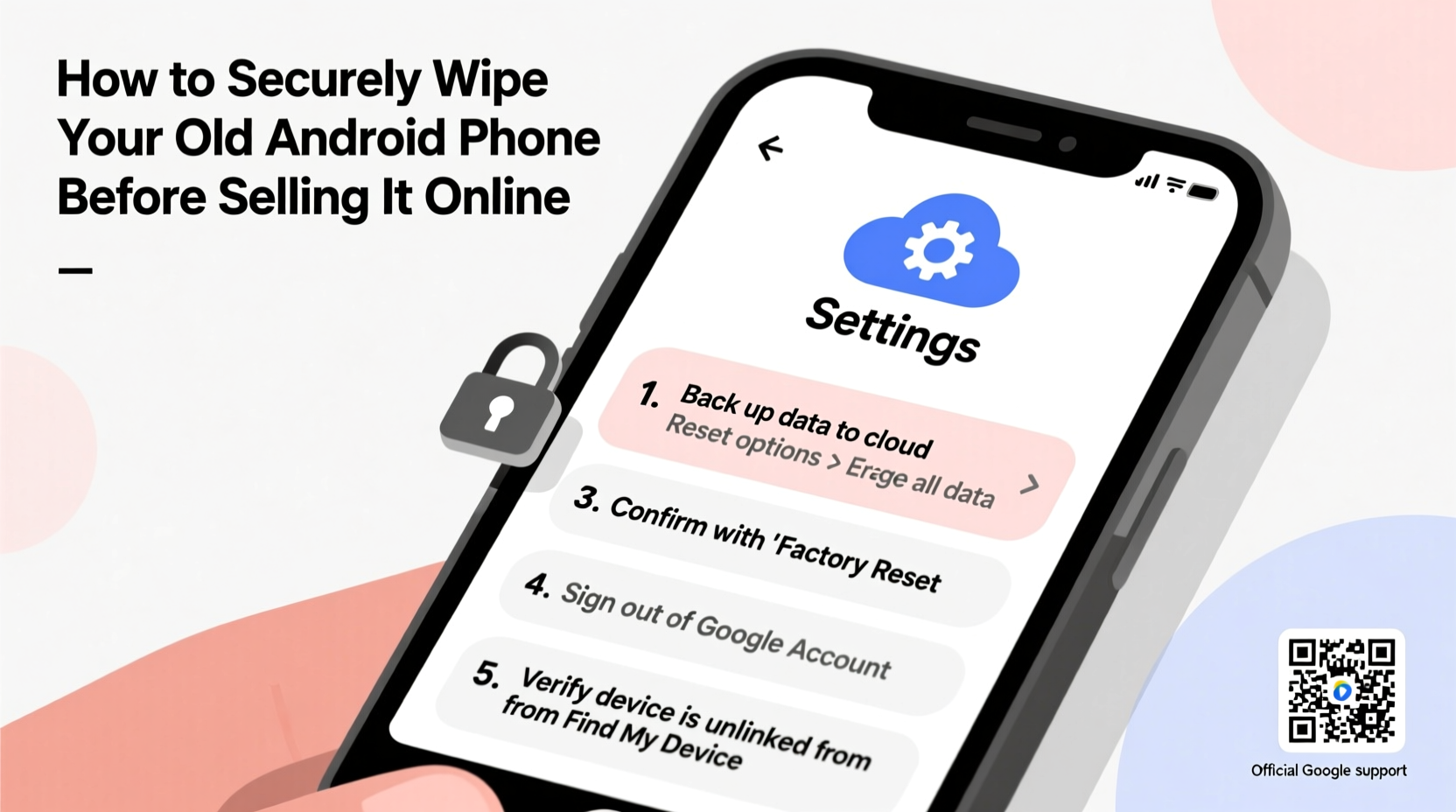
Many users assume that selecting “Erase all data (factory reset)” in the Settings menu completely removes their information. While this action deletes most user-accessible files and resets the system to its original state, it doesn’t always overwrite the underlying data at the storage level. Instead, the operating system merely marks the space as available for new data, leaving traces that can be recovered using specialized software.
This is especially true for older Android devices using traditional eMMC storage, where data remanence—a lingering presence of deleted information—poses a real risk. Even on newer phones with UFS storage and encryption, skipping additional security steps could leave vulnerabilities.
“Just because you can’t see your data after a reset doesn’t mean it’s gone. Forensic tools can recover significant amounts of information from improperly wiped devices.” — Dr. Lena Patel, Mobile Security Researcher at SecureTech Labs
The rise in mobile resale has also attracted opportunists who purchase used phones specifically to harvest leftover data. In one documented case, a researcher bought 50 secondhand Android phones from various online sellers. Of those, nearly 60% still contained recoverable personal data, including login credentials and private photos—even though most had undergone a factory reset.
Step-by-Step Guide to Securely Wipe Your Android Phone
To ensure your data is irretrievable, follow this comprehensive sequence. Each step builds upon the last, minimizing risk and maximizing protection.
- Back Up Your Data: Before doing anything, preserve what matters. Use Google One Backup, Samsung Cloud, or a third-party app to save contacts, messages, photos, and app data. Connect to Wi-Fi and allow time for full synchronization.
- Remove SIM and SD Cards: These components are not erased during a factory reset. Physically eject them and keep or dispose of them separately. If you're reusing the microSD card, format it from a computer afterward.
- Sign Out of All Accounts: Go to Settings > Accounts and remove your Google account, Samsung account, and any other linked services. This prevents activation lock issues and stops syncing post-wipe.
- Encrypt Your Device (If Not Already Done): Most modern Android phones encrypt data by default when a screen lock is enabled. To confirm, go to Settings > Security > Encryption. If your phone isn’t encrypted, enable a PIN, pattern, or password first, then start the encryption process. Note: This can take over an hour.
- Perform a Factory Reset via Settings: Navigate to Settings > System > Reset options > Erase all data (factory reset). Confirm the action. Wait for the phone to reboot into setup mode.
- Write Dummy Data (Optional but Recommended): After the reset, set up the phone again temporarily. Download large files, take photos, install apps, then perform a second factory reset. This overwrites residual data and increases security significantly.
- Verify the Wipe Was Successful: Turn on the phone. It should boot directly into the initial setup wizard with no accounts preloaded. If any personal data appears, the wipe failed or was incomplete.
Best Practices for Maximum Data Protection
Beyond the basic reset, adopting these habits strengthens your defense against data leakage.
- Use Strong Screen Locks: Devices locked with a strong PIN, password, or biometrics are automatically encrypted on Android 6.0+. Without encryption, wiping offers minimal protection.
- Disable Find My Device Features: Services like Google’s Find My Device or Samsung’s Find My Mobile can block activation after sale if not disabled. Disable these before resetting.
- Avoid Third-Party “Wipe” Apps: Most offer no advantage over built-in tools and may introduce malware. Stick to official methods unless you're working with enterprise-grade hardware.
- Check for Carrier or Corporate Policies: Some carrier-locked phones require deactivation or special procedures. Similarly, work devices managed by MDM (Mobile Device Management) need administrative clearance before wiping.
Do’s and Don’ts When Preparing to Sell Your Android Phone
| Do’s | Don’ts |
|---|---|
| ✅ Back up everything important to cloud or external storage | ❌ Skip removing your Google account |
| ✅ Enable encryption before wiping (if not already active) | ❌ Leave the SIM or SD card inside |
| ✅ Perform a second reset after filling with dummy data | ❌ Assume a single reset is enough for sensitive data |
| ✅ Verify the phone boots into fresh setup mode | ❌ Share the device without confirming wipe success |
| ✅ Disable biometric unlocks before reset | ❌ Use unknown recovery tools downloaded from forums |
Real Example: What Happened When One Seller Skipped the Steps
Mark, a freelance designer from Portland, decided to upgrade his three-year-old Pixel 4a. He backed up his photos but skipped signing out of his Google account, assuming the factory reset would handle everything. He sold the phone through a local Facebook group for $120.
A week later, he received an email from Google about a new sign-in from Ukraine—originating from his old phone. The buyer had accessed his Gmail, Drive files, and even viewed recent tax documents stored in the cloud. Mark hadn’t disabled Find My Device either, so the new user couldn’t fully activate the phone—but they still extracted cached data and screenshots containing partial credit card numbers.
It took Mark two weeks to regain control, change passwords, and monitor for identity theft. His mistake? Treating the factory reset as a standalone solution without disabling accounts or verifying the outcome.
His experience underscores a common misconception: convenience should never override caution when personal data is involved.
Expert-Recommended Checklist for a Secure Wipe
Follow this checklist to ensure no step is missed. Print it or keep it open on another device while preparing your phone.
- ☐ Back up photos, videos, messages, and contacts to Google or external storage
- ☐ Sign out of Google, Samsung, Apple (if using cross-platform apps), and social media accounts
- ☐ Disable Find My Device and any remote tracking features
- ☐ Remove SIM card and microSD card
- ☐ Confirm device is encrypted (Settings > Security)
- ☐ Set a strong screen lock (PIN/password) if not already set
- ☐ Perform factory reset via Settings > System > Reset options
- ☐ Optional: Reboot, add dummy data, then reset a second time
- ☐ Power on and verify the device shows only the initial setup screen
- ☐ Package the phone for sale—never include chargers with personal engravings or notes
Frequently Asked Questions
Can someone recover my data after a factory reset?
Yes, under certain conditions. If the phone wasn’t encrypted or the reset didn’t overwrite storage sectors, forensic tools can reconstruct deleted files. Encryption combined with a clean reset dramatically reduces this risk. Adding dummy data before a second reset makes recovery nearly impossible.
Do I need to wipe my phone if it’s just being recycled?
Absolutely. Recycling centers don’t guarantee data destruction. Even if the device is crushed, intact storage chips could be harvested. Always wipe before handing over your phone, regardless of end destination.
What if my phone won’t turn on? Can I still wipe it?
If the device is unresponsive, wiping becomes difficult. If USB debugging was previously enabled, you might use ADB commands via a computer. Otherwise, physical destruction of the storage chip is the only sure method—though impractical for resale. For non-functional phones, consider secure trade-in programs offered by manufacturers like Samsung or Google, which include certified data destruction.
Final Thoughts: Protect Yourself Before You Profit
Selling your old Android phone shouldn’t come at the cost of your privacy. The few extra minutes spent ensuring a thorough wipe can prevent months of damage control from data breaches. Modern smartphones are vaults of personal history—from text conversations and location logs to financial apps and health records. Treat their disposal with the same seriousness as shredding sensitive documents.
Technology evolves quickly, but human error remains the weakest link in security. By following verified procedures, leveraging built-in encryption, and double-checking results, you maintain control over your digital life—even after letting go of the device.




 浙公网安备
33010002000092号
浙公网安备
33010002000092号 浙B2-20120091-4
Comments
No comments yet. Why don't you start the discussion?