
Many iPhone users rely on reminders for daily tasks like taking medication, paying bills, or watering plants. But too often, those reminders either get missed, dismissed without action, or fail to repeat reliably. The issue isn’t the device—it’s how the feature is used. When configured correctly, the Reminders app can become a silent partner in your productivity, ensuring nothing slips through the cracks. This guide reveals how to set up truly effective recurring reminders on your iPhone by combining built-in tools, smart habits, and real-world usability.
Why Most Recurring Reminders Fail
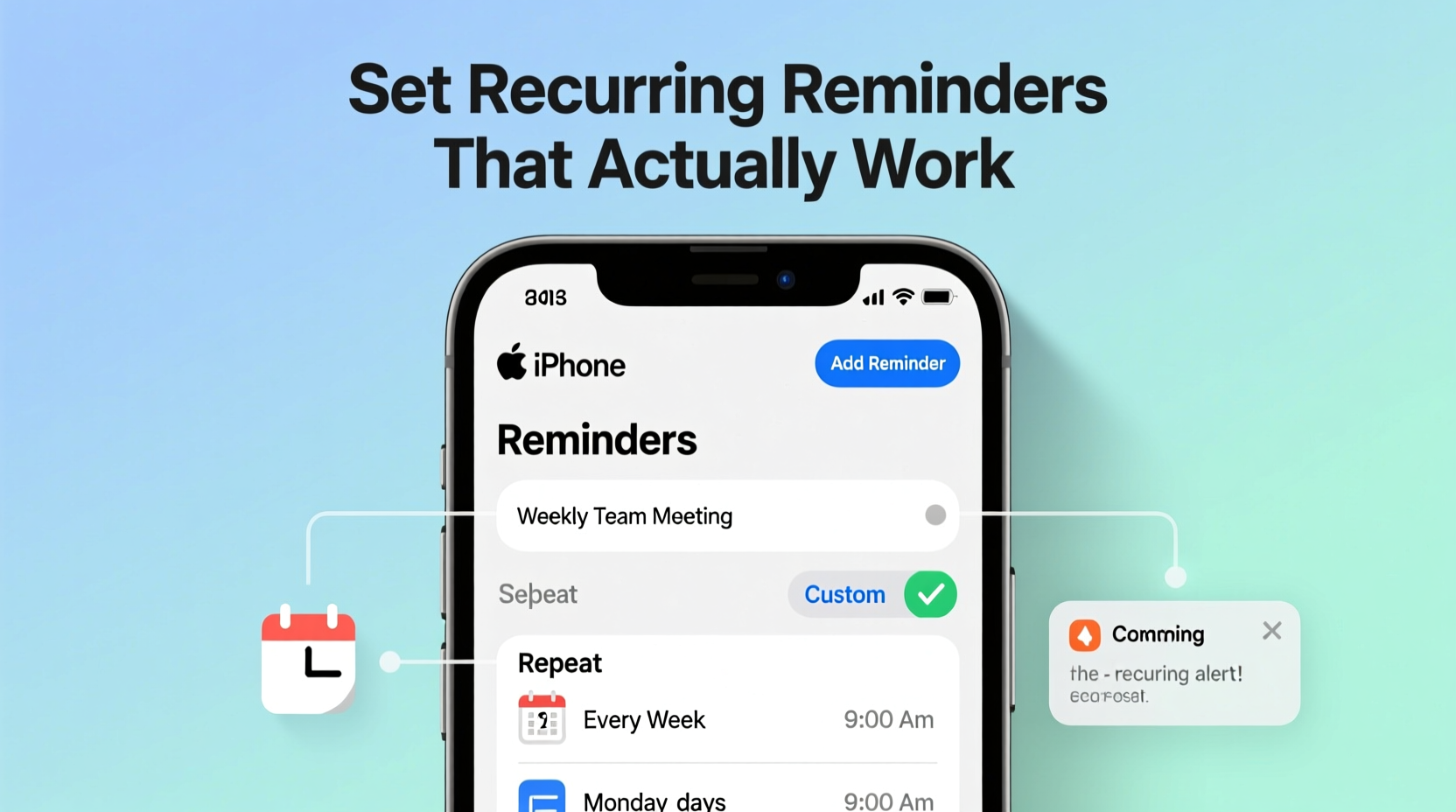
The default behavior of many reminder systems—especially when rushed during setup—is to create one-time alerts or poorly structured repeats. Users assume “recurring” means “automatic and persistent,” but if the recurrence pattern is misconfigured or notifications are buried under other alerts, the system breaks down. Common pitfalls include:
- Setting a reminder for the wrong time zone or date
- Choosing a recurrence interval that doesn’t match the task (e.g., weekly instead of biweekly)
- Not enabling sound or haptic feedback
- Allowing reminders to auto-dismiss without confirmation
- Failing to sync across devices, leading to gaps
For a recurring reminder to \"actually work,\" it must be impossible to ignore, logically timed, and resilient to interruptions like phone restarts or low battery.
Step-by-Step: Setting Up Reliable Recurring Reminders
The key to success lies in precision. Follow this sequence carefully to ensure each reminder functions as intended.
- Open the Reminders app — Tap the green icon with the white bulleted list.
- Create a new list or select an existing one — For better organization, create dedicated lists such as “Medication,” “Bills,” or “Home Maintenance.”
- Add a new reminder — Tap the \"+\" button and type your task (e.g., “Take vitamins”).
- Enable the reminder details — Tap the “i” icon next to the reminder or swipe left and tap “Details.”
- Set date and time — Choose the first occurrence. Be specific: avoid vague entries like “today” — use exact times (e.g., 8:00 PM).
- Turn on Repeat — Scroll down and tap “Repeat.” Select your frequency: daily, every weekday, weekly, monthly, or custom.
- Customize advanced repeat options (if needed) — If you need a reminder every other Thursday, choose “Monthly” then adjust the pattern under “Custom” in iOS 17+.
- Enable alerts — Make sure “Remind me on a day” and “Remind me at a time” are both toggled on. Set a sound and enable haptics in Settings > Sounds & Haptics.
- Pin critical reminders — In shared or busy lists, pin important items so they stay visible at the top.
- Sync via iCloud — Go to Settings > [Your Name] > iCloud > Reminders and toggle it on to ensure continuity across iPhone, iPad, and Mac.
Once saved, the reminder will now reappear automatically based on your schedule. Missed? It stays active until marked complete.
Using Siri for Faster Setup
You can also say: “Hey Siri, remind me to call Mom every Sunday at 10 a.m.” Siri will create the entry with correct date, time, and repeat settings—often faster than manual input. However, always double-check the recurrence rule afterward, especially for less common intervals.
Optimizing Reminder Behavior for Real-World Use
A technically correct reminder isn’t enough. To make it *effective*, consider human behavior. People dismiss alerts out of habit, especially if they’re routine. Here’s how to design reminders that demand attention.
Use Descriptive Titles and Notes
Instead of “Water plants,” write “Water indoor herbs on kitchen windowsill.” Specificity increases engagement. Add context in the note field: “Use spray bottle, check soil moisture.”
Leverage Location-Based Triggers
In addition to time-based repeats, attach location triggers. For example:
- “Pick up dry cleaning” — Remind when leaving work.
- “Give dog medicine” — Trigger when arriving home.
To add a location trigger:
- Edit the reminder.
- Tap “Remind me at a location.”
- Search for or select a place (e.g., Home, Work).
- Choose whether to trigger when arriving or leaving.
This adds behavioral cues, making the reminder context-aware rather than just time-dependent.
Stack Notifications with Follow-Ups
For high-priority tasks, create two linked reminders:
- Main task: “Submit monthly report” — due on the last Friday at 3 PM.
- Follow-up: “Confirm submission received” — set for 5 PM the same day, repeating on the same cycle.
This ensures accountability even after the initial action is taken.
Do’s and Don’ts of Recurring Reminders
| Do | Don't |
|---|---|
| Use clear, action-oriented language (\"Call dentist\") | Use vague phrases (\"Dentist stuff\") |
| Test recurrence immediately after setup | Assume it works without verification |
| Group related tasks into themed lists | Mix personal and professional items in one cluttered list |
| Enable sound and haptic feedback for critical alerts | Rely solely on visual banners |
| Schedule reminders slightly before deadlines to allow buffer time | Set them at the deadline hour, risking delay |
| Review and archive old completed items monthly | Let completed tasks pile up, causing confusion |
Real Example: Maria’s Medication System
Maria, a 68-year-old retiree managing three daily prescriptions, struggled with consistency. She’d forget her afternoon dose or take duplicates after doubting she’d already taken them. Her daughter helped her set up a reminder system using the iPhone’s native app.
Each medication got its own reminder with:
- Exact name and dosage in title (“Take 1 Metformin tablet”)
- Time-based alerts at 8 AM, 1 PM, and 8 PM
- Daily repeat with custom days where needed (one med skipped Sundays)
- Haptic + loud alarm (chosen from accessible sounds)
- A follow-up note: “Check off only after swallowing”
She also enabled Screen Time notifications to review missed alerts weekly. Within two weeks, her adherence improved from 60% to over 95%. The system worked not because it was complex—but because it was precise, audible, and unignorable.
“The best reminder system aligns with human memory gaps. It doesn’t just repeat—it reinforces.” — Dr. Alan Torres, Behavioral Neurologist, Stanford Health
Advanced Tips for Power Users
For those who depend heavily on reminders, go beyond basics with these strategies.
Create Custom Calendars via Shortcuts
iOS Shortcuts can automate complex recurrence patterns not available in the standard app. For instance, a reminder every third Monday of the month (common for meetings) requires automation.
Steps:
- Open the Shortcuts app.
- Create a new automation > “Time of Day” > Set day and time.
- Add action: “Add to List” under Reminders.
- Set conditions (e.g., only on certain months).
- Enable “Run in Background” and “Notify When Run.”
This method supports biannual, quarterly, or seasonal cycles effortlessly.
Integrate with Calendar Events
For visually oriented planners, duplicate key recurring reminders as calendar events. While Reminders live in a list, Calendar shows them in timeline view—helpful for spotting conflicts.
Manually create an event titled the same as the reminder, set recurrence, and add an alert. Or use a Shortcut to sync both automatically.
Use Third-Party Apps for Specialized Needs
While Apple’s Reminders is robust, some users benefit from alternatives:
- Due — Excellent for relentless follow-ups; won’t let you ignore overdue items.
- Things 4 — Premium app with elegant UI and powerful repeat logic.
- Microsoft To Do — Syncs with Outlook and supports intelligent suggestions.
These integrate with iCloud or Apple ID and can coexist with native reminders.
FAQ: Common Questions About Recurring Reminders
Can I set a reminder to repeat every two weeks?
Yes. When editing a reminder, tap “Repeat,” then choose “Every 2 weeks” from the menu. You can also specify the day (e.g., every other Tuesday). Available in iOS 13 and later.
What happens if my iPhone is off when a reminder is due?
When the device powers back on, pending reminders will appear immediately if the alert time has passed. However, location-based reminders may require movement to trigger. For mission-critical alerts, keep your phone charged and connected.
Why didn’t my reminder repeat?
Common causes include: accidental deletion, incorrect recurrence setting, disabled notifications, or iCloud sync issues. Check Settings > Notifications > Reminders to ensure alerts are allowed. Also verify that Reminders is enabled in iCloud settings.
Checklist: Building a Bulletproof Reminder System
Follow this checklist to ensure every recurring reminder you create delivers results:
- ✅ Use descriptive, actionable titles
- ✅ Set exact date and time (not just “today”)
- ✅ Enable both time and optional location triggers
- ✅ Choose correct repeat frequency (daily, weekly, custom)
- ✅ Confirm sound and haptic feedback are on
- ✅ Test the first cycle manually
- ✅ Sync across devices via iCloud
- ✅ Review and clean up lists monthly
- ✅ Use follow-up reminders for accountability
- ✅ Consider automation for complex schedules
Conclusion: Turn Intent Into Action
Recurring reminders on iPhone have the potential to transform disorganized routines into seamless habits—but only if set up with intention. It’s not about using more technology; it’s about using it wisely. By combining accurate scheduling, sensory alerts, behavioral design, and regular maintenance, you create a system that doesn’t just notify you, but ensures follow-through.
Start today: pick one recurring task you’ve been neglecting, apply the steps above, and watch reliability improve within days. Small tweaks lead to lasting control. Your future self will wonder why you didn’t do it sooner.




 浙公网安备
33010002000092号
浙公网安备
33010002000092号 浙B2-20120091-4
Comments
No comments yet. Why don't you start the discussion?