
A dual monitor setup can dramatically improve productivity, whether you're coding, editing video, managing spreadsheets, or juggling multiple communication platforms. However, the benefits can quickly diminish if your desk becomes a jungle of tangled cables, mismatched stands, and obstructive hardware. A clean, organized workspace isn’t just aesthetically pleasing—it reduces mental fatigue, improves focus, and makes daily workflows smoother. The challenge lies in balancing functionality with minimalism. Fortunately, with thoughtful planning and the right tools, it’s entirely possible to create a high-performance dual monitor workstation that looks as streamlined as it performs.
Choose the Right Monitor Mounting Solution
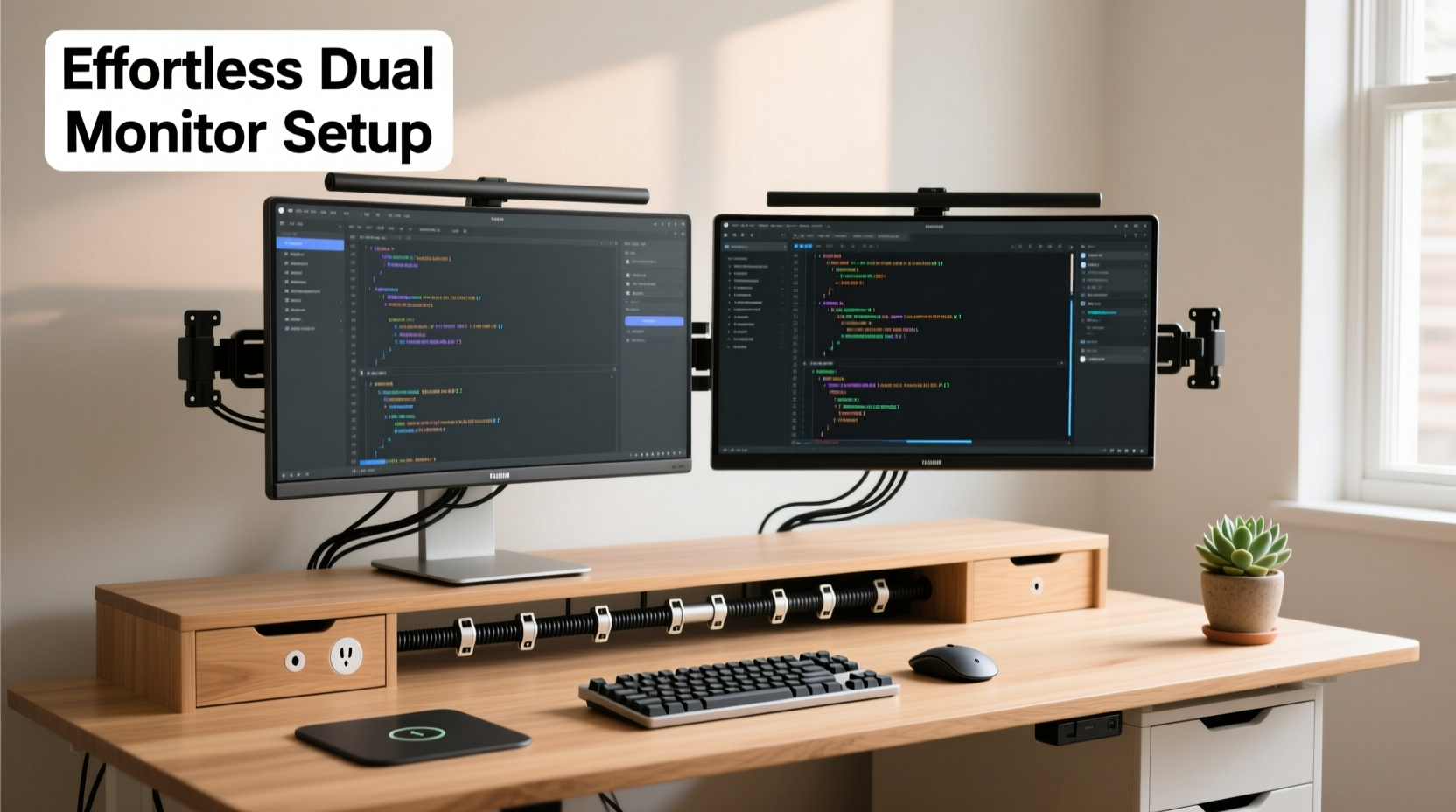
The foundation of a clutter-free dual monitor setup starts with how you position your screens. Traditional monitor bases take up valuable desk real estate and often leave cords dangling beneath. Instead, consider alternative mounting options that free up surface area and streamline cable routing.
Wall mounts are ideal for permanent installations, especially in small offices or minimalist setups. They completely remove monitors from the desk surface, allowing you to reclaim space for notebooks, keyboards, or coffee cups. However, they offer limited adjustability and may not suit dynamic work environments where screen angles need frequent changes.
A more flexible solution is the use of monitor arms. Dual-monitor arms attach to the back edge of your desk via a clamp or grommet mount and extend forward to hold both displays. High-quality arms provide full articulation—tilt, swivel, height adjustment, and rotation into portrait mode—so you can customize ergonomics precisely. Many models also feature built-in cable channels, which guide power and data cables through the arm itself, hiding them from view.
VESA-compatible monitors are required for most arms and wall mounts. Check your monitor’s specifications; nearly all modern business and professional-grade displays support VESA standards (typically 75x75mm or 100x100mm). If your monitor doesn’t come with VESA screws, they’re inexpensive and widely available online.
Master Cable Management
Cables are the biggest contributor to desk clutter. A typical dual monitor setup involves at least four video cables (HDMI, DisplayPort), two power cords, USB uplinks, audio lines, and potentially KVM switch connections. Without organization, these quickly become an unmanageable mess.
Start by auditing your connections. Are both monitors using optimal inputs? Can you consolidate peripherals using a docking station or hub? Reducing the number of active cables at the source is the first step toward a cleaner desk.
Next, group and route cables efficiently. Use adhesive-backed velcro straps or braided sleeves to bundle similar cables together. Avoid zip ties—they’re too rigid and difficult to adjust later. Label each cable near both ends using small tags or colored tape so troubleshooting is easier down the line.
For behind-the-desk management, install a cable tray or raceway along the rear edge. These flat, low-profile channels capture all cords and guide them neatly to power strips or outlets. Some desks even come with pre-installed grommets and internal routing tubes—take advantage of them.
“Cable clutter increases cognitive load. A clean visual field supports better concentration and task efficiency.” — Dr. Lena Torres, Human Factors & Ergonomics Researcher
Dual Monitor Cable Checklist
- Confirm VESA compatibility on both monitors
- Use identical cable types and lengths for symmetry
- Route power and data cables through monitor arms when possible
- Install a surge-protected power strip with enough outlets
- Add a USB hub or docking station to reduce peripheral cables
- Label all cables at both ends
- Secure bundles every 6–8 inches with reusable fasteners
Optimize Desk Layout and Peripherals
Your desk layout should follow the principles of ergonomic efficiency and spatial harmony. The goal is to keep frequently used items within easy reach while minimizing visual noise.
Position the primary monitor directly in front of you, aligned with your natural line of sight. The secondary monitor should sit slightly to the side—at a 30-degree angle—so you can glance over without turning your head excessively. Both screens should have their top edges at or just below eye level when seated.
To preserve desk space, consider switching to compact peripherals. A tenkeyless (TKL) keyboard eliminates the numeric keypad, freeing up room for a larger mouse pad or document holder. Vertical mice and slim trackpads also occupy less footprint than traditional designs.
Mounting accessories like laptop stands or adjustable risers can elevate devices off the desk surface, creating usable storage space underneath. For example, placing a closed laptop beneath one monitor allows quick access without sacrificing desktop area.
| Component | Space-Saving Option | Avoid |
|---|---|---|
| Monitor Base | VESA arm or wall mount | Bulky OEM stands |
| Keyboard | Tenkeyless or split ergonomic model | Full-size with wrist rest attached |
| Cables | Bundled with velcro + routed through arms | Loose, unsecured wires |
| Power Supply | Slim power strip with cord winder | Multiple wall warts |
| Peripherals | Wireless combo (keyboard + mouse) | Wired-only devices with long cords |
Real-World Example: The Remote Developer’s Minimalist Desk
Jamal, a freelance software developer based in Portland, needed a reliable dual monitor setup for coding and virtual meetings—but his apartment office measured only 8x6 feet. His original configuration used bulky desktop monitors on stock stands, with a tangle of HDMI, USB, and power cables spilling over the desk edge.
He transformed his workspace by investing in a single dual-arm VESA mount, positioning both 24-inch IPS panels at equal height and slight inward tilt. He replaced his full-size keyboard with a wireless TKL model and paired it with a rechargeable vertical mouse. All cables were fed through the arms and secured with fabric wraps before entering a metal cable raceway mounted under the desk.
The result? Over 40% more usable desk surface, reduced eye strain from improved screen alignment, and a visually calm environment that made long coding sessions more sustainable. “I didn’t realize how much mental energy I was spending on visual chaos,” Jamal said. “Now my desk feels like a command center, not a tripping hazard.”
Step-by-Step Setup Guide
Follow this sequence to build a clean, functional dual monitor workstation from scratch:
- Measure your desk: Confirm depth, width, and available clearance behind the monitors. Ensure there's enough room for arm clamps or wall clearance.
- Select mounting hardware: Purchase a dual monitor arm compatible with your screen sizes and weight. Look for models with integrated cable management.
- Prepare monitors: Remove factory stands and attach VESA plates. Keep screws in a labeled bag for future use.
- Install the mount: Clamp the arm base securely to the rear of your desk. Use a level to ensure stability and alignment.
- Attach monitors: Secure each display to its arm bracket. Adjust tension settings so screens stay in place but move smoothly.
- Connect cables: Plug in video, power, and USB lines. Feed them through the arm’s internal channels if available.
- Route remaining cables: Use under-desk trays or adhesive clips to guide wires to a centralized power strip.
- Configure display settings: In your OS (Windows/macOS/Linux), arrange monitors to match physical layout and set primary display.
- Test and refine: Sit back and check viewing angles, brightness balance, and ease of access. Make micro-adjustments as needed.
- Maintain regularly: Dust screens weekly, inspect cable integrity monthly, and re-tighten arm joints every six months.
Frequently Asked Questions
Can I use different-sized monitors in a dual setup?
Yes, you can mix monitor sizes (e.g., 24” and 27”), but be mindful of bezel alignment and eye movement. Position the smaller screen slightly closer or raise it to match the top edge of the larger one. This prevents awkward neck tilting during prolonged use.
Are wireless monitors practical for a clutter-free desk?
While emerging wireless display technologies (like Intel WiDi or Miracast) exist, they often suffer from latency, compression artifacts, and bandwidth limitations. For professional work involving detailed graphics or fast motion, wired connections remain superior in reliability and image quality. However, secondary wireless displays for notifications or calendars can reduce cable load in specific scenarios.
How do I hide cables without drilling holes?
You don’t need to drill. Use adhesive-backed cable raceways, under-desk trays, or magnetic cable guides. Alternatively, route cords along the leg of your desk using soft hook-and-loop straps. Just ensure they don’t interfere with legroom or pose a snag hazard.
Final Thoughts: Build a Workspace That Works for You
A dual monitor workstation doesn’t have to mean double the mess. With intentional choices in mounting, cabling, and peripheral selection, you can achieve a powerful yet pristine setup that enhances both performance and peace of mind. The key is to treat your desk not just as a functional surface, but as an ecosystem—one where every component has a purpose and a place.
Start small: replace one cable bundle today, upgrade to a monitor arm next week, swap out a bulky keyboard next month. Incremental improvements compound into transformative results. When your technology serves you quietly and efficiently, you’re free to focus on what really matters—your work.




 浙公网安备
33010002000092号
浙公网安备
33010002000092号 浙B2-20120091-4
Comments
No comments yet. Why don't you start the discussion?