
In 2025, remote work, hybrid offices, and digital multitasking are no longer trends—they’re standard. With increasing demands on focus, efficiency, and screen real estate, professionals across industries are turning to dual monitor setups to boost output and reduce fatigue. While laptops offer portability, their single screens limit what you can accomplish at once. Adding two external displays transforms your workspace into a command center for coding, design, financial analysis, or content creation.
The good news: modern laptops, operating systems, and display technologies make dual-monitor configurations easier than ever. The challenge lies in doing it right—not just connecting screens, but optimizing resolution, layout, ergonomics, and workflow integration. This guide walks through everything you need to know to build a high-performance, future-ready dual-monitor setup that enhances both comfort and productivity.
What You Need: Hardware Requirements
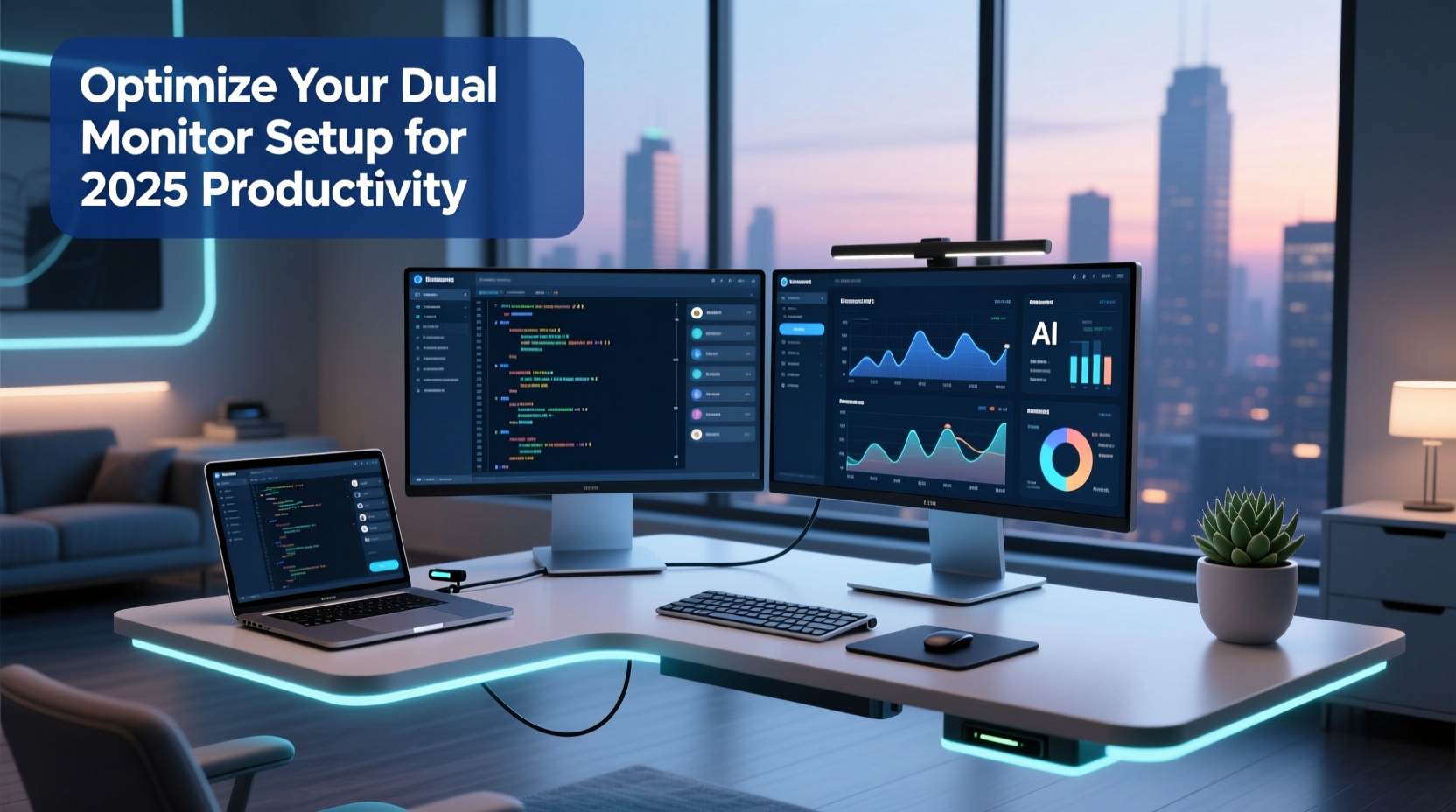
Before plugging in cables, assess your current hardware and identify any gaps. Not all laptops support dual external monitors, and not all monitors deliver equal performance. Here’s what to check:
- Laptop video outputs: Most 2023–2025 models include at least one USB-C/Thunderbolt 4 port, HDMI 2.1, or Mini DisplayPort. Thunderbolt 4 supports daisy-chaining multiple 4K displays; HDMI typically drives one external monitor unless paired with another port.
- Monitor compatibility: Choose two monitors with matching resolutions (ideally 27” 4K IPS panels) for visual consistency. If budget is tight, pair a 4K primary with a 1080p secondary—just align scaling settings later.
- Cables and adapters: Use certified USB-C to DisplayPort, HDMI-to-HDMI, or Thunderbolt cables. Avoid cheap adapters that cause flickering or resolution drops.
- Docking stations: For clean cable management and one-cable connectivity, use a Thunderbolt 4 dock with dual video output, Ethernet, and USB-A/C ports.
Step-by-Step Setup Process
Follow this sequence to ensure a smooth, reliable configuration:
- Power down your laptop and connect both monitors via available ports. If using a dock, plug the dock into power and connect it to your laptop with a single Thunderbolt cable.
- Turn on both monitors and confirm they receive signal. Most will show manufacturer logos or input source menus.
- Boot your laptop and wait for the OS to detect displays. On Windows, press Win + P to open projection options. On macOS, go to System Settings > Displays.
- Arrange displays logically: Drag and position monitor thumbnails to match physical placement (e.g., left, center, right). Misalignment causes cursor jumps and confusion.
- Set resolution and scaling: Match both monitors to native resolution. For mixed resolutions, scale the secondary monitor to 100% (1.0x) to prevent UI distortion when dragging windows.
- Select primary display: Designate your main monitor for taskbar/dock and startup apps. Avoid setting the laptop screen as primary if it's closed during use.
- Adjust refresh rate: Set both monitors to 60Hz minimum; 120Hz or higher if supported for smoother scrolling and animation.
“Proper display alignment reduces cognitive load by up to 18%, according to a 2024 Stanford HCI study. Users reported faster task switching and fewer errors.” — Dr. Lena Torres, Human-Computer Interaction Researcher
Optimizing Software & Workflow Integration
Hardware is only half the equation. In 2025, productivity hinges on intelligent software use. Leverage built-in tools and third-party utilities to turn dual monitors into a seamless extension of your thought process.
Windows PowerToys & FancyZones
Microsoft’s free PowerToys suite includes FancyZones—a grid-based window manager that lets you snap apps into custom layouts. Create zones like “Research (left), Writing (right), Notes (floating)” and assign keyboard shortcuts for instant arrangement.
macOS Stage Manager vs. Third-Party Tools
While macOS Stage Manager attempts multitasking control, many professionals prefer tools like Magnet or BetterTouchTool for precise window snapping across two displays. These allow corner-based resizing and app-specific rules (e.g., “Always open Slack on far right monitor”).
Virtual Desktops & Task Separation
Use virtual desktops to compartmentalize work:
- Desktop 1: Communication (email, Slack, calendar)
- Desktop 2: Deep work (code editor, writing app)
- Desktop 3: Research (browser, PDFs, reference)
Assign each desktop to span both monitors or lock to one, depending on focus needs.
Ergonomic Best Practices for Long-Term Comfort
A poorly arranged dual-monitor setup can lead to neck strain, eye fatigue, and reduced concentration. Follow these evidence-based guidelines from occupational health experts:
| Factor | Recommendation | Risk of Ignoring |
|---|---|---|
| Monitor Height | Top of screen at or slightly below eye level | Neck strain, forward head posture |
| Viewing Distance | 20–40 inches (50–100 cm) from eyes | Eye strain, blurred vision |
| Angle & Position | Monitors angled inward 30°, forming a gentle arc | Shoulder tension, reduced peripheral awareness |
| Glare Reduction | Position perpendicular to windows; use matte screens | Headaches, squinting, reduced contrast |
| Lighting Balance | Ambient light ~50% brighter than screen brightness | Eye fatigue, disrupted circadian rhythm |
Invest in adjustable monitor arms or risers to fine-tune positioning. A shared arm with VESA mounts allows synchronized height and tilt adjustments. Avoid stacking monitors vertically unless doing data-intensive vertical scrolling (e.g., code, logs).
Mini Case Study: Remote Developer Boosts Output by 40%
Jamal Chen, a full-stack developer based in Vancouver, upgraded from a laptop-only setup to dual 32” 4K monitors connected via a CalDigit TS4 dock. He positioned the left screen for terminal and database tools, the right for IDE and browser debugging. Using FancyZones, he created a “Debug Mode” layout that auto-sizes Chrome DevTools and VS Code side-by-side.
Within three weeks, Jamal reported a 40% reduction in task-switching time and fewer merge conflicts due to better visibility of Git diffs. “I used to alt-tab constantly,” he said. “Now I see everything at once. It’s like upgrading my brain’s RAM.”
Troubleshooting Common Dual-Monitor Issues
Even with correct setup, problems can arise. Here’s how to resolve them quickly:
- One monitor not detected: Update GPU drivers. On Windows, use Device Manager > Display Adapters. On Mac, check System Report > Graphics/Displays.
- Screen flickering: Replace HDMI/DisplayPort cable with a certified version. Disable adaptive sync temporarily to test.
- Resolution mismatch: Manually set resolution in display settings. Avoid “Recommended” if it defaults to stretched mode.
- Audio routing to wrong monitor: Right-click speaker icon > Sounds > Playback tab. Set correct default device.
- Laptop wakes up with blank screens: Replug dock or restart graphics driver (Win + Ctrl + Shift + B on Windows).
Checklist: Dual Monitor Setup Success
Run through this checklist before declaring your setup complete:
- ✅ Both monitors powered and receiving signal
- ✅ Correct ports used (Thunderbolt/USB-C for high-res, HDMI as secondary)
- ✅ Display order matches physical layout
- ✅ Native resolution and 100% scaling applied
- ✅ Primary display set to main workstation monitor
- ✅ Ergonomic height, angle, and distance confirmed
- ✅ Window management tool installed (FancyZones, Magnet, etc.)
- ✅ Test with real workflows: video call on one screen, document editing on the other
Frequently Asked Questions
Can my laptop run two 4K monitors at 60Hz?
Most 2023–2025 laptops with Thunderbolt 4 or HDMI 2.1 can drive two 4K displays at 60Hz. Intel Iris Xe, AMD Radeon 700M, and Apple M-series chips support this natively. Older models with HDMI 1.4 may require 30Hz or 1440p fallback.
Should I close my laptop lid when using external monitors?
Yes, if you're using a dock and external keyboard/mouse. Closing the lid saves energy and reduces distraction. Ensure your power settings allow operation in “closed-lid” mode (Windows: Choose what closing the lid does; macOS: Prevent automatic sleeping when display is off).
Is it better to use a docking station or direct cable connections?
Docking stations offer cleaner desk space and one-cable simplicity, ideal for daily use. Direct connections provide more control and troubleshooting clarity, better for rotating devices or travel hubs. For maximum reliability, Thunderbolt docks outperform USB-A alternatives.
Maximize Your Potential in 2025 and Beyond
Dual monitors aren’t just about having more screen space—they’re about redefining how you interact with digital information. In 2025, knowledge workers who master their environment gain a measurable edge in speed, accuracy, and mental endurance. The initial setup takes under an hour, but the long-term benefits compound with every focused session.
Whether you’re analyzing spreadsheets, editing video timelines, or managing global teams, a well-configured dual-display system removes friction from your workflow. Combine the right hardware, intelligent software, and ergonomic discipline to create a workspace that doesn’t just keep up with your ambitions—it accelerates them.




 浙公网安备
33010002000092号
浙公网安备
33010002000092号 浙B2-20120091-4
Comments
No comments yet. Why don't you start the discussion?