
For parents navigating the digital world with children, the Nintendo Switch offers both entertainment and challenges. While its colorful interface and family-friendly titles make it appealing, unrestricted access can lead to excessive screen time, exposure to inappropriate content, or unintended in-game purchases. Fortunately, Nintendo provides a robust parental control system through its free mobile app, allowing caregivers to set boundaries that align with their household values. Unlike built-in console settings, these controls are managed remotely via smartphone, giving parents real-time oversight without needing physical access to the device.
The system is designed to be intuitive but requires careful setup to be effective. From limiting playtime to filtering game ratings, the tools available empower parents to create a safer gaming environment. However, many users overlook key features or misconfigure settings, reducing their effectiveness. Understanding how to properly configure each layer of control ensures peace of mind while still allowing children to enjoy the benefits of interactive play.
Understanding Nintendo Switch Parental Controls: How They Work
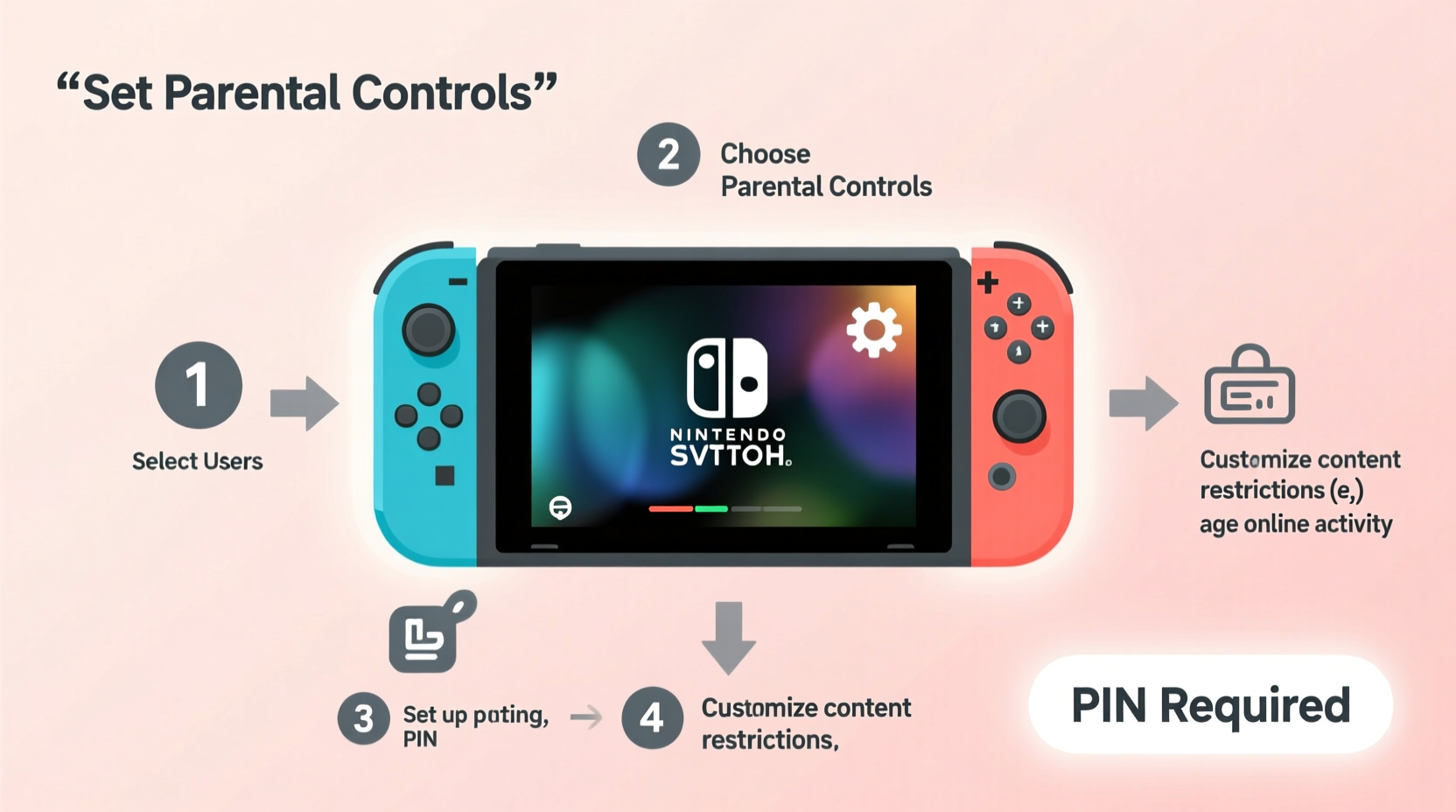
Nintendo’s approach to parental controls differs from competitors like Xbox or PlayStation. Instead of embedding all restrictions directly into the console, Nintendo uses a companion app—available for iOS and Android—to manage settings. This means the primary control hub is your smartphone, not the Switch itself. The app connects to your Nintendo Account and communicates with the console over the internet, enabling remote monitoring and adjustments.
When you install the Nintendo Switch Parental Controls app, it pairs with your child’s Switch using a QR code or manual entry. Once linked, you can view activity reports, set time limits, approve or restrict software, and filter content by age rating. Importantly, no data is stored on the app unless the Switch connects to the internet at least once every 24 hours. If offline for longer, controls remain active, but new changes cannot be applied until reconnection.
One common misconception is that parental controls prevent unauthorized purchases by default. In reality, purchase restrictions must be explicitly enabled in the user settings on the console. Without this step, even with full app-based controls, a child could potentially buy games or DLC if payment methods are saved.
Step-by-Step Guide to Setting Up Parental Controls
Setting up parental controls involves both mobile app configuration and console-level adjustments. Follow this sequence to ensure full functionality:
- Create or log in to a Nintendo Account – Use an adult email address. This account will manage all controls.
- Download the “Nintendo Switch Parental Controls” app from the App Store (iOS) or Google Play (Android).
- Open the app and tap “Register Console” – Choose “Use QR Code” for fastest pairing.
- On the Nintendo Switch, go to System Settings → Parental Controls → Start Setup. A QR code will appear on-screen.
- Scan the code with your phone’s camera through the app. The devices will now sync.
- Confirm registration and assign the console to your child’s profile.
- Enable purchase restrictions on the console: Go to System Settings → Users → Select Child Profile → Modify → Restrict Software Purchases (set to “Don’t Allow”).
- Set a 4-digit PIN in the app under “Parental Controls” → “Restrictions” to prevent children from altering settings.
After completion, the app becomes your central dashboard. You’ll receive daily activity summaries showing total playtime, which games were played, and when the console was used. These insights help identify usage patterns and adjust limits accordingly.
Managing Screen Time and Play Limits
Excessive screen time remains a top concern for families. The Nintendo Switch app allows precise control over daily usage through customizable time limits. You can set a maximum number of minutes per day, after which the console sends a warning and eventually pauses gameplay unless extended by a parent.
To configure time limits:
- Navigate to the app’s main screen and select your child’s registered console.
- Tap “Play Timer” and choose “Set Daily Limit.”
- Enter a duration (e.g., 60 minutes). You can also schedule exceptions for weekends or holidays.
When the timer runs out, the console displays a countdown warning five minutes in advance. After expiration, the system enters standby mode. Only someone with the parent PIN can grant additional playtime. This feature discourages marathon sessions while teaching children about time management.
| Time Limit | Suggested Age Group | Recommended Use Case |
|---|---|---|
| 30–60 min/day | Under 8 | Daily play after homework and chores |
| 90 min/day | 8–12 | Moderate weekday use, extended weekends |
| Flexible (manual approval) | 13+ | Teenagers with responsibility agreements |
Content Restrictions and Game Rating Filters
Not all games are suitable for every age group. The Nintendo Switch uses the ESRB (Entertainment Software Rating Board) system, ranging from EC (Early Childhood) to AO (Adults Only). Parental controls let you block games above a specified rating threshold.
In the app, go to “Restrictions” → “Allowed Software” and select the highest acceptable rating. For example:
- E for Everyone – Safe for all ages; includes titles like *Animal Crossing: New Horizons*.
- T for Teen – May contain mild violence or suggestive themes; e.g., *Splatoon 3*.
- M for Mature – Not recommended for under 17; includes *The Legend of Zelda: Breath of the Wild* (due to fantasy violence).
If a child attempts to launch a restricted game, the console prompts for the parent PIN. Without approval, access is denied. Note that downloadable content (DLC) inherits the base game’s rating, so filtering applies automatically.
“We recommend setting content filters based on developmental readiness, not just age. Some 10-year-olds handle strategic gameplay better than others.” — Dr. Lena Torres, Child Development Specialist
Real-World Example: The Miller Family’s Experience
The Millers, a family of four in Portland, struggled with their 9-year-old son spending late nights playing *Super Mario Odyssey*. Despite verbal reminders, he often ignored bedtime, leading to fatigue and irritability. After learning about the Nintendo Switch Parental Controls app, they implemented a structured plan:
- Set a daily play limit of 45 minutes on weekdays.
- Enabled automatic suspension at 8:00 PM.
- Blocked games rated above E10+.
- Used the activity report to discuss responsible habits weekly.
Within two weeks, sleep patterns improved and arguments decreased. The visual feedback from the app helped their son understand his usage objectively. “It wasn’t about taking fun away,” said Sarah Miller, “but about balance. Now he asks, ‘Can I have extra time today?’ instead of sneaking play.”
Essential Tips and Common Pitfalls to Avoid
Even well-intentioned setups can fall short without attention to detail. Here are key best practices:
- Don’t rely solely on time limits – Combine them with behavioral expectations. For instance, tie playtime to completed responsibilities.
- Avoid overly strict bans – Sudden removal of favorite games can cause resistance. Phase in changes gradually.
- Review activity logs together – Turn data into conversations about self-regulation and digital wellness.
- Use multiple devices cautiously – Each Switch requires individual pairing. One phone can manage several consoles, but each needs its own setup.
Also, remember that local multiplayer sessions count toward the same time limit. If siblings share a profile, coordinate usage to avoid conflicts. Creating separate user profiles for each child allows personalized controls and accurate tracking.
FAQ: Frequently Asked Questions
Can I change the parental control settings without the app?
No. All major restrictions—including time limits, content filters, and console suspension—are managed exclusively through the mobile app. However, basic user restrictions (like purchase blocks) can be adjusted directly on the console.
What happens if my child’s Switch loses internet connection?
Existing controls remain active. However, new commands from the app won’t apply until the console reconnects. Activity reporting also pauses during disconnection.
Can I allow temporary access to a restricted game?
Yes. When a blocked game is launched, the console requests the parent PIN. Entering it grants one-time access. Alternatively, use the app to send a remote approval.
Final Checklist: Secure Your Nintendo Switch in 8 Steps
Before considering the setup complete, verify the following actions have been taken:
- ✅ Created a Nintendo Account with an adult email.
- ✅ Installed and logged into the Nintendo Switch Parental Controls app.
- ✅ Paired the app with the child’s console via QR code.
- ✅ Set a strong 4-digit PIN in the app.
- ✅ Configured daily playtime limits based on age and routine.
- ✅ Selected appropriate game rating restrictions (e.g., E10+ or lower).
- ✅ Disabled software purchases on the console user profile.
- ✅ Reviewed the first activity report to confirm tracking accuracy.
Take Control of Your Family’s Gaming Experience
Setting up parental controls on a Nintendo Switch isn’t about restriction—it’s about empowerment. With the right tools, parents can foster healthy digital habits while preserving the joy of play. The process takes less than 20 minutes but delivers lasting benefits: better sleep, improved focus, and more meaningful family interactions. Technology should serve your household, not dominate it. By investing a small amount of time upfront, you create a balanced environment where fun and responsibility coexist.




 浙公网安备
33010002000092号
浙公网安备
33010002000092号 浙B2-20120091-4
Comments
No comments yet. Why don't you start the discussion?