
For parents navigating the digital landscape of modern gaming, the PlayStation 5 offers robust tools to help manage what children see and do online. However, many worry that enabling parental controls might strip away the fun—locking down games unnecessarily or making the experience feel overly restrictive. The truth is, with thoughtful configuration, you can maintain a safe environment while still allowing meaningful access to age-appropriate content and social features.
The key lies in understanding Sony’s Family Management system not as a barrier, but as a flexible framework. When used wisely, it empowers parents to guide their children’s gaming habits without alienating them from peers or depriving them of enriching experiences. This guide walks through practical strategies to implement effective supervision that respects both safety and autonomy.
Understanding PS5 Parental Controls: What You Can Manage
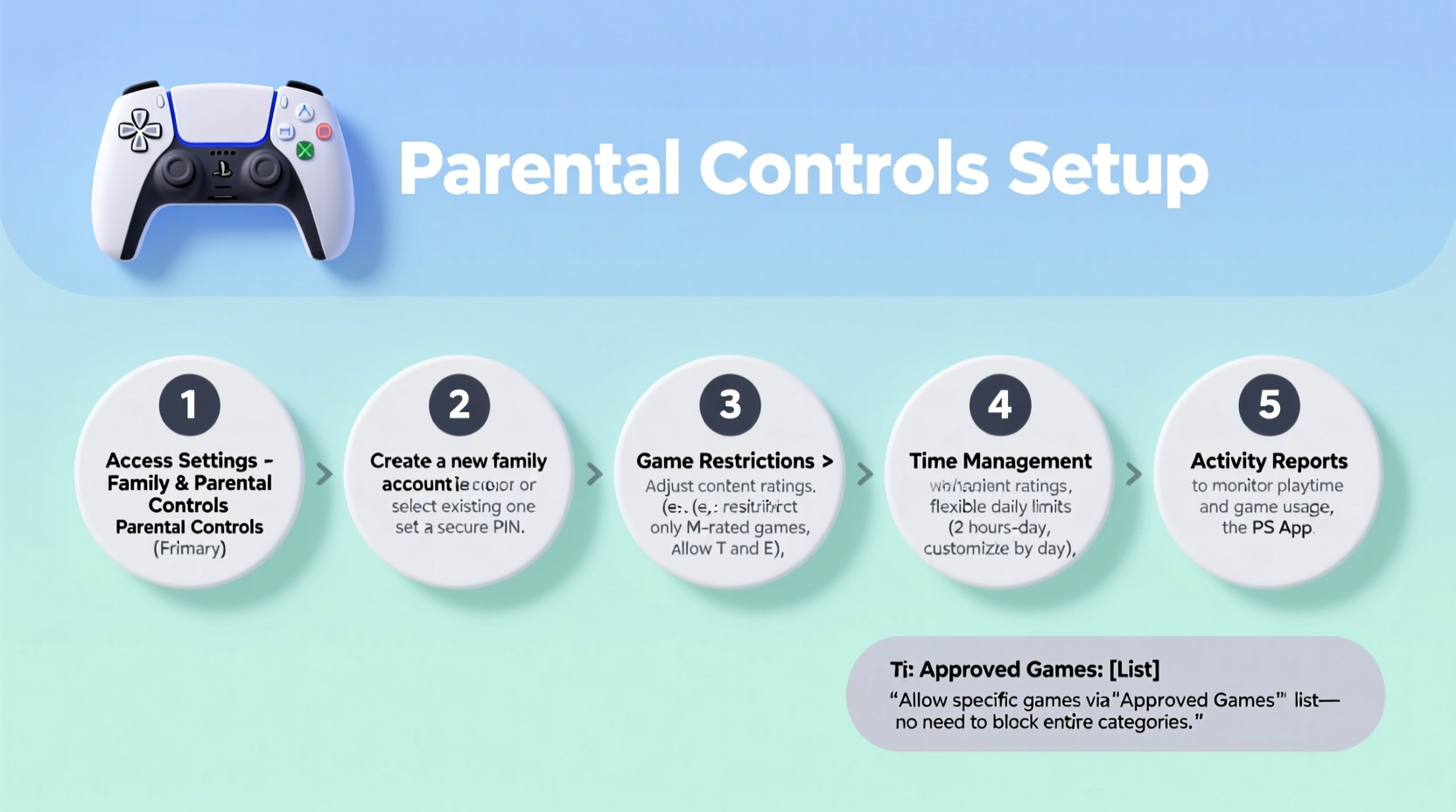
Sony’s parental control system operates through the PlayStation App and the console itself, using Family Management accounts linked under a primary adult account. Once set up, parents gain oversight across several critical areas:
- Game and app usage – Restrict by age rating or specific titles
- Play time limits – Set daily or weekly playtime allowances
- Online interactions – Control who your child can message or play with
- In-game purchases – Require approval for any spending
- Web browser access – Disable or allow based on maturity level
Importantly, these settings are adjustable per user profile, meaning you can tailor restrictions individually—even within the same household. This granularity allows for progressive trust-building as children grow older and demonstrate responsibility.
Step-by-Step: Setting Up Family Management on PS5
To begin managing controls, follow this sequence to link your child’s account safely and securely:
- Create a Family Group – On your primary PSN account, go to Settings > Users and Accounts > Other > Family Management.
- Add a Child Account – Choose “Create New User” or invite an existing one via email. If creating new, input basic details and verify age (under 18).
- Confirm via Email – Sony will send a confirmation link to the parent’s email. Approval must come from the adult before restrictions take effect.
- Assign Roles – Designate your account as Parent/Guardian and the child’s as a Managed User.
- Download the PlayStation App – For remote management, install the app on your smartphone and log in with your PSN credentials.
Once linked, you can adjust settings either directly on the console or remotely via the app—ideal for tweaking rules during school weeks or adjusting weekend limits.
Smart Restrictions: Balancing Safety and Freedom
The goal isn’t to eliminate risk entirely—that’s neither possible nor beneficial—but to reduce harm while fostering digital literacy. Consider these nuanced approaches:
Use Age Ratings as Guidelines, Not Hard Blocks
Instead of blanket-blocking all Teen (T) or Mature (M) rated games, review individual titles. Games like Spider-Man or Ratchet & Clank carry T ratings due to cartoonish action but contain minimal objectionable content. Meanwhile, some M-rated games may include intense violence or language unsuitable for younger teens.
| ESRB Rating | Typical Content | Recommended Action |
|---|---|---|
| E (Everyone) | Minimal violence, cartoon themes | Generally safe; allow freely |
| E10+ (Everyone 10+) | Mild fantasy violence, suggestive themes | Review title-specific content; discuss with child |
| T (Teen) | Violence, crude humor, mild language | Allow selectively based on maturity |
| M (Mature) | Strong language, graphic violence, sexual content | Restrict unless child is 16+ and trusted |
Enable Communication Safely
Many kids value multiplayer interaction as much as gameplay. Rather than disabling messaging altogether, consider intermediate options:
- Allow voice chat only with friends already approved by you
- Permit text messages from “Friends of Friends” but block strangers
- Set communication time limits (e.g., no chats after 9 PM)
This maintains social engagement while reducing exposure to harassment or inappropriate contact.
“Digital citizenship starts at home. Kids learn how to behave online by observing boundaries set with explanation and consistency.” — Dr. Lena Patel, Child Development Specialist
Avoiding Common Pitfalls
Even well-intentioned controls can backfire if applied too rigidly. Watch out for these missteps:
- Overblocking – Banning all T-rated games may prevent access to educational or creatively rich experiences.
- Ignoring exceptions – Some unrated indie games fall outside standard systems; manually review unfamiliar titles.
- Setting-and-forgetting – Children grow quickly. Reassess settings every 6–12 months.
- Not involving the child – Transparency builds trust. Explain why certain rules exist.
Real Example: The Thompson Family’s Balanced Approach
The Thompsons have two sons, ages 11 and 14, both avid PS5 players. Initially, they blocked all games above E10+, which frustrated the older boy when his friends played God of War Ragnarök. After researching the game’s content, they discovered the story mode could be completed with minimal blood effects enabled and decided to allow it—with conditions.
They used the PlayStation App to set a weekday play limit of 1 hour and allowed unrestricted access on weekends. Voice chat was limited to pre-approved friends, and in-game purchases required parental approval. They also scheduled monthly check-ins to discuss new games the boys wanted to try.
Within months, the 14-year-old demonstrated responsibility by self-limiting late-night play and reporting a player who used offensive language. As a result, his privileges expanded slightly—proof that accountability breeds trust.
Essential Checklist: Setting Up PS5 Parental Controls Thoughtfully
Follow this checklist to ensure balanced, effective control setup:
- ✅ Create a Family Management group using your adult PSN account
- ✅ Add each child as a managed user with verified age information
- ✅ Review default age-based restrictions and adjust per child’s maturity
- ✅ Allow E and E10+ games by default; evaluate T-rated titles individually
- ✅ Set reasonable daily playtime limits (e.g., 1–2 hours on weekdays)
- ✅ Permit online communication only with known friends
- ✅ Require approval for all in-game purchases
- ✅ Disable web browser unless needed for research or learning
- ✅ Schedule regular reviews (every 6 months or after major birthdays)
- ✅ Discuss rules openly with your child to encourage cooperation
Frequently Asked Questions
Can I let my child play M-rated games if I supervise them?
Yes, technically you can allow any game with manual approval. However, M-rated games often contain content unsuitable for under-17s. If you choose to permit one, consider playing alongside your child initially to gauge appropriateness and use available difficulty or content filters where possible.
Do parental controls work when the PS5 is offline?
Most restrictions remain active even without internet, including game launch blocks and time limits. However, real-time monitoring and remote changes via the PlayStation App require connectivity. Time limits sync when the console reconnects.
Can my child bypass restrictions by logging into another account?
If they access a non-managed account with higher privileges, yes. That’s why it’s crucial to keep your master password secure and avoid sharing it. Also, ensure guest logins are disabled in family settings.
Conclusion: Empowerment Through Smart Boundaries
Setting up parental controls on a PS5 doesn’t mean turning off the fun. It means guiding young gamers toward responsible digital behavior while preserving their ability to explore, connect, and enjoy high-quality entertainment. By leveraging Sony’s tools with flexibility and ongoing dialogue, parents can create a gaming environment that feels fair, safe, and respectful of growing independence.
The most effective controls aren’t just technical—they’re relational. When kids understand the reasoning behind limits, they’re more likely to respect them and eventually self-regulate. Start with clear but adaptable rules, stay involved, and revisit settings as your child matures. In doing so, you’re not just protecting them today—you’re preparing them for a lifetime of healthy tech use.




 浙公网安备
33010002000092号
浙公网安备
33010002000092号 浙B2-20120091-4
Comments
No comments yet. Why don't you start the discussion?