
In today’s digital age, children are exposed to online content earlier than ever before. While YouTube Kids offers a curated environment designed for young viewers, it is not immune to inappropriate content or excessive screen time. As a parent or caregiver, taking proactive steps to secure your child’s experience is essential. Setting up parental controls properly ensures that what your child watches aligns with your family’s values and developmental needs. This guide walks you through every critical aspect of configuring YouTube Kids with maximum safety in mind—without sacrificing usability or enjoyment.
Understanding YouTube Kids: A Safer Alternative?
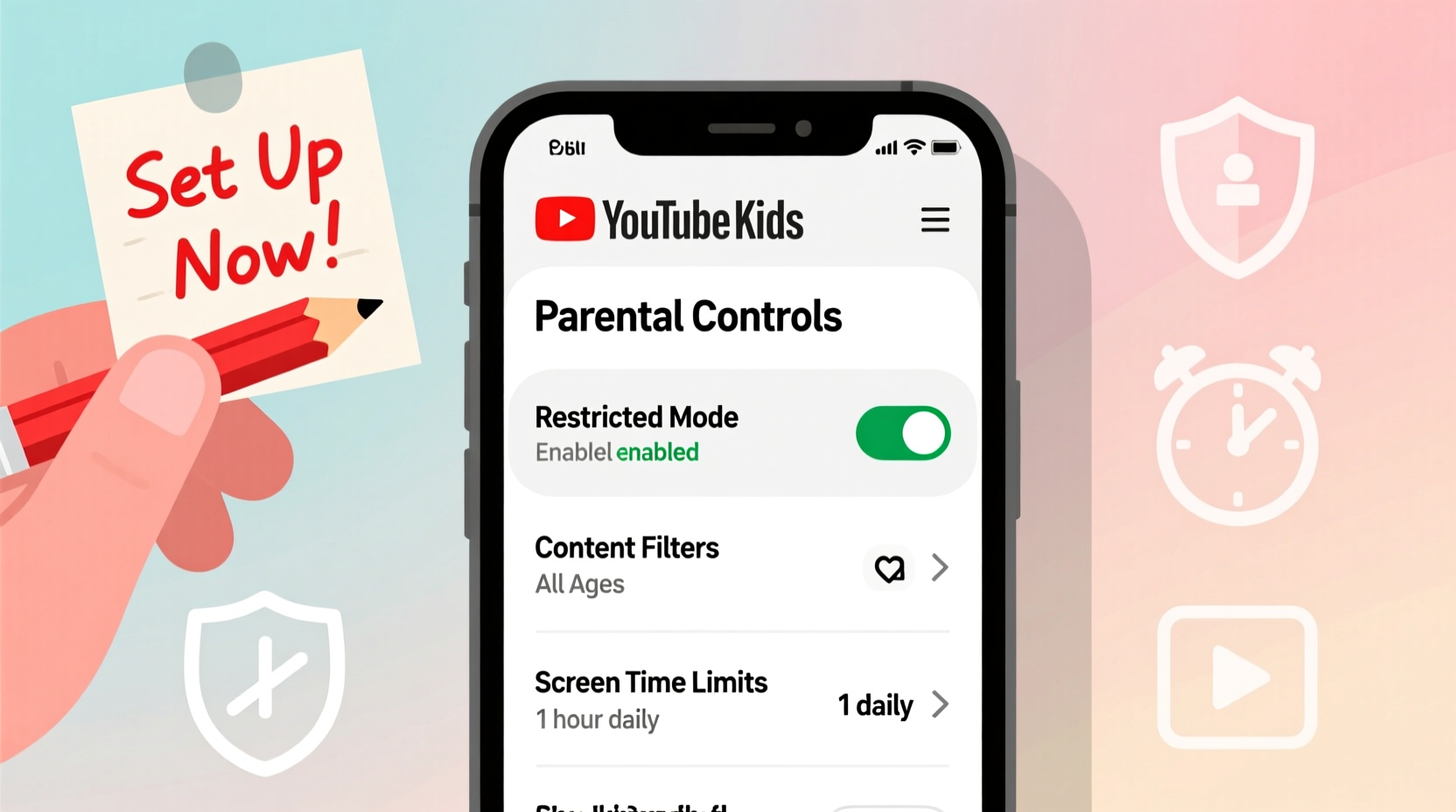
YouTube Kids is a standalone app developed by Google specifically for children under 13. It filters content from the main YouTube platform and includes shows, music, educational videos, and DIY crafts aimed at younger audiences. However, despite its moderated design, the app still relies partially on automated systems to categorize content, which can occasionally allow borderline or unsuitable videos to slip through.
The app offers multiple profiles per device, allowing customization based on age groups: preschool (under 5), younger kids (5–7), older kids (8–12), and a “supervised” option where parents manually approve channels. Unlike unrestricted browsing on regular YouTube, YouTube Kids provides structured viewing with limited search functionality and no comments or ads if parental settings are correctly applied.
“While YouTube Kids reduces exposure to harmful content, it should not be treated as a completely hands-off solution. Active parental oversight remains crucial.” — Dr. Lisa Chen, Child Digital Safety Researcher, Stanford University
Step-by-Step Guide to Setting Up Parental Controls
Configuring parental controls effectively requires careful navigation of the app’s settings. Follow this timeline-based approach to ensure full protection from the first launch.
- Download and Install the App: Available on iOS, Android, Amazon Fire tablets, and select smart TVs. Always download from official app stores to avoid counterfeit versions.
- Create a New Profile: Open the app and tap “Create” to start a new profile. Assign an age range to determine default content filtering levels.
- Select Content Level: Choose between Preschool, Younger Kids, Older Kids, or Supervised. For maximum control, select “Supervised” to manually approve all channels and videos.
- Set a Parental PIN: When prompted, create a four-digit PIN known only to adults. This prevents children from changing settings or exiting restricted modes.
- Customize Allowed Content: Under the “Approved Content” section, add specific channels, videos, or playlists your child may access. You can search for trusted creators like PBS Kids, Sesame Workshop, or National Geographic Kids.
- Disable Search Function: In the Settings menu, toggle off the search bar. This stops children from independently searching for unvetted content.
- Limit Screen Time: Use the built-in timer feature to set daily viewing limits. You can also schedule bedtime locks so the app becomes inaccessible after certain hours.
- Review Watch History: Regularly check what your child has been watching. Accessible via the parent gate (PIN protected), this helps identify any unexpected content trends.
Key Features and Their Safety Implications
Each setting within YouTube Kids plays a role in shaping the overall safety of the viewing environment. Understanding their impact allows for smarter configuration.
| Feature | Safety Benefit | Potential Risk If Misconfigured |
|---|---|---|
| Age-Based Filtering | Automatically restricts violent, sexual, or mature themes | May still allow fast-paced or overstimulating content; not foolproof |
| Search Bar Toggle | Prevents accidental discovery of inappropriate videos | Leaving search enabled increases risk of encountering mislabeled content |
| Timer & Bedtime Mode | Promotes healthy sleep and balanced usage | Without limits, children may develop addictive viewing habits |
| Approved Channels Only (Supervised Mode) | Ensures only pre-vetted content is accessible | Requires ongoing maintenance; less convenient but safest option |
| No Comments or User Interaction | Eliminates cyberbullying and predatory communication risks | Only effective within the app; doesn’t apply if child switches to main YouTube |
Real Example: How One Family Improved Their YouTube Kids Setup
The Thompson family initially allowed their 6-year-old daughter to use YouTube Kids with default “Younger Kids” settings. They assumed the app was fully filtered and safe. After noticing her becoming anxious during certain cartoon segments, they reviewed her watch history and discovered several videos labeled as “educational” but containing loud jump scares and exaggerated conflict.
They immediately changed her profile to “Supervised,” disabled search, and began adding only PBS and Khan Academy Kids channels. They also set a 45-minute daily limit and scheduled the app to lock at 7 PM. Within a week, her mood improved, and she engaged more with offline activities. The parents now review her watched content weekly and involve her in choosing new approved videos together.
“We thought YouTube Kids was plug-and-play safe. But just like seatbelts in a car, supervision matters even in a protected space.” — Maria Thompson, Parent of two
Essential Checklist for Maximum Safety
To ensure you haven’t missed any critical steps, follow this comprehensive checklist:
- ✅ Download YouTube Kids from official app store (not third-party sources)
- ✅ Create individual profiles for each child based on age
- ✅ Set up a strong, private parental PIN (not shared with children)
- ✅ Disable the search function entirely
- ✅ Switch to “Supervised” mode and manually approve channels
- ✅ Add only trusted, educational, or family-friendly content sources
- ✅ Enable daily time limits and bedtime restrictions
- ✅ Regularly review watch history and remove unwanted videos
- ✅ Teach your child basic digital literacy: “If something feels scary or weird, tell me.”
- ✅ Revisit settings every few months as your child grows
Frequently Asked Questions
Can my child bypass parental controls if I don’t use a PIN?
Yes. Without a PIN, children can easily exit restricted profiles, change settings, or switch to unrestricted content levels. Always set a PIN during initial setup and store it securely.
Is YouTube Kids completely ad-free?
No. While YouTube Kids filters out many types of advertising, some family-targeted ads do appear unless you subscribe to YouTube Premium. Even then, sponsored content within videos (e.g., toy unboxings) may still occur. Supervised mode helps reduce exposure by limiting video selection.
What happens if inappropriate content still appears?
If you encounter questionable videos—even in supervised mode—report them immediately through the app. Tap the three dots next to the video and select “Report.” Google uses these reports to improve filtering algorithms. Also consider tightening channel approvals or switching to offline alternatives temporarily.
Going Beyond the App: Holistic Digital Safety
Parental controls on YouTube Kids are just one layer of digital protection. True safety comes from combining technical tools with open communication and consistent routines.
Start conversations early about what kinds of videos are okay and why some aren’t. Encourage co-viewing, especially for younger children. Watching together gives you opportunities to explain confusing scenes, pause when needed, and reinforce positive messages.
Additionally, integrate YouTube Kids settings into broader screen time management. Use device-level tools like Apple Screen Time or Google Family Link to monitor total usage across apps, enforce downtime, and remotely lock devices. These platforms sync with YouTube Kids, offering centralized oversight.
Finally, remember that no system is perfect. Automated filters make mistakes. Creators sometimes misuse tags to get views from children. That’s why active parenting—not just passive filtering—is the most powerful safeguard available.
Conclusion: Take Control Today for a Safer Tomorrow
Setting up parental controls on YouTube Kids isn't a one-time task—it's an ongoing commitment to your child’s digital well-being. With the right configuration, you can transform the app into a safe, enriching space that supports learning, creativity, and fun. From disabling search to enabling supervised mode and setting time boundaries, each action adds another layer of protection.
Your involvement makes all the difference. Don’t wait for a concerning video to prompt action. Audit your current settings today, apply the checklist, and engage your child in responsible media habits. The digital world will keep evolving, but your role as a guiding presence never changes.




 浙公网安备
33010002000092号
浙公网安备
33010002000092号 浙B2-20120091-4
Comments
No comments yet. Why don't you start the discussion?