
For parents navigating the digital world, finding a balance between safety and engagement is essential. YouTube Kids offers a vibrant platform filled with educational shows, music videos, and creative content tailored for children. However, unrestricted access can expose young viewers to inappropriate material or excessive screen time. The good news: you don’t have to sacrifice fun to ensure safety. With thoughtful configuration of parental controls, you can create a secure environment where your child still enjoys age-appropriate, entertaining content.
This guide walks through practical steps to customize YouTube Kids settings effectively—protecting your child while preserving the joy of discovery.
Understanding YouTube Kids: Safety vs. Engagement
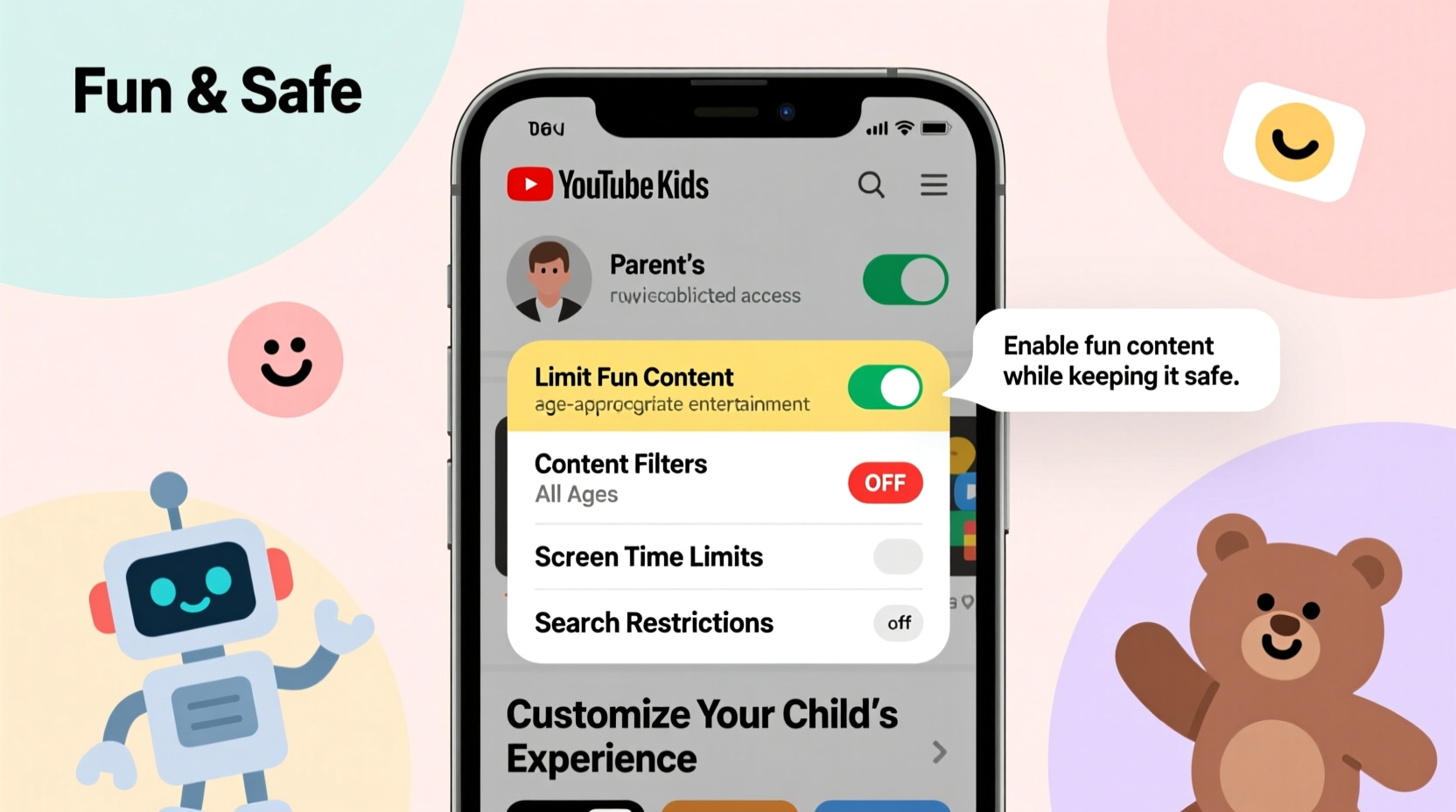
YouTube Kids was designed as a safer alternative to the main YouTube platform, filtering content based on age groups and using automated systems and human review to flag unsuitable videos. Still, no algorithm is perfect. Some borderline content may slip through, and autoplay features can lead to extended viewing sessions. That’s where parental controls come in—not as a barrier to fun, but as a tool to refine the experience.
The app allows four age-based profiles: preschool (under 5), younger (5–7), older (8–12), and a supervised account for tweens that links to a parent’s Google account. Each tier adjusts content recommendations accordingly. But beyond these presets, parents have granular control over what their children see and for how long.
Step-by-Step Guide to Setting Up Parental Controls
Configuring YouTube Kids properly takes just a few minutes but can significantly improve your child’s online experience. Follow this timeline to get started:
- Download and Install the App: Available on iOS, Android, and select smart TVs, YouTube Kids requires a separate download from the standard YouTube app.
- Create a Child’s Profile: Open the app and tap “Add Child.” Choose the appropriate age group. This selection shapes the default content filter.
- Set a Parental PIN: During setup, you’ll be prompted to create a 4-digit PIN. Keep this secure—any changes to settings require it.
- Customize Content Filters: Go to Settings > [Child’s Name] > Content Restrictions. Here, you can block specific videos or channels manually.
- Enable Search Supervision: Toggle on “Approved Content Only” if you want to restrict searches. Alternatively, allow search but monitor recent activity under History.
- Limit Screen Time with Timers: Navigate to Timer Settings to set daily limits (e.g., 30 minutes) or bedtime schedules that automatically pause playback.
- Review Watch History Weekly: Check what your child has viewed under the History tab to spot trends and adjust filters accordingly.
These steps establish a foundation. The real benefit comes from ongoing refinement—tweaking settings as your child grows and their interests evolve.
Strategies to Maintain Fun While Ensuring Safety
Many parents worry that strict controls will make YouTube Kids feel restrictive or dull. The key is precision: block harmful content without over-censoring. Consider these strategies:
- Whitelist Favorite Channels: If your child loves science experiments or animated storytelling, add trusted channels like SciShow Kids or Storyline Online to an approved list.
- Use “Pause & Discuss” Moments: Occasionally watch together. Pause to talk about what’s happening—this builds media literacy and trust.
- Leverage the “Not Interested” Button: When unwanted content appears, long-press the video and select “Not Interested.” This trains the algorithm over time.
- Allow Controlled Exploration: For older kids, use the “Supervised Experience” mode, which lets them explore broader content under your oversight via your Google account.
By curating rather than restricting, you preserve the platform’s dynamic nature while minimizing risks.
| Feature | Do | Avoid |
|---|---|---|
| Content Filtering | Block specific videos/channels manually | Overuse broad age restrictions that limit variety |
| Search Function | Enable with periodic history checks | Leave unchecked without supervision |
| Screen Time | Set consistent daily limits | Allow unlimited autoplay loops |
| Notifications | Turn off push alerts during homework/sleep | Ignore notification settings altogether |
Real Example: How One Family Balanced Fun and Safety
The Ramirez family has two children: Mia, age 6, who loves dance videos and cartoons, and Leo, age 10, interested in DIY science projects and gaming animations. Initially, both used the same profile, leading to frustration—Mia saw complex tutorials she couldn’t follow, while Leo found his feed too childish.
After setting up separate profiles, Maria, the mother, spent one weekend reviewing content. She blocked a few repetitive prank channels Leo kept encountering and added “MinuteEarth Kids” and “Art for Kids Hub” to his approved list. For Mia, she enabled “Preschool” mode but allowed search with PIN protection. They also agreed on a 45-minute daily timer, with a wind-down alert five minutes before shutdown.
Within two weeks, screen time arguments decreased. Mia enjoyed her favorite sing-alongs without distractions, and Leo discovered new experiment ideas safely. The system worked because it respected their individuality while maintaining boundaries.
“Effective digital parenting isn’t about elimination—it’s about curation. When kids feel heard, they’re more likely to respect the rules.” — Dr. Naomi Chen, Child Development Specialist
Frequently Asked Questions
Can I approve specific videos my child wants to watch?
Yes. If a video is blocked but you’ve previewed it and deem it appropriate, you can allow it temporarily. Open the video in your own YouTube app, copy the link, then paste it into the YouTube Kids “Enter Video Link” section under Settings. It will play once without altering filters.
Does YouTube Kids track my child’s data?
YouTube Kids collects limited data to personalize content and serve ads unless you disable advertising. To minimize tracking, go to Settings > General > Opt out of Ads Personalization. Also, enable “Restricted Mode” for stricter filtering.
What if my child bypasses the PIN?
If you suspect your child has guessed the PIN, reset it immediately. Avoid using obvious numbers like birthdays. YouTube does not allow password recovery hints, so store the PIN securely outside the device (e.g., in a password manager).
Checklist: Optimizing YouTube Kids for Safe Fun
Use this checklist weekly or monthly to ensure your settings stay aligned with your child’s needs:
- ✅ Created individual profiles for each child
- ✅ Set a strong, non-obvious parental PIN
- ✅ Reviewed and adjusted content filters based on recent viewing
- ✅ Whitelisted 2–3 trusted educational or entertainment channels
- ✅ Established daily screen time limits with visual timers
- ✅ Disabled personalized ads and enabled Restricted Mode
- ✅ Scheduled weekly co-viewing sessions to discuss content
- ✅ Checked watch history for unexpected or repetitive content
- ✅ Updated profile age settings as child grows
- ✅ Communicated rules clearly—what’s allowed, what’s not, and why
Conclusion: Empowerment Through Smart Control
Setting up parental controls on YouTube Kids doesn’t mean turning off the fun—it means guiding it. With the right configuration, your child can explore music, learning, and creativity in a space that respects your family’s values. The most effective approach combines technology tools with open conversations about digital responsibility.
Start today: review your current settings, create personalized profiles, and take ten minutes to watch a video together. Small actions now build lasting habits. Your child doesn’t need a locked-down experience—they need a smart, safe playground where curiosity thrives.




 浙公网安备
33010002000092号
浙公网安备
33010002000092号 浙B2-20120091-4
Comments
No comments yet. Why don't you start the discussion?