
Fortnite’s fast-paced action demands a responsive connection. Slow load times can mean the difference between victory and defeat—especially when waiting longer than opponents to drop into the map or reload after elimination. While hardware and internet speed play roles, many players overlook how much control they have over their network environment. By applying targeted network optimizations, you can significantly reduce load times, minimize stuttering, and enjoy smoother matchmaking and gameplay.
This guide breaks down actionable, tested network tweaks that go beyond simply restarting your router. From adjusting DNS settings to prioritizing traffic and securing bandwidth, these steps are designed for PC, console, and mobile players who want every millisecond advantage.
Understanding What Affects Fortnite Load Times
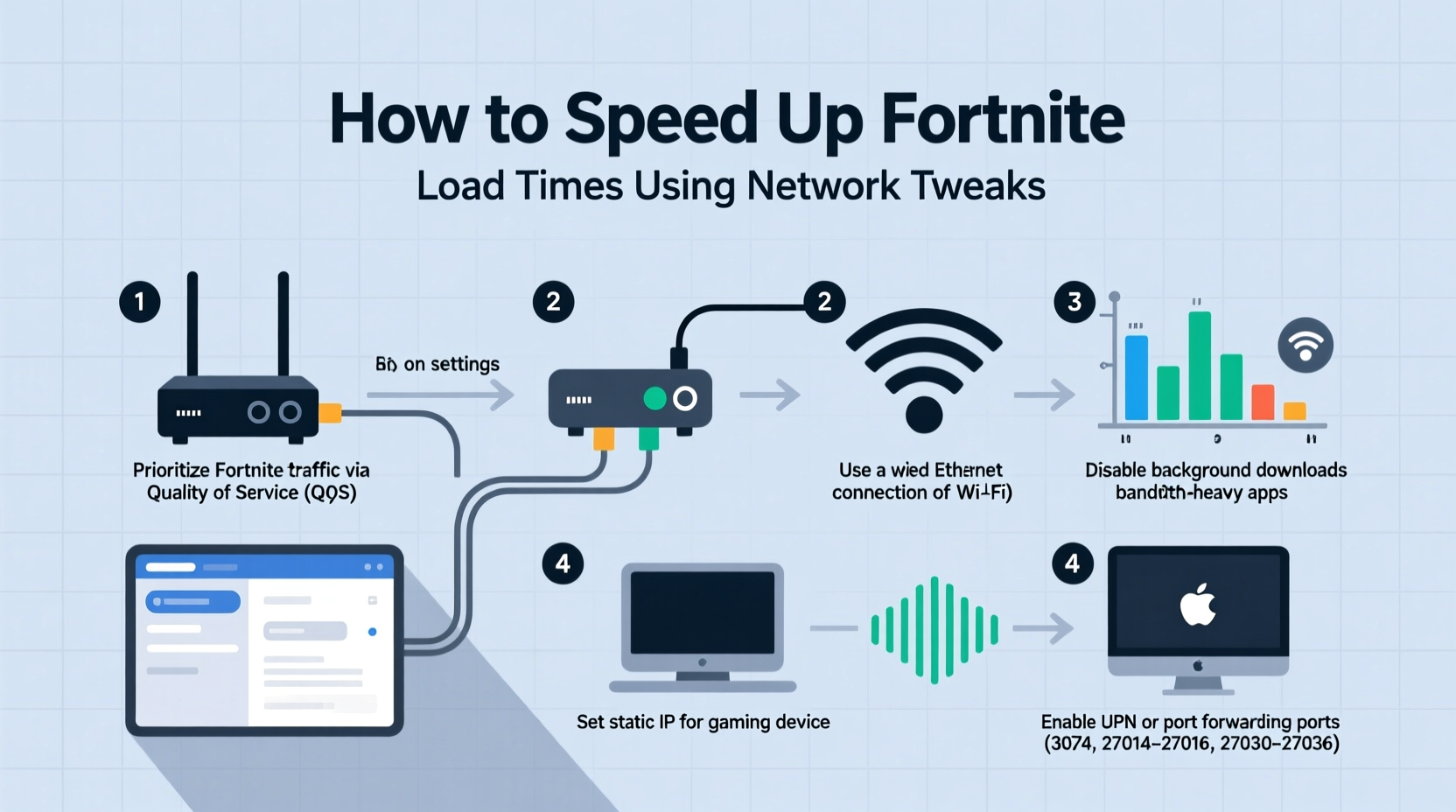
Load time in Fortnite isn’t just about downloading textures or maps—it's a combination of connection quality, server proximity, bandwidth allocation, and local network congestion. The game must establish a stable connection with Epic Games’ servers, authenticate your account, download match data, and stream assets in real time. Any bottleneck in this chain slows everything down.
Key factors include:
- Latency (ping): High ping delays communication between your device and the server.
- Jitter: Inconsistent latency causes irregular loading and stuttering.
- Bandwidth saturation: Background apps consuming bandwidth delay asset loading.
- DNS resolution: Slow DNS lookups delay initial server connections.
- Router QoS settings: Without proper traffic prioritization, gaming packets get treated like regular web traffic.
Optimizing these elements doesn’t require expensive upgrades—just smart configuration.
Step-by-Step Network Optimization Guide
Follow this sequence to systematically eliminate network-related causes of slow load times. These steps work whether you're on PC, PlayStation, Xbox, or mobile.
- Restart Your Network Hardware
Power cycle your modem and router. Unplug both for at least 30 seconds. This clears temporary congestion and resets IP assignments. After rebooting, test your connection before proceeding. - Switch to a Wired Connection
If using Wi-Fi, switch to an Ethernet cable. Wireless interference from walls, appliances, or neighboring networks introduces packet loss and jitter. A direct cable ensures maximum stability. - Change Your DNS Server
Default ISP DNS servers are often slow or overloaded. Replace them with faster public options:- Google DNS:
8.8.8.8and8.8.4.4 - Cloudflare DNS:
1.1.1.1and1.0.0.1 - OpenDNS:
208.67.222.222and208.67.220.220
On consoles: Enter DNS manually under network settings during setup. - Google DNS:
- Enable Quality of Service (QoS) on Your Router
QoS lets you prioritize gaming traffic. Access your router’s admin panel (usually via192.168.1.1), navigate to QoS settings, and assign highest priority to your gaming device by MAC address or IP. This ensures Fortnite packets aren’t delayed by video streams or downloads. - Limit Bandwidth-Hogging Devices
Pause large downloads, cloud backups, or streaming on other devices while playing. Smart home gadgets and phones syncing in the background also consume bandwidth. Consider setting up a guest network for non-gaming devices. - Update Router Firmware
Manufacturers release firmware updates that improve stability and security. Check your router brand’s support page and install the latest version. Outdated firmware can cause packet handling inefficiencies. - Use a Gaming VPN (Selectively)
While most standard VPNs increase latency, specialized gaming services like ExitLag or WTFast route your connection through optimized “game acceleration” servers. They reduce hops between you and Fortnite’s servers, potentially cutting ping by 20–40ms. Test carefully—some may worsen performance depending on your location.
Advanced Tweaks for PC Players
If you’re on PC, you have deeper access to system-level network tuning. These changes require caution but offer measurable gains.
Adjust TCP/IP Settings
Windows uses conservative default network parameters. You can optimize them using tools like NetBalancer or manually editing registry values (back up first).
- Increase TCP Window Size to allow more data per transmission.
- Enable TCP Chimney Offload and Receive Side Scaling in Network Adapter settings (found in Device Manager).
- Disable Large Send Offload (LSO) if experiencing packet fragmentation.
Flush DNS and Reset Winsock
Corrupted network caches can delay domain lookups. Open Command Prompt as Administrator and run:
ipconfig /flushdns
ipconfig /release
ipconfig /renew
netsh winsock reset
netsh int ip reset
Restart your PC afterward. This clears stale connections and forces a clean handshake with Fortnite’s servers.
Set Process Priority in Task Manager
While not a network tweak per se, ensuring Fortnite gets adequate CPU resources prevents stalling during load phases. Right-click the game in Task Manager > Set Priority > High (do not use Realtime unless necessary).
“Even with gigabit internet, poor QoS settings can make games feel sluggish. Prioritizing UDP traffic for titles like Fortnite is one of the most overlooked yet effective fixes.” — Raj Patel, Senior Network Engineer at GameStream Technologies
Checklist: Optimize Your Network in Under 15 Minutes
For quick wins, follow this concise checklist before your next match:
- ✅ Restart modem and router
- ✅ Connect via Ethernet (if possible)
- ✅ Switch DNS to 1.1.1.1 or 8.8.8.8
- ✅ Close bandwidth-heavy apps (Spotify, Discord uploads, etc.)
- ✅ Enable QoS and prioritize your gaming device
- ✅ Run
ipconfig /flushdnson PC - ✅ Select closest server region in Fortnite settings
Do’s and Don’ts: Network Tweaking Best Practices
| Do | Don't |
|---|---|
| Use wired connections for competitive play | Rely solely on 2.4GHz Wi-Fi during peak hours |
| Set static IP for your gaming device to simplify QoS | Leave automatic updates running mid-game |
| Choose server regions closest to your physical location | Use public or crowded Wi-Fi hotspots |
| Test different DNS providers for responsiveness | Overclock network adapters without stress testing |
| Monitor ping and jitter using tools like PingPlotter | Ignore firmware updates for routers and modems |
Real Example: Reducing Load Time from 45 to 18 Seconds
Mark, a competitive Fortnite player in Chicago, consistently experienced 40+ second load times despite having a 200 Mbps fiber connection. His gameplay suffered because he was always among the last to spawn.
After analyzing his setup, he discovered multiple issues: his console was connected via 2.4GHz Wi-Fi, DNS was set to his ISP’s default, and his kids’ tablets were streaming YouTube in the same room.
He took the following steps:
- Ran an Ethernet cable from router to console.
- Changed DNS to Cloudflare (1.1.1.1).
- Enabled QoS and assigned top priority to his PS5.
- Scheduled family device usage during off-peak hours.
Result: Average load time dropped to 18 seconds. His in-game ping stabilized from fluctuating 65–90ms to a consistent 42ms. He reported noticeably faster map rendering and fewer disconnects during storms.
Frequently Asked Questions
Does lowering graphics settings speed up load times?
Partially. Lowering textures and view distance reduces the amount of visual data loaded, which helps on low-end hardware. However, network-dependent elements—like player positions and structure data—still rely on connection quality. For true improvement, combine graphics adjustments with network optimization.
Can a better router really make a difference?
Yes. Modern gaming routers come with MU-MIMO, beamforming, and dedicated QoS engines that manage traffic more efficiently than basic ISP-provided models. Routers like ASUS ROG Rapture or Netgear Nighthawk series include one-click game modes that automatically prioritize Fortnite traffic.
Why does my load time vary between matches?
Variability often stems from dynamic server loads and matchmaking across regions. If your router lacks consistent QoS, background activity between matches (e.g., auto-updates) can interfere. Also, Epic Games may route you to different data centers based on player density, affecting initial handshake speed.
Final Steps for Consistent Performance
Speeding up Fortnite load times isn’t about one magic fix—it’s about creating a reliable, low-latency ecosystem around your connection. The most effective approach combines hardware discipline (Ethernet, updated gear), software precision (DNS, QoS), and behavioral habits (closing unused apps).
Regularly audit your network: test speeds weekly, monitor for interference, and ensure no new devices are silently consuming bandwidth. Treat your network like a high-performance engine—it needs tuning, not just fuel.




 浙公网安备
33010002000092号
浙公网安备
33010002000092号 浙B2-20120091-4
Comments
No comments yet. Why don't you start the discussion?