
If your Chromebook has started feeling sluggish—taking too long to boot, freezing during browsing, or struggling with multiple tabs—it’s not necessarily time for a replacement. Chromebooks are built for efficiency, but over time, clutter, outdated settings, and background processes can drag down performance. The good news is that most slowdowns can be reversed with straightforward optimizations. By applying a few strategic tweaks, you can restore speed, improve responsiveness, and extend the useful life of your device without spending a dime.
1. Understand What Slows Down Your Chromebook
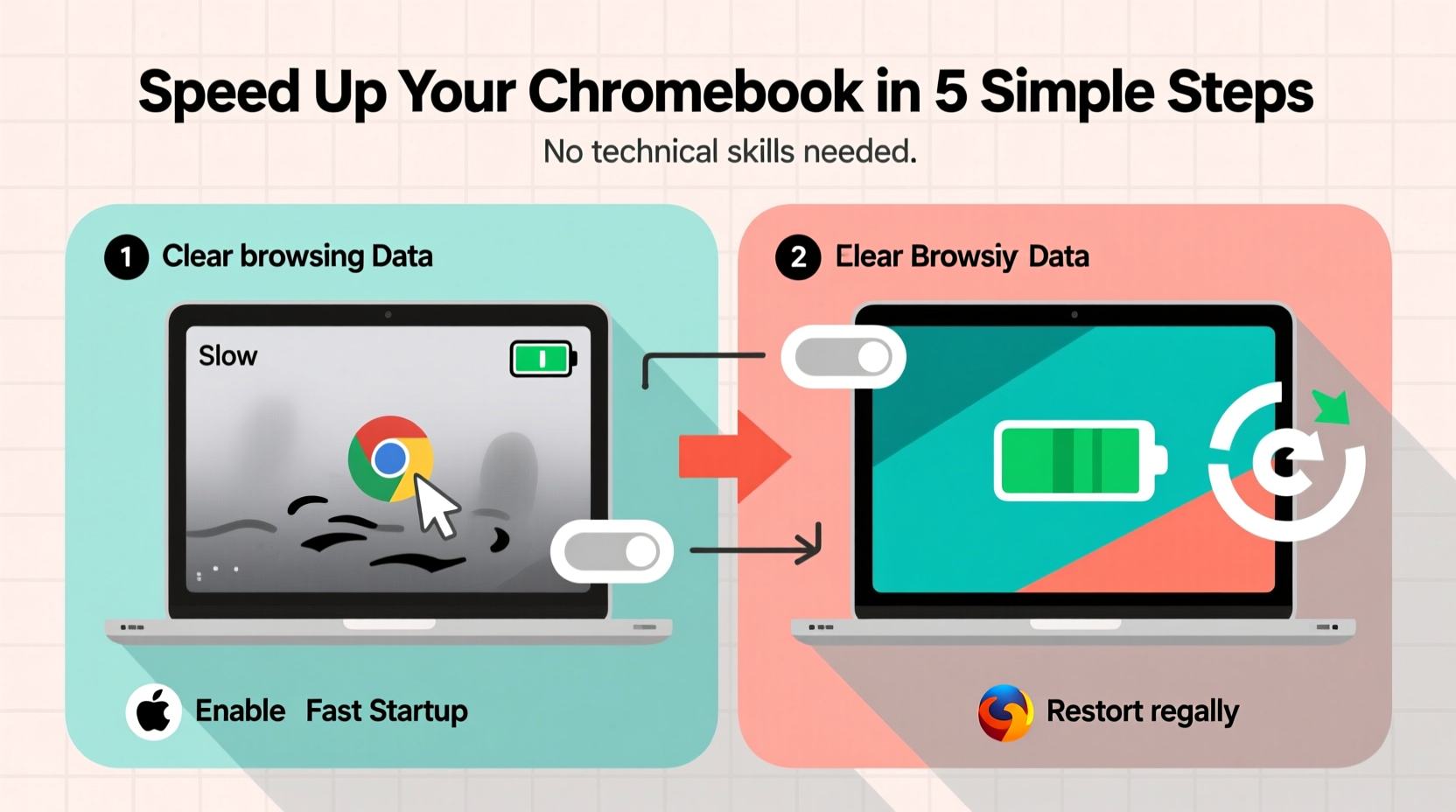
Before jumping into fixes, it helps to understand the common culprits behind poor Chromebook performance. Unlike traditional laptops, Chromebooks run Chrome OS, a lightweight operating system designed for web-based tasks. However, even efficient systems can suffer when overloaded.
- Too many browser extensions: Each extension consumes memory and CPU resources, especially if they’re active in the background.
- Excessive open tabs: Chrome’s memory usage increases significantly with each tab, particularly those running video or JavaScript-heavy sites.
- Outdated software: Running an old version of Chrome OS can lead to compatibility issues and missing performance improvements.
- Full storage: When internal storage is nearly full, Chrome OS struggles to manage temporary files and cache efficiently.
- Background apps and services: Some Android or Linux apps continue running in the background, eating up RAM.
Identifying which factor applies to your situation allows you to apply targeted solutions rather than making random changes.
2. Perform a Full System Cleanup
Cleaning up unnecessary files and data is one of the most effective ways to boost Chromebook speed. Over months of use, cached data, downloaded files, and unused apps accumulate silently, reducing available resources.
Clear Browsing Data
Browsers store cookies, cached images, and site data to speed up loading times, but over time this buildup can backfire. To clear it:
- Click the three vertical dots in the top-right corner of Chrome.
- Go to Settings > Privacy and security > Clear browsing data.
- Select “All time” as the time range.
- Check all boxes: Browsing history, Cookies, Cached images and files.
- Click “Clear data.”
This process typically takes under a minute and often results in noticeably faster page loads.
Delete Unnecessary Downloads
Open the Files app and review your Downloads folder. Delete any installers, documents, or media you no longer need. A full download directory doesn’t just waste space—it can interfere with system operations that rely on temporary file handling.
Uninstall Unused Apps and Extensions
Navigate to your app launcher and remove any apps you don’t use. For extensions:
- Type
chrome://extensionsin the address bar. - Disable or remove extensions you don’t actively need.
- Prioritize removing ad blockers, grammar tools, or social media helpers that run constantly.
Limit yourself to five essential extensions for optimal performance.
“Many users don’t realize how much impact browser extensions have. One poorly coded add-on can slow down every tab.” — David Lin, Chrome OS Optimization Specialist
3. Optimize Chrome OS Settings
Chrome OS includes several built-in settings that directly affect performance. Adjusting them can yield immediate improvements.
Enable Hardware Acceleration (If Disabled)
Hardware acceleration allows your Chromebook’s GPU to assist with rendering web pages and videos. If disabled, the CPU handles everything, leading to lag.
To check:
- Go to Settings > Advanced > System > Manage accessibility features.
- Search for “hardware acceleration.”
- Ensure “Use hardware acceleration when available” is turned on.
Note: On older or low-end models, disabling this may help stability—but for most users, enabling it improves speed.
Reduce Background Activity
Prevent apps from running in the background when not in use:
- Go to Settings > Apps > Google Play Store > App info.
- Select any Android app and set background restrictions where possible.
- For Linux apps, close the terminal or development environment when done.
Turn Off Animations
While subtle, UI animations consume processing power. Disabling them can make the interface feel snappier.
Though Chrome OS doesn’t offer a direct toggle, you can reduce visual effects by using lighter themes and avoiding live wallpapers or dynamic elements.
Manage Startup Apps
Some apps launch automatically when you sign in. To minimize startup load:
- Remove shortcuts from the shelf that aren’t essential.
- Disable auto-launch features in individual apps (e.g., cloud sync tools).
- Avoid logging into multiple accounts simultaneously unless necessary.
4. Free Up Storage and Memory
Chromebooks typically come with limited internal storage (16GB–64GB). When more than 80% is used, performance degrades significantly. Here’s how to reclaim space and optimize memory usage.
Use the Built-in Storage Manager
Chrome OS includes a helpful tool:
- Click the clock in the bottom-right corner.
- Select the gear icon to open Settings.
- Go to Storage management.
- Review recommendations: large files, duplicate downloads, and app storage.
The tool will suggest items to delete and show exactly how much space you’ll recover.
Offload Files to the Cloud
Move photos, documents, and videos to Google Drive. Enable “Offline Access” only for files you use frequently. This keeps local storage light while maintaining access.
Limit Offline Content
If you use YouTube Music, Netflix, or other offline-capable apps, regularly review and delete downloaded content. These files can occupy hundreds of megabytes without your awareness.
| File Type | Typical Size | Action |
|---|---|---|
| Downloaded Videos | 50–300 MB each | Delete after viewing |
| Android App Data | 100–500 MB | Clear cache monthly |
| Browser Cache | 100–800 MB | Clear weekly |
| Linux Development Tools | 1–3 GB | Uninstall if unused |
Regular maintenance prevents storage-related slowdowns before they become critical.
5. Apply Advanced Performance Tweaks
For users comfortable with deeper adjustments, these advanced techniques can extract extra performance, especially on older models.
Reset Chromebook Settings (Powerwash)
When all else fails, a factory reset—called Powerwash in Chrome OS—can restore peak performance. It erases all local data and resets settings to default.
Important: Back up your files to Google Drive or an external USB drive first.
To initiate Powerwash:
- Go to Settings > Advanced > Reset settings > Powerwash > Restart.
- Follow the prompts to confirm.
- After reboot, sign in and selectively restore only what you need.
Many users report their Chromebook feels like new after a Powerwash—even on devices several years old.
Disable Auto-Sync for Non-Essential Accounts
If you’ve added multiple Google accounts, calendar sync, or third-party services, they continuously pull data in the background. Go to Settings > Sync and Google Services and disable sync for accounts or features you rarely use.
Use Guest Mode for Testing
Log in as a guest user to test performance without extensions, apps, or personal data. If the Chromebook runs smoothly in Guest Mode, the issue lies in your user profile—likely due to corrupted settings or excessive customization.
Update Firmware and BIOS (if applicable)
Some enterprise or education-managed Chromebooks allow firmware updates through the Google Admin console. For personal devices, Chrome OS updates usually include firmware patches automatically. Ensure automatic updates are enabled under Settings > About Chrome OS.
Performance Checklist: 7 Quick Actions You Can Take Now
- Clear browsing data (cache, cookies, history)
- Uninstall unused apps and extensions
- Delete large files from Downloads
- Enable hardware acceleration
- Restart your Chromebook
- Free up storage using Storage Manager
- Update Chrome OS to the latest version
Real-World Example: Reviving a 5-Year-Old Chromebook
Samantha, a high school teacher, relied on her 2019 Acer Chromebook for lesson planning and virtual classes. Over time, it became so slow she considered buying a new one. Tabs froze, Zoom meetings lagged, and boot times exceeded two minutes.
She followed the cleanup steps: cleared 1.2 GB of browser cache, uninstalled seven unused extensions (including a weather widget and ad blocker), deleted old student assignments from Downloads, and performed a Powerwash. After reconfiguring only essential apps, her Chromebook booted in 25 seconds and handled multiple tabs smoothly. She saved $250 and extended her device’s life by at least another year.
This case illustrates how cumulative digital clutter—not hardware failure—is often the real cause of slowdowns.
Frequently Asked Questions
Will adding more RAM speed up my Chromebook?
No. Most Chromebooks have soldered RAM that cannot be upgraded. Instead, focus on reducing memory usage through fewer tabs, extensions, and background apps.
How often should I restart my Chromebook?
At least once a week. Regular restarts clear temporary files, stop rogue processes, and apply pending updates. For heavy users, restarting every 2–3 days is ideal.
Can malware slow down my Chromebook?
True malware is rare on Chrome OS due to its sandboxed architecture. However, malicious extensions or phishing sites can degrade performance. Stick to the Chrome Web Store and avoid sideloading untrusted add-ons.
Conclusion: Regain Speed Without Spending a Dime
A slow Chromebook doesn’t mean it’s time to upgrade. In most cases, performance issues stem from manageable software bloat, outdated settings, or storage overload. With a few deliberate tweaks—clearing cache, removing unused apps, optimizing settings, and occasionally resetting the system—you can restore smooth, responsive operation.
These strategies are fast, free, and effective for students, professionals, and families alike. Start with the checklist today. Reclaim your Chromebook’s speed, extend its lifespan, and enjoy a cleaner, more efficient digital experience.




 浙公网安备
33010002000092号
浙公网安备
33010002000092号 浙B2-20120091-4
Comments
No comments yet. Why don't you start the discussion?