
Streaming on Twitch doesn’t require expensive gear or a high-end gaming PC. With just a console and a headset, you can launch your own live channel and connect with viewers around the world. Whether you’re playing PS5, Xbox Series X|S, or even older-generation consoles, built-in streaming tools make it easier than ever to go live. The key is knowing how to set up your account, optimize audio, and engage an audience—all without additional hardware.
This guide walks through everything you need to get started: from linking accounts to broadcasting your first stream, managing chat, and growing your presence. You’ll also find practical tips to improve sound quality, avoid common mistakes, and maintain consistent broadcasts that keep people coming back.
Step 1: Set Up Your Twitch Account
Before you can stream, you need a Twitch account. While your console handles the broadcast, Twitch manages your channel, followers, and chat. Creating a profile takes only a few minutes but sets the foundation for your streaming identity.
- Go to twitch.tv and click “Sign Up.”
- Enter your desired username, email, and password.
- Verify your email address via the confirmation link sent to your inbox.
- Customize your profile: upload a profile picture, banner, and write a short bio that reflects your personality or content style.
Once your account is active, log in from your console later when setting up the stream. Note that some consoles allow direct login during setup, while others may require you to link accounts through a mobile app or website.
Step 2: Connect Your Console to Twitch
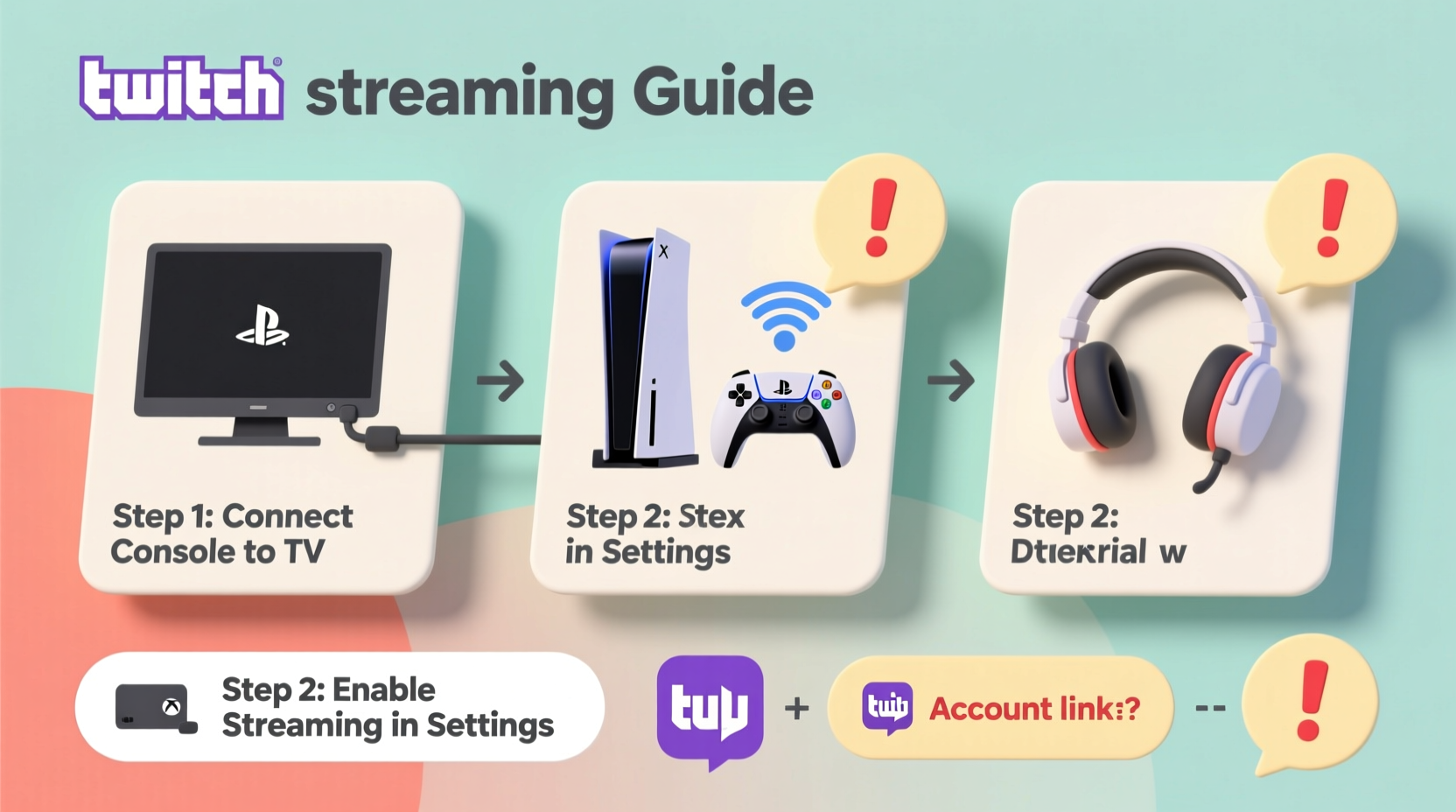
Both PlayStation and Xbox offer native Twitch integration, letting you stream directly from the system menu. Here’s how to link each:
For PlayStation (PS4/PS5):
- Press the PS button to open the control center.
- Navigate to “Broadcast Gameplay” or “Share Screen.”
- Select “Twitch” as your platform.
- If prompted, choose “Link New Account,” then follow the on-screen code process at twitch.tv/activate.
- Log in to Twitch and confirm the link.
For Xbox One / Xbox Series X|S:
- Press the Xbox button to open the guide.
- Go to “Capture & Share” > “Start Broadcast.”
- Select Twitch as your destination.
- Choose “Link Account,” then visit twitch.tv/link on another device.
- Enter the displayed code and authorize the connection.
After linking, your console saves the credentials. Future streams will require only a few button presses.
“Console streaming has lowered the entry barrier so much that anyone passionate about games can share their experience instantly.” — Marcus Reed, Streaming Community Manager at Twitch
Step 3: Configure Audio Using Just Your Headset
Your headset does double duty: it delivers game audio and captures your voice. Most modern headsets work plug-and-play with consoles, but proper configuration ensures clarity and avoids feedback.
Audio Settings Checklist:
- Mute game audio in mic: Prevents echoing and keeps chat focused on your commentary.
- Adjust mic sensitivity: Too high causes background noise; too low makes you hard to hear.
- Test microphone before going live: Use the console’s voice test feature or do a short private stream to review audio levels.
- Use push-to-talk (optional): Helps reduce ambient noise if you're not speaking constantly.
On PlayStation, go to Settings > Sound > Microphone Level. On Xbox, navigate to Settings > Ease of Access > Audio > Mic Monitoring. Adjust until your voice sounds clear but not distorted.
Step 4: Start Your First Stream
Now that everything is linked and configured, it’s time to go live. Follow this sequence to ensure a smooth launch:
- Launch the game you want to stream.
- Open the console’s sharing/broadcast menu (SHARE button on PS, Xbox button + “Broadcast” option).
- Select Twitch as your platform.
- Set your stream title (e.g., “First Stream – Playing Elden Ring!”).
- Choose resolution and frame rate (1080p at 30fps is stable for most internet connections).
- Hit “Start Broadcast.”
You’ll see a small overlay indicating you’re live. Viewers can now find your stream on your channel page at twitch.tv/yourusername.
During the Stream:
- Introduce yourself early—even if no one’s watching yet.
- Explain what game you’re playing and your goals.
- Encourage interaction: ask questions like “What should I do next?” or “Have you played this boss before?”
- Keep energy consistent. Enthusiasm draws people in, even during quiet gameplay moments.
Ending the Stream:
When done, return to the broadcast menu and select “Stop Broadcast.” Don’t just turn off the console—this may leave your stream hanging, confusing viewers.
Step 5: Optimize Your Channel Without Extra Gear
You don’t need overlays, alerts, or a webcam to build a loyal audience. Focus instead on consistency, engagement, and branding within Twitch’s free tools.
| Feature | How to Use It (No PC Needed) | Benefit |
|---|---|---|
| Stream Title & Category | Set accurately before each stream via console or mobile app | Helps viewers discover your content in search and browsing |
| Profile Bio | Edit on twitch.tv or mobile app | Tells new visitors who you are and what to expect |
| Offline Screen | Upload image via browser (profile > Settings > Channel) | Shows a custom message when you’re not live |
| Chat Moderation | Add mods via mobile app or website | Keeps conversation friendly and spam-free |
| Follow Goals | Set in dashboard under “Goals” | Motivates community to support your growth |
Update your category regularly. Streaming *Minecraft*? Don’t leave it set to “Just Chatting.” Accurate categorization increases visibility.
Mini Case Study: Jamie’s Journey from Zero to 100 Followers
Jamie, a 24-year-old casual gamer from Portland, started streaming on her PS5 using only her Pulse 3D headset and a slow internet connection (10 Mbps upload). She began by streaming *Stardew Valley* every Friday night, setting a recurring schedule visible in her bio.
Initially, she had no viewers. But she kept introducing herself, thanking lurkers, and asking simple questions like “Should I upgrade my hoe or save for animals?” After three weeks, one viewer returned. Then two. By week six, she hit 50 concurrent viewers during a festival event in-game.
She credits consistency and interaction: “I didn’t change my gear. I just showed up, talked like I was playing with friends, and made people feel welcome.” Today, she has over 300 followers and uses only console tools—no capture card, no PC.
Common Pitfalls to Avoid
Even with minimal setup, mistakes can hurt your early momentum. Steer clear of these:
- Inconsistent streaming times: Random schedules make it hard for viewers to return.
- Ignoring chat: Even if no one types, acknowledge possible lurkers. “Hey everyone, thanks for stopping by!” goes a long way.
- Poor audio settings: Muffled or echoey voice turns people away fast.
- Streaming copyrighted music: In-game soundtracks are fine, but playing Spotify in the background risks DMCA takedowns.
- Overestimating bandwidth: If your upload speed is below 5 Mbps, stick to 720p to prevent lag and disconnects.
Frequently Asked Questions
Can I stream on Twitch without a capture card?
Yes. Modern consoles (PS4, PS5, Xbox One, Xbox Series X|S) have built-in streaming features that send video directly to Twitch. No capture card or PC is needed.
Do I need a microphone if I’m using a headset?
Your headset’s built-in mic is sufficient. Most gaming headsets include noise-isolating microphones designed for voice chat and streaming. Just ensure it’s properly configured in system settings.
Why can’t people hear me on my stream?
This usually happens when the mic is muted in system settings or the headset isn’t recognized. Check audio input settings on your console and retest. Also, confirm that your headset is fully plugged in or paired via Bluetooth (if supported).
Final Checklist Before Going Live
- ✅ Created and verified your Twitch account
- ✅ Linked your console to Twitch using activation code
- ✅ Connected and tested your headset microphone
- ✅ Set a clear, relevant stream title and correct game category
- ✅ Checked internet upload speed (minimum 3–5 Mbps for 720p)
- ✅ Planned what to say at the start of your stream
- ✅ Shared your stream time with friends or social media (optional but helpful)
Conclusion: Your Console Is All You Need to Begin
Starting a Twitch channel with just a console and headset is not only possible—it’s one of the most accessible ways to enter the streaming world. You don’t need top-tier equipment or technical expertise. What matters most is showing up, being authentic, and creating a space where people enjoy spending time.
Every big streamer started exactly where you are: one person, one game, one headset. The tools are already in your hands. The next step is pressing “Start Broadcast” and speaking into the void—because someone out there is ready to listen.




 浙公网安备
33010002000092号
浙公网安备
33010002000092号 浙B2-20120091-4
Comments
No comments yet. Why don't you start the discussion?