
Motion blur can turn what should be a striking action shot into a soft, indistinct mess. Whether you're capturing your child's soccer game, a pet mid-leap, or a friend biking down a trail, the movement involved often results in blurred images — especially when relying solely on automatic smartphone camera modes. The good news is that modern smartphones are equipped with powerful tools and settings that, when used correctly, can freeze motion and deliver crisp, professional-looking results. Understanding how to leverage shutter speed, focus modes, stabilization, and scene selection gives you control over blur, even without additional gear.
Understanding Motion Blur: Why It Happens
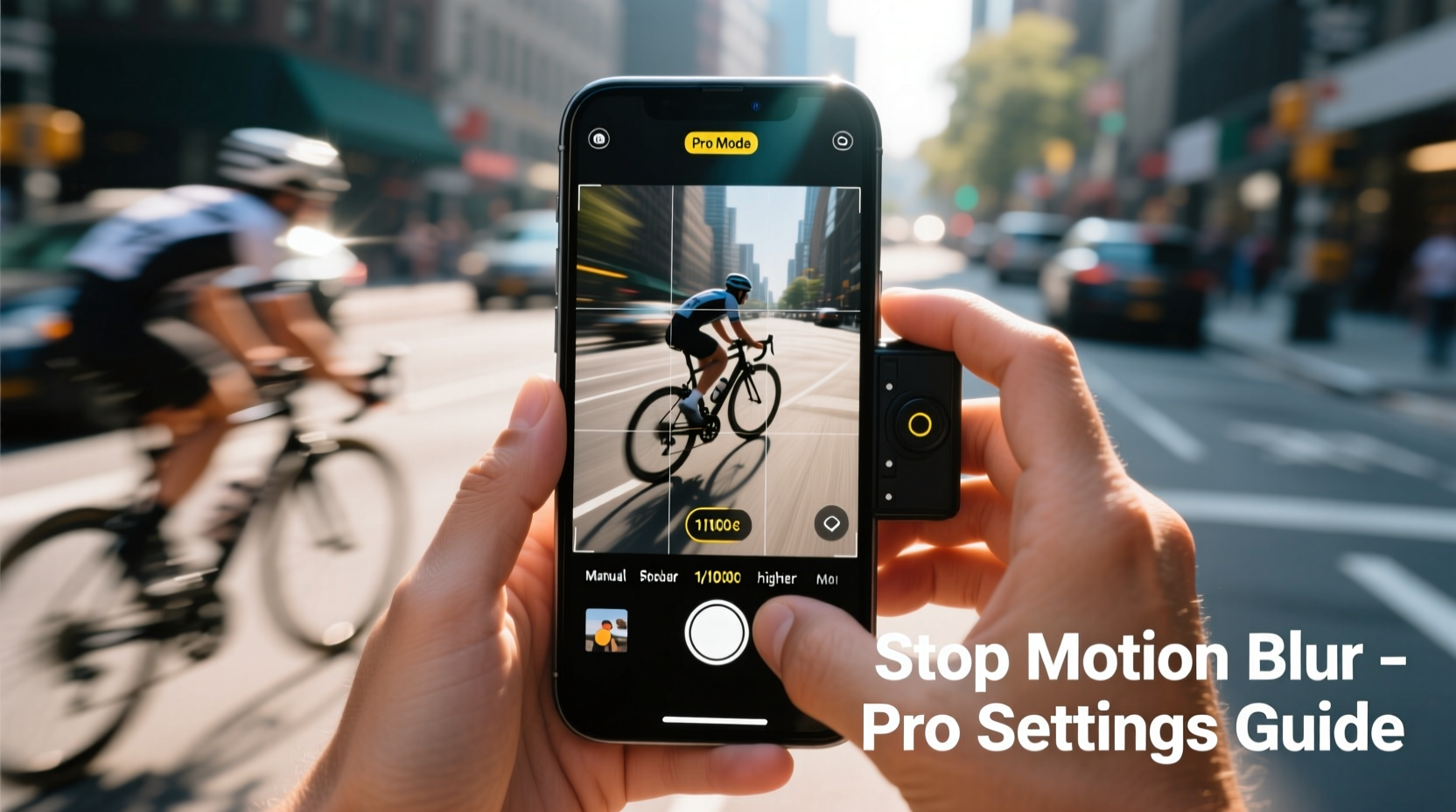
Motion blur occurs when there’s movement — either from the subject or the camera — during the exposure time. The longer the sensor is exposed to light (i.e., the slower the shutter speed), the more opportunity there is for movement to register as blur. In low-light conditions, phones automatically extend exposure time to gather more light, which increases the risk of blur. Even small hand movements can cause camera shake, and fast-moving subjects will naturally streak if not captured quickly enough.
Smartphones don’t expose shutter speed directly in standard mode, but they adjust it dynamically based on lighting and scene detection. This means users must learn to influence these decisions through manual controls or intelligent use of available settings.
Use Pro Mode or Manual Camera Settings
Most high-end smartphones now include a “Pro” or “Manual” mode within their native camera app (or via third-party apps like Open Camera or Filmic Pro). This mode allows direct control over ISO, shutter speed, white balance, and focus — giving you the precision needed to combat motion blur.
In particular, adjusting the shutter speed is critical. To freeze action, you need a fast shutter speed — typically 1/500th of a second or faster. At this speed, even rapid movements are captured sharply. However, faster shutter speeds let in less light, so you’ll need to compensate by increasing ISO or shooting in well-lit environments.
“Photographers often overlook that smartphones can shoot at 1/1000 sec in bright daylight — that’s more than enough to freeze most sports action.” — Jordan Lee, Mobile Photography Educator
Step-by-Step: Setting Up Pro Mode for Action Shots
- Open your phone’s camera app and switch to “Pro” or “Manual” mode.
- Set the shutter speed to 1/500 or faster (look for values like 1/1000).
- Adjust ISO between 100–400 to maintain image quality; avoid going above 800 unless necessary.
- Set focus to “AF-C” (Continuous Auto-Focus) or manually pre-focus on where the action will occur.
- Use the volume buttons or a Bluetooth shutter remote to trigger the shot without touching the screen.
If your phone doesn’t have a built-in Pro mode, consider downloading a trusted third-party app that supports manual controls. These apps often provide greater flexibility than stock software.
Leverage Burst Mode Strategically
Burst mode takes multiple frames per second when you hold down the shutter. While not a substitute for proper exposure settings, it increases your odds of capturing a sharp moment amid motion. When combined with fast shutter speeds, burst mode becomes a powerful tool for isolating the clearest frame.
To activate burst mode, simply press and hold the shutter button. On iPhones, this works natively; on Android devices, it may require enabling in settings or using a third-party app.
Be mindful of storage space and processing lag. Shooting long bursts can slow down your device temporarily, especially on older models.
Optimize Lighting Conditions
Lighting plays a foundational role in motion photography. The brighter the environment, the faster your phone can set the shutter speed without compromising exposure. Natural daylight is ideal. Overcast days still offer sufficient ambient light, while indoor or evening scenes present greater challenges.
If shooting indoors, position your subject near windows or use artificial lighting to boost illumination. Avoid relying on the flash — it often creates harsh shadows and doesn’t help with freezing motion due to its limited range and sync limitations.
| Lighting Condition | Max Usable Shutter Speed (Typical) | Action Suitable? |
|---|---|---|
| Bright Sunlight | 1/1000 – 1/4000 sec | Yes – excellent for fast motion |
| Overcast Day | 1/250 – 1/500 sec | Moderate motion only |
| Indoor (Well-Lit) | 1/60 – 1/125 sec | Slow motion only; risk of blur |
| Low Light / Evening | 1/30 sec or slower | No – high blur risk without stabilization |
The table illustrates why timing matters. Scheduling action shots during daylight hours dramatically improves your ability to eliminate blur, even on mid-tier phones.
Enable AI Scene Detection and Sports Mode
Many modern smartphones come with AI-powered scene recognition that detects movement and automatically switches to “Sports” or “Action” mode. When enabled, these modes prioritize faster shutter speeds, continuous autofocus, and higher frame rates.
For example, Samsung Galaxy devices label this as “Motion Mode,” while Google Pixel uses “Top Shot” in conjunction with Motion Auto Focus. iPhones utilize Smart HDR and Deep Fusion to enhance detail in moving subjects, especially in newer models with Photographic Styles.
To ensure these features work effectively:
- Keep AI enhancements turned on in camera settings.
- Allow the phone a second to recognize the scene before shooting.
- Avoid obstructing sensors or lenses with fingers.
“We tested five flagship phones in playground scenarios — all performed significantly better in AI-assisted sports mode than in auto. The difference was visible in both clarity and color accuracy.” — TechImaging Lab, 2023 Smartphone Camera Report
Stabilization: Use It Right
While optical (OIS) and electronic image stabilization (EIS) help reduce camera shake, they can sometimes hinder action photography. EIS crops the frame and applies digital smoothing, which may introduce lag or reduce resolution. In fast-paced scenes, this processing delay can misalign focus tracking.
For best results:
- Use OIS when available — it stabilizes without sacrificing quality.
- Disable EIS if your phone allows it in Pro mode, especially for rapid panning shots.
- Hold the phone steadily with both hands, elbows tucked in.
- Lean against a wall or post when possible to minimize micro-movements.
Contrary to common belief, stabilization doesn’t fix motion blur from fast-moving subjects — only fast shutter speeds do. Stabilization primarily combats handheld shake, not subject movement.
Pre-Focus and Predict Movement
One of the most overlooked techniques is anticipating action. Instead of waiting for the perfect moment to tap the screen, pre-focus on the area where the subject will be. Tap and hold on that spot in the viewfinder until “AE/AF Lock” appears (on supported devices).
This prevents the camera from refocusing at the last second, which can cause missed shots or soft focus. For instance, if photographing a runner approaching a finish line, lock focus on the line itself and wait for the subject to enter the frame.
Mini Case Study: Capturing a Skateboard Jump
Maya, an amateur street photographer, struggled to capture clean shots of skateboarders at her local park. Most images were blurry, despite using Night Mode and zoom. She switched tactics: she arrived at noon for maximum sunlight, enabled Pro mode, set shutter speed to 1/1000 sec, locked focus on the edge of a ramp, and used burst mode as skaters launched. Out of 40 shots, 12 were tack-sharp — a dramatic improvement. By controlling variables instead of relying on automation, she achieved publishable results with just her phone.
Checklist: How to Stop Motion Blur in 7 Steps
Action Checklist:
- Shoot in bright, natural light whenever possible.
- Switch to Pro or Manual mode to control shutter speed (aim for 1/500 sec or faster).
- Set ISO between 100–400 to reduce noise.
- Enable continuous autofocus (AF-C) or pre-focus on the action zone.
- Use burst mode to increase chances of a sharp frame.
- Activate Sports or Action mode if available.
- Hold the phone steady — use two hands and minimize body movement.
Frequently Asked Questions
Can I stop motion blur without Pro mode?
Yes, but with limitations. Use Sports mode, ensure bright lighting, and stabilize your grip. While you won’t have direct shutter control, AI optimization may help. Avoid zooming, as it amplifies blur.
Why does my phone take blurry photos even in daylight?
This can happen if the subject moves too quickly for the default shutter speed, or if autofocus fails to track properly. Clean your lens, disable filters, and try tapping to focus before shooting. Also, check for software updates — camera algorithms improve over time.
Does video mode affect photo blur?
Not directly, but recording video uses similar sensor resources. If you’ve been filming in low light, the sensor may retain heat or noise, affecting subsequent photo quality. Let the phone cool briefly between heavy usage sessions.
Conclusion: Take Control of Your Phone’s Potential
Motion blur doesn’t have to be an inevitable flaw in action photography. With thoughtful use of your phone’s settings — from shutter speed adjustments to strategic focusing — you can consistently capture dynamic moments with clarity and impact. Modern smartphones are capable of far more than point-and-shoot simplicity; they respond well to informed input. The next time you’re about to snap a moving subject, pause for a moment: check the light, set your mode, lock focus, and shoot with intention. These small steps make the difference between a forgotten snapshot and a lasting memory.




 浙公网安备
33010002000092号
浙公网安备
33010002000092号 浙B2-20120091-4
Comments
No comments yet. Why don't you start the discussion?