
There’s a quiet frustration most of us have experienced: sending a text, only to see your own name mangled by autocorrect into something unrecognizable—“Jon” becomes “Don,” “Aisha” turns into “Ash,” or “Xander” is rewritten as “Sander.” While predictive text aims to help, it often misfires when it comes to personal names, especially those that are uncommon, culturally specific, or phonetically unique. The irony? Your phone knows who you are, yet it refuses to spell your name correctly.
This issue isn’t just annoying—it can be embarrassing in professional messages or confusing in group chats. But the good news is that both iOS and Android offer tools to teach your phone your correct name and prevent future mistakes. With a few targeted adjustments to your keyboard settings, dictionary, and contact profile, you can reclaim control over how your name appears in every message you send.
Why Your Phone Keeps Changing Your Name
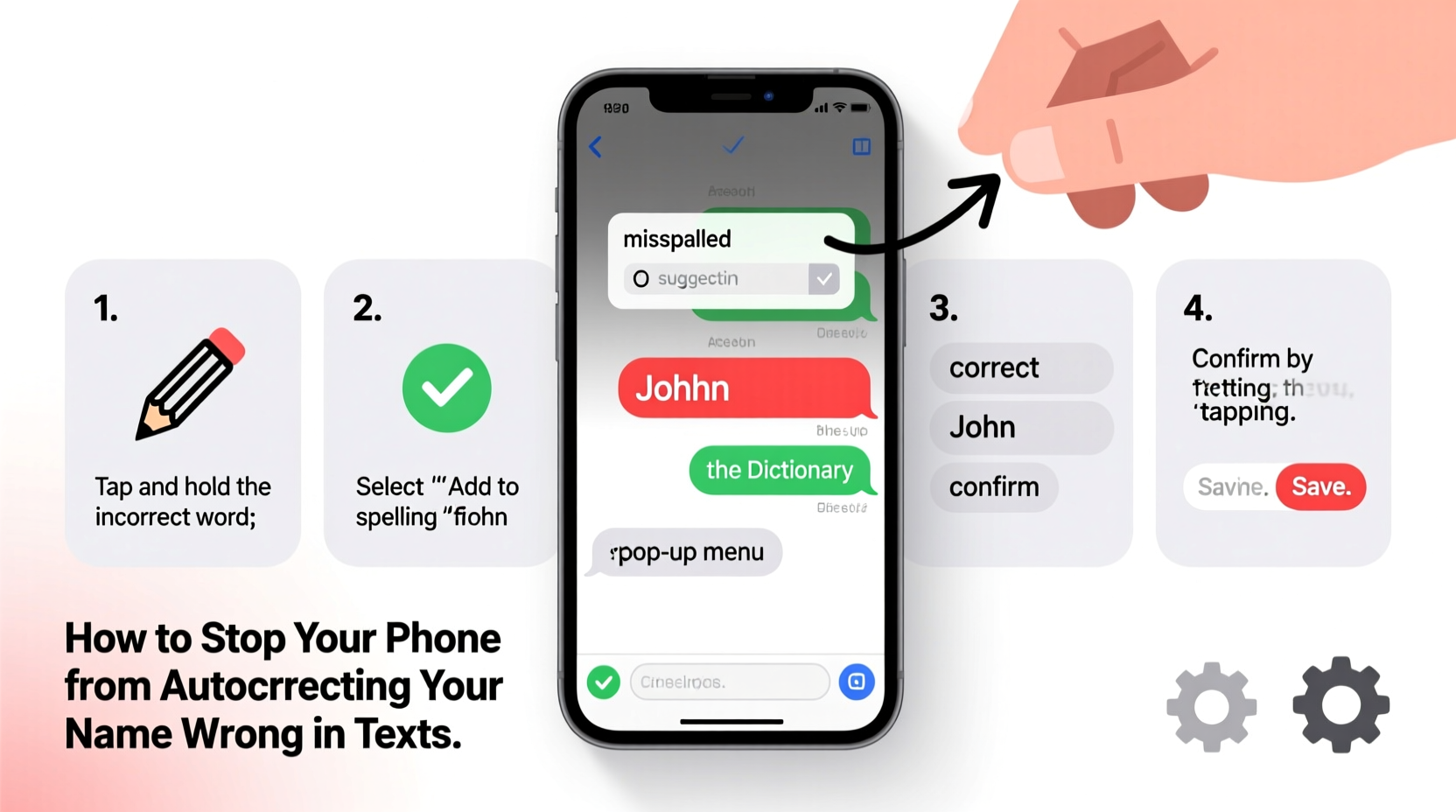
Autocorrect systems rely on statistical models trained on common words and usage patterns. Names that fall outside mainstream linguistic trends are often flagged as misspellings. This is especially true for:
- Names with uncommon spellings (e.g., “Kaitlyn” vs. “Caitlin”)
- Names from non-English languages (e.g., “Zahra,” “Leif,” “Teyo”)
- Gender-neutral or invented names (e.g., “Remy,” “Kai,” “Nolyn”)
- Names with silent letters or unusual pronunciation (e.g., “Phoebe,” “Deacon”)
Your device's keyboard learns from your typing habits, but it also defaults to a built-in dictionary that prioritizes high-frequency words. If your name isn’t recognized as a valid word, the algorithm assumes it’s an error and replaces it automatically.
“Autocorrect doesn’t understand identity—it understands frequency. That’s why unique names get corrected even when they’re spelled right.” — Dr. Lena Torres, Human-Computer Interaction Researcher, MIT Media Lab
Additionally, some phones sync keyboard predictions across devices via cloud services (like iCloud or Google Account), which means a correction learned on one device can carry over to others—even if you’ve fixed it locally.
Step-by-Step Guide to Fix Autocorrect for Your Name
The solution lies in training your phone’s keyboard to recognize your name as correct. Follow these steps based on your operating system.
For iPhone (iOS)
- Add your name to the keyboard dictionary: Go to Settings > General > Keyboard > Text Replacement. Tap the \"+\" button. In the \"Phrase\" field, enter your full name exactly as you want it to appear (e.g., “Jalilah”). In the \"Shortcut\" field, enter a unique trigger like “@@name” or your initials. This ensures the name is stored in the predictive engine.
- Create a shortcut for quick insertion: Now, whenever you type your shortcut (e.g., “@@j”), the keyboard will suggest your full name. Over time, iOS begins to predict the full name even without the shortcut.
- Check your contact card: Open the Phone or Contacts app, tap your own contact entry (labeled “My Card”), and ensure your name is spelled correctly. This helps iMessage and other Apple services auto-populate the right spelling.
- Disable “Predictive” temporarily if needed: If corrections persist, go to Settings > General > Keyboard and toggle off “Predictive.” Re-enable it after a few minutes—this sometimes resets glitchy behavior.
For Android Devices
- Access the personal dictionary: Open Settings > System > Languages & input > Virtual keyboard (or On-screen keyboard). Select your default keyboard (e.g., Gboard). Tap “Text correction” or “Personal dictionary.”
- Add your name manually: Choose your language (e.g., English) and tap the \"+\" icon. Enter your full name in the “Word” field. Leave the shortcut field blank unless you want a typing trigger. This teaches Gboard that your name is valid.
- Use voice typing to reinforce correctness: Try saying your name aloud using voice input. When you manually correct any misheard version, Google’s AI logs the correction and improves future accuracy.
- Sync across devices: Ensure your Google Account is syncing “Keyboard settings” under Settings > Google > Manage your Google Account > Data & privacy > Sync.
Do’s and Don’ts When Training Your Keyboard
| Do’s | Don’ts |
|---|---|
| Spell your name consistently across all apps and profiles | Ignore repeated incorrect suggestions—this trains the system the wrong way |
| Add variations (e.g., nickname, maiden name) to your personal dictionary | Delete your name from contacts or use abbreviations in your own profile |
| Use your full legal name in your contact card | Rely solely on autocorrect without manual intervention |
| Test corrections in Notes or Messages before important texts | Assume one fix works permanently—check periodically |
Real Example: How Maria Fixed Her Name Issue
Maria, a freelance designer from Miami, noticed clients kept receiving messages where her name—“María”—was changed to “Maria” or even “Mara.” Not only was it frustrating, but she felt her cultural identity was being erased by her own phone.
She first tried turning off autocorrect entirely, but that led to more typos. Then, she discovered that her iPhone wasn’t recognizing the accented “á” because it wasn’t in the standard dictionary. She went to Settings > General > Keyboard > Text Replacement and added “María” with the shortcut “@@maria.” She also updated her contact card to include the accent and began using her full name in email signatures.
Within a week, her phone started predicting “María” correctly—even without the shortcut. Bonus: her colleagues started noticing the consistency and began spelling her name right in replies too.
“It felt small, but getting my name right gave me back a sense of respect—from my phone and from others.” — Maria R., Graphic Designer
Advanced Tips to Lock In the Fix
Even after initial setup, autocorrect can regress—especially after software updates or when switching keyboards. Use these advanced strategies to maintain long-term accuracy.
Enable Contact-Based Prediction
Both iOS and Android prioritize names from your contacts list. Make sure your own contact is labeled “Me” or linked to your SIM card.
- iOS: In the Contacts app, find your entry, tap “Edit,” then “Add Field,” and assign it as “My Card.”
- Android: Open Contacts, tap your profile, and ensure “This is me” is enabled under settings.
Train the AI with Repetition
Type your name correctly at least 5–10 times in different contexts: in a note, a text, an email. Each instance reinforces the neural network behind the keyboard. Avoid tapping the suggested (wrong) version—even once.
Reset Keyboard Dictionary (If All Else Fails)
If your phone keeps reverting, consider resetting the learning data:
- iOS: Settings > General > Transfer or Reset iPhone > Reset > Reset Keyboard Dictionary. Note: You’ll lose custom shortcuts and learned phrases.
- Android: In Gboard settings, go to Preferences > Reset suggestions. This clears personalized predictions but keeps saved words.
FAQ: Common Questions About Name Autocorrect
Why does my phone change my name even when I spell it right?
Your phone’s dictionary may not recognize your name as a valid word. Autocorrect assumes unfamiliar sequences are typos. Adding your name to the personal dictionary tells the system it’s correct.
Can I stop autocorrect from changing my name without disabling it completely?
Yes. You don’t need to turn off autocorrect entirely. Instead, train the keyboard by adding your name to the dictionary and ensuring your contact profile is accurate. Most corrections can be stopped selectively.
Does this work for nicknames or stage names?
Absolutely. Whether you go by “Alex,” “Lex,” or “SupremeDJLex,” you can add any variation to your personal dictionary. Just enter each version as a separate entry with its own context if needed.
Checklist: Stop Wrong Name Corrections in 5 Steps
- ✅ Verify your name is spelled correctly in your phone’s contact card (“My Profile”)
- ✅ Add your full name to the personal dictionary in keyboard settings
- ✅ Create a text replacement shortcut (e.g., “@@name”) for faster access
- ✅ Type your name correctly multiple times to reinforce learning
- ✅ Test in real messages and correct any mistakes immediately
Conclusion: Take Control of How You’re Seen
Your name is more than a label—it’s part of your identity. Letting autocorrect alter it undermines clarity and respect, especially in professional or personal communication. The fix isn’t complicated, but it requires intention. By taking a few minutes to configure your keyboard, update your contact profile, and reinforce correct usage, you teach your device to honor how you want to be addressed.
Technology should serve you, not reshape you. Once your phone stops mangling your name, you’ll notice fewer corrections, less embarrassment, and more confidence in every message you send. It’s a small adjustment with outsized impact.




 浙公网安备
33010002000092号
浙公网安备
33010002000092号 浙B2-20120091-4
Comments
No comments yet. Why don't you start the discussion?