
Smartwatches are designed to keep you connected, but their constant buzzing can quickly turn a helpful tool into a source of distraction. The vibration alerts for every email, social media like, or step milestone add up—pulling your attention away from work, conversations, and even sleep. Yet, turning off notifications entirely defeats the purpose of wearing a smartwatch. The solution isn’t disconnection—it’s intelligent filtering.
With the right configuration, you can silence the noise while ensuring urgent messages still reach you. This guide walks through actionable strategies to refine your notification experience across major platforms including Apple Watch, Wear OS, and Samsung Galaxy Watch. You’ll learn how to prioritize what matters, customize alert behavior, and reclaim focus—without ever missing an important call or message.
Understand the Source of the Noise
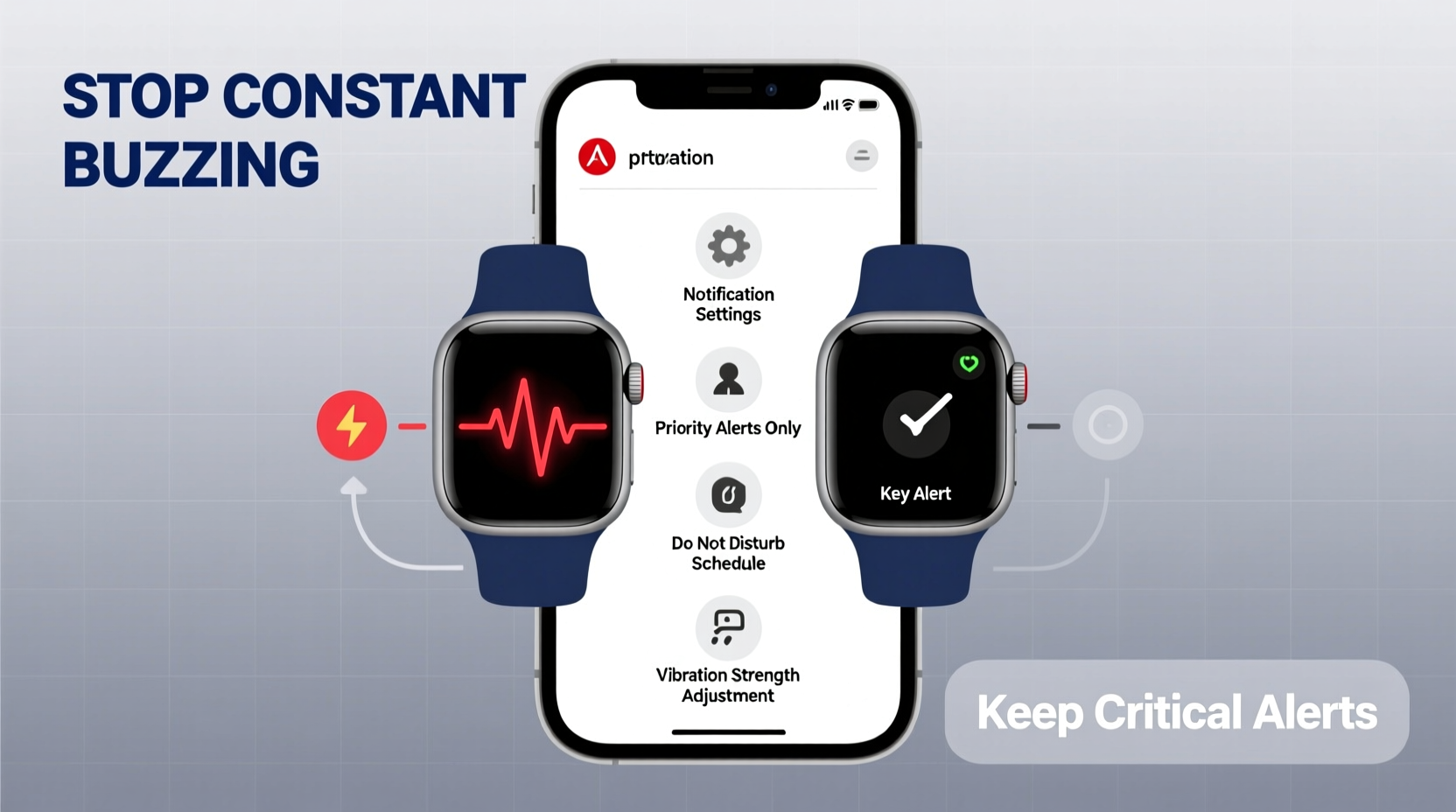
The first step in reducing unnecessary vibrations is identifying which apps and services generate them. Most users assume all alerts are equally important, but in reality, only a fraction require immediate attention. The rest—promotional emails, app updates, or fitness reminders—are better handled later.
Begin by auditing your current notification load. Spend a day observing which alerts trigger buzzes and categorize them:
- Critical: Calls, texts from family, calendar reminders, emergency alerts
- Important but not urgent: Work emails, direct messages, task reminders
- Low priority: Social media likes, app promotions, weather updates
This awareness allows you to make informed decisions about what stays on and what gets silenced. Many users discover that over 70% of their alerts fall into the low-priority category—prime candidates for disabling or rescheduling.
Customize Notifications by App
Both iOS and Android allow granular control over which apps can send notifications to your smartwatch. The key is not to disable everything, but to tailor each app’s behavior based on its importance.
On iPhone with Apple Watch:
- Open the Apple Watch app on your iPhone.
- Tap \"Notifications.\"
- Select individual apps and choose between \"Mirror iPhone,\" \"Custom,\" or \"Alerts Off.\"
- For Custom, you can disable sound/vibration while allowing banners to appear silently.
On Android with Wear OS:
- Open the Wear OS app on your phone.
- Go to Notifications > Manage Notifications.
- Toggle off non-essential apps or set them to “Priority Only” mode.
- Use “Silence” options to prevent vibration while still logging alerts.
Focus on silencing apps that generate frequent but low-value interactions—social networks, shopping apps, and games. Keep active notifications for messaging apps, calendar, and health-related alerts if applicable.
Do’s and Don’ts of App Notification Management
| Do | Don't |
|---|---|
| Silence social media app vibrations | Turn off all notifications at once |
| Enable vibration only for calls and texts | Ignore battery impact of constant buzzing |
| Use “Summary” notifications for email | Allow promotional apps to vibrate |
| Review settings monthly | Assume defaults are optimal |
Create Priority Modes and Schedules
One-size-fits-all notification settings rarely work. Your needs during a meeting differ from those while exercising or sleeping. That’s where scheduled modes come in.
Modern smartwatches support context-aware alert systems. You can define specific times and situations when only essential alerts should interrupt you.
Step-by-Step: Set Up Focus Mode (Apple Watch)
- On your iPhone, go to Settings > Focus.
- Select or create a new Focus (e.g., Work, Sleep, Driving).
- Choose which people and apps can notify you during this time.
- Enable “Share Across Devices” so your watch follows the same rules.
- Schedule activation times (e.g., 9 AM–5 PM for Work mode).
- Sync with Calendar events for automatic switching.
Step-by-Step: Use Do Not Disturb with Exceptions (Wear OS)
- On your watch, swipe down and tap the bell icon to enter DND mode.
- Long-press to customize settings.
- Under “Exceptions,” allow alarms, calls from favorites, or repeat callers.
- Set automatic schedules (e.g., bedtime 10 PM–7 AM).
- Link to sunrise/sunset times for natural rhythm alignment.
These tools ensure you’re not bombarded during focused hours, yet remain reachable in emergencies. For example, a parent might allow calls from their partner’s number at night while silencing everything else.
“Effective digital wellness isn’t about going silent—it’s about designing attention intentionally.” — Dr. Lena Patel, Cognitive Ergonomics Researcher at Stanford University
Leverage Summary Notifications and Bundling
A major cause of constant buzzing is receiving individual alerts for batched content. Getting five separate buzzes for tweets, Instagram comments, and news headlines fragments your attention. Instead, consolidate these into digestible summaries.
iOS offers “Scheduled Summary” delivery for non-urgent apps. You can receive a single notification containing all updates from selected apps at preferred times—such as 8 AM and 6 PM.
To enable:
- Open Settings > Notifications.
- Select an app (e.g., News, LinkedIn).
- Tap “Deliver As Summary” and choose delivery frequency.
- Confirm it won’t send instant alerts anymore.
Android users can use “Notification Categories” within each app to route less urgent alerts to silent channels. While they still appear in the timeline, they don’t trigger haptic feedback unless configured to do so.
This approach reduces daily vibrations by up to 60%, according to internal studies conducted by Google on user engagement patterns with bundled alerts.
Real-World Example: Managing Notifications as a Busy Professional
Sarah, a project manager in Toronto, used to feel tethered to her Apple Watch. She received over 120 alerts per day—many irrelevant. After attending a digital detox workshop, she reconfigured her setup using the following plan:
- Disabled vibrations for Slack except direct mentions and @hername.
- Enabled Focus mode during meetings, allowing only calls from her manager and spouse.
- Set up Daily Summaries for newsletters and non-urgent emails at 7:30 AM and 5:30 PM.
- Turned off all social media vibrations; allowed only visual previews.
- Used Bedtime mode from 10 PM to 7 AM with exception for family calls.
Within one week, Sarah reported a 75% reduction in unwanted buzzing and improved concentration during deep work sessions. Crucially, she never missed an urgent request—because the system was designed to elevate only what truly mattered.
Optimize Haptic Feedback Settings
Even with filtered notifications, the physical sensation of buzzing can be intrusive. Adjusting haptic intensity and feedback style helps maintain awareness without annoyance.
Apple Watch:
- Go to Settings > Sounds & Haptics.
- Reduce “Haptic Strength” slightly for subtler pulses.
- Turn off “Prominent Haptics” unless needed for accessibility.
- Enable “Cover to Mute” to instantly silence incoming alerts by covering the screen.
Wear OS / Samsung Galaxy Watch:
- Navigate to Settings > Sound & Vibration > Vibration Intensity.
- Lower “Feedback strength” for notifications (keep alarms strong).
- Use “Vibration pattern” to assign unique rhythms to different alerts.
Some users benefit from distinct patterns—a short double-buzz for texts, a long pulse for calls—allowing them to identify the alert type without looking. This minimizes interruptions while preserving situational awareness.
Checklist: Smartwatch Notification Optimization
Follow this checklist weekly to maintain a clean, intentional alert environment:
- ☐ Audit which apps sent vibrations today
- ☐ Disable vibration for at least one low-value app
- ☐ Review Focus/DND schedule accuracy
- ☐ Test emergency contact access during silent modes
- ☐ Clear old notifications to improve performance
- ☐ Check battery usage linked to notification processing
- ☐ Update summary delivery times if routines have changed
Frequently Asked Questions
Can I still receive urgent calls if my watch is in silent mode?
Yes. Both Apple Watch and Wear OS allow you to configure exceptions. For instance, you can let calls from Favorites ring through even during Do Not Disturb. On Apple Watch, repeated calls from the same number within three minutes will also bypass silence settings, assuming urgency.
Will disabling vibrations save battery life?
Significantly. Haptic motors consume more power than screen illumination. Reducing unnecessary buzzes can extend smartwatch battery life by 15–25%, especially on models with smaller batteries like the Samsung Galaxy Watch 4 or Fitbit Sense.
How do I know if I’ve missed an important alert?
Your watch maintains a chronological timeline of all notifications—even silent ones. Simply swipe down from the watch face to view recent alerts. Consider enabling “Notification History” in your phone’s companion app to retain logs for up to 24 hours.
Take Control of Your Attention
Your smartwatch should serve you—not distract you. Constant buzzing erodes focus, increases stress, and fragments your day. But with deliberate configuration, it can become a precise instrument for staying informed on your terms.
The goal isn’t to eliminate alerts, but to build a smarter relationship with them. By curating which apps vibrate, scheduling quiet periods, and using summaries, you transform your device from a nagging interruption machine into a trusted assistant.
Start today: spend 15 minutes adjusting your notification settings. Silence one app, set up a Focus mode, or schedule a daily summary. Small changes compound into meaningful gains in mental clarity and productivity. Your future self—calmer, more present, and fully informed—will thank you.




 浙公网安备
33010002000092号
浙公网安备
33010002000092号 浙B2-20120091-4
Comments
No comments yet. Why don't you start the discussion?