
Waking up to a dead smartwatch is more than frustrating—it defeats the purpose of having a device designed to track your sleep, morning workouts, and daily agenda. If your smartwatch consistently loses charge overnight despite minimal use, you're not alone. Battery drain during idle hours is a common issue across major brands like Apple, Samsung, Fitbit, and Garmin. The good news: most causes are fixable without technical expertise. By adjusting settings, managing background processes, and understanding power-hungry features, you can significantly extend your smartwatch’s battery life—even through the night.
Why Smartwatches Drain Battery Overnight
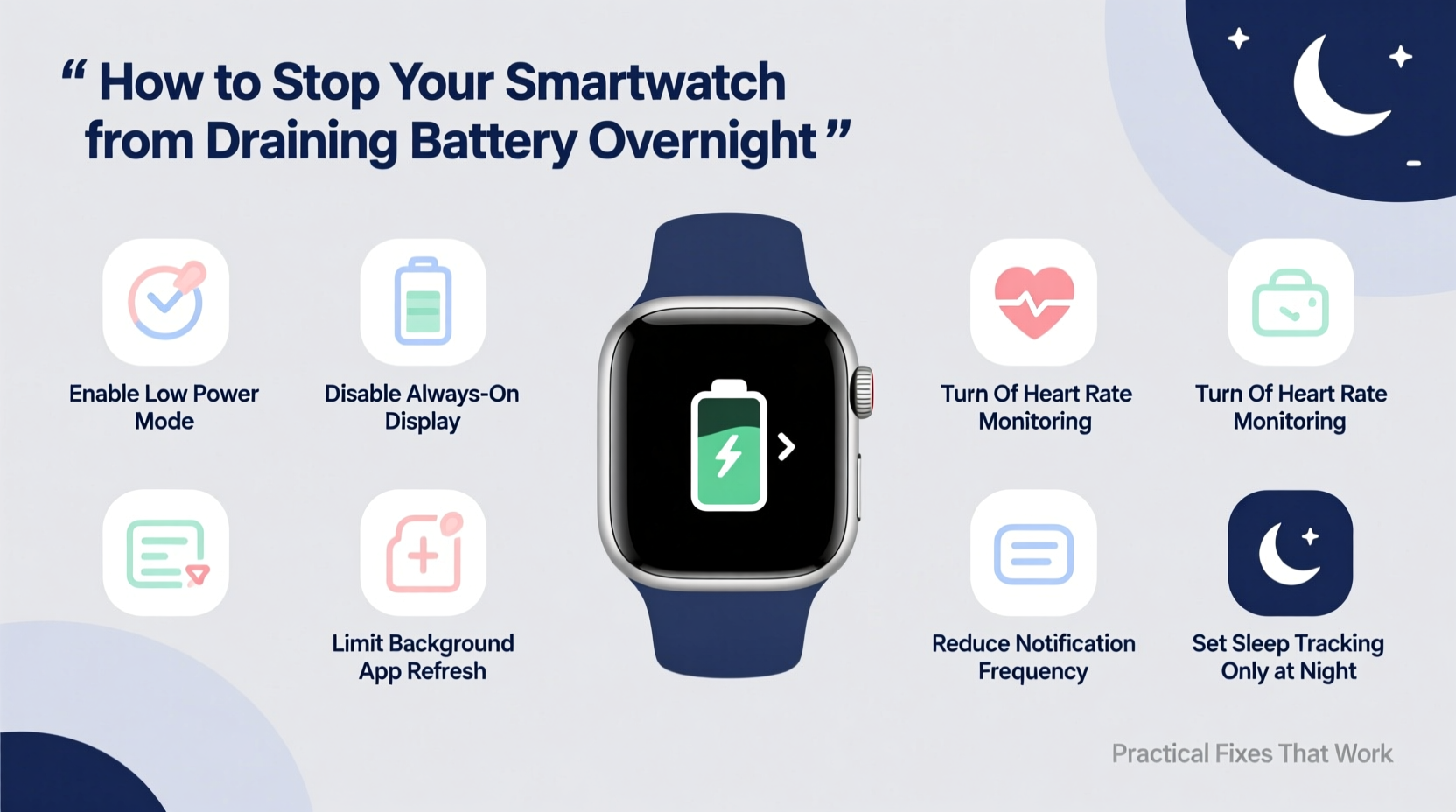
Smartwatches are engineered for constant connectivity, but this convenience comes at a cost. Even when you're asleep, your watch may be actively syncing data, receiving notifications, monitoring heart rate, or updating apps in the background. These processes draw power continuously, especially if certain features are left enabled unnecessarily.
Manufacturers often prioritize functionality over battery efficiency. For example, continuous health tracking—while useful—is one of the biggest contributors to overnight drain. Similarly, third-party apps that run in the background or sync frequently can silently deplete your battery while you sleep.
“Battery degradation isn’t always about age. Poor software optimization and misconfigured settings play a larger role than users realize.” — Dr. Lena Park, Wearable Technology Analyst at TechInsight Group
Step-by-Step Guide to Reduce Overnight Drain
Follow this systematic approach to identify and eliminate the root causes of battery drain. Implement these steps over one evening to see noticeable improvements by morning.
- Check Battery Usage Stats: Open your paired smartphone’s companion app (e.g., Galaxy Wearable, Apple Watch app, Fitbit app) and review which features or apps consumed the most power overnight. This reveals hidden culprits.
- Disable Always-On Display: This feature keeps the screen lit even when inactive. Turn it off or set it to activate only on wrist raise.
- Limit Background App Refresh: Prevent non-essential apps from syncing data constantly. On Apple Watch, go to Settings > General > Background App Refresh. On Android-based watches, disable auto-sync in the app settings.
- Turn Off Unnecessary Notifications: Each alert wakes the processor. Disable non-critical notifications in the companion app under Notification permissions.
- Reduce Heart Rate & SpO2 Monitoring Frequency: Instead of continuous tracking, set it to periodic checks (e.g., every 10 minutes) or only during workouts.
- Enable Power Saving Mode at Night: Schedule low-power mode to activate automatically during sleep hours. Most modern watches support automation via routines or shortcuts.
- Restart Your Watch Weekly: A fresh boot clears cached processes and stops rogue apps from consuming resources.
Common Settings That Cause Excessive Drain
Some default settings are optimized for user experience, not energy efficiency. Here’s a breakdown of high-impact features and how to adjust them:
| Feature | Battery Impact | Recommended Setting |
|---|---|---|
| Always-On Display | High | Off or “On Wrist Raise” only |
| Continuous Heart Rate Monitoring | High | Every 5–10 mins instead of constant |
| SpO2 (Blood Oxygen) Tracking | Medium-High | Night-only or disabled |
| GPS | Very High (when active) | Only during workouts |
| Wi-Fi & Bluetooth Auto-Reconnect | Low-Medium | Keep Bluetooth on; delay Wi-Fi reconnection |
| Third-Party Apps (e.g., Weather, Messaging) | Variable | Limit background refresh or uninstall unused ones |
Adjusting even one of these settings can extend battery life by 20–40%. Combining multiple optimizations often results in full-night endurance on a single charge.
Real Example: Fixing Persistent Drain on an Apple Watch Series 8
Jamal, a fitness instructor in Austin, noticed his Apple Watch was dying by 3 a.m., despite charging it to 100% each night. He relied on it for sleep tracking and morning alarms, so the drain disrupted his routine. After reviewing battery usage, he discovered that a weather app was refreshing every 15 minutes and a meditation app was logging biometrics all night.
He took the following actions:
- Disabled background refresh for all non-essential apps.
- Switched heart rate monitoring to “Workout Use Only.”
- Enabled Sleep Focus mode with Do Not Disturb.
- Uninstalled two rarely used third-party apps.
The next night, his watch retained 68% battery by 7 a.m.—a dramatic improvement. Over time, he refined his settings further and now regularly gets 24+ hours of use on a charge.
Optimize Charging Habits for Long-Term Battery Health
Even with perfect settings, poor charging habits can degrade battery capacity over time, making overnight drain worse. Lithium-ion batteries, used in nearly all smartwatches, degrade faster when exposed to extreme heat, full discharges, or prolonged 100% charging.
To preserve battery longevity:
- Avoid charging your watch overnight for months on end. Use a timer plug or unplug once it reaches 80–90%.
- Don’t use your watch while charging—this generates excess heat.
- Keep software updated. Manufacturers often release firmware patches that improve power management.
- Store the watch in a cool, dry place. Heat from bedding or direct sunlight accelerates battery wear.
Checklist: Overnight Battery Optimization Routine
Use this checklist weekly to ensure your smartwatch is configured for maximum efficiency:
- ✅ Review battery usage in the companion app
- ✅ Disable Always-On Display or reduce brightness
- ✅ Limit heart rate and SpO2 monitoring frequency
- ✅ Turn off non-essential notifications
- ✅ Enable Sleep Mode or Power Saving Mode
- ✅ Restart the watch to clear background tasks
- ✅ Uninstall unused third-party apps
- ✅ Update watchOS or Wear OS to latest version
- ✅ Avoid charging past 90% unless necessary
- ✅ Store in a cool location away from bedding
Performing this routine takes less than 10 minutes but can double your effective battery life within a week.
Frequently Asked Questions
Why does my smartwatch battery drain even when I’m not using it?
Even in standby mode, your watch runs background services like Bluetooth sync, health sensors, system updates, and app refreshes. These processes consume power continuously. Additionally, older batteries lose capacity over time, reducing overall runtime regardless of usage.
Is it safe to wear my smartwatch while sleeping?
Yes, for most users, wearing a smartwatch to sleep is safe and beneficial for tracking rest patterns. However, if the device overheats or causes skin irritation, consider removing it. Ensure battery-saving modes are active to minimize radiation and energy output.
Can I replace my smartwatch battery if it no longer lasts overnight?
Most smartwatches have sealed batteries that aren’t user-replaceable. Apple, Samsung, and Fitbit offer official battery service programs, typically costing $60–$90. Third-party repairs exist but may void warranties or compromise water resistance. Consider replacement if the cost exceeds 50% of a new model’s price.
Conclusion: Take Control of Your Smartwatch Battery Life
Your smartwatch shouldn’t die before your alarm goes off. With thoughtful configuration and consistent maintenance, you can prevent overnight battery drain and rely on your device when it matters most. The fixes aren’t complicated—just intentional. From disabling always-on displays to managing background apps and adopting smarter charging habits, each small change compounds into real-world gains.
Start tonight. Review your settings, enable sleep mode, and monitor the difference tomorrow morning. Once optimized, your smartwatch will become a dependable companion—not a nightly disappointment.




 浙公网安备
33010002000092号
浙公网安备
33010002000092号 浙B2-20120091-4
Comments
No comments yet. Why don't you start the discussion?