
Streaming gameplay directly from your PS5 to Twitch has never been more accessible. For many aspiring streamers, the idea of buying extra hardware like a capture card can feel intimidating or unnecessary—especially when you're just getting started. The good news is that Sony built robust streaming functionality directly into the PS5, allowing users to broadcast live to Twitch using only the console and a stable internet connection.
This guide walks through everything you need to know to go live on Twitch from your PS5 without any additional equipment. From account linking to optimizing your stream settings and avoiding common pitfalls, this resource is tailored for beginners who want a smooth, reliable experience right out of the gate.
Why Stream Directly from PS5?
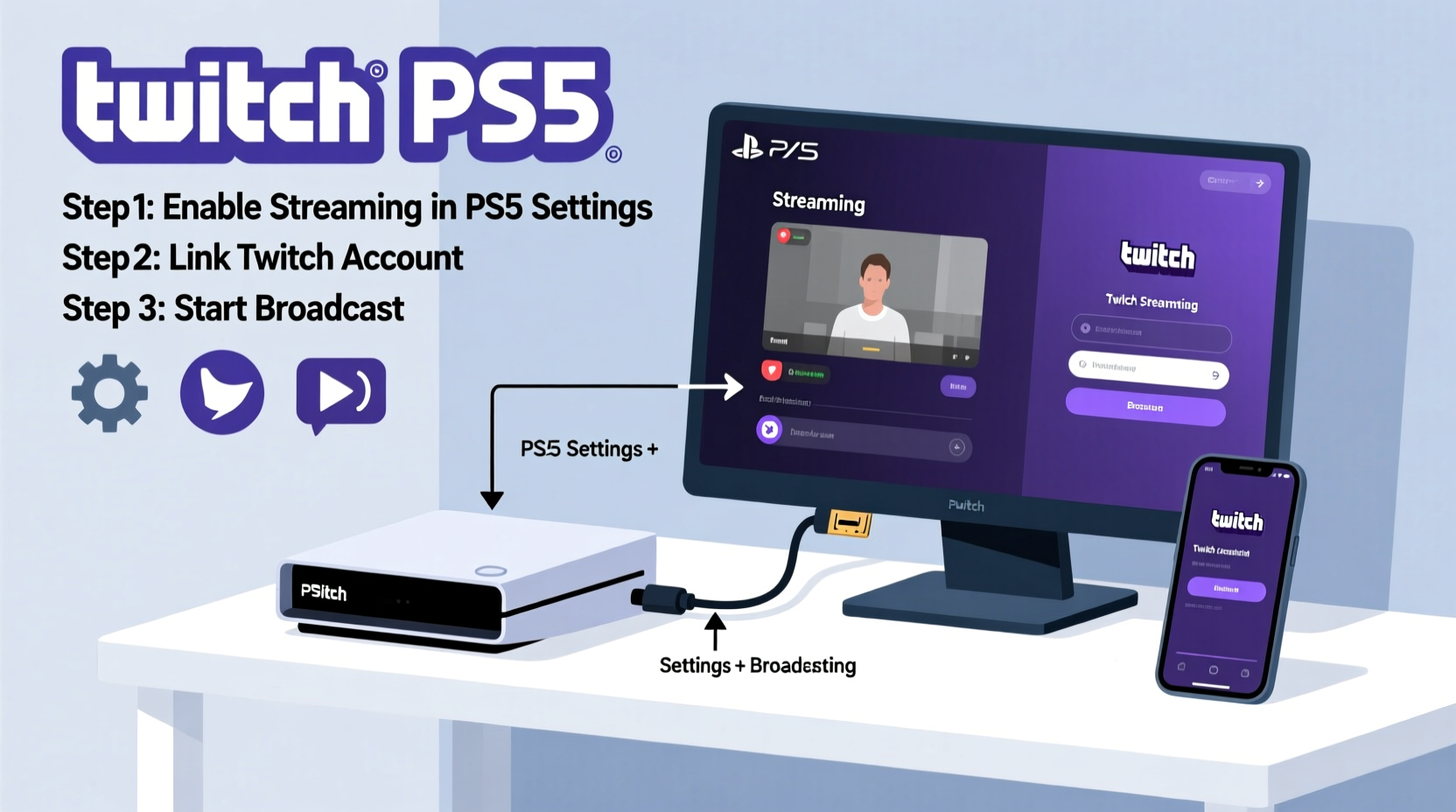
The PS5's integrated streaming tools eliminate the complexity often associated with multi-device setups. Unlike PC-based streaming, which typically requires software like OBS and hardware such as capture cards, the PS5 handles encoding internally. This means less technical overhead and fewer points of failure.
Direct console streaming is ideal for players focused on games like Call of Duty, Fortnite, God of War: Ragnarök, or Horizon Forbidden West, where performance and simplicity matter. You don’t need to manage scenes, audio sources, or overlays manually—the system does most of the work for you.
“Built-in streaming on consoles lowers the barrier to entry significantly. It’s one of the smartest moves Sony made with the PS5.” — Jordan Lee, Streaming Consultant at PlayStream Labs
Prerequisites: What You Need Before Going Live
Before initiating your first broadcast, ensure all foundational elements are in place. Missing even one requirement will prevent you from starting a stream.
- A PlayStation 5 console (any model)
- An active PlayStation Network (PSN) account
- A verified Twitch account
- A stable internet connection (minimum 3 Mbps upload speed; 6+ Mbps recommended)
- Your PS5 connected to the internet via Wi-Fi or Ethernet
- The game or app you intend to stream installed and ready
Note: Voice chat and party features remain available while streaming, but microphone access must be enabled in privacy settings. Also, not all games support streaming due to licensing restrictions—typically older PS4 titles or media apps like Netflix.
Step-by-Step Guide to Start Streaming on Twitch from PS5
Follow this sequence carefully to link accounts and begin broadcasting within minutes.
- Create and Verify Your Twitch Account
Go to twitch.tv and sign up if you haven’t already. Confirm your email address and choose a unique username that reflects your brand. - Link Twitch to Your PSN Account
Navigate to Settings > Sharing and Broadcasting > Link Account on your PS5. Select Twitch and log in using your credentials. If prompted, complete two-factor authentication. - Set Up Broadcast Preferences
In the same menu, go to “Broadcast Settings.” Choose Twitch as your default platform. Set your preferred video quality (720p or 1080p), frame rate (30fps or 60fps), and whether to include your microphone audio. - Customize Stream Info (Optional)
You can pre-enter a default stream title (e.g., “Leveling Up in Elden Ring”) and select tags like “gaming,” “action,” or “multiplayer” to improve discoverability. - Start Broadcasting
Launch the game you want to stream. Press the PS button to open the Control Center. Select Broadcast, then Start Broadcast. A preview countdown begins before going live. - Moderate and Interact
Once live, use the Control Center to view viewer count, comments (if linked to mobile), and end the stream when done.
Optimizing Your Stream Quality Without Extra Hardware
Since the PS5 encodes video natively, you have limited control over bitrate and resolution compared to PC streaming. However, several adjustments can enhance clarity and reduce buffering.
| Setting | Recommended Option | Why It Matters |
|---|---|---|
| Resolution | 1080p | Higher visual fidelity; best for fast-paced games |
| Frame Rate | 60 fps | Smoother motion; improves viewer engagement |
| Bitrate (Auto) | Let PS5 auto-detect | System adjusts based on current upload speed |
| Mic Audio | Enabled + Adjust Level | Allows commentary; enhances interaction |
| Game Sound Mixing | Balanced (not too loud) | Prevents drowning out voice chat or commentary |
To maximize performance, close unused background apps and avoid downloading updates while streaming. High CPU usage can lead to dropped frames or stuttering video.
Real Example: Maya’s First Stream
Maya, a 24-year-old RPG enthusiast, wanted to share her journey through Starfield with friends online. She had no budget for a capture card or secondary PC. After reading about native PS5 streaming, she followed the steps above.
She used an Ethernet connection for stability, set her stream title to “Exploring New Worlds in Starfield 🚀 #SoloPlay,” and enabled her headset mic. During her 90-minute session, she gained 12 followers and received encouraging messages from viewers who enjoyed her calm playstyle and storytelling.
Her only issue was slight audio delay in the first 10 minutes—fixed by lowering game sound volume and speaking more slowly. By her second stream, she had refined her approach and grew her audience organically.
Troubleshooting Common Issues
Even with a streamlined process, problems may arise. Here’s how to resolve them quickly.
- “Cannot Link Account” Error: Ensure you’re logged into the correct Twitch account. Clear browser cookies if re-authentication fails. Try unlinking and relinking the accounts.
- Stream Keeps Buffering: Check your upload speed. Restart your router or switch to a wired connection. Avoid running other downloads simultaneously.
- No Microphone Audio: Go to Settings > Sound > Microphone Input Level and increase sensitivity. Test with a recorded clip before going live.
- Viewers Can’t See You: Confirm the stream actually went live on Twitch by checking your channel page in a web browser. Sometimes the console shows “broadcasting” while the signal fails to reach Twitch servers.
- Laggy Gameplay During Stream: Lower in-game graphics settings temporarily. Some AAA titles stress the GPU and encoder simultaneously, causing slowdowns.
Essential Checklist Before Going Live
Use this quick-reference list to ensure nothing is overlooked prior to each broadcast.
- ✅ Internet connection tested (at least 6 Mbps upload)
- ✅ Twitch account linked and verified
- ✅ Headset mic working and properly adjusted
- ✅ Game loaded and ready to play
- ✅ Stream title and description finalized
- ✅ Background noise minimized (close doors, mute TV, etc.)
- ✅ No pending downloads or system updates
- ✅ Privacy settings allow broadcasting (check under Settings > Privacy)
Frequently Asked Questions
Can I stream in 4K from my PS5 to Twitch?
No. While the PS5 supports 4K output for gameplay, Twitch currently caps incoming streams at 1080p for most users. Even if your console outputs 4K, the broadcast will be downscaled to 1080p maximum. Future upgrades may change this, but as of now, 1080p is the highest available resolution for PS5-to-Twitch streams.
Do I need a paid subscription to stream on Twitch from PS5?
No. Twitch allows free streaming from any supported device, including the PS5. You do not need a Turbo account or Prime subscription to go live. Monetization (such as earning bits or subscriptions) requires applying for Affiliate or Partner status, but basic streaming remains completely free.
Can I use a camera or overlay while streaming without a capture card?
Not directly. The PS5’s native streaming does not support picture-in-picture webcams or custom overlays without external hardware. To add face cams or branded graphics, you’d need a PC and a capture card setup. However, some streamers use their phone as a secondary camera and display it physically during gameplay, referencing it verbally.
Best Practices for Growing Your Audience
Technical setup is only half the battle. Building a loyal viewer base takes consistency, personality, and community engagement.
- Be Consistent: Stream on a regular schedule (e.g., every Friday at 7 PM). Followers appreciate predictability.
- Engage Early Viewers: Greet newcomers by name if possible. Answer questions between gameplay moments.
- Use Descriptive Titles: Instead of “Playing Game,” say “Newbie Attempting Malenia Fight in Elden Ring – Wish Me Luck!”
- Promote Outside Twitch: Share clips on Twitter/X, TikTok, or Reddit communities related to the game.
- Review Past Streams: Watch your VODs to assess audio quality, pacing, and viewer drop-off points.
“Your authenticity matters more than production value. People tune in for *you*, not just the game.” — Lila Tran, Twitch Growth Strategist
Conclusion
Streaming from your PS5 to Twitch without a capture card is not only possible—it’s efficient and surprisingly powerful for beginners. With minimal setup and no extra cost, you can share your gaming passion with a global audience in under 15 minutes. Focus on delivering genuine content, optimizing your environment for performance, and interacting meaningfully with viewers.
Every expert streamer started exactly where you are now: pressing “Start Broadcast” for the very first time. Don’t wait for perfect conditions. Launch the game, hit record, and let your personality shine. The rest will follow.




 浙公网安备
33010002000092号
浙公网安备
33010002000092号 浙B2-20120091-4
Comments
No comments yet. Why don't you start the discussion?