
Streaming Nintendo Switch gameplay directly to Discord has become a popular way for friends to play together remotely or simply share in-game moments in real time. However, many assume that a capture card is the only viable method—especially since the Switch doesn’t support native game streaming like PlayStation or Xbox. But what if you don’t own a capture card? Is it still possible to stream your Switch games to Discord seamlessly?
The short answer: yes, but with limitations. While the Nintendo Switch lacks built-in streaming functionality to platforms like Discord, there are alternative methods involving smartphones, third-party software, and creative use of screen mirroring. These approaches bypass the need for expensive hardware and allow users to share gameplay in near real time. Understanding the technical constraints and available tools is key to making this work effectively.
Why Capture Cards Are the Standard (And Why You Might Want to Avoid One)
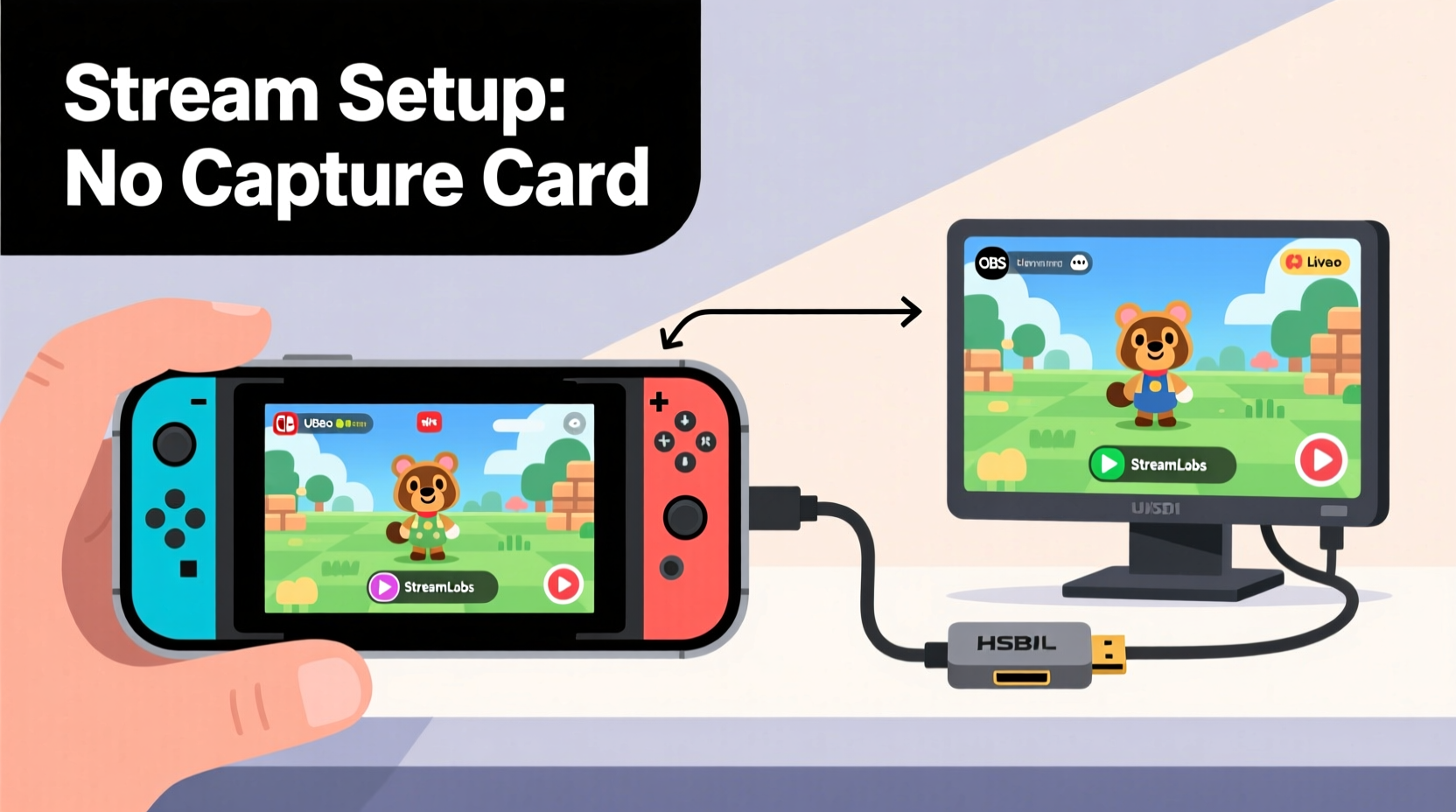
Capture cards have long been the go-to solution for streaming console gameplay. Devices like the Elgato HD60 S+ or AverMedia Live Gamer Mini connect between your console and display, capturing video output and routing it to a PC for streaming via OBS, Streamlabs, or other broadcasting software. This setup delivers high-quality, low-latency footage ideal for live sharing on Discord or platforms like Twitch.
However, capture cards come with drawbacks:
- Cost: Quality capture cards start around $150 and can exceed $200.
- Complexity: Requires HDMI routing, external power, and additional software configuration.
- Portability: Not practical for casual, spontaneous streams among friends.
For many players—especially those who stream occasionally or want a quick way to show off gameplay—a full capture setup feels excessive. That’s where alternative, no-capture-card solutions come into play.
Workarounds to Stream Switch Games Without a Capture Card
While Nintendo does not provide an official way to stream Switch gameplay externally, several indirect methods exist. These rely on repurposing devices you likely already own—like smartphones or tablets—and leveraging screen-sharing features within Discord itself.
Method 1: Use Your Smartphone as a Capture Device (iOS/Android)
This is the most accessible workaround for users without a capture card. It involves recording gameplay on your Switch using your phone’s camera and then sharing that feed via Discord screen share.
- Position your smartphone above or beside your Switch screen to capture gameplay clearly.
- Use a tripod or stand to stabilize the phone and avoid shaky footage.
- Start recording on your phone while playing the game.
- Open Discord on the same device (or a second device).
- Join a voice channel and click “Screen Share.”
- Select “Application” or “Window” and choose your video playback app (e.g., Photos, Gallery, VLC).
- Play the recorded footage live during the call.
This method works best for pre-recorded clips or turn-based games where real-time interaction isn't critical. For fast-paced action games, the delay between gameplay and viewing makes it less effective.
Method 2: Mirror Your Phone Screen Using Android or iOS (For Handheld Mode)
If you're playing in handheld mode, you can use your phone to mirror the Switch screen indirectly through screen recording and live casting.
On iPhone: Use screen recording with microphone enabled, then play the Switch audio through external speakers or headphones while recording. Share the live screen recording via Discord.
On Android: Use built-in screen recorder (if available) or download a lightweight app like AZ Screen Recorder. Start recording, then use Discord’s screen share feature to broadcast the recording window.
Limitations include audio sync issues and potential lag, especially if your phone struggles with multitasking.
Method 3: Third-Party Streaming Apps (Limited Feasibility)
Some apps claim to enable console streaming over Wi-Fi, but these typically require jailbroken devices or violate Nintendo’s terms of service. As of now, no legitimate third-party app allows direct streaming from the Switch to a PC or mobile device without hardware modification.
One exception is NVIDIA Shield’s Moonlight, which enables remote desktop streaming—but only for PCs, not consoles. Similarly, Steam Link and Parsec are designed for PC game streaming and do not support Switch.
In short: there is no software-only solution that pulls a video signal directly from the Switch without physical capture hardware.
“While consumer demand for wireless console streaming grows, Nintendo’s closed ecosystem limits innovation in this space. Until they open APIs or support cloud streaming, workarounds will remain necessary.” — Jordan Lee, Tech Analyst at GameStream Insights
Step-by-Step Guide: How to Stream Switch Gameplay to Discord Using Mobile Workarounds
Follow this practical sequence to share your Switch gameplay with friends on Discord without investing in a capture card.
- Prepare Your Setup: Ensure your Switch is docked (for TV mode) or held comfortably (handheld). Position your smartphone on a stand facing the screen.
- Optimize Lighting: Reduce glare and reflections on the screen. Dim ambient lights to improve contrast and visibility.
- Start Recording: Open your phone’s camera or screen recorder. Begin filming the gameplay.
- Launch Discord: Open Discord on your phone or computer. Join a private server or group call with friends.
- Initiate Screen Share: Click “Screen Share” in the voice channel. Choose the window displaying your recording app or video player.
- Sync Audio (Optional): If using two devices, wear headphones connected to the Switch and speak into the mic on the Discord device to narrate.
- Play and Share: Start your game and let others watch via the shared feed.
Note: This method introduces a slight delay due to encoding and processing. It’s best suited for cooperative play, walkthroughs, or showing off achievements—not competitive multiplayer coordination.
Comparison Table: Capture Card vs. No-Capture Methods
| Feature | Capture Card Method | No-Capture Workaround |
|---|---|---|
| Video Quality | 1080p/60fps (high quality) | 720p–1080p (depends on phone) |
| Latency | Low (under 100ms) | High (500ms–2s) |
| Setup Complexity | Moderate (requires cables/software) | Low (uses existing devices) |
| Cost | $150+ | Free (if you own a smartphone) |
| Audio Sync | Precise | Often delayed or requires manual adjustment |
| Portability | Limited | High (easy to move) |
| Best For | Regular streaming, content creation | Casual sharing, friend sessions |
Real Example: Streaming Animal Crossing with Friends During Travel
Sophia, a college student living away from home, wanted to play *Animal Crossing: New Horizons* with her younger sister back in their hometown. They didn’t own a capture card, but Sophia had an old iPhone 11. She placed the phone on a small tripod, angled it at her Switch screen, and started recording while playing.
She joined a Discord call with her sister, shared the screen showing the recording app, and played live. Though there was a half-second delay, they could still react to each other’s actions, chat about designs, and enjoy the experience together. Her sister even guided her through building a new café layout using voice cues.
It wasn’t perfect—there were occasional focus issues and background noise—but it achieved the goal: connecting over gameplay without spending money on extra gear.
Frequently Asked Questions
Can I stream Switch games to Discord in real time without any delay?
Not reliably without a capture card. Workarounds using phone cameras or screen recordings introduce noticeable latency (often over a second), making real-time interaction difficult. For true real-time streaming, a capture card remains the only viable option.
Does Nintendo block screen sharing or recording of Switch games?
No, Nintendo does not technically block recording or sharing gameplay. However, they do not provide built-in tools for external streaming, and modifying the console to extract video signals (e.g., HDMI hacking) violates their warranty and terms of service. Always use legal, non-invasive methods.
Can I use Bluetooth audio when streaming via phone recording?
Yes, but with caveats. Bluetooth audio introduces additional latency, which can desynchronize sound from video. For better results, use wired headphones or external speakers near the recording device to ensure audio is captured clearly and in sync.
Checklist: How to Prepare for a No-Capture Switch Stream
- ✅ Charge your smartphone fully before starting
- ✅ Clean the Switch screen to remove fingerprints and smudges
- ✅ Test lighting conditions to minimize glare
- ✅ Close unnecessary apps on your phone to prevent interruptions
- ✅ Use a stable stand or mount for your phone
- ✅ Run a short test recording and play it back to check clarity
- ✅ Confirm Discord permissions allow screen sharing
- ✅ Inform viewers about potential delays in audio/video
Conclusion: Practical Streaming Is Possible—With Trade-offs
Streaming Nintendo Switch games to Discord without a capture card is indeed possible, though not ideal for high-performance or professional use. By leveraging smartphones, screen recording, and Discord’s screen-sharing capabilities, casual gamers can still enjoy shared experiences with friends, showcase progress, or co-op through story modes—even on a budget.
The trade-offs in quality, latency, and convenience are significant, but for many, the ability to connect outweighs the technical shortcomings. As mobile technology improves and software becomes more adaptive, these workarounds may evolve into smoother, more reliable solutions.




 浙公网安备
33010002000092号
浙公网安备
33010002000092号 浙B2-20120091-4
Comments
No comments yet. Why don't you start the discussion?