
In today’s digital world, juggling personal, work, and subscription emails across multiple platforms is common. Whether you're switching phones, consolidating inboxes, or managing client communications, mastering how to add and manage multiple email accounts in a single mail app streamlines productivity. Done correctly, it reduces clutter, improves response times, and enhances data security. This guide walks through the process with clear steps, best practices, and real-world insights to help you maintain control over your digital correspondence.
Why Consolidate Email Accounts in One App?
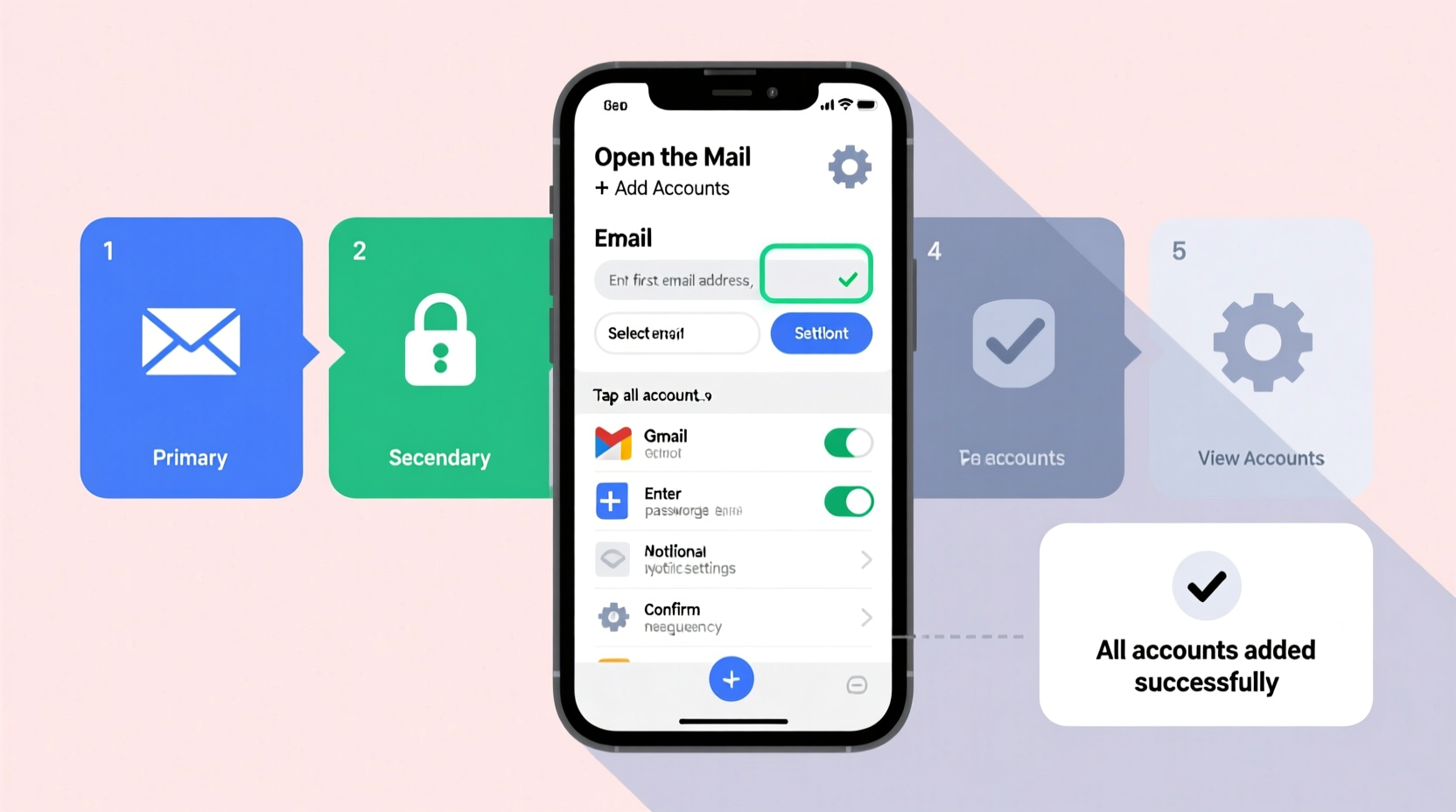
Managing separate inboxes for each email account leads to missed messages, duplicated effort, and fragmented workflows. A unified inbox allows users to:
- View all incoming messages in one place
- Switch between identities quickly when replying
- Apply consistent rules, filters, and labels
- Reduce device storage usage by avoiding redundant apps
- Improve time management with consolidated notifications
Modern mail clients like Apple Mail, Gmail, Outlook, and third-party tools such as Spark and Thunderbird support multi-account integration seamlessly—provided you follow proper setup procedures.
Step-by-Step Guide to Adding Email Accounts
The exact steps vary slightly depending on your device and mail client, but the core process remains consistent. Below is a universal framework applicable across major platforms.
- Open your preferred mail application (e.g., Apple Mail, Outlook, Gmail).
- Navigate to Settings or Preferences, usually found under your profile icon or via the app menu.
- Select Add Account or Manage Accounts.
- Choose your email provider from the list (Gmail, Outlook, Yahoo, iCloud, etc.) or select “Other” for custom IMAP/POP3 setups.
- Enter your full email address and password. Some apps may redirect you to your provider’s login page for authentication.
- Allow permissions if prompted (e.g., access to contacts, calendar).
- Configure sync settings: Decide which data to sync—mail only, or also calendar, contacts, notes.
- Save the configuration. The app will test connectivity and begin syncing messages.
For non-standard providers (e.g., business domains using Microsoft Exchange or cPanel-hosted email), manual entry of server details may be required. These typically include:
| Setting | Incoming (IMAP) | Outgoing (SMTP) |
|---|---|---|
| Server Hostname | mail.yourdomain.com | mail.yourdomain.com |
| Port | 993 (SSL/TLS) | 587 (STARTTLS) |
| Authentication | Username & Password | Required |
Verify these values with your hosting provider before entering them.
Organizing Multiple Accounts Effectively
Simply adding accounts isn’t enough. To avoid confusion, apply organizational strategies that make navigation intuitive.
- Use color-coding: Assign distinct colors to each account (e.g., blue for work, green for personal).
- Create smart folders or labels: Group messages by project, sender, or priority regardless of account.
- Set up default send-from addresses: Designate which email address replies come from based on context.
- Enable swipe actions: Customize gestures (e.g., swipe left to archive, right to flag) per account.
- Leverage unified inbox views: View all unread messages together while retaining identity separation.
“Users who organize their multi-account setup early report 30% faster email processing.” — David Lin, Productivity Consultant at InboxFlow Labs
Security and Privacy Best Practices
Linking multiple accounts increases convenience but also potential risk. Protect your data with these measures:
Follow this checklist to ensure secure configuration:
- ✅ Use strong, unique passwords for each email provider
- ✅ Generate app-specific passwords instead of using primary credentials
- ✅ Regularly review connected apps in your email security settings
- ✅ Remove unused or outdated account connections
- ✅ Avoid public Wi-Fi when accessing sensitive email accounts
- ✅ Keep your OS and mail app updated to patch vulnerabilities
For business environments, consider deploying enterprise-grade solutions like Microsoft Intune or Google Workspace’s endpoint verification to enforce compliance across devices.
Real-World Example: Managing Freelance Client Communication
Sophie, a freelance graphic designer, uses three email accounts: her personal Gmail, a professional portfolio-linked domain via Zoho Mail, and a temporary client project address hosted on Outlook. Before consolidation, she missed deadlines due to overlooked messages in separate apps.
She migrated all accounts into Spark Mail on her iPhone and MacBook. Using Spark’s sidebar, she color-coded each inbox and created a custom “Urgent Clients” filter that pulls high-priority messages from any account. She configured automatic signatures based on the selected send-from address and set focused notifications only during working hours.
Within two weeks, Sophie reduced her average response time by 40% and eliminated missed follow-ups. Her workflow became more predictable, and client satisfaction improved significantly.
Troubleshooting Common Issues
Even with careful setup, problems can arise. Here are frequent issues and their solutions:
| Issue | Possible Cause | Solution |
|---|---|---|
| Email not syncing | Incorrect password or server settings | Re-enter credentials; verify IMAP/SMTP ports |
| App crashes after adding account | Bug in app version or corrupted cache | Update app; clear cache or reinstall |
| Can't send emails | SMTP authentication failure | Check outgoing server settings and enable less secure apps if needed (not recommended long-term) |
| Duplicate messages appear | Multiple sync intervals or POP3 downloading | Switch to IMAP; disable POP on other devices |
If problems persist, consult your email provider’s support documentation or try setting up the account on another device to isolate the issue.
Frequently Asked Questions
How many email accounts can I add to one mail app?
Most modern mail clients support up to 10–20 accounts, though performance may degrade beyond five heavily used ones. Apps like Outlook and Thunderbird are optimized for higher volumes, especially on desktop.
Is it safe to store multiple email accounts on my phone?
Yes, provided your device uses a passcode, biometric lock, and encrypted storage. Additionally, enabling remote wipe (via Find My iPhone or Android Device Manager) ensures protection if the device is lost.
Can I send emails from different accounts without switching manually?
Absolutely. Most advanced mail apps let you choose the “From” address when composing. You can also set rules to automatically use a specific identity based on recipient or folder.
Final Thoughts and Next Steps
Mastering the addition and management of multiple email accounts transforms chaotic communication into a streamlined system. From initial setup to daily organization and long-term maintenance, each step contributes to greater clarity and efficiency. The key lies not just in technical execution but in consistent habits—reviewing account health, updating security settings, and refining workflows as needs evolve.




 浙公网安备
33010002000092号
浙公网安备
33010002000092号 浙B2-20120091-4
Comments
No comments yet. Why don't you start the discussion?