
In today’s on-the-go world, your smartphone has become more than just a communication device—it's your personal entertainment hub. Whether you're commuting, waiting in line, or lounging at home, streaming your favorite TV shows directly on your phone offers unmatched convenience. But with so many platforms, settings, and potential pitfalls, getting the most out of mobile streaming requires more than just tapping play. This guide walks you through everything you need to know to enjoy smooth, high-quality, and hassle-free TV viewing from your pocket.
Choosing the Right Streaming Apps
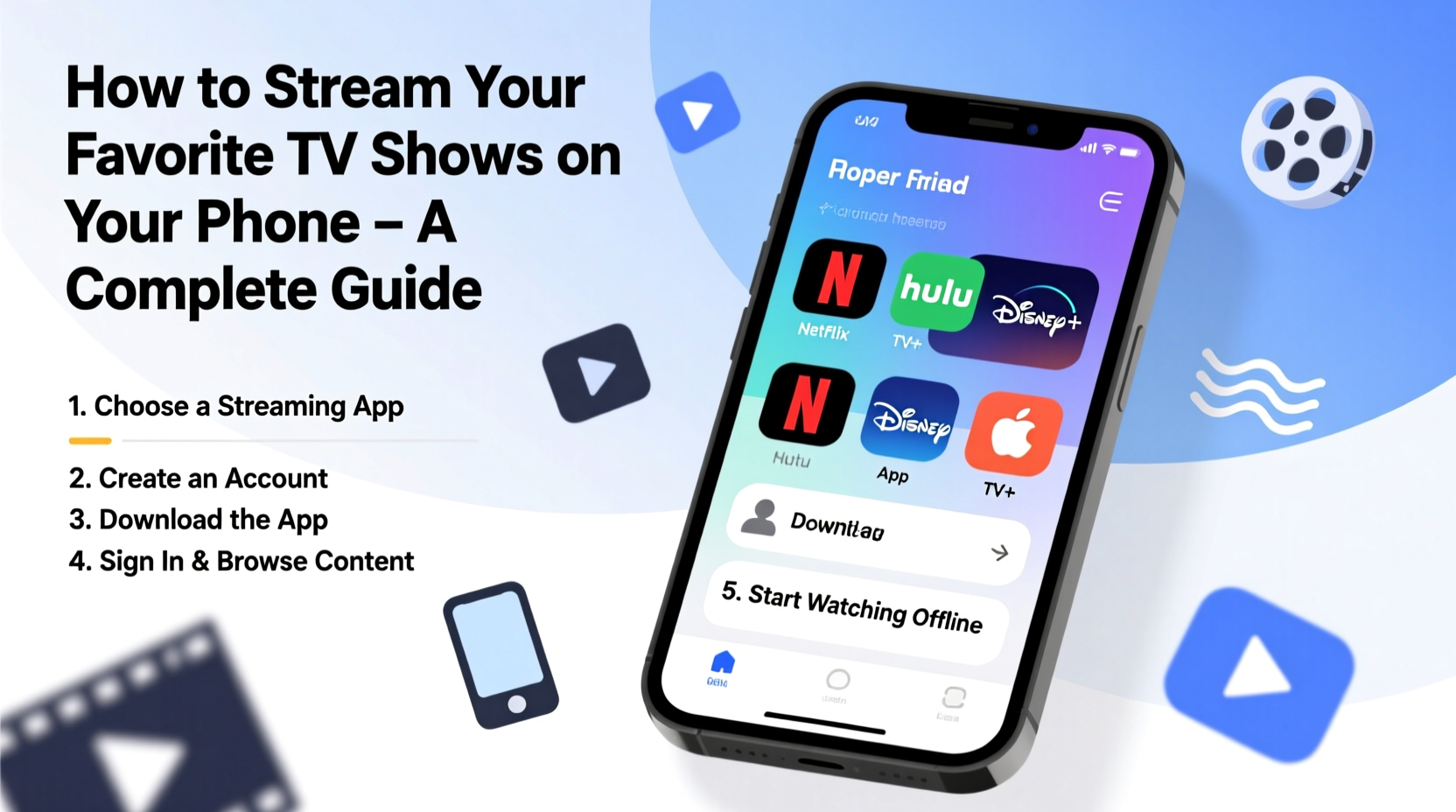
The first step in mobile TV viewing is selecting the right apps. Most major networks and studios now offer dedicated mobile applications, either standalone or integrated into broader platforms. Popular choices include Netflix, Hulu, Disney+, Amazon Prime Video, HBO Max, and Apple TV+. Each app varies slightly in interface, download capabilities, and video quality options.
When choosing which apps to install, consider your existing subscriptions. If you already pay for cable or satellite, check whether your provider offers an authenticated app (like Xfinity Stream or Spectrum TV) that allows access to live channels and on-demand content without an additional fee.
Also, verify compatibility with your phone’s operating system. While most modern Android and iOS devices support all major apps, older models may not run the latest versions efficiently.
Optimizing Your Viewing Experience
Streaming isn’t just about pressing play—it’s about creating an enjoyable experience. Start by adjusting your screen brightness to match your environment. Too bright in low light strains your eyes; too dim in sunlight makes content hard to see. Consider enabling auto-brightness for optimal comfort.
Use headphones or earbuds for immersive audio, especially in public spaces. Noise-canceling models can dramatically improve dialogue clarity and reduce background interference. For private viewing, closed captions are invaluable—many platforms allow customization of font size, color, and background opacity.
Hold your phone horizontally (landscape mode) whenever possible. Most TV shows are filmed in widescreen format, and watching vertically cuts off parts of the image or adds distracting black bars.
Step-by-Step: Setting Up Optimal Viewing Conditions
- Install the streaming app(s) relevant to your subscriptions.
- Log in using your account credentials or link via your provider.
- Navigate to Settings within the app and adjust subtitle preferences.
- Enable “Data Saver” mode if streaming over cellular data.
- Turn on Do Not Disturb or Focus Mode to prevent interruptions.
- Connect wired or Bluetooth headphones for better sound.
- Rotate your phone to landscape and find a comfortable grip or prop it against a surface.
Data Management: Watch Without Breaking Your Plan
Streaming consumes significant data, especially in HD or 4K. A single hour of HD video can use up to 3 GB, quickly depleting monthly allowances. To avoid overage fees or throttled speeds, manage your data usage proactively.
Most streaming apps let you control video quality under playback settings. Lowering resolution to “Low” or “Medium” reduces data consumption to as little as 0.3–0.7 GB per hour—ideal for travel or spotty Wi-Fi zones.
| Video Quality | Approx. Data Used per Hour | Best For |
|---|---|---|
| Low (240–480p) | 0.3 – 0.7 GB | Cellular data, slow connections |
| Medium (720p) | 1.0 – 1.5 GB | Balanced quality and efficiency |
| High (1080p) | 2.0 – 3.0 GB | Wi-Fi only, large screens |
| Ultra HD (4K) | 7+ GB | Home Wi-Fi, premium devices |
Download Shows for Offline Viewing
One of the most powerful features of modern streaming apps is offline playback. Services like Netflix, Amazon Prime Video, and Disney+ allow users to download select titles directly to their phones for viewing without an internet connection—perfect for flights, road trips, or areas with poor signal.
To download a show:
- Open the app and navigate to the episode or movie.
- Look for the download icon (usually a downward arrow).
- Tap it and wait for the progress bar to complete.
- Access downloaded content via the “Downloads” or “My Library” section.
Note: Downloads are often time-limited. Some titles expire 48 hours after you start watching; others may remain available for 30 days. Also, licensing restrictions mean not all content is downloadable.
“Offline viewing has transformed mobile entertainment—commuters and travelers now have reliable access to premium content anywhere.” — Lena Patel, Digital Media Strategist at StreamInsight Group
Avoiding Common Pitfalls: What Not to Do
Even experienced streamers make mistakes that degrade performance or compromise security. Here’s what to avoid:
| Don't | Do This Instead |
|---|---|
| Stream on public Wi-Fi without protection | Use a trusted VPN to encrypt your connection |
| Leave apps running in the background | Close unused apps to preserve battery and memory |
| Ignore app updates | Enable automatic updates for bug fixes and new features |
| Watch in direct sunlight | Seek shade or use a privacy screen filter with anti-glare coating |
Mini Case Study: Sarah’s Cross-Country Flight
Sarah, a marketing consultant, had a six-hour flight with no in-flight entertainment. Before boarding, she opened her Netflix app, connected to her home Wi-Fi, and downloaded two episodes of her current series and a feature-length documentary. She also enabled airplane mode once onboard to extend battery life. With noise-canceling earbuds and a compact phone stand clipped to her tray table, she enjoyed uninterrupted viewing. By managing her downloads and settings ahead of time, Sarah turned a long flight into productive downtime.
Frequently Asked Questions
Can I watch live TV on my phone?
Yes. Many services like YouTube TV, Hulu + Live TV, and FuboTV offer live channel streaming on mobile devices. These require a subscription but provide real-time access to news, sports, and network programming with cloud DVR functionality.
Why does my video keep buffering?
Buffering usually indicates a slow or unstable internet connection. Try lowering the video quality, switching to Wi-Fi, or restarting your router. If the issue persists, check your service provider for outages or throttling policies.
Are there parental controls for mobile streaming?
Yes. Most platforms include built-in parental controls. You can set PIN-protected profiles, restrict maturity levels, and limit viewing times. On iOS and Android, device-level restrictions can also block app usage after certain hours.
Final Checklist for Seamless Mobile Streaming
- ✔ Subscribe to at least one major streaming service.
- ✔ Install and log in to necessary apps on your phone.
- ✔ Adjust playback settings for data efficiency and accessibility.
- ✔ Download episodes for offline use when traveling.
- ✔ Use headphones and landscape orientation for better immersion.
- ✔ Monitor data usage and connect to Wi-Fi whenever possible.
- ✔ Keep apps updated and cache cleared regularly.
Enjoy Your Screen Anywhere
Your phone is more than capable of delivering a premium TV experience—if you know how to use it wisely. From choosing the right apps to mastering offline downloads and conserving data, the tools are already in your hands. Streaming shouldn’t be stressful or expensive. With smart habits and informed choices, you can enjoy your favorite shows anytime, anywhere, without compromise.




 浙公网安备
33010002000092号
浙公网安备
33010002000092号 浙B2-20120091-4
Comments
No comments yet. Why don't you start the discussion?