
Your internet speed isn’t just about what your provider promises—it’s also heavily influenced by the hardware in your home. One of the most overlooked culprits behind sluggish browsing, buffering videos, and dropped video calls is an outdated router. While modems often get blamed, the router manages how data flows between devices and your network. If yours is more than a few years old, it may be dragging down your connection despite having a fast plan.
Routers don’t wear out like appliances, but they become obsolete. Technology advances quickly: newer Wi-Fi standards, faster processors, improved antennas, and better security protocols leave older models struggling to keep up. Recognizing the signs of an aging router can save you from unnecessary frustration—and potentially hundreds of dollars spent on higher-tier internet plans that your hardware can’t actually deliver.
Signs Your Router Is Too Old
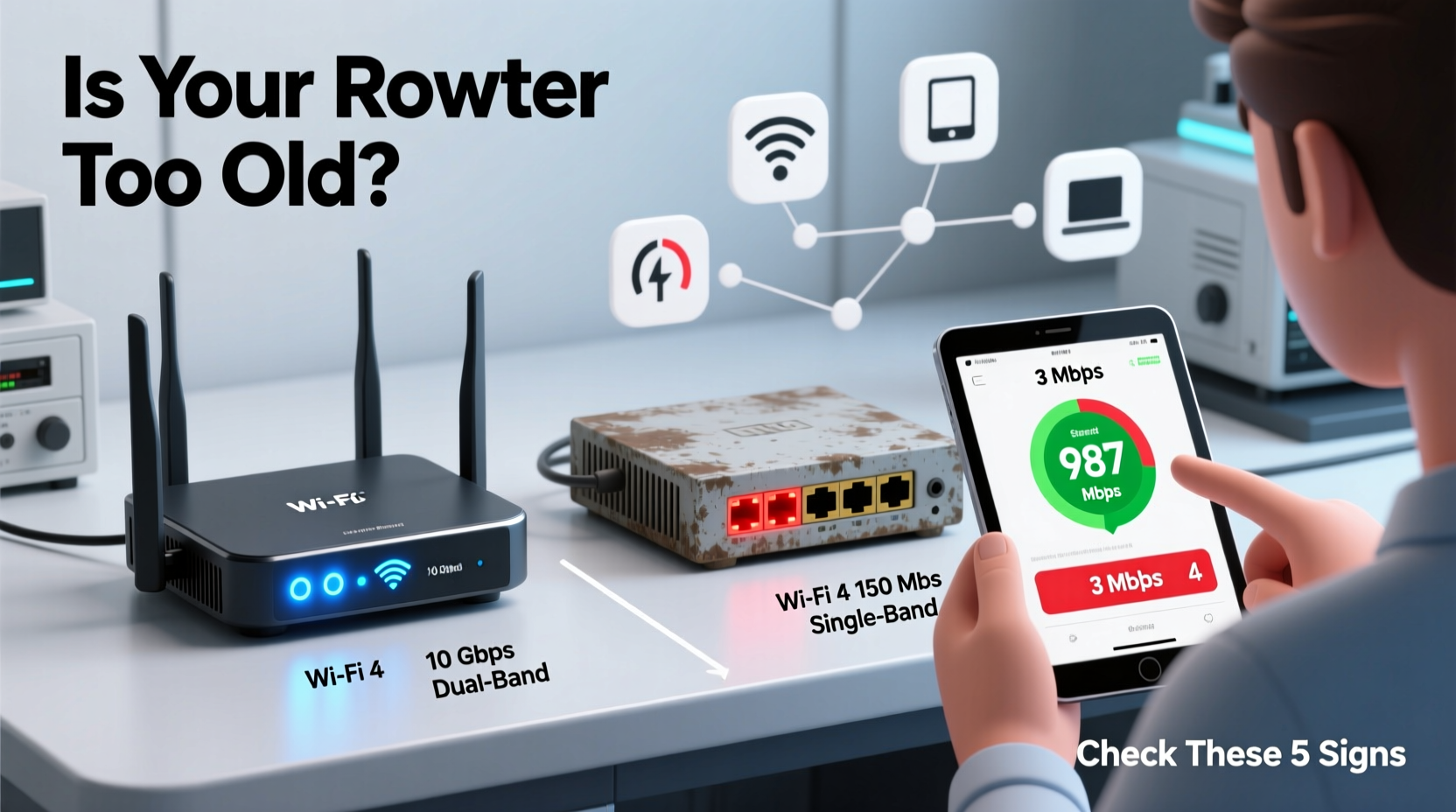
Many people assume their internet issues stem from their service provider or device limitations. In reality, the router is often the bottleneck. Here are key indicators that your router may have reached the end of its useful life:
- Slow speeds despite a high-speed plan: If you're paying for 300 Mbps but consistently get under 50 Mbps on wired and wireless tests, the router may not support current throughput levels.
- Frequent disconnections: Devices dropping off the network, especially during streaming or gaming, suggest hardware instability.
- Limited range and dead zones: Older routers often lack beamforming or dual-band capabilities, leading to weak signals in certain rooms.
- Only supports 2.4 GHz band: If your router doesn't offer 5 GHz connectivity, it's likely using Wi-Fi 4 (802.11n) or earlier—standards that max out at lower speeds and suffer more interference.
- No firmware updates in years: Manufacturers stop supporting older models. If there haven’t been updates since 2018 or earlier, your router lacks modern security patches.
- Overheating or unusual noises: Constant fan noise (in models with cooling fans) or excessive heat can indicate failing components.
- Can’t connect all devices: As smart homes grow, older routers with limited RAM or outdated processors struggle to manage multiple simultaneous connections.
Check Your Router’s Age and Specifications
You can’t judge a router by its appearance alone. A sleek design doesn’t mean it’s modern. The best way to assess age is by checking the model number and release date.
Start by locating the label on the bottom or back of your router. Find the model number (e.g., \"Netgear R6700\" or \"TP-Link Archer C7\"). Search this exact model online along with the word “specifications” or “release date.” Most manufacturers list product details on their support sites.
Once you have the specs, look for these critical details:
- Wi-Fi Standard: Look for 802.11ac (Wi-Fi 5) or 802.11ax (Wi-Fi 6/6E). If it only lists 802.11n or earlier, it’s outdated.
- Dual-Band Support: Modern usage demands both 2.4 GHz (for range) and 5 GHz (for speed). Single-band routers are obsolete.
- Ethernet Port Speed: Older routers may have 10/100 Mbps LAN ports instead of Gigabit (10/100/1000 Mbps), capping wired speeds.
- Processor and RAM: While rarely advertised, forums or teardown reviews might reveal internal specs. Underpowered chips can’t handle modern traffic loads.
- Security Protocol: WPA3 is now standard. If your router only supports WPA or WPA2 without updates, it’s vulnerable and outdated.
“Most consumer routers have a functional lifespan of 3 to 5 years. After that, even if they work, they can’t leverage advancements in speed, efficiency, or security.” — David Lin, Network Infrastructure Analyst at Broadband Insights Group
Performance Testing: How to Diagnose Router Slowness
Before replacing your router, confirm it’s the source of slowdowns. Follow this step-by-step process to isolate the problem.
Step-by-Step Diagnostic Timeline
- Test speed directly from modem (bypassing router): Disconnect the router. Connect your computer directly to the modem via Ethernet. Run a speed test at speedtest.net. If speeds match your plan, the router is likely the bottleneck.
- Compare wired vs. wireless speeds: With the router reconnected, run a test over Ethernet first, then over Wi-Fi from the same location. A significant drop (e.g., 300 Mbps wired vs. 60 Mbps wireless) suggests poor wireless performance. <3> Test from different locations: Move around your home and run speed tests. If signal degrades rapidly beyond 15 feet, your router lacks modern range optimization.
- Check for interference: Use a free app like Wi-Fi Analyzer (Android) or NetSpot (Mac/PC) to see channel congestion. Older routers can’t auto-switch channels effectively.
- Monitor connected devices: Log into your router’s admin page (usually 192.168.1.1 or 192.168.0.1) and check how many devices are connected. Over 15 active devices can overwhelm older hardware.
- Update firmware: Check the manufacturer’s site for updates. Apply them and retest. No available updates? That’s a red flag.
Router Comparison: Old vs. Modern Models
The table below highlights typical differences between a 2014-era router and a current mid-range model.
| Feature | Old Router (2014) | Modern Router (2023+) |
|---|---|---|
| Wi-Fi Standard | 802.11n (Wi-Fi 4) | 802.11ax (Wi-Fi 6) |
| Bands | Single-band (2.4 GHz only) | Dual or Tri-band (2.4 + 5 + 6 GHz) |
| Max Theoretical Speed | 150–300 Mbps | Up to 5400 Mbps (combined) |
| Ethernet Ports | 10/100 Mbps | Gigabit (10/100/1000 Mbps) |
| MU-MIMO | No | Yes (supports multiple devices simultaneously) |
| Security | WPA2 only, no recent updates | WPA3, regular firmware updates |
| Device Capacity | ~10–15 devices | Supports 40+ devices efficiently |
The gap in real-world performance is even wider than specs suggest. For example, a family of four with smartphones, laptops, smart TVs, and a gaming console will experience constant lag on an old router—even if each device isn’t actively used at once.
Real-World Example: The Johnson Family Upgrade
The Johnsons had a TP-Link WR841N router purchased in 2013. They subscribed to a 200 Mbps internet plan but complained of frequent buffering on Netflix, Zoom call freezes, and phones losing connection in the bedroom.
After testing, their direct modem speed was 198 Mbps—close to ideal. But through the router, their living room laptop got 85 Mbps on Wi-Fi and only 42 Mbps in the kitchen. Their router supported only 2.4 GHz and had no firmware updates since 2016.
They replaced it with a budget Wi-Fi 6 router (TP-Link Archer AX10). Overnight, their kitchen speed jumped to 140 Mbps, Zoom calls stabilized, and all five family members could stream simultaneously without issue. The total cost: $65—a fraction of upgrading their internet plan unnecessarily.
When Should You Replace Your Router?
Not every slow connection means a new router. But consider replacement if:
- Your router is more than 5 years old.
- It doesn’t support 5 GHz or Wi-Fi 5 (802.11ac) at minimum.
- You’ve added multiple smart home devices in the past two years.
- You work from home and rely on stable video conferencing.
- You game online and experience latency spikes unrelated to server issues.
- Your ISP has upgraded infrastructure (e.g., fiber or DOCSIS 3.1), but your speeds haven’t improved.
Even if your router still powers on, it may be costing you productivity, entertainment quality, and digital peace of mind.
Upgrade Checklist: What to Look for in a New Router
If you’ve decided to upgrade, use this checklist to choose wisely:
- ✅ Supports Wi-Fi 5 (802.11ac) at minimum; Wi-Fi 6 (802.11ax) recommended.
- ✅ Dual-band or tri-band capability. <3>✅ Gigabit Ethernet ports (especially if you use wired connections).
- ✅ MU-MIMO and beamforming technologies for better multi-device handling.
- ✅ Regular firmware updates from the manufacturer.
- ✅ Easy setup via mobile app.
- ✅ Parental controls and guest network options (useful for families).
- ✅ Compatibility with your modem and ISP (check compatibility lists).
For larger homes (over 2,000 sq ft), consider a mesh Wi-Fi system instead of a single router. These use multiple nodes to eliminate dead zones and provide seamless roaming.
Frequently Asked Questions
Can an old router affect Wi-Fi speed even with a fast internet plan?
Yes. Your router acts as a traffic controller. Even with a 1 Gbps internet plan, an old router with 100 Mbps Ethernet ports or Wi-Fi 4 limits maximum throughput to 100–150 Mbps under ideal conditions.
Does resetting my router fix slowness caused by age?
Resetting can help temporarily by clearing cache and re-establishing connections, but it won’t improve hardware limitations. If the processor, radio, or memory is outdated, performance caps remain unchanged.
Is it safe to keep using an unsupported router?
It’s risky. Without firmware updates, routers are vulnerable to known exploits. Hackers can hijack them for botnets or eavesdrop on network traffic. Upgrading improves both speed and security.
Final Thoughts: Don’t Let Old Hardware Hold You Back
Your router is the central hub of your digital life. It affects everything from remote work and education to entertainment and smart home automation. An aging model might still function, but it silently undermines your internet experience.
Recognizing the signs—slow speeds, poor coverage, outdated specs, lack of updates—is the first step. Testing performance objectively helps confirm suspicions. And upgrading to modern hardware, even at a modest price, can dramatically improve reliability, speed, and security.
Technology evolves, and so should your home network. If your router predates your current smartphone, it’s probably time for a change. Invest in a capable router today, and feel the difference every time you click, stream, or connect.




 浙公网安备
33010002000092号
浙公网安备
33010002000092号 浙B2-20120091-4
Comments
No comments yet. Why don't you start the discussion?