
In an age where smartphones dominate our daily routines, it's easy to lose track of which apps we use, how often, and for how long. Whether you're auditing your digital habits, troubleshooting performance issues, or simply curious about your usage patterns over the past five weeks, identifying recently used apps can provide valuable insight. Unlike real-time tracking, reviewing app activity from several weeks ago requires a mix of system tools, settings knowledge, and sometimes external support. This guide walks through reliable methods across iOS and Android to help you reconstruct your app usage history with precision.
Understanding App Usage Data: What’s Available?
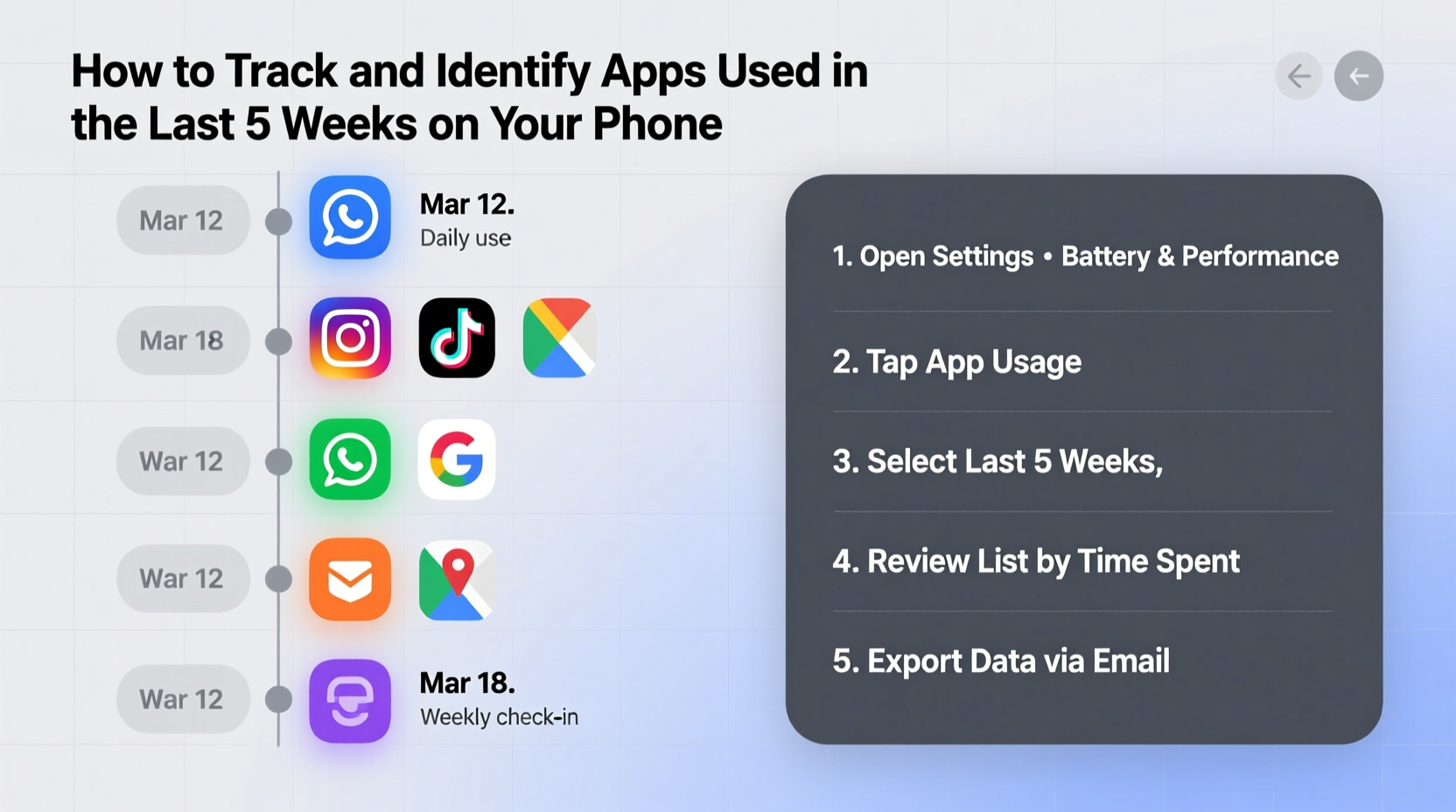
Modern smartphones collect detailed information about user behavior, including when apps are opened, how long they’re used, and even background activity. However, this data isn’t always presented in a way that supports retrospective analysis—especially beyond a few days. Both iOS and Android offer native digital wellbeing features, but their retention periods vary. Knowing what each platform tracks—and for how long—is the first step toward retrieving historical app data.
iOS uses Screen Time to log app usage, while Android relies on Digital Wellbeing. These systems typically store granular data for up to four weeks. Since you're looking at a five-week window, partial data recovery may be necessary, combining recent logs with manual tracking or backups.
Step-by-Step Guide to Retrieve App History
Follow this structured approach to uncover which apps you’ve interacted with over the past five weeks. The process differs slightly between operating systems but follows a consistent logic: access built-in reports, interpret timeframes, supplement missing data, and verify accuracy.
- Enable and Review Built-In Usage Reports
On both platforms, ensure usage tracking is turned on. Then navigate to the appropriate dashboard to view weekly summaries. - Check Weekly Summaries
Digital Wellbeing (Android) and Screen Time (iOS) generate weekly reports every Monday. These emails or on-device summaries show top apps, notification counts, and pick-up frequency. - Manually Scroll Through Historical Data
Use the calendar function in Digital Wellbeing or tap “See All” in Screen Time to scroll back week by week. - Supplement with Third-Party Tools
If native tools don’t cover all five weeks, install privacy-focused analytics apps like Moment or QualityTime to cross-reference current trends with older behavioral patterns. - Review Cloud Backups and Sync Logs
Some services (e.g., Google Account Activity, iCloud logs) record app sign-ins or sync events that can act as indirect evidence of usage.
For iPhone Users: Using Screen Time Effectively
Apple’s Screen Time feature is one of the most robust tools for monitoring app activity. To access data from the last five weeks:
- Go to Settings > Screen Time.
- Scroll down to “Most Used” and “See All Activity” under specific dates.
- Tap the graph at the top to switch from “Last 24 Hours” to “Last Week” or “Last Month.”
- Unfortunately, iOS does not allow direct navigation beyond four weeks in the interface—but weekly email summaries might extend coverage.
If you’ve opted into receiving weekly Screen Time reports via email, check your inbox for messages titled “Your Screen Time Report” sent every Monday. These often include data from the previous full week, potentially giving you a fifth week of insight if archived properly.
For Android Users: Leveraging Digital Wellbeing
Android’s Digital Wellbeing suite offers similar functionality with greater flexibility in some areas:
- Navigate to Settings > Digital Wellbeing & parental controls.
- Select “Dashboard” to view daily and weekly usage graphs.
- Tap the date selector to move backward in time—most devices retain four weeks of detailed logs.
- Look for “Weekly Summary” emails from Google if enabled; these recap app usage, unlocks, and notifications.
Note: Not all Android manufacturers implement Digital Wellbeing identically. Samsung, for example, uses its own Digital Balance system within the Settings app, accessible under “Battery and device care.”
Supplemental Methods When Native Tools Fall Short
When built-in dashboards only cover four weeks, alternative strategies become essential. Consider these approaches to bridge the gap:
- Google Account Activity (Android): Visit myactivity.google.com, filter by date range, and search for app-related actions such as “Opened YouTube” or “Used Google Maps.” This timeline can confirm usage even if duration isn’t recorded.
- iCloud Login History (iOS): While not app-specific, checking appleid.apple.com for device login timestamps can correlate with high-usage periods.
- Third-Party App Analytics: Apps like Moment, QualityTime, or StayFree run continuously in the background and store extended histories, sometimes up to 90 days.
- Notification Log Checkers: Some launchers (e.g., Samsung One UI) retain a limited notification history. Though not foolproof, repeated alerts from a particular app suggest regular interaction.
| Method | Platform | Max Retention | Accuracy Level |
|---|---|---|---|
| Screen Time (iOS) | iOS | 4 weeks (on-device), 5+ via email | High |
| Digital Wellbeing | Android | 4 weeks | High |
| Google My Activity | Android | Indefinite (user-controlled) | Medium |
| Third-party trackers | Both | 30–90 days | High |
| Email summaries | Both | As long as inbox retained | Medium |
“Most users underestimate how much behavioral data their phones already collect. With proper access, you can reconstruct digital habits almost like forensic analysis.” — Dr. Lena Torres, Mobile Behavior Researcher at UX Insights Lab
Mini Case Study: Recovering Lost App Usage Patterns
Sarah, a freelance designer, noticed her phone had been slowing down over the past month. She suspected a recently installed productivity app was running excessive background processes. Her goal was to identify which apps she’d used heavily in the last five weeks to isolate the culprit.
She began by opening Screen Time on her iPhone and reviewing the past four weeks—seeing spikes in usage for design and communication tools. The fifth week wasn’t visible in-app, but she remembered receiving a Screen Time summary email. After searching her inbox, she found the report from six weeks prior, which showed unusually high activity in a file-syncing app she had since deleted.
Cross-referencing with her Google Account activity, she confirmed the app had been syncing large files daily, draining resources. Armed with this timeline, Sarah adjusted her workflow and chose lighter alternatives, restoring her phone’s performance.
Essential Checklist for Tracking Past App Usage
- ✅ Enable Screen Time (iOS) or Digital Wellbeing (Android) if not already active
- ✅ Review on-device usage dashboards for the last 4 weeks
- ✅ Search your email for weekly summary reports (fifth week clue)
- ✅ Visit myactivity.google.com (Android) or check Apple ID logs (iOS)
- ✅ Install a third-party tracker for ongoing monitoring
- ✅ Export and save reports monthly for future reference
Frequently Asked Questions
Can I see exactly which apps I opened five weeks ago?
Precise day-by-day logs for five weeks ago may not be available natively. However, weekly summaries, email reports, and third-party tools can help reconstruct a reliable picture of your usage.
Do factory resets erase app usage history?
Yes. Any local usage data stored on the device is wiped during a factory reset. Cloud-based records (like Google My Activity) remain intact unless manually deleted.
Are third-party app trackers safe to use?
Reputable apps like Moment or Digital Wellbeing by Google are generally safe. Always review permissions and avoid granting unnecessary access like SMS or call logs.
Take Control of Your Digital Footprint
Understanding your app usage over time isn’t just about curiosity—it’s a step toward intentional technology use. By leveraging built-in tools, preserving email summaries, and using trusted analytics apps, you can reconstruct your digital behavior with surprising accuracy. Even if one method falls short, combining multiple sources creates a comprehensive view. Start today by enabling tracking, reviewing your latest report, and setting a monthly reminder to archive your data. Over time, this habit empowers smarter choices, better focus, and a healthier relationship with your smartphone.




 浙公网安备
33010002000092号
浙公网安备
33010002000092号 浙B2-20120091-4
Comments
No comments yet. Why don't you start the discussion?