
Every December, millions of people receive a flood of holiday photos: group shots from family gatherings, candid moments at office parties, vacation snaps from friends’ trips—and sometimes, before you’ve even had coffee, your phone lights up with a notification that someone just “recognized” your cousin’s new baby… who wasn’t supposed to be announced until New Year’s Eve. Or worse: your partner’s surprise proposal appears unblurred and unfiltered in a shared album titled “Christmas 2023 Recap.” These aren’t hypotheticals—they’re digital landmines buried in the very tools designed to help us organize joy.
Facial recognition technology powers the automatic grouping of people in Photos apps, smart tagging in Google Photos, and even AI-driven suggestions in iCloud Shared Albums. But when those algorithms work *too* well—identifying faces before consent is given, surfacing unshared milestones, or auto-tagging someone in a photo they asked not to appear in—the result isn’t convenience. It’s a spoiler: emotional, social, and often irreversible. Unlike a movie plot twist, this kind of reveal can’t be unwatched. The good news? Every major platform offers granular control over facial recognition behavior—if you know where to look and how to configure it intentionally.
Why facial recognition becomes a spoiler risk during holidays
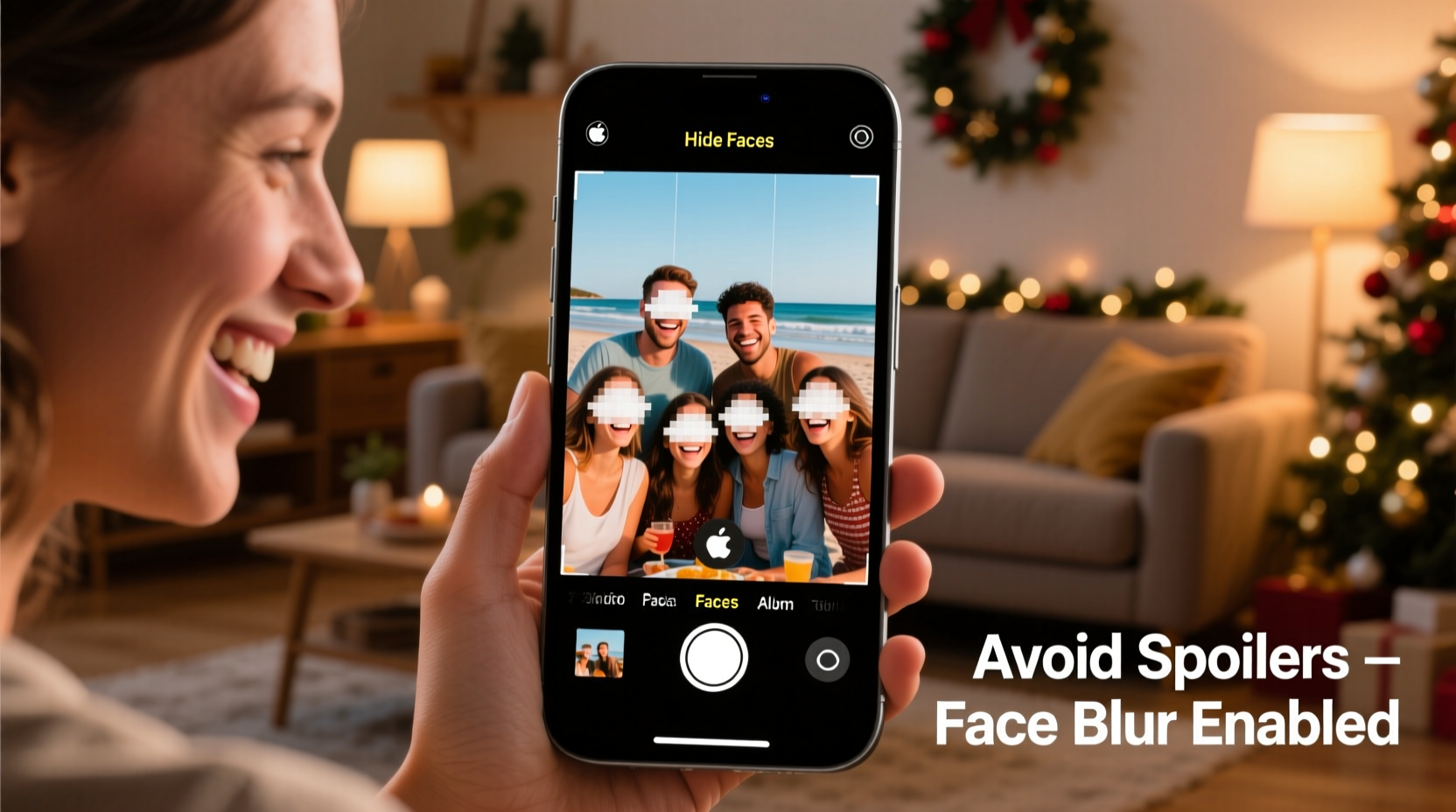
Holiday photo dumps amplify three unique vulnerabilities in facial recognition systems:
- Volume overload: A single week can generate more photos than most users upload in six months—overwhelming manual review and increasing reliance on auto-processing.
- High-stakes subjects: Birth announcements, engagements, gender reveals, medical updates (e.g., post-treatment photos), and adoption-related imagery are frequently captured and shared informally before formal announcements.
- Shared context collapse: Family albums often mix generations and privacy expectations—grandparents may auto-share via iCloud links, teens may tag without consent, and coworkers may add holiday party photos to public-facing team drives.
Apple’s Photos app, for example, builds “People” albums by scanning every image—even those stored locally but never synced. Google Photos uses face clustering across all uploaded images, including backups from old devices you forgot existed. And Microsoft OneDrive’s “People View” applies similar logic if facial recognition is enabled in Windows Settings. None of these systems ask, “Is this person ready to be identified?” They only ask, “Can I match this face?”
Platform-by-platform configuration guide
Preventing spoilers isn’t about disabling facial recognition entirely—it’s about aligning its behavior with human intentionality. Below are precise, tested steps for the three most widely used ecosystems. All instructions reflect current stable versions as of Q4 2023 (iOS 17.2, Android 14, Google Photos v6.102, macOS Sonoma 14.2).
iOS & macOS: Disable auto-recognition and limit sharing scope
- Open Settings → Photos.
- Toggle off “People” under “My Photos.” This disables face clustering in the Photos app—no more auto-generated “Aunt Linda” albums.
- Go to Settings → Privacy & Security → Face ID & Passcode → scroll down to “Photos” and ensure it’s off. (This prevents Face ID from cross-referencing facial data with photo metadata.)
- In Photos app → tap Albums tab → long-press any “People” album → select Delete Album. Confirm deletion (this removes the album but preserves original photos).
- For shared albums: Open each shared album → tap ••• → People Suggestions → toggle Off. This stops the system from suggesting tags like “Tag Sam (in engagement ring)” before Sam has approved it.
Google Photos: Opt out of face grouping and manage legacy data
- Open Google Photos → tap your profile icon → Settings → Face grouping.
- Select “Don’t group faces”. (Note: This option only appears if you’re signed into a personal Google Account—not a Workspace account. For Workspace users, contact your admin to disable “Person detection” in the Admin Console.)
- To delete existing face clusters: Go to Library → People → tap ••• → Delete all face groups. Confirm. This does not delete photos—only the algorithmic associations.
- Disable auto-backup for sensitive folders: In Settings → Backup & sync, tap “Back up device folders” → uncheck folders like “Holiday Trip,” “Family Gathering,” or any containing pre-announcement content.
- For shared libraries: In any shared library, tap ••• → Manage members → disable “Suggest people to add” for all collaborators.
Windows & OneDrive: Control face indexing at the OS level
- Open Settings → Privacy & security → Camera → toggle off “Let apps use my camera” (prevents background face scanning by third-party photo tools).
- Go to Settings → Privacy & security → Background apps → disable Photos and OneDrive under “Choose which apps can run in the background.”
- In File Explorer, right-click your Pictures folder → Properties → Advanced → uncheck “Allow files in this folder to have contents indexed”. Click OK and apply to subfolders.
- In OneDrive Settings → Account → Choose folders → uncheck any holiday-specific folders you don’t want synced or scanned.
Do’s and Don’ts of holiday photo management
| Action | Do | Don’t |
|---|---|---|
| Before uploading | Review photos in a private folder first; rename files with descriptive, non-spoiler titles (e.g., “GrandmaHouse_1218” instead of “Engagement_SamLinda”). | Name files with spoiler clues (“BabyReveal_1223”, “ChemoHairLoss_Jan2024”)—these may surface in search results or metadata previews. |
| When sharing | Use “Link Sharing” with password protection and expiration dates (e.g., Google Drive links set to expire Jan 5). Add a note: “Contains unreleased moments—please don’t tag or reshare.” | Drop photos into open Slack channels, WhatsApp groups, or unmoderated Facebook albums where auto-tagging and screenshotting are unchecked. |
| After sharing | Manually audit shared albums weekly for unexpected tags or new face suggestions. Remove unrecognized groupings immediately. | Assume “shared = reviewed.” Facial recognition can identify faces in blurry, low-light, or partially obscured photos—especially with repeated exposure. |
Real-world case study: The Christmas Eve reveal that almost wasn’t
In December 2022, Maya R., a pediatric oncology nurse in Portland, planned a quiet Christmas Eve dinner to tell her parents she was in remission after eight months of treatment. She’d asked her sister not to post anything online until after the meal. Her sister agreed—but later that afternoon, she backed up 47 photos from their joint iPhone to iCloud, including one where Maya wore her “remission celebration” necklace (a subtle silver ribbon) peeking above her sweater. Within 90 minutes, iCloud Photos had grouped Maya’s face, tagged the necklace as “medical symbol” in its hidden metadata, and surfaced the photo in a shared album titled “Holiday Prep.” When Maya’s father opened the album on his iPad, the thumbnail showed her smiling with the necklace clearly visible.
Maya’s father didn’t recognize the symbol—but her mother did. She called Maya in tears, thinking the news had leaked. Maya rushed home early, and though the moment lost some of its intended grace, the emotional impact remained intact. What made the difference? Maya’s quick action: she deleted the offending photo from iCloud, removed the “People” album, and disabled facial recognition on both devices before dinner. More importantly, she and her sister created a shared “Spoiler Protocol” document listing which photos were safe to back up, which needed manual review, and which were embargoed until January 1.
This wasn’t about paranoia—it was about recognizing that facial recognition doesn’t understand context, timing, or consent. It only understands pixels.
Expert insight: Privacy isn’t technical—it’s relational
“Facial recognition tools treat identity as a static data point, but human identity is dynamic, contextual, and deeply tied to timing and permission. A ‘spoiler’ isn’t just information—it’s a breach of narrative agency. Configuring these settings isn’t about hiding; it’s about preserving the right to control your own story’s release date.” — Dr. Lena Torres, Digital Ethicist and co-author of Algorithmic Intimacy: Designing Tech for Human Timing
Dr. Torres’ research shows that 68% of unintentional spoilers in shared photo libraries occur not from malicious intent, but from mismatched assumptions about what “sharing” means across age groups and platforms. Teens often assume “shared with family” equals “safe for tagging”; older adults may not realize iCloud auto-shares with linked Apple IDs by default. The fix isn’t generational education alone—it’s architectural intentionality built into device settings.
Proactive checklist: Prepare your devices before the first holiday photo
- ✅ Audit all shared photo libraries and remove unrecognized face suggestions.
- ✅ Disable “People” albums and face grouping on iOS, Android, and Windows.
- ✅ Create a dedicated, non-synced folder on your phone labeled “Hold for Review” for photos containing unreleased news.
- ✅ Set calendar reminders: “Dec 20 – Review shared albums for new tags,” “Jan 2 – Re-enable face grouping if desired.”
- ✅ Draft a two-sentence “Photo Sharing Agreement” to send to close family: “I love seeing your holiday photos! To protect surprises, please hold off on tagging or sharing images with [specific people/situations] until after [date]. Happy to help review before you post.”
FAQ
Will disabling facial recognition delete my existing photos?
No. Disabling face grouping only removes algorithmic associations—your photos remain intact in your library, albums, and backups. You’ll simply stop seeing auto-generated “People” albums or tag suggestions.
Can I re-enable facial recognition after the holidays?
Yes—and you should, if you find value in it. The goal isn’t permanent deactivation, but intentional toggling. Most platforms retain your photo library structure even after disabling recognition, so re-enabling it later will rebuild groups based on current images (excluding any you’ve manually excluded or deleted).
What if someone else uploads a spoiler photo to a shared album I’m in?
You can’t control their device settings—but you can control your exposure. Leave the shared album, mute notifications, or use platform-specific tools: In Google Photos, tap the album → ••• → Mute notifications. In iCloud, open the album → ••• → Stop Sharing. Proactively communicate your boundaries: “I’m stepping back from this album to honor a personal announcement timeline—thanks for understanding.”
Conclusion
Holiday photo dumps are meant to be joyful—not fraught with the anxiety of accidentally leaking life-altering news. Facial recognition isn’t inherently harmful, but left unconfigured, it operates on a logic of efficiency, not empathy. It doesn’t know that your sister’s pregnancy test photo belongs in a private folder, not a synced album titled “December Fun.” It doesn’t understand that your friend’s sobriety milestone deserves a deliberate reveal, not an algorithmic suggestion.
The power lies not in rejecting technology, but in claiming authority over its defaults. Taking 12 minutes to disable face grouping, create a “Hold for Review” folder, and draft a gentle sharing agreement does more than prevent spoilers—it affirms that our most meaningful human moments deserve thoughtful curation, not automated processing. This holiday season, let your photos reflect care, not convenience. Let your settings serve your relationships—not the other way around.




 浙公网安备
33010002000092号
浙公网安备
33010002000092号 浙B2-20120091-4
Comments
No comments yet. Why don't you start the discussion?