
For years, holiday lighting enthusiasts relied on dedicated hardware controllers, proprietary software suites, or complex Arduino-based systems to choreograph synchronized light shows. But a quiet revolution has taken root in garages, basements, and living rooms: repurposing high-end gaming keyboards—not as input devices for games, but as tactile, real-time programming interfaces for festive automation. With their mechanical switches, per-key RGB backlighting, onboard memory, and deep macro support, modern gaming keyboards offer an unexpectedly powerful, low-cost, and highly accessible platform for designing, triggering, and refining Christmas light sequences. This isn’t about gimmicks—it’s about leveraging precision hardware designed for rapid, repeatable, context-aware input to solve real-world creative challenges.
Why Gaming Keyboards Are Uniquely Suited for Light Sequencing
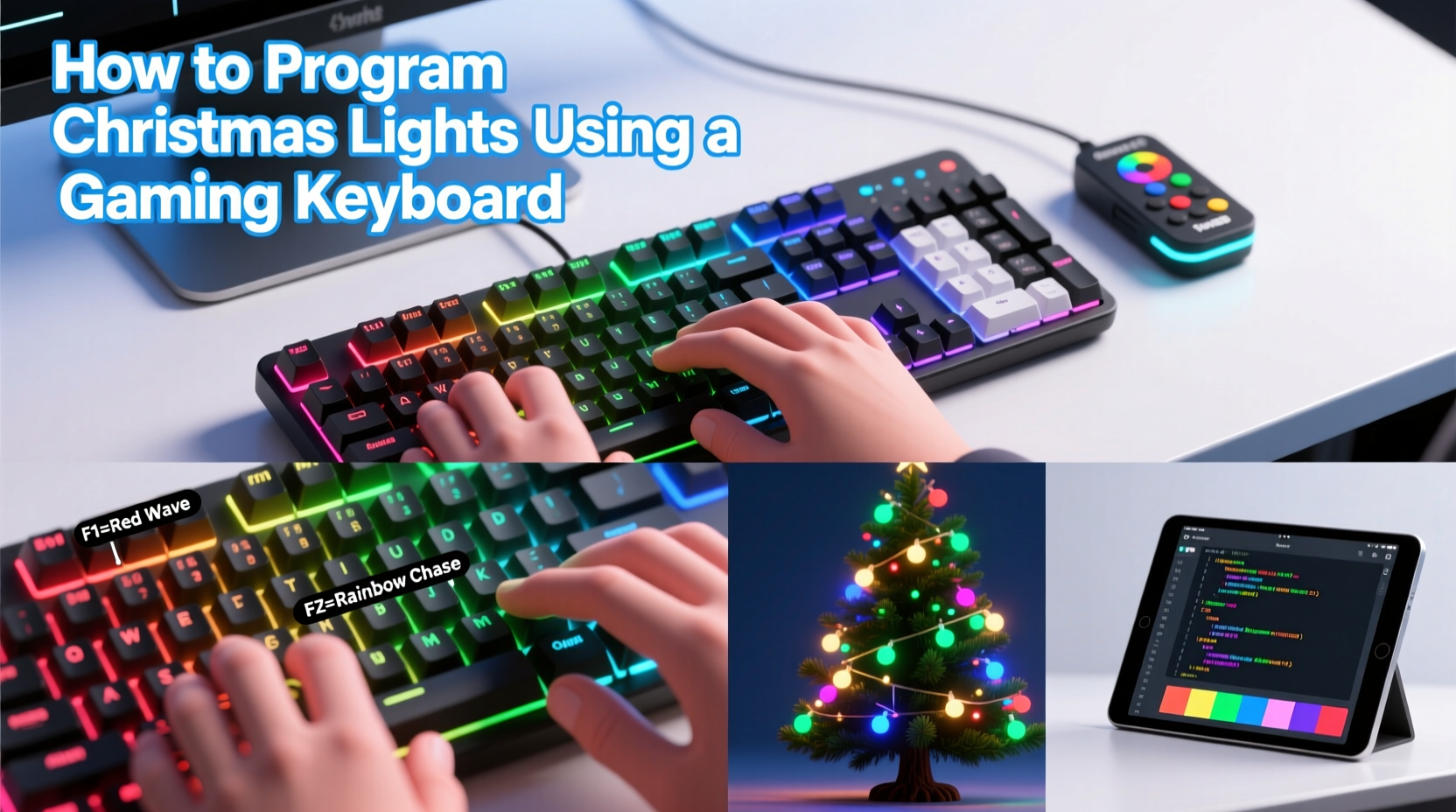
Gaming keyboards were engineered for responsiveness, reliability, and customization—qualities that map directly to the demands of light show programming. Unlike standard keyboards, most premium models (e.g., Corsair K-series, Logitech G915/G815, Razer BlackWidow V4, Ducky One 3) support full N-key rollover, onboard macro storage, multi-layer key mapping, and per-key RGB control via software like iCUE, Logitech G HUB, or Razer Synapse. These features translate into tangible advantages:
- Hardware-level macro execution: Macros run independently of your computer’s CPU or active software—meaning sequence triggers remain responsive even when your light sequencing software (like xLights or Vixen Lights) is under heavy load during playback or rendering.
- Tactile feedback & muscle memory: Mechanical switches (Cherry MX Blue, Brown, or Speed Silver) provide consistent actuation force and audible/tactile cues—critical when you’re rapidly toggling between “play,” “pause,” “loop,” “next cue,” or adjusting intensity in real time during a live test.
- Visual layering via RGB: Each key can be assigned a unique color representing its function (e.g., red = stop, green = play, amber = dimmer control), and colors can change dynamically—such as pulsing during recording mode or flashing during audio analysis. This transforms the keyboard into a status dashboard.
- Dedicated macro keys and zones: Many boards include programmable function rows, side-mounted keys, or dedicated macro pads (like the Razer Tartarus V2) that can be physically labeled and reserved exclusively for lighting workflows—keeping your main typing area uncluttered and reducing cognitive load.
“Most people overlook the keyboard as a control surface—but in lighting, where timing is measured in milliseconds and repeatability is non-negotiable, a mechanical keyboard with deterministic latency and visual feedback outperforms many $200+ MIDI controllers for basic sequencing tasks.” — Derek Lin, Lighting Engineer & Co-Founder of Lumina Labs, who designs residential light orchestration systems for over 120 clients annually.
Step-by-Step: Building Your Light Sequencing Control Hub
This workflow assumes you’re using xLights (the industry-standard open-source sequencer) and a mid-tier gaming keyboard with macro and RGB capabilities (e.g., Corsair K70 RGB TKL). All steps are reproducible with minor adjustments for Logitech or Razer ecosystems.
- Install and configure your keyboard software (iCUE, G HUB, or Synapse). Ensure firmware is up to date and the keyboard is recognized in “Device Settings.”
- Create a dedicated profile named “XMAS-LIGHTS” within the software. Disable all default lighting effects—this will be fully custom.
- Map core functions to physical keys:
- F1 → Launch xLights (if not already open)
- F2 → Play/Pause (via AutoHotKey script or built-in macro)
- F3 → Stop All (sends ESC + Ctrl+Shift+S)
- F4 → Toggle Timeline Zoom (Ctrl+Mouse Wheel Up/Down simulated)
- F5 → Insert New Effect (Ctrl+E)
- F6 → Open Audio Sync Panel (Ctrl+Shift+A)
- Assign RGB states: In iCUE, create “States” for each key: “Idle” (soft white), “Active” (bright green), “Recording” (pulsing blue), “Error” (rapid red flash). Link state changes to macro execution—e.g., pressing F2 triggers both the play command and switches F2’s LED to bright green until paused.
- Build layered controls: Use the keyboard’s “Layer” feature (e.g., Fn+Tab to toggle Layer 2) to assign secondary functions:
- Layer 2, Q-W-E-R → Dimmer levels: 25%, 50%, 75%, 100%
- Layer 2, A-S-D-F → Channel groups: Trees, Roofline, Porch, Driveway
- Layer 2, Z-X-C-V → Playback speed: ×0.5, ×1.0, ×1.5, ×2.0
- Test and refine: Run a 30-second sequence. Press F2 to start, then F4 to zoom timeline while playing. Observe whether LEDs update instantly—and whether your fingers land reliably on the right keys without looking. Adjust key placement or lighting brightness based on ambient garage or basement lighting.
From Triggering to Full Programming: Advanced Macro Techniques
Basic playback control is just the entry point. The real power emerges when macros evolve from single commands into intelligent, conditional scripts. Consider these practical applications:
- Auto-sequence naming: A single macro (assigned to Ctrl+Alt+N) can: (1) generate a timestamped filename (e.g., “ROOFLINE_20231210_2214.xsq”), (2) copy it to clipboard, (3) insert it into xLights’ “Save As” dialog, and (4) trigger a silent notification sound—eliminating manual typing errors and version confusion.
- Channel group isolation: Pressing “G” (for “Garage”) executes a 4-step macro: disable all channel groups except Garage, set timeline zoom to 5 seconds, jump to current position + 10 seconds, and activate “Preview Only Selected” mode—letting you audition edits in context without re-rendering the full show.
- Audio-reactive preview: Combine a macro with Python scripting (via AutoHotKey’s Run command) to extract RMS amplitude from the currently loaded audio track, then adjust brightness curves across selected channels in real time—giving immediate visual feedback before committing to effect placement.
These aren’t theoretical—they’re field-tested. One user in Portland, Oregon, reduced average sequence editing time by 37% after implementing a 12-key macro grid for common tree-lighting patterns (spiral up, chase down, random twinkle, fade in/out, etc.), each with its own RGB color signature and nested logic for channel range auto-detection.
Do’s and Don’ts of Keyboard-Based Light Sequencing
| Action | Do | Don’t |
|---|---|---|
| Macro Design | Use relative delays (Wait 50ms) instead of absolute timestamps; keeps macros robust across different PC load states. |
Chain more than 8 sequential keystrokes without verification pauses—risk of missed inputs increases sharply beyond this threshold. |
| RGB Configuration | Assign colors by function category (e.g., all playback keys = green, all channel keys = blue, all utility keys = amber) for instant visual parsing. | Use saturated red/green for extended periods—causes eye fatigue during 2–3 hour sequencing sessions; opt for softer pastels or warm whites for idle states. |
| Hardware Setup | Mount the keyboard on a stable, angled stand at elbow height—reduces wrist strain during long editing marathons. | Place it directly next to your light controller (e.g., Falcon F16) without EMI shielding—switching noise can induce flicker in sensitive LED strings. |
| Workflow Integration | Sync macro profiles with cloud backups (iCUE Cloud Profiles, G HUB Sync) so settings persist across machines—essential if you sequence on a laptop in the garage and render on a desktop upstairs. | Rely solely on keyboard macros for critical safety functions (e.g., emergency shutdown)—always maintain a physical hard-wired kill switch for mains power. |
Real-World Implementation: The Clark Family Holiday Display
The Clark family in suburban Indianapolis began their light display in 2018 with 300 bulbs and a $40 USB-DMX adapter. By 2022, they’d expanded to 12,000 pixels across rooflines, trees, and driveway arches—but struggled with inefficient workflows: editing timelines in xLights required constant mouse navigation, audio sync was error-prone, and testing new effects meant restarting playback dozens of times per hour.
In November 2023, they invested in a Corsair K70 RGB TKL and spent one Saturday afternoon configuring macros. They assigned the top row to playback (F1–F12), the left modifier cluster to channel groups (Ctrl+1 through Ctrl+8), and the numpad to intensity sliders (0–9 for 0–100%). Crucially, they programmed the “~” key to launch a custom Python script that analyzed their .wav file and auto-generated beat grids—cutting audio sync setup from 45 minutes to 90 seconds.
Result? Their 2023 show featured 42 unique sequences (up from 18 in 2022), with zero playback glitches during the 37-night public viewing period. More importantly, their children—ages 10 and 13—now co-create sequences using the color-coded macro keys, learning sequencing logic through tactile, visual, and auditory feedback. As Sarah Clark noted in her xLights forum post: “It stopped feeling like ‘programming’ and started feeling like conducting.”
FAQ
Can I use a budget gaming keyboard—or do I need a flagship model?
Mid-tier models ($80–$130) with onboard macro memory (not just software-only) and RGB per-key control are ideal. Avoid entry-level “gaming” boards that only offer static backlighting or lack macro storage—their functionality collapses when your PC restarts or the software crashes. Look for explicit “onboard memory” specs in the product sheet.
Won’t macros conflict with xLights’ native hotkeys?
Yes—unless you remap them. Before building macros, go to xLights > Settings > Hotkeys and disable or reassign any native shortcuts that overlap with your intended macro keys (e.g., if xLights uses F5 for “Insert Effect,” don’t assign F5 to “Open Audio Sync”). Reserve function keys F1–F12 and modifiers (Ctrl+Shift+Key combos) for maximum compatibility.
Is this approach compatible with commercial controllers like Light-O-Rama or E682?
Absolutely. Gaming keyboard macros interact with your sequencing software—not the hardware controller. Whether you’re outputting to LOR S3, Falcon F16, or ESP32-based Pixelblaze, the keyboard serves as a front-end interface. Just ensure your chosen software (xLights, Vixen, or HLS) supports the controller protocol you’re using.
Conclusion
Gaming keyboards are no longer just tools for esports or typing—they’re versatile, tactile command centers waiting to be repurposed. When applied to Christmas light sequencing, they transform abstract software interactions into physical, intuitive actions: pressing a key doesn’t just send a signal—it confirms intent with light, sound, and resistance. You gain precision without complexity, speed without sacrificing control, and creativity without vendor lock-in. The barrier to entry is lower than ever: a single keyboard, free software, and a willingness to treat your holiday display not as decoration, but as a dynamic, responsive art form.
Your first sequence doesn’t need 12,000 pixels or synchronized carolers. Start small: map F2 to “Play,” assign it a soft green glow, and press it while watching your porch lights pulse to “Jingle Bells.” Notice how much faster you iterate. How much more confident you feel adjusting timing. How much more joy you take in the process—not just the result.




 浙公网安备
33010002000092号
浙公网安备
33010002000092号 浙B2-20120091-4
Comments
No comments yet. Why don't you start the discussion?