
In today’s fast-moving world, efficient communication isn’t just a convenience—it’s a necessity. With Google’s evolving suite of call features, users can streamline phone interactions, reduce missed connections, and enhance clarity across personal and professional conversations. Whether you're managing client calls, staying in touch with family, or filtering out spam, Google has built-in tools that make every call more effective—without requiring extra apps or complex setups.
From intelligent call screening to seamless integration with your Android device, Google’s calling ecosystem is designed to minimize friction and maximize productivity. By understanding and leveraging these tools, you can turn routine phone calls into smarter, stress-free interactions.
1. Enable Google Voice Integration for Unified Calling
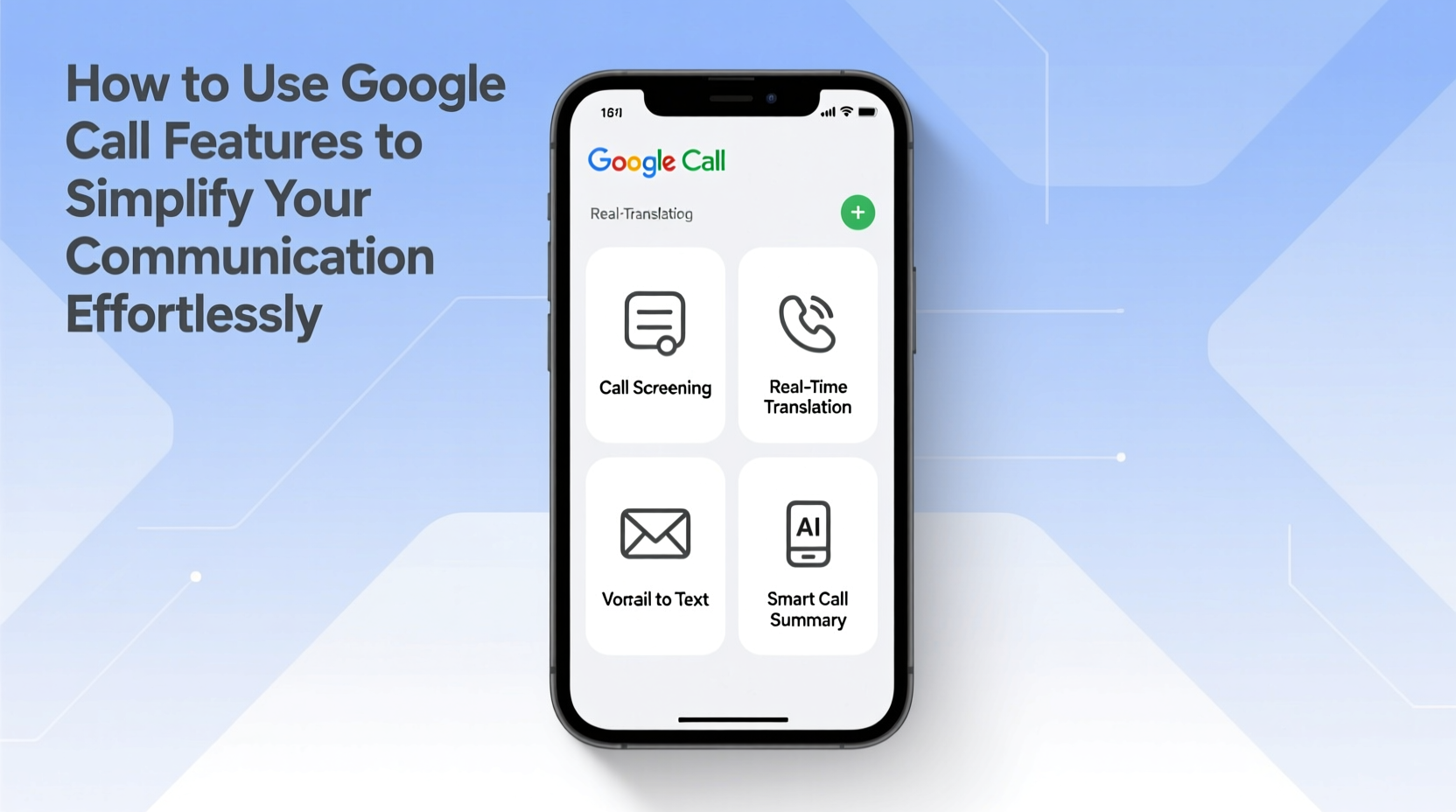
Google Voice is the backbone of many Google call features, offering a single number for calls, texts, and voicemail across devices. It’s free for personal use in the U.S. and integrates directly with Android phones and Gmail. Once set up, it allows you to make and receive calls from your computer, tablet, or smartphone using the same number.
To activate Google Voice:
- Visit voice.google.com and sign in with your Google account.
- Select a free Google Voice number (or port an existing one).
- Link it to your mobile number for call forwarding.
- Download the Google Voice app on Android or iOS.
With this setup, all incoming calls route through Google Voice, enabling advanced features like transcription, spam filtering, and call recording (where permitted).
2. Leverage Call Screening with Google Assistant
One of the most powerful—and underused—features is Google’s Call Screen. When an unknown or suspected spam number calls, your phone can answer automatically while Google Assistant identifies the caller and transcribes the conversation in real time.
This is particularly useful when you’re driving, in a meeting, or simply unsure whether to pick up. You can watch the live transcript, choose to join the call, send a message, or block the number—all without speaking a word.
How to Activate Call Screen:
- Open the Phone app on your Android device.
- Tap the three-dot menu and select Settings.
- Go to “Caller ID & Spam” and toggle on “See caller and spam alerts.”
- Under “Call Screen,” enable “Screen calls with Google Assistant.”
Once enabled, any suspicious incoming call will prompt an option to “Screen call.” Tap it, and Google Assistant takes over.
“Call Screen reduces unwanted interruptions by over 60% in high-spam areas, giving users control over who reaches them.” — Google AI Research Team, 2023
3. Automate Voicemail with Smart Transcription
Traditional voicemail requires listening to lengthy audio messages, often multiple times. Google improves this with visual voicemail powered by AI transcription. Every voicemail is converted into text and delivered directly to your phone and Google Voice inbox.
This means you can skim messages in seconds, search for keywords like “appointment” or “urgent,” and respond faster. If the audio quality is poor, the transcription still captures the core message in most cases.
| Feature | Benefit | Availability |
|---|---|---|
| Voicemail Transcription | Read messages instead of listening | Android & Google Voice |
| Spam Detection | Auto-flag suspicious callers | Android (U.S. only) |
| Call Recording (with consent) | Save important conversations | Google Voice (select regions) |
| Scheduled Text Replies | Automate follow-ups | Google Messages + Voice |
4. Real-World Example: Managing Client Calls Efficiently
Sarah runs a small marketing consultancy from home. She used to miss calls during client workshops or get interrupted by telemarketers. After setting up Google Voice and enabling Call Screen, her workflow transformed.
Now, when a potential client calls, Google Assistant answers, asks their name and purpose, and transcribes the message. Sarah receives a notification with the text summary. If it’s urgent, she joins the call instantly. If not, she replies via text later.
She also uses Google Voice to record strategy calls (after informing participants), then shares summarized notes via email. Her clients appreciate the transparency, and she saves hours each week previously spent on callbacks and note-taking.
This isn’t just about convenience—it’s about reclaiming focus and turning communication into a strategic asset.
5. Optimize Communication with Smart Features and Best Practices
Beyond basic calling, Google offers subtle but powerful tools that refine how you interact. These include:
- Hold for Me: When calling customer service, activate “Hold for Me” and let Google Assistant wait on hold. It notifies you when a live agent answers.
- Smart Reply in Calls: During a call screen, quickly respond with pre-written messages like “I’ll call you back” or “Send details via text.”
- Priority Notifications: Mark key contacts as favorites so their calls bypass Do Not Disturb, ensuring you never miss critical updates.
Checklist: Maximize Your Google Call Experience
- ✅ Set up Google Voice with a dedicated number
- ✅ Enable Call Screen and spam protection
- ✅ Turn on voicemail transcription
- ✅ Use “Hold for Me” for automated hold management
- ✅ Label important contacts as favorites
- ✅ Review call history and spam logs weekly
- ✅ Record important calls (with consent) for reference
Frequently Asked Questions
Can I use Google Call features without a Google Voice number?
Yes, many features like Call Screen, spam filtering, and Hold for Me are available directly on supported Pixel and Android phones—even without a Google Voice account. However, full functionality (like unified voicemail and cross-device syncing) requires linking a Google Voice number.
Is call recording legal with Google Voice?
Call recording is allowed in Google Voice in certain countries, including the U.S., but you must inform the other party before recording. Google prompts a verbal notice at the start of the recording to comply with two-party consent laws in applicable states.
Does Call Screen work on international numbers?
Call Screen primarily works for calls received on U.S.-based numbers. International support is limited, though Google continues to expand availability based on regional regulations and network compatibility.
Take Control of Your Conversations
Communication should empower you, not distract you. Google’s call features—when used intentionally—transform your phone from a source of interruption into a precision tool for connection. From silencing spam to preserving key discussions, these tools put you in control with minimal effort.
The best part? Most of these features are already on your phone. You don’t need to download anything extra or pay for premium subscriptions. A few quick settings adjustments can dramatically improve how you manage calls every day.




 浙公网安备
33010002000092号
浙公网安备
33010002000092号 浙B2-20120091-4
Comments
No comments yet. Why don't you start the discussion?