
Google Photos is more than just a cloud-based photo storage solution—it’s a powerful tool for organizing, enhancing, and reliving your memories. While most users stick to basic features like uploading and scrolling through albums, there are dozens of hidden editing tools and efficiency hacks buried within the app that can transform how you interact with your visual library. From AI-powered enhancements to batch editing shortcuts, mastering these underused functions can save time, improve image quality, and unlock creative potential without needing third-party apps.
Whether you're managing thousands of photos or simply want to make your vacation shots look better, understanding the subtle but impactful editing capabilities in Google Photos gives you an edge. These aren’t flashy add-ons—they’re built-in features often overlooked because they don’t come with tutorials or obvious icons. Once mastered, they become second nature, streamlining your digital photo workflow.
1. Master the Hidden Editing Tools Beyond Basic Adjustments
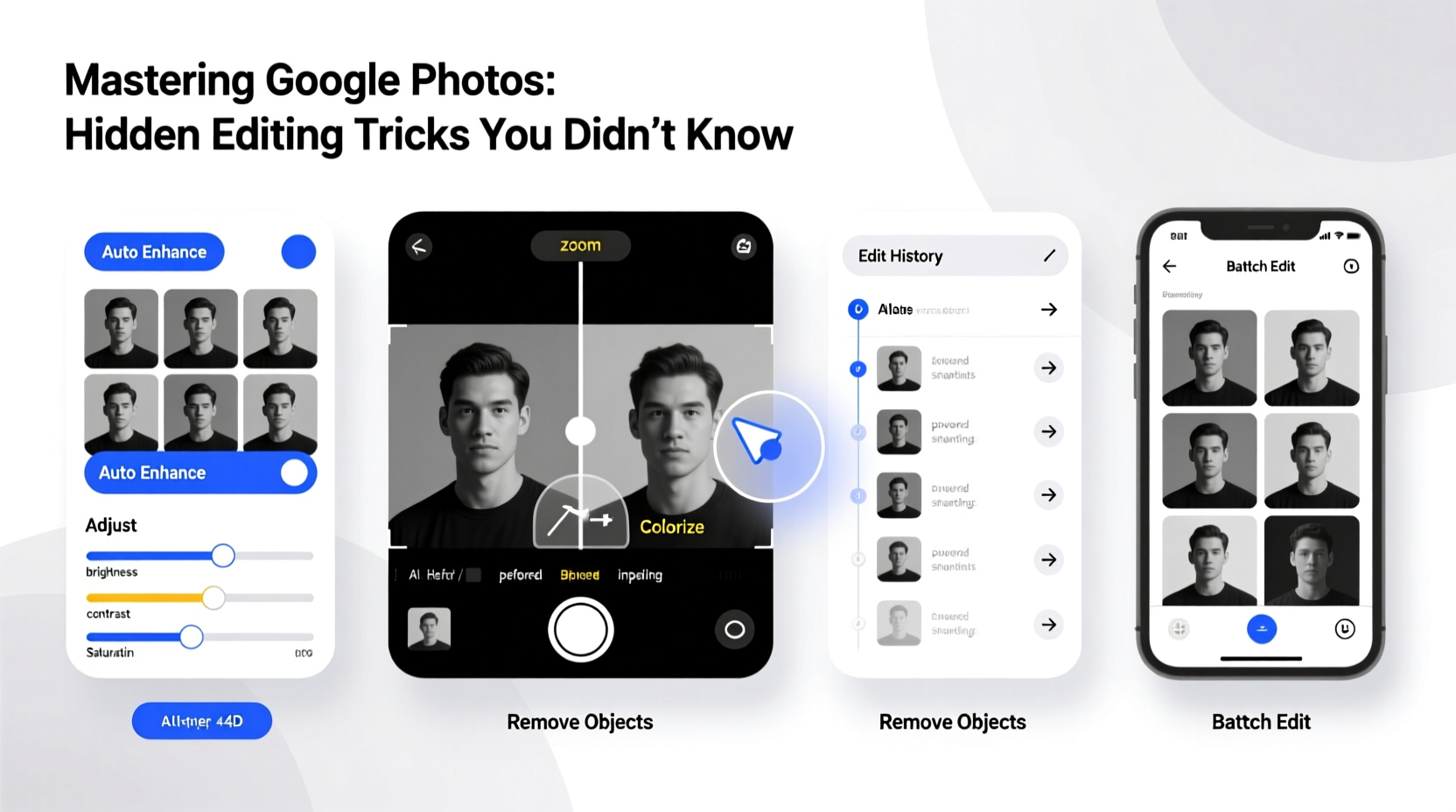
Most people know how to rotate or crop a photo in Google Photos, but few dive into the full suite of editing options available directly inside the app. After opening any image, tap “Edit” and then explore the icons below the preview—each one unlocks layers of control.
- Light: Includes exposure, contrast, highlights, shadows, whites, and blacks. Use this panel not just to brighten dark images but to add depth by fine-tuning shadow detail.
- Color: Offers saturation, warmth, and tint adjustments. A slight increase in warmth can make outdoor scenes feel cozier; reducing saturation slightly often gives photos a more natural, film-like tone.
- Pop: This lesser-known slider enhances mid-tone contrast and micro-details, making textures stand out without over-sharpening. It’s ideal for portraits and landscapes.
- Tint: Corrects unnatural color casts caused by indoor lighting. If your photo has a greenish or magenta hue, adjust this subtly until skin tones look realistic.
The real power lies in combining multiple edits strategically. For example, increasing contrast while pulling back on highlights prevents blown-out skies in landscape shots. Similarly, boosting pop after adjusting white balance can bring life to flat-looking images taken on cloudy days.
2. Use Batch Editing to Save Time Across Similar Photos
If you've ever returned from a trip with hundreds of nearly identical sunset photos, you’ll appreciate batch editing. While Google Photos doesn’t have a formal “apply to all” button, it does allow smart duplication of edits using shared timestamps and locations.
- Select the best-edited photo from a group (e.g., one where you’ve perfectly balanced light and color).
- Note the exact time it was taken.
- Go to other similar photos shot within a minute or two under the same conditions.
- Apply the same manual adjustments based on memory—or use visual cues like histogram shape and brightness levels as guides.
This method works especially well when shooting in consistent lighting. Because phone cameras apply similar default processing to consecutive shots, matching edits manually still produces near-uniform results.
When Automatic Enhancements Fall Short
Google Photos applies automatic tuning to many images upon import—especially older ones processed during backup. However, these enhancements can oversaturate colors or introduce noise in low-light photos. To override auto-corrections:
- Tap “Auto” at the top of the edit screen to toggle between enhanced and original states.
- If you prefer the original, skip editing entirely—the app preserves both versions unless you manually save changes.
- For maximum control, disable “Enhance suggestions” in Settings > Assistant to stop prompts that may alter your preferences.
“Many users unknowingly overwrite their preferred settings because Google’s Auto mode applies aggressive corrections. Learning to reject those defaults is the first step toward intentional editing.” — Lena Park, Mobile Photography Educator
3. Leverage AI-Powered Restoration Tricks for Old or Blurry Photos
One of Google Photos’ most underrated capabilities is its ability to revive damaged or outdated images. When scanning old family pictures or rescuing blurry screenshots, the app uses machine learning models to sharpen details, reduce grain, and even reconstruct missing elements.
To maximize AI restoration:
- Upload scanned negatives or faded prints directly to Google Photos via desktop or mobile.
- Wait 24–48 hours for the system to process high-resolution analysis.
- Open the image and go to Edit > Auto. You’ll often see dramatic improvements in clarity and color balance thanks to neural network upscaling.
While not equivalent to professional software like Photoshop Super Resolution, Google’s algorithm performs remarkably well on medium-quality scans. It excels at recovering skin tones in old portraits and restoring faded backgrounds in vintage holiday photos.
Resurrecting Low-Quality Screenshots
Screenshots with pixelation or compression artifacts benefit significantly from Google Photos’ silent cleanup process. The platform automatically detects text regions and smooths jagged edges, improving readability without user input.
| Issue | Solution in Google Photos | Limitations |
|---|---|---|
| Faded colors in scanned photos | Use Color > Warmth + Saturation; let Auto optimize first | May overcorrect if background contains dominant hues |
| Blurry faces in old images | Apply Pop + Shadows carefully; avoid sharpening | Cannot reconstruct eyes/noses beyond recognition threshold |
| Noisy night shots | Reduce Highlights and Blacks; increase Contrast moderately | Grain reduction is limited compared to dedicated apps |
4. Organize Smarter with Edit-Based Categorization
Efficiency isn’t only about editing—it’s also about retrieval. Many users forget that edited photos behave differently in search and timeline sorting. Understanding how metadata affects organization helps you build a smarter archive.
Edited versions retain the same filename and timestamp as originals but carry additional flags indicating modifications. This means:
- You can search “edited photos” directly in the search bar to find all modified images.
- Albums containing edited photos will display updated thumbnails reflecting final looks.
- Shared links show the latest version, ensuring recipients see your intended result.
Use this to your advantage by creating curated collections:
- Identify key events (birthdays, trips) where you plan to enhance select images.
- Edit at least one photo per event to trigger the “edited” tag.
- Create an album titled “Final Versions” and populate it with only polished images.
- Rename files descriptively before sharing (e.g., “Grand Canyon Sunset – Final.jpg”).
“Tagging edited photos creates a secondary layer of curation. It separates raw captures from meaningful moments, which is essential for long-term digital wellness.” — Marcus Tran, Digital Archivist
Real Example: Managing a Family Reunion Album
Sarah, a teacher and amateur photographer, hosts an annual family reunion. Last year, she took over 400 photos across three days. Instead of overwhelming relatives with everything, she used Google Photos’ editing tags to streamline delivery.
She spent two evenings editing 35 standout images—adjusting lighting, cropping awkward groupings, and enhancing smiles. By saving only those, she triggered the “edited photos” index. Then, she created a shared album named “Reunion Highlights 2023,” added the refined images, and sent the link.
Relatives praised the quality and coherence. More importantly, Sarah avoided cluttering her main library with redundant shots. Her unedited originals remained safely backed up, accessible only when needed.
5. Speed Up Workflow with Keyboard Shortcuts and Gestures
On desktop, Google Photos supports several keyboard commands that accelerate editing and navigation—features rarely documented but immensely useful for power users.
| Action | Shortcut (Chrome/Desktop) |
|---|---|
| Next photo | → (Right Arrow) |
| Previous photo | ← (Left Arrow) |
| Zoom in | Z |
| Open edit mode | E |
| Toggle fullscreen | F |
| Select photo | Spacebar |
Combine these with mouse gestures for fluid browsing:
- Double-click to zoom into image center.
- Drag while zoomed to pan across details.
- Click outside the image or press Esc to exit preview.
Checklist: Optimize Your Google Photos Editing Routine
- Ensure Wi-Fi connection for seamless upload and processing.
- Verify backup completion to avoid syncing conflicts.
- Group similar photos by date/location for easier batch handling.
- Start with Auto enhancement, then refine manually.
- Use the hold-to-compare gesture frequently.
- Focus on Light and Color panels before touching Pop or Tint.
- Save only when satisfied—Google retains both versions temporarily.
- Add edited photos to themed albums for quick access.
- Share finalized versions via link rather than downloading and re-uploading.
FAQ
Can I undo edits if I make a mistake?
Yes. Open the edited photo, tap “Edit,” then choose “Revert” from the overflow menu (three dots). This restores the original version exactly as it was before any changes.
Do edited photos take up extra storage?
No. Google Photos stores edits as lightweight instructions, not duplicate files. Even with thousands of edits, your storage usage remains tied to original media size—unless you create copies manually.
Are these editing tools available offline?
Basic edits (crop, rotate, light adjustments) work offline on mobile. However, AI enhancements like Auto tuning require internet access to connect to Google’s servers. Changes made offline sync once connectivity resumes.
Conclusion
Using Google Photos more efficiently isn't about doing more—it's about working smarter with what already exists. The hidden editing tricks covered here don't require technical expertise or paid upgrades. They rely on awareness, consistency, and small shifts in behavior that compound into major gains over time.
From leveraging AI-driven restoration to mastering keyboard shortcuts and organizing around edited metadata, each technique builds toward a cleaner, more intentional photo experience. These aren't shortcuts to perfection—they're pathways to greater control and creativity within a tool you already use every day.




 浙公网安备
33010002000092号
浙公网安备
33010002000092号 浙B2-20120091-4
Comments
No comments yet. Why don't you start the discussion?