
Two-factor authentication (2FA) is one of the most effective ways to protect your online accounts from unauthorized access. Traditionally, many services have relied on SMS-based verification sent to a secondary phone number. However, not everyone wants or can use an additional phone number for security purposes. Whether due to privacy concerns, lack of access to a second device, or fear of SIM-swapping attacks, users are increasingly seeking alternatives.
The good news is that modern 2FA methods do not require a secondary phone number at all. In fact, some of the most secure forms of two-factor authentication operate entirely independently of phone numbers. This guide explores practical, secure, and accessible ways to enable 2FA without relying on a backup mobile line—using authenticator apps, hardware security keys, and recovery codes.
Why Avoid Using a Secondary Phone Number for 2FA?
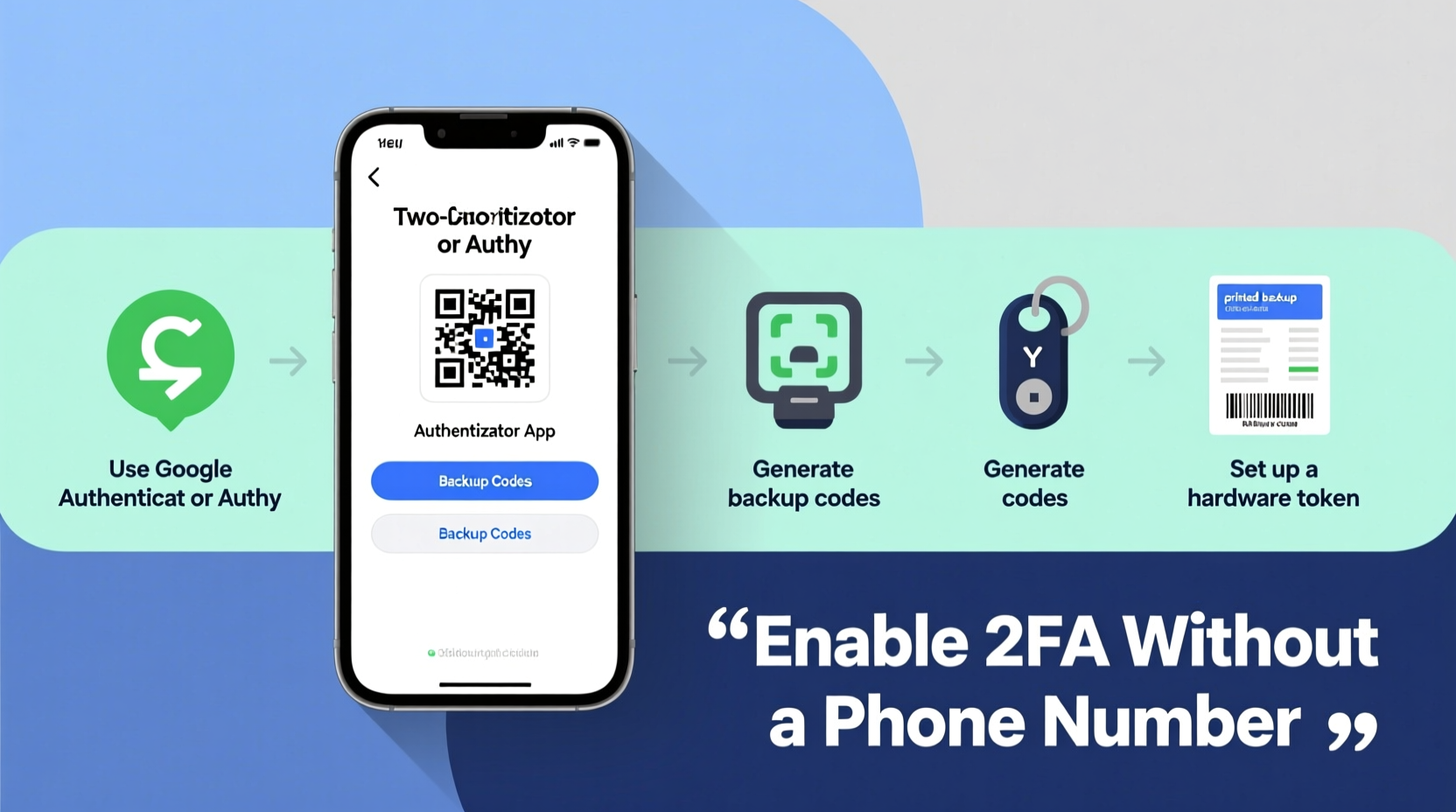
SMS-based two-factor authentication has long been criticized by cybersecurity experts. While convenient, it carries significant risks:
- SIM swapping: Attackers can trick mobile carriers into transferring your number to their device, intercepting all SMS codes.
- Interception: SMS messages are not encrypted and can be intercepted via cellular network vulnerabilities.
- Device dependency: If you lose your phone or change numbers, you may lose access to critical accounts.
- Lack of control: You're dependent on carrier infrastructure and policies beyond your influence.
“SMS is better than nothing, but it's the weakest form of two-factor authentication.” — Katie Moussouris, Founder & CEO, Luta Security
Using a secondary phone number amplifies these issues without resolving the core weaknesses. Fortunately, more robust and private alternatives exist—and they don’t require any extra SIM cards or devices in most cases.
Secure Alternatives to Phone Number-Based 2FA
Modern authentication standards support several strong, number-free 2FA methods. These include time-based one-time passwords (TOTP), WebAuthn-compatible security keys, and biometric authentication through trusted devices.
1. Authenticator Apps (TOTP)
Authenticator apps generate time-based codes locally on your smartphone, eliminating the need for SMS or voice calls. They work with a wide range of platforms including Google, Microsoft, Apple, GitHub, and banking services.
Popular options include:
- Google Authenticator
- Microsoft Authenticator
- Authy (supports multi-device sync)
- FreeOTP by Red Hat
- 2FAS Auth
To set up TOTP-based 2FA:
- Navigate to the security settings of your account.
- Select “Set up two-factor authentication” and choose “Authenticator app.”
- Scan the QR code displayed on-screen using your chosen app.
- Enter the six-digit code generated by the app to verify setup.
- Store your recovery codes in a secure location.
2. Hardware Security Keys (FIDO2/WebAuthn)
Security keys like YubiKey, Google Titan, or Thetis provide phishing-resistant authentication using public-key cryptography. These USB, NFC, or Bluetooth devices act as physical tokens that must be present to log in.
They offer the highest level of protection because:
- No shared secrets or codes are transmitted.
- Immune to phishing, man-in-the-middle, and remote attacks.
- Do not require batteries or network connectivity.
- Work across multiple services without storing sensitive data.
Major platforms supporting FIDO2 keys include Google, Microsoft, Facebook, Dropbox, and password managers like Bitwarden and 1Password.
3. Biometric Authentication on Trusted Devices
Some services allow you to use biometrics (fingerprint or face recognition) on pre-approved devices as a second factor. For example:
- Apple’s iCloud Keychain uses Face ID/Touch ID after initial device verification.
- Google prompts for device unlock (PIN/fingerprint) when signing in from a saved Android device.
- Password managers like Dashlane and 1Password support biometric approval for autofill and login.
This method relies on device trust rather than external communication channels, making it both seamless and secure—provided the primary device itself is protected.
Step-by-Step: Setting Up 2FA Without a Secondary Number
Follow this process to enable strong 2FA across your key accounts without ever entering a secondary phone number.
Phase 1: Choose Your Primary 2FA Method
Decide which method suits your needs best:
| Method | Best For | Drawbacks |
|---|---|---|
| Authenticator App | Most users; broad compatibility | Phone loss = potential lockout unless backed up |
| Hardware Key | High-security needs (e.g., crypto, admin access) | Cost (~$20–$50 per key); requires carrying device |
| Biometrics + Device Trust | Convenience-focused users within ecosystem (Apple/Google) | Limited cross-platform support |
Phase 2: Enable 2FA on Critical Accounts
Prioritize accounts containing sensitive personal or financial data:
- Email providers: Gmail, Outlook, ProtonMail – often the gateway to password resets.
- Financial institutions: Banks, investment platforms, PayPal.
- Password managers: LastPass, Bitwarden, 1Password – securing your vault is paramount.
- Cloud storage: Google Drive, iCloud, Dropbox.
- Social media: Facebook, X (Twitter), LinkedIn.
For each service:
- Go to Account Settings → Security.
- Look for “Two-Factor Authentication” or “2-Step Verification.”
- Select “Use an authenticator app” or “Security key,” avoiding SMS options.
- Scan the QR code with your authenticator app or insert your security key when prompted.
- Confirm functionality by logging out and back in.
- Download or print recovery codes and store them securely offline (e.g., safe or locked drawer).
Phase 3: Backup and Recovery Planning
Without a secondary number, losing access to your 2FA method could mean permanent account lockout. Prevent this with proactive planning.
Recommended practices:
- Keep printed recovery codes in a fireproof safe or safety deposit box.
- Use a password manager with emergency access features (e.g., 1Password Emergency Kit).
- If using Authy, enable encrypted cloud backup with a strong passphrase.
- Register a backup security key for critical accounts (e.g., a second YubiKey stored separately).
Real-World Example: Securing a Freelancer’s Digital Life
Maya is a freelance graphic designer who works remotely and manages client projects, invoices, and portfolios across multiple platforms. She doesn’t own a second phone and was hesitant to give her personal number to every service requiring 2FA.
Instead, she adopted the following strategy:
- Used Authy on her main smartphone to manage TOTPs for Gmail, Trello, and Asana.
- Purchased a YubiKey 5 NFC for high-value accounts: her password manager (Bitwarden), bank portal, and cloud backup (Backblaze B2).
- Stored printed recovery codes in a locked filing cabinet at home.
- Enabled biometric login on her MacBook and iPad for faster access within trusted environments.
When her phone was stolen during travel, she simply installed Authy on a new device using her cloud-synced account (protected by a master password). Her hardware key ensured no one could access her financial tools. Within hours, she regained full control—without ever needing a secondary number.
Common Pitfalls and How to Avoid Them
Even experienced users make mistakes when setting up number-free 2FA. Be aware of these common issues:
❌ Relying Solely on One Device
If your only authenticator is on your smartphone and you lose it, you risk being locked out. Always have a backup plan—either a second device with synced codes (like Authy) or a hardware key.
❌ Ignoring Recovery Options
Recovery codes aren’t optional—they’re essential. Treat them like spare house keys. Store them securely and test one occasionally to ensure they work.
❌ Using SMS as a Fallback
Many services let you add SMS as a backup even when using an authenticator app. Disable this option to reduce attack surface.
❌ Not Testing the Setup
After enabling 2FA, log out completely and attempt to log back in. Verify that your chosen method works before closing the browser.
Frequently Asked Questions
Can I use 2FA without any phone at all?
Yes. You can rely entirely on hardware security keys or desktop-based authenticator apps. For example, you can run FreeOTP or WinAuth on a Windows or Linux machine and use a YubiKey for authentication—no smartphone required.
What happens if I lose my authenticator device?
If you lose access to your authenticator app or security key, you must use recovery codes to regain access. Without them, account recovery becomes difficult or impossible. That’s why storing recovery codes securely is non-negotiable.
Is Authy safer than Google Authenticator?
Authy offers convenience through multi-device sync and encrypted cloud backups, which reduces the risk of lockout. However, this introduces a small additional attack surface compared to Google Authenticator, which stores codes only locally. The trade-off is usability vs. minimalism. For most users, Authy’s benefits outweigh the risks—especially when protected with a strong PIN.
Final Checklist: Secure 2FA Without a Secondary Number
Before finalizing your setup, complete this checklist:
- ✅ Chosen a primary 2FA method (authenticator app or security key)
- ✅ Set up 2FA on all critical accounts without using SMS
- ✅ Saved recovery codes in a secure, offline location
- ✅ Disabled SMS fallback options where possible
- ✅ Tested login process after logout
- ✅ Registered a backup method (second key or synced authenticator)
- ✅ Educated household members or trusted contacts about emergency access procedures
Conclusion
You don’t need a secondary phone number to benefit from strong two-factor authentication. In fact, moving away from SMS-based verification significantly improves your security posture against modern threats like SIM swapping and phishing. By leveraging authenticator apps, hardware keys, and thoughtful recovery planning, you can maintain full control over your digital identity—without sacrificing convenience or privacy.




 浙公网安备
33010002000092号
浙公网安备
33010002000092号 浙B2-20120091-4
Comments
No comments yet. Why don't you start the discussion?