
As the holiday season approaches, more homeowners are turning to smart lighting systems to create a cozy, festive atmosphere. One of the most elegant ways to enhance your display is by programming your Christmas lights to dim slowly as the night progresses—mimicking a natural wind-down that complements your evening routine. With today’s voice-enabled smart assistants like Amazon Alexa, Google Assistant, and Apple’s Siri, this isn’t just possible—it’s simple.
The key lies in combining compatible smart bulbs or light strips with intelligent routines that respond to voice cues. Instead of flipping a switch or manually adjusting brightness, you can say a phrase like “Hey Google, start the night mode,” and watch your lights gently fade over several minutes. This article walks through everything you need to set up gradual dimming for your Christmas lights using only your voice, including device compatibility, step-by-step configuration, and expert tips for a seamless experience.
Choose the Right Smart Lighting System
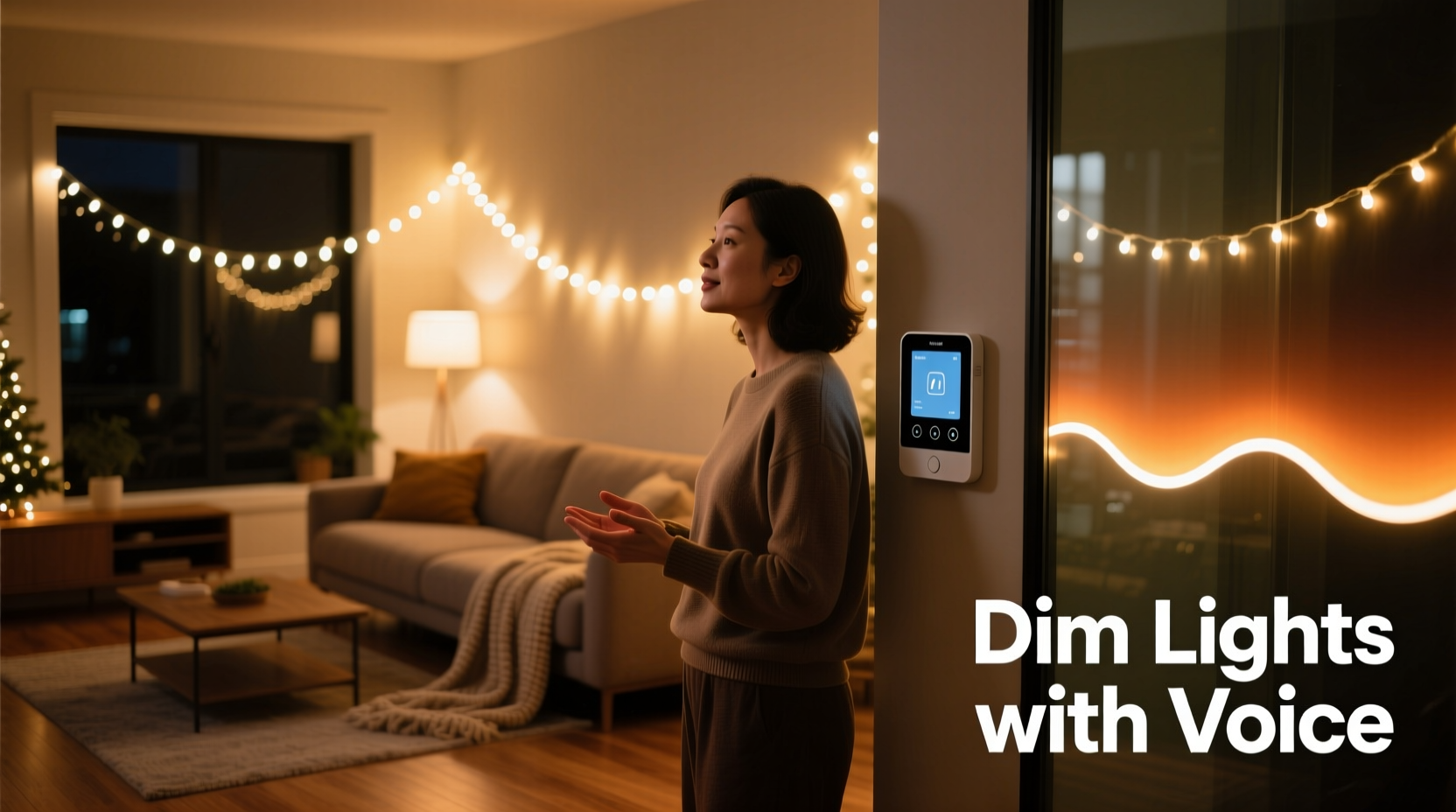
Not all Christmas lights support dimming, let alone gradual transitions triggered by voice. To achieve smooth, automated fading, you’ll need smart LED string lights or smart plugs paired with dimmable bulbs that integrate with major voice platforms.
Popular options include:
- Philips Hue Light Strips – Full color control, adjustable brightness, and deep integration with Alexa, Google Assistant, and Apple HomeKit.
- TP-Link Kasa Smart Bulbs – Affordable, reliable Wi-Fi bulbs that work with both Alexa and Google Assistant.
- Govee LED Strip Lights – Feature-rich RGBIC strips with app-based scene scheduling and voice control.
- GE Cync Outdoor String Lights – Weather-resistant and designed specifically for seasonal displays with full dimming capabilities.
If you’re using traditional incandescent Christmas lights, they won’t be compatible unless connected via a smart plug that supports dimming—but most standard smart plugs (like the basic versions of Kasa or Wemo) only offer on/off functionality. For true dimming, ensure your hardware explicitly states “dimmable” support.
Set Up Voice Assistant Integration
Once you’ve selected your smart lighting system, the next step is linking it to your preferred voice assistant. The process varies slightly depending on whether you're using Alexa, Google Assistant, or Siri via Apple HomeKit.
For Amazon Alexa Users
- Open the Alexa app and tap Devices.
- Select Add Device, then choose your brand (e.g., Philips Hue, TP-Link Kasa).
- Follow the prompts to connect your account or discover devices on your network.
- Test control by saying, “Alexa, turn on the Christmas lights.”
For Google Assistant Users
- Launch the Google Home app.
- Tap the + icon and select Set up device.
- Choose the manufacturer (e.g., Govee, Nanoleaf), sign in, and allow access.
- Wait for automatic discovery of your lights.
- Verify with a test command: “Hey Google, dim the tree lights to 50%.”
For Apple HomeKit Users
- Ensure your lights support HomeKit (look for the “Works with Apple Home” label).
- Open the Home app and scan the HomeKit code provided with the product.
- Assign the lights to a room (e.g., “Living Room” or “Front Porch”).
- Use Siri to test: “Siri, brighten the porch lights.”
After successful setup, your lights will appear in the respective app under controllable devices. You can now assign them names relevant to your space—such as “Christmas Tree,” “Porch Lights,” or “Staircase Garland”—to make voice commands intuitive.
Create a Gradual Dimming Routine Using Automation
While saying “dim the lights” works for immediate adjustments, achieving a *gradual* fade requires automation tools built into the ecosystem. These routines allow lights to decrease in brightness incrementally over time—say, from 100% to 20% over 30 minutes—without further input.
Here’s how to build such a routine across platforms:
Using Alexa Routines
- In the Alexa app, go to Routines > Create Routine.
- Set the trigger to a voice phrase like “Alexa, start bedtime dimming.”
- Under Add action, choose Smart Home > Adjust brightness.
- Select your Christmas lights and set initial brightness to current level.
- To simulate gradual dimming, you cannot directly program a fade curve—so instead, create multiple delayed actions:
- Action 1: Set brightness to 80% after 5 minutes.
- Action 2: Set to 60% after 10 minutes.
- Action 3: Set to 40% after 20 minutes.
- Action 4: Set to 20% after 30 minutes.
- Save the routine.
Note: Alexa doesn’t natively support continuous fading, so staggered steps approximate the effect. For smoother results, consider third-party tools like IFTTT or Node-RED.
Using Google Home Applets (via Routines)
- Open Google Home and tap your profile picture.
- Select Routines > Add Routine.
- Name it “Evening Wind Down” and assign a voice trigger.
- Add an action: “Adjust brightness” for your lights.
- Like Alexa, Google doesn’t offer native ramp-downs, so use incremental delays:
- After 0 min: 100%
- After 7 min: 75%
- After 15 min: 50%
- After 25 min: 30%
- After 35 min: Off
- Save and test.
Using Apple Shortcuts (for Smoother Fades)
iOS users have an advantage: the Shortcuts app allows precise timing and looping logic.
- Open the Shortcuts app and tap the + to create a new automation.
- Choose “Personal Automation” > “Voice” > say “Dim the holiday lights.”
- Add action: “Run Shortcut” > “New Shortcut.”
- Name it “Gradual Dim.”
- Add action: “Repeat 10 times” (each loop = 3% drop).
- Inside the loop:
- “Wait 90 seconds”
- “Decrease brightness of [lights] by 3%”
- End with “Turn off lights when below 10%.”
- Save and link back to the automation.
This method offers the closest thing to real-time fading available through consumer voice platforms.
Real Example: A Cozy Family Living Room Setup
The Thompson family in Portland, Oregon, wanted their living room Christmas tree to softly fade each night as part of their children’s bedtime routine. They used Philips Hue Light Strips wrapped around the tree base and connected to a Hue Bridge.
They created a Google Home routine named “Night Mode” triggered by saying, “Hey Google, goodnight.” The sequence began with ambient music fading out, followed by the tree lights stepping down every 8 minutes—from 100% to 60%, then 30%, and finally off after 25 minutes.
Within days, their youngest child associated the dimming lights with winding down, making bedtime less stressful. Over the holidays, guests often commented on the calming ambiance. By pairing voice activation with timed automation, the Thompsons achieved both convenience and emotional impact.
“We didn’t realize how much the lighting affected our mood until we automated it. Now, the slow dim feels like a lullaby for the whole house.” — Lisa Thompson, homeowner and interior design enthusiast
Do’s and Don’ts of Voice-Controlled Holiday Lighting
| Do | Don’t |
|---|---|
| Label your lights clearly in the app (e.g., “Front Yard Trees”) for accurate voice targeting. | Use vague names like “Lights 1” or “Device A” that confuse voice recognition. |
| Group outdoor and indoor sets separately to avoid unintended activation. | Control high-wattage non-dimmable strings through smart dimmers—risk of overheating. |
| Use geofencing or scheduled triggers alongside voice commands for consistency. | Expect perfect fade curves from basic routines—platform limitations apply. |
| Update firmware regularly for improved responsiveness and new features. | Leave default passwords or unsecured networks—smart devices are vulnerable to hacking. |
Frequently Asked Questions
Can I schedule gradual dimming without using voice commands?
Yes. Most smart lighting apps allow scheduling based on time, sunset, or sunrise. You can set your lights to begin dimming automatically at 9 PM nightly. However, voice commands add flexibility—you can trigger the fade earlier or later based on your actual routine.
Why won’t my lights dim smoothly even though they’re labeled 'dimmable'?
Two common reasons: First, your smart hub or bridge may not support fine-grained brightness control. Second, some cheaper LEDs flicker at low levels due to incompatible drivers. Try updating firmware or switching to higher-quality bulbs like those from Philips or LIFX.
Can I use multiple voice assistants with the same lights?
Generally yes, but avoid simultaneous control. Linking one set of lights to both Alexa and Google can cause conflicts in routines. Stick to one primary platform per device group for reliability.
Checklist: Setting Up Voice-Activated Gradual Dimming
- ✅ Purchase dimmable smart Christmas lights compatible with Alexa, Google, or HomeKit.
- ✅ Install and power on the lights; connect them to Wi-Fi or a hub.
- ✅ Pair the lights with your chosen voice assistant via its mobile app.
- ✅ Name the lights descriptively (e.g., “Mantel Lights” or “Tree Glow”).
- ✅ Create a routine or shortcut with incremental brightness reductions.
- ✅ Assign a clear voice trigger (“Hey Google, dim the holiday lights slowly”).
- ✅ Test the routine during the day to confirm timing and transitions.
- ✅ Adjust delays or percentages for a smoother perceived fade.
- ✅ Secure your network and update device firmware.
- ✅ Enjoy a serene, voice-controlled holiday ambiance.
Conclusion: Let Your Voice Guide the Glow
Transforming your Christmas lights into a responsive, mood-enhancing feature takes just a few thoughtful steps. By leveraging voice commands and automation, you can create a gentle, gradual dim that signals relaxation, supports healthy sleep habits, and elevates your holiday decor from flashy to soulful.
The technology is accessible, the setup is straightforward, and the results are profoundly atmospheric. Whether you're winding down after a long day or helping children transition to sleep, a softly fading glow adds warmth beyond mere illumination.




 浙公网安备
33010002000092号
浙公网安备
33010002000092号 浙B2-20120091-4
Comments
No comments yet. Why don't you start the discussion?