
Controlling your holiday lights or ambient lighting with a simple voice command transforms convenience and atmosphere. No more fumbling for switches or timers—modern smart home technology allows you to activate your entire light display instantly using just your voice. Whether it’s a seasonal outdoor setup or an indoor mood-lit environment, integrating voice control streamlines the experience. This guide walks through the technical and practical steps to set up full-voice activation of your lights, covering device compatibility, platform selection, configuration, troubleshooting, and real-world applications.
Understanding Voice-Controlled Lighting Systems
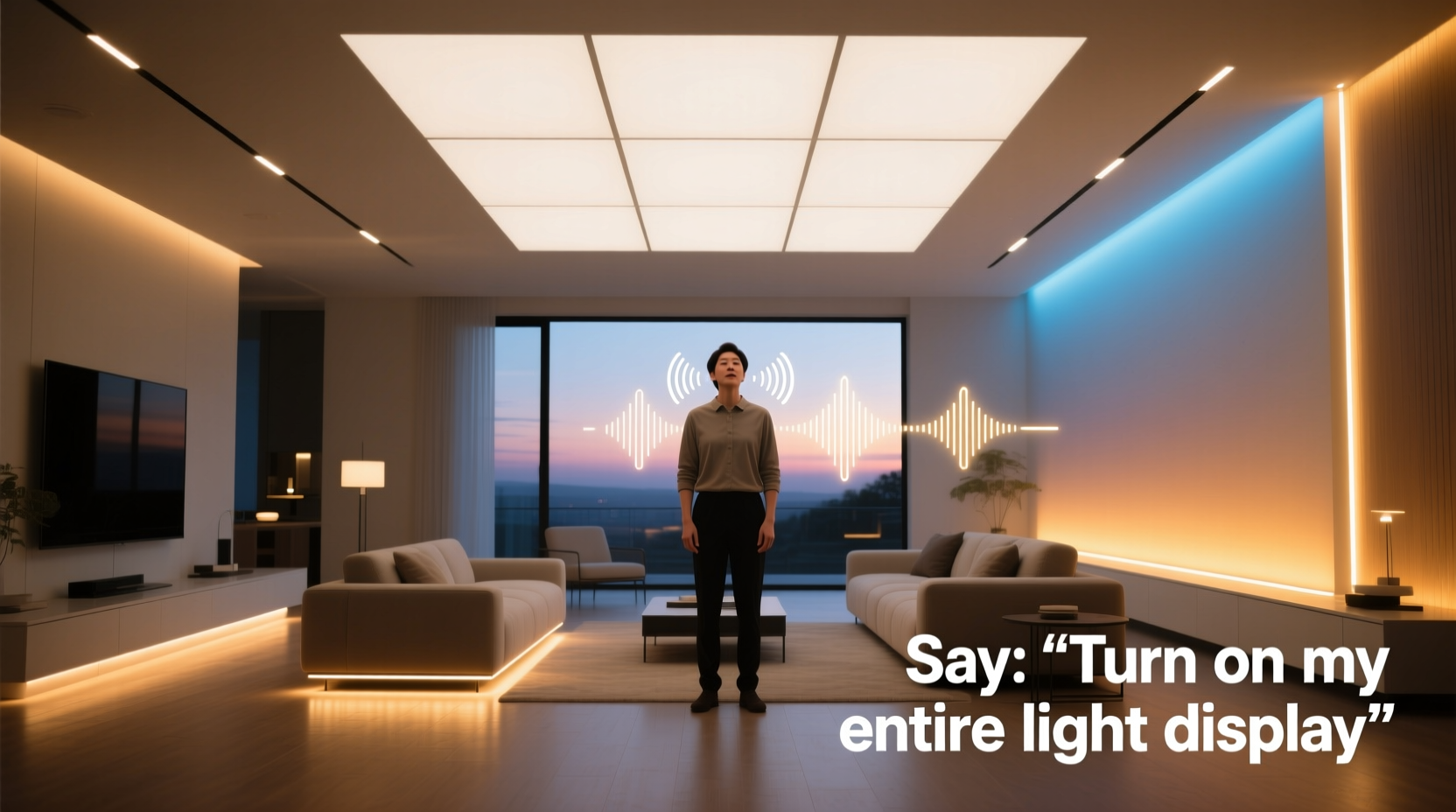
Voice-controlled lighting relies on a combination of smart bulbs, smart plugs, hubs, and virtual assistants such as Amazon Alexa, Google Assistant, or Apple Siri. These systems convert spoken phrases into digital commands that communicate with connected devices over Wi-Fi or other protocols like Zigbee or Z-Wave.
The core components include:
- Smart lighting devices: LED bulbs, light strips, or smart power outlets that can be remotely controlled.
- Virtual assistant platform: The AI-powered interface (e.g., Alexa) that interprets speech.
- Hub or bridge (if required): Some systems, like Philips Hue, need a central hub to relay commands.
- Mobile app: Used for initial setup, grouping devices, and creating scenes.
When you say, “Turn on all the lights,” your assistant identifies the instruction, locates the relevant devices linked under that command group, and sends a signal to switch them on simultaneously. The responsiveness depends on network stability, device compatibility, and correct naming conventions.
Step-by-Step Setup for Full Light Display Activation
To enable complete voice control over your light display, follow this structured process. While specific steps vary slightly between platforms, the general workflow remains consistent.
- Choose compatible smart lighting products. Ensure they support your preferred assistant (Alexa, Google, or Siri). Popular options include Philips Hue, LIFX, Nanoleaf, TP-Link Kasa, and Wyze.
- Install and power your lights. Replace traditional bulbs with smart ones or plug existing lights into smart outlets. Make sure all devices are powered and within range of your Wi-Fi network.
- Download the manufacturer’s app. Install the corresponding app (e.g., Kasa Smart, Hue, Google Home) and create an account if necessary.
- Add devices to the app. Follow in-app instructions to connect each light or plug. This typically involves putting the device in pairing mode and connecting it via Bluetooth or Wi-Fi.
- Create a room or group called “Light Display.” In the app, select all lights involved in your display and assign them to a single group. Naming it clearly improves recognition during voice commands.
- Link your smart lighting system to your voice assistant. Open the assistant’s app (e.g., Alexa app), go to Skills & Games (for Alexa) or Devices (for Google), and link the lighting service by signing in.
- Discover devices. Ask your assistant to “discover devices” or “find my lights.” It will scan for newly linked products and register them.
- Test the command. Say, “Hey Google, turn on the Light Display,” or “Alexa, turn on all lights,” depending on your setup.
Once configured, your voice assistant should respond promptly. If some lights don’t activate, double-check their connection status in the app and ensure they’re included in the correct group.
Platform Comparison: Alexa vs. Google vs. Siri
Different voice assistants offer varying levels of integration, ease of use, and ecosystem flexibility. Below is a comparison to help determine which best suits your needs.
| Feature | Amazon Alexa | Google Assistant | Apple Siri (via HomeKit) |
|---|---|---|---|
| Compatible Devices | Extensive (Hue, Kasa, LIFX, TP-Link, etc.) | Very broad, including Matter-enabled devices | Limited to HomeKit-certified products |
| Voice Recognition Accuracy | High, especially with Echo hardware | Excellent, leverages Google's search AI | Good, but dependent on Apple device proximity |
| Setup Complexity | Moderate (requires skill linking) | Simple (deep Android/Google integration) | Easy for Apple users, restrictive otherwise |
| Custom Routines | Yes (with precise trigger conditions) | Yes (supports time, location, sensors) | Yes (through Home app automation) |
| Multi-Room Grouping | Yes (Zones and Groups supported) | Yes (Speaker groups, routines) | Yes (Rooms and Zones in Home app) |
| Best For | Users invested in Amazon ecosystem | Android users and Google services fans | iPhone/Mac/iPad households |
Your choice should align with your existing tech stack. For example, iPhone users benefit most from Siri and HomeKit, while Android users often find Google Assistant more intuitive.
Real Example: A Holiday Light Show Controlled by Voice
Consider Mark, a homeowner in Denver who installed a 300-bulb outdoor display across his roofline, trees, and driveway. He used four TP-Link Kasa smart plugs to power different sections and paired them with Philips Hue white ambiance path lights along the walkway.
Mark downloaded the Kasa and Hue apps, connected all devices, then created a group named “Holiday Lights” in both. He linked both accounts to his Google Nest Hub Max. After asking Google to discover devices, he tested the phrase: “Hey Google, turn on Holiday Lights.” All eight devices activated within three seconds.
He later enhanced the setup by creating a routine: every evening at 5:30 PM, saying “Start the Christmas Show” triggered the lights and played festive music on his Nest speakers. Neighbors began stopping by just to see the synchronized activation. Mark saved time, avoided exposure to cold weather, and increased enjoyment through automation.
This scenario illustrates how combining proper grouping, reliable hardware, and clear voice commands results in a seamless user experience.
“Voice control isn’t just about convenience—it’s about redefining interaction with our living spaces. When done right, turning on a light display becomes effortless, repeatable, and even delightful.” — Lena Patel, Smart Home Integration Consultant
Common Issues and Troubleshooting Tips
Even well-configured systems may encounter hiccups. Here are frequent problems and solutions:
- Assistant doesn’t recognize the command: Ensure device names don’t conflict (e.g., two lights named “Living Room”). Rename them uniquely and re-discover devices.
- Some lights don’t turn on: Check individual device connectivity in the app. Weak Wi-Fi signals or overloaded networks can cause dropouts. Consider using a mesh network extender.
- Delayed response: High latency often stems from internet congestion. Schedule heavy downloads outside peak lighting hours.
- Group not responding: Confirm the group exists in the assistant app (e.g., Alexa Routines or Google Home rooms). Recreate if missing.
- Commands work one day, fail the next: Re-authenticate the smart home skill. Services sometimes expire authentication tokens after updates.
Checklist: Preparing Your Light Display for Voice Control
Use this checklist before testing your first voice command:
- ✅ All physical lights are plugged in or installed and receiving power.
- ✅ Each smart bulb or plug appears online in its respective app.
- ✅ A unified group (e.g., “Main Lights” or “Display On”) contains all relevant devices.
- ✅ The voice assistant app has successfully linked to the lighting service.
- ✅ Device discovery has been run after linking.
- ✅ You’ve tested individual lights via the app to confirm functionality.
- ✅ Network strength is sufficient near all devices (especially outdoors).
- ✅ You’ve practiced the exact phrasing you’ll use (“Turn on the Light Display”).
Completing these steps minimizes frustration and ensures smooth operation from day one.
Frequently Asked Questions
Can I use voice commands without a smart speaker?
Yes. Most smartphones have built-in access to Google Assistant or Siri. Simply long-press the home button or say “Hey Google” / “Hey Siri” to issue commands. As long as your phone is connected to the internet and linked to your smart lighting account, it functions similarly to a dedicated speaker.
What if I have lights on different systems (e.g., Kasa and Hue)?
You can still control them together. Link both services to the same assistant (e.g., Alexa), then create a routine or scene that triggers devices from both brands simultaneously. For instance, an Alexa Routine titled “Festive Mode” could activate Kasa plugs and Hue bulbs with one command.
Are voice-controlled lights secure?
Reputable brands use encryption and require authentication through trusted apps. To enhance security, use strong passwords, enable two-factor authentication, and avoid sharing voice assistant access with untrusted profiles. Disable voice shopping or sensitive actions unless needed.
Maximizing Impact with Automation and Scheduling
Voice commands are powerful, but combining them with automation increases utility. Most platforms allow scheduling based on time, sunrise/sunset, or geolocation.
For example, you can set your light display to turn on daily at sunset and off at 10 PM. Then, use a voice command only when you want to override the schedule—say, for an impromptu gathering.
In Google Home, create a routine like this:
- Open the Google Home app.
- Navigate to Routines > Add Routine.
- Set the trigger to “Sunset.”
- Add an action: “Turn on [Light Display].”
- Save and test.
Now, your lights activate automatically each evening. Use voice only for manual overrides or special occasions.
Conclusion
Using voice commands to turn on your entire light display blends modern convenience with aesthetic pleasure. From holiday extravaganzas to everyday ambiance, the ability to control lighting hands-free enhances comfort, accessibility, and energy efficiency. By selecting compatible devices, organizing them into logical groups, linking to a reliable assistant, and applying automation, you create a responsive environment tailored to your lifestyle.
Technology continues to simplify complex tasks, and lighting control is no exception. With a few hours of setup, you gain years of effortless operation. Whether welcoming guests, setting a mood, or surprising neighbors with a dazzling show, your voice becomes the remote control of the future.




 浙公网安备
33010002000092号
浙公网安备
33010002000092号 浙B2-20120091-4
Comments
No comments yet. Why don't you start the discussion?