
As the holiday season approaches, more households are embracing smart home technology to simplify traditions—and one of the most satisfying upgrades is controlling Christmas lights with voice commands. Using Amazon Alexa or Google Assistant, you can switch your festive lighting on or off without lifting a finger. Whether you're curled up by the fire or halfway through wrapping presents, a simple verbal cue can brighten your space instantly.
This guide walks you through everything you need to know: compatible devices, setup procedures, troubleshooting common issues, and real-world applications that go beyond basic on/off control. By the end, you’ll not only have full voice control over your display but also understand how to integrate it into routines, schedules, and even mood-based scenes for maximum holiday cheer.
What You Need: Equipment & Compatibility
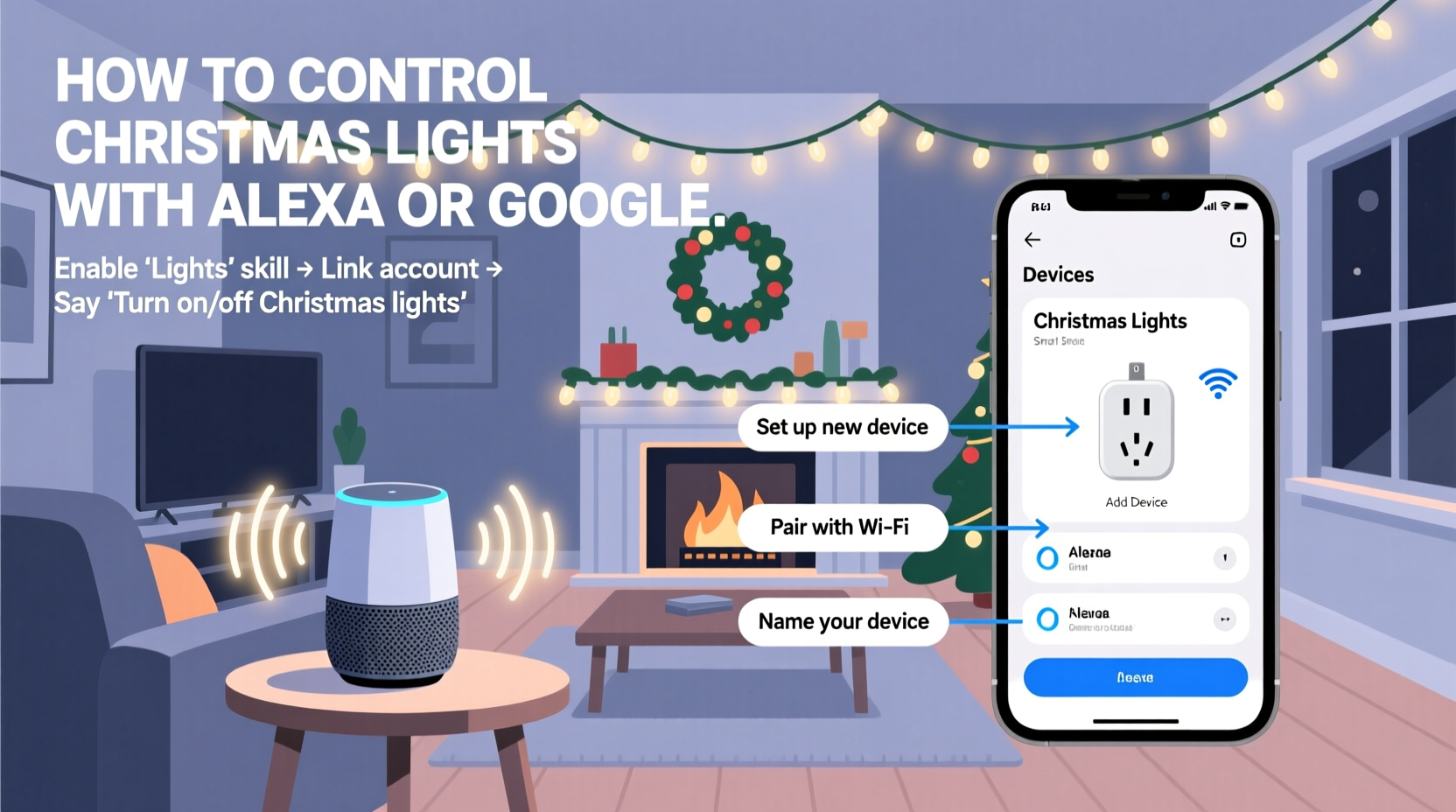
Before diving into voice commands, ensure you have the right hardware in place. Voice assistants like Alexa and Google cannot directly control standard Christmas lights. Instead, they require an intermediary—a smart plug or smart light strip—that connects to your Wi-Fi network and responds to voice input.
Essential components:
- A smart speaker or display (e.g., Amazon Echo, Google Nest Hub)
- Smart plug or smart LED light strip compatible with Alexa or Google
- Stable 2.4 GHz Wi-Fi network (most smart plugs don’t support 5 GHz)
- Christmas lights (standard incandescent or LED) that plug into a power source
Popular smart plugs include the TP-Link Kasa Smart Plug, Wemo Mini Smart Plug, and Amazon Smart Plug. For built-in color-changing effects and dimming, consider smart light strips like Philips Hue Lightstrip, Govee LED Strip, or LIFX Z.
Step-by-Step Setup Process
Setting up voice-controlled Christmas lights takes less than 15 minutes if all components are ready. Follow this sequence based on your preferred ecosystem.
For Amazon Alexa Users
- Plug the smart plug into a wall outlet near where you'll hang your lights.
- Connect your Christmas lights to the smart plug.
- Download and open the Amazon Alexa app on your smartphone.
- Tap Devices > + Add Device > Plug > choose your brand (e.g., TP-Link, Amazon).
- Follow in-app instructions to connect the plug to your 2.4 GHz Wi-Fi network.
- Once connected, assign the device a clear name such as “Christmas Tree Lights” or “Front Porch Lights.”
- Test the connection by saying, “Alexa, turn on Christmas Tree Lights.”
For Google Assistant Users
- Plug in the smart plug and attach your lights.
- Open the Google Home app and tap the + icon to add a new device.
- Select Set up device > Have something already set up? and search for your plug’s brand.
- Log in to your account (if required) and follow prompts to link the device.
- Name the device clearly—“Holiday Lights,” “Patio Decorations,” etc.
- Confirm functionality by saying, “Hey Google, turn off Holiday Lights.”
If using smart LED strips instead of plugs, the process is similar but may involve additional steps like syncing via Bluetooth or using a bridge (as with Philips Hue). Refer to manufacturer-specific apps during setup.
Advanced Features: Routines, Schedules, and Scenes
Basic on/off commands are just the beginning. Both Alexa and Google allow you to create automated routines that enhance convenience and ambiance.
Create a Daily Lighting Schedule
You can program your lights to turn on at sunset and off at bedtime without repeating commands every day.
“We see a 70% increase in routine-based smart lighting usage during November and December. Automation reduces friction and increases enjoyment.” — Sarah Lin, Smart Home Product Manager at TP-Link
To schedule lights with Alexa:
- In the Alexa app, go to Routines > Create Routine.
- Set time trigger (e.g., “Every day at 5:00 PM”).
- Add action: “Turn on” your named light device.
- Repeat for shutdown (e.g., “At 11:00 PM, turn off”).
With Google Assistant:
- Open Google Home > Routines > Add New Routine.
- Choose time-based trigger and select your light device under actions.
- Save and test the next evening.
Build Festive Scenes
If you have multiple smart devices—such as indoor lights, outdoor displays, and a smart tree—group them into a single scene.
For example:
- Create a scene called “Holiday Mode” that turns on all decorations, lowers the thermostat slightly, and plays soft carols on your smart speaker.
- Activate it with: “Alexa, start Holiday Mode” or “Hey Google, turn on Holiday Mode.”
This transforms scattered controls into a cohesive experience, perfect for welcoming guests or winding down after dinner.
Do’s and Don’ts: Best Practices Table
| Do | Don’t |
|---|---|
| Label devices clearly (e.g., “Front Yard Snowman Lights”) | Use vague names like “Plug 1” or “Device A” |
| Use a surge protector when plugging in multiple strands | Daisy-chain too many light strings into one smart plug |
| Test voice commands from different rooms | Assume all family members will speak perfectly clearly |
| Schedule automatic shutoff to save energy | Leave lights running overnight unattended |
| Update firmware on smart plugs regularly | Ignore app notifications about device connectivity |
Troubleshooting Common Issues
Even with proper setup, hiccups occur. Here are frequent problems and their solutions.
“Alexa/Google Doesn’t Understand Me”
Voice misrecognition often stems from poor naming conventions. Avoid names that sound alike (e.g., “Tree Lights” vs. “Three Lights”) or contain hard-to-distinguish words.
“The Plug Is Connected But Won’t Respond”
Check these points:
- Is the smart plug within range of your Wi-Fi router? Thick walls or distance can weaken signal.
- Is your phone connected to the 2.4 GHz band? Many phones default to 5 GHz, which some plugs can’t detect.
- Restart both the plug and your router. Unplug the device for 30 seconds and reconnect.
“My Lights Turn On Automatically”
This usually means a routine was accidentally created or duplicated. In the Alexa or Google Home app, review your routines list and delete any unintended entries.
Real Example: The Johnson Family’s Holiday Upgrade
The Johnsons live in a two-story suburban home with extensive exterior lighting, including roofline icicles, lawn reindeer, and a lit nativity scene. Every year, manually switching everything on took five trips outside in freezing temperatures.
Last November, they installed four TP-Link Kasa smart plugs—one for each display section—and grouped them under “Johnson Holiday Lights” in the Alexa app. They created a routine triggered by voice command and another scheduled for 4:30 PM daily.
Now, their youngest daughter says, “Alexa, turn on the Christmas magic,” and the entire yard sparkles to life. Neighbors noticed the consistency and asked how they achieved it. The system paid for itself in comfort and conversation starters.
Expert Tips for Long-Term Use
While seasonal, your smart plug doesn’t have to sit idle the rest of the year. Repurpose it for other uses once decorations come down.
- Use it for spring patio string lights or summer BBQ zone speakers.
- Control a fan, humidifier, or coffee maker with scheduled routines.
- Keep the same device name and reassign it annually—no reconfiguration needed.
“Think of smart plugs as permanent fixtures, not temporary gadgets. Their value compounds over time across seasons.” — Mark Tran, IoT Engineer and Home Automation Consultant
FAQ
Can I control my Christmas lights remotely?
Yes. As long as your smart plug is connected to Wi-Fi and linked to your account, you can use the Alexa or Google Home app from anywhere to toggle lights—even when you're away from home. This is useful if you forget to turn them off before leaving for vacation.
Are colored or animated light patterns supported?
Only if you’re using smart LED strips (like Govee or Philips Hue). Standard smart plugs only provide on/off/dimming functions. For dynamic color changes or chases, use voice commands like “Alexa, set the living room lights to red and green” or “Hey Google, make the tree pulse slowly.”
Can multiple users control the lights?
Yes. Anyone on the same household account or Wi-Fi network can issue voice commands. Guests can also control lights if your smart speaker allows guest mode, though it's best to restrict access for security.
Final Checklist Before Launching Your Display
- ✅ Confirm all physical connections (lights → plug → outlet)
- ✅ Connect smart plug to 2.4 GHz Wi-Fi network
- ✅ Name device clearly in Alexa or Google Home app
- ✅ Test basic voice command (“Turn on [name]”)
- ✅ Set up at least one routine or schedule
- ✅ Group multiple devices if applicable
- ✅ Share control with family members who need it
- ✅ Plan for post-holiday storage and reuse
Conclusion
Controlling your Christmas lights with Alexa or Google isn’t just a novelty—it’s a practical upgrade that saves time, enhances safety, and adds joy to your holiday experience. With minimal investment and setup, you gain precise control over your festive atmosphere through natural language. From scheduled twilights to voice-activated grand entrances, automation puts the magic back into the season.
Start small if needed—even one smart plug on your tree makes a difference. Once you experience the ease of saying, “Hey Google, goodnight,” and watching your lights fade out in response, you may wonder how you ever managed without it.




 浙公网安备
33010002000092号
浙公网安备
33010002000092号 浙B2-20120091-4
Comments
No comments yet. Why don't you start the discussion?