
Social media has transformed how we consume visual content, and Instagram stands at the forefront with its dynamic mix of photos, reels, and stories. While browsing through captivating videos is effortless, saving them for offline viewing or personal use isn’t always straightforward. Instagram doesn’t offer a native download feature, leaving users searching for reliable workarounds. This guide breaks down practical, secure, and universally compatible techniques to save Instagram videos—whether you're on an iPhone, Android phone, or desktop computer.
Why Save Instagram Videos?
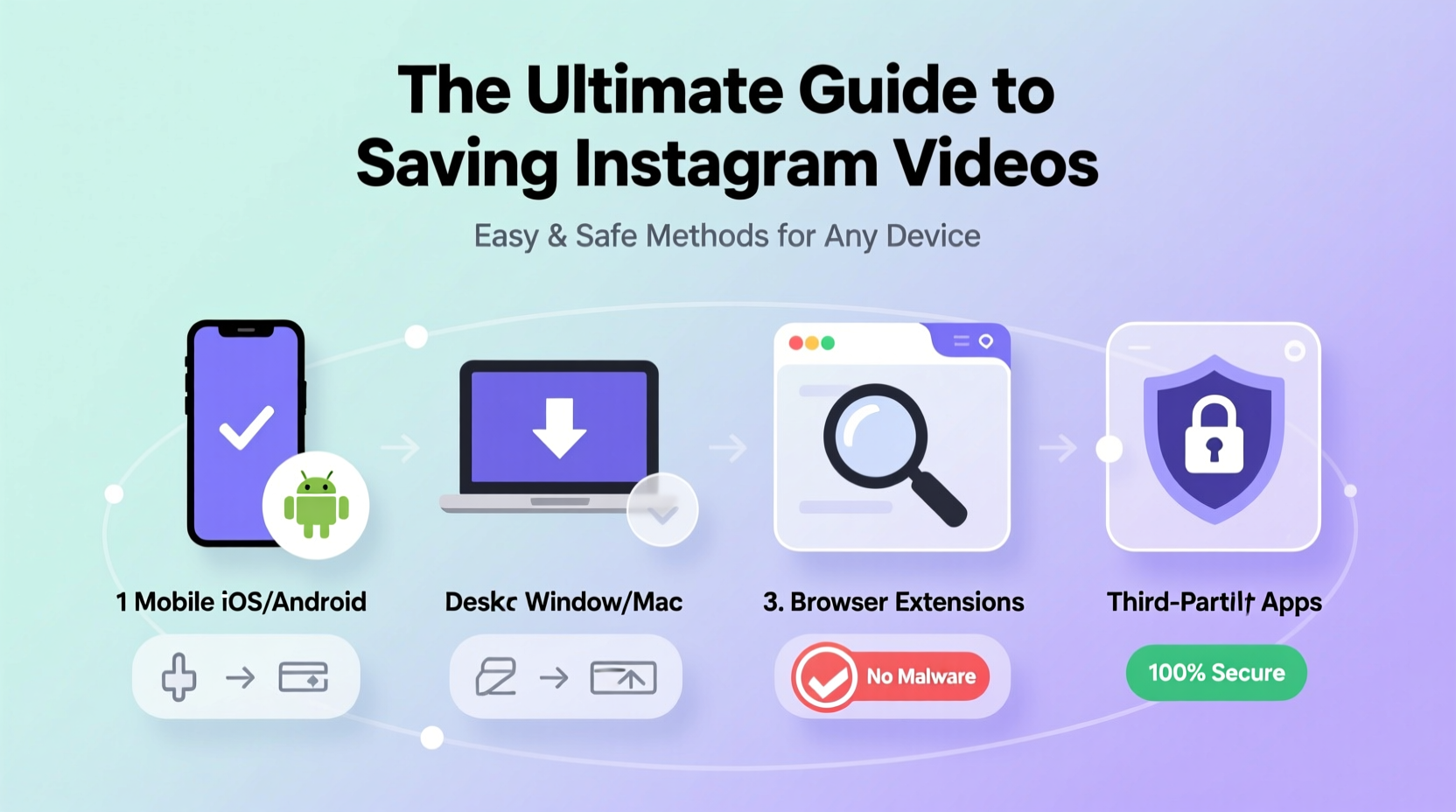
There are countless legitimate reasons to download Instagram content. You might want to keep a motivational reel for daily inspiration, archive a tutorial for later reference, or share a memorable moment from a friend’s story. Educators use clips in presentations, marketers analyze competitor content, and travelers save destination highlights. The key is doing so responsibly—without violating copyright or privacy.
How to Save Instagram Videos: Safe & Legal Guidelines
Before diving into methods, it’s crucial to understand the ethical and legal boundaries. Instagram’s terms prohibit unauthorized downloading, especially for redistribution. However, saving content for private, non-commercial purposes often falls under fair use—particularly when crediting the original creator.
Avoid tools that require login credentials or promise mass downloads. These often violate Instagram’s policies and may compromise your data. Stick to third-party services that operate client-side (in your browser) and don’t store downloaded files on their servers.
“Respect creators’ rights. If you love a video, download it only for personal use—and always consider tagging them if you share.” — Lena Park, Digital Ethics Consultant
Step-by-Step Methods by Device
For iPhone Users: Safari + Third-Party Tools
iOS restricts direct file access, but you can still save videos using simple web-based tools.
- Open the Instagram app and find the video you want to save.
- Tap the share icon and select “Copy Link.”
- Open Safari and go to a trusted Instagram downloader site like InstaDownloader.pro or SaveFrom.net.
- Paste the link into the input box and click “Download.”
- Choose video quality and tap “Download” again.
- The video will appear in your Photos app automatically.
For Android Devices: Built-in Cache or Web Tools
Android offers more flexibility due to open file systems. You can either use online tools or access cached files directly.
Method 1: Browser-Based Downloaders (Recommended)
This mirrors the iPhone process but works seamlessly across Chrome, Firefox, or Samsung Internet.
- Copy the Instagram post link.
- Visit a reputable downloader site.
- Paste, select quality, and download. The file saves to your Downloads folder.
Method 2: Access Instagram Cache (Advanced)
Instagram stores temporary video files locally. You can retrieve them using a file manager:
- Play the video in the Instagram app (reel or post).
- Open your file manager (e.g., Files by Google).
- Navigate to
Android > Data > com.instagram.android > cache > fb_cache. - Look for recently modified .mp4 files and copy them to a safe folder.
Note: This method is unreliable after app updates and not suitable for stories, which expire quickly.
On Desktop: Fast and Efficient Saving
Desktop users have the easiest experience thanks to larger screens and powerful browsers.
- Log in to Instagram.com via Chrome or Firefox.
- Find the video and right-click it. Choose “Copy Video URL” if available, or copy the post link manually.
- Go to a trusted web downloader (e.g., Snaptube.site or IGDown.net).
- Paste the link and download in HD if available.
- Files save directly to your default Downloads folder.
Pro tip: Use browser extensions like “Video Downloader for Instagram” (available on Chrome Web Store) for one-click downloads—just ensure they’re reviewed and updated regularly.
Comparison of Top Download Methods
| Method | Device Support | Speed | Safety Level | Best For |
|---|---|---|---|---|
| Web-based downloader | All devices | Fast | High (if site is HTTPS and ad-free) | Most users; simple and effective |
| Browser extension | Desktop only | Very fast | Moderate (check permissions) | Frequent downloaders |
| File manager (Android cache) | Android only | Slow | Low (risky after app updates) | Offline access without internet |
| Screen recording | All devices | Medium | High (no third-party risk) | Stories or disappearing content |
Mini Case Study: How a Fitness Coach Uses Saved Reels
Jamal, a certified fitness trainer in Austin, uses Instagram to stay updated on workout trends. He follows top physiotherapists and movement specialists who post short-form exercise tutorials. Since he trains clients outdoors with limited connectivity, Jamal saves key reels using a web downloader on his laptop each Sunday. He organizes them into folders by category—mobility, strength, recovery—and reviews them before sessions. By avoiding sketchy apps and only saving content from public profiles with clear educational intent, he stays compliant while enhancing his expertise.
“I never repost,” he says. “But having those videos offline helps me demonstrate proper form when Wi-Fi fails. I always mention the original creator during training—it builds credibility.”
Checklist: Safe Video Saving Workflow
- ✅ Confirm the content is public and non-sensitive.
- ✅ Copy the post link from the Instagram app or website.
- ✅ Use a secure, HTTPS-enabled downloader site.
- ✅ Avoid entering your Instagram username or password anywhere.
- ✅ Download only what you need—don’t hoard content.
- ✅ Store files in organized folders with creator credits if possible.
- ✅ Delete saved videos if the creator removes the post or requests takedown.
Frequently Asked Questions
Is it legal to download Instagram videos?
Downloading for personal, non-commercial use is generally acceptable under fair use principles. However, redistributing, selling, or claiming others’ content as your own violates copyright law and Instagram’s Community Guidelines.
Can Instagram ban me for using downloaders?
Instagram does not actively ban users for downloading content via third-party tools—especially if you’re not automating mass downloads or scraping data. However, using bots or phishing-style sites increases your risk. Stick to passive, manual methods to stay safe.
Why won’t some videos download?
Certain restrictions apply: private account content, expired stories, or videos blocked by region. Additionally, some downloader sites fail to process newer formats like encrypted reels. If one tool doesn’t work, try another reputable option.
Final Tips for Long-Term Success
Technology evolves, and so do platform policies. What works today may change tomorrow. To future-proof your workflow:
- Bookmark 2–3 trusted downloader sites in case one goes offline.
- Use incognito mode when visiting downloader pages to reduce tracking.
- Regularly back up saved videos to cloud storage or external drives.
- Stay informed about digital rights and content ownership.
Conclusion
Saving Instagram videos doesn’t have to be complicated or risky. With the right tools and mindset, you can securely preserve valuable content across all your devices. Whether you're curating inspiration, studying techniques, or archiving memories, these methods empower you to take control of your digital experience—responsibly and efficiently. Start applying these strategies today, and make the most of the incredible content the platform has to offer.




 浙公网安备
33010002000092号
浙公网安备
33010002000092号 浙B2-20120091-4
Comments
No comments yet. Why don't you start the discussion?