
Streaming disruptions can turn a relaxing evening into frustration—especially when your favorite show won’t load or the app keeps crashing. Hulu, like any streaming service, depends on stable internet, updated software, and properly configured devices. When “Hulu not working” becomes a recurring problem, the cause is often fixable with a few targeted steps. This guide walks you through diagnosing and resolving common Hulu issues across smart TVs, mobile devices, gaming consoles, and streaming sticks.
Common Causes of Hulu App Issues
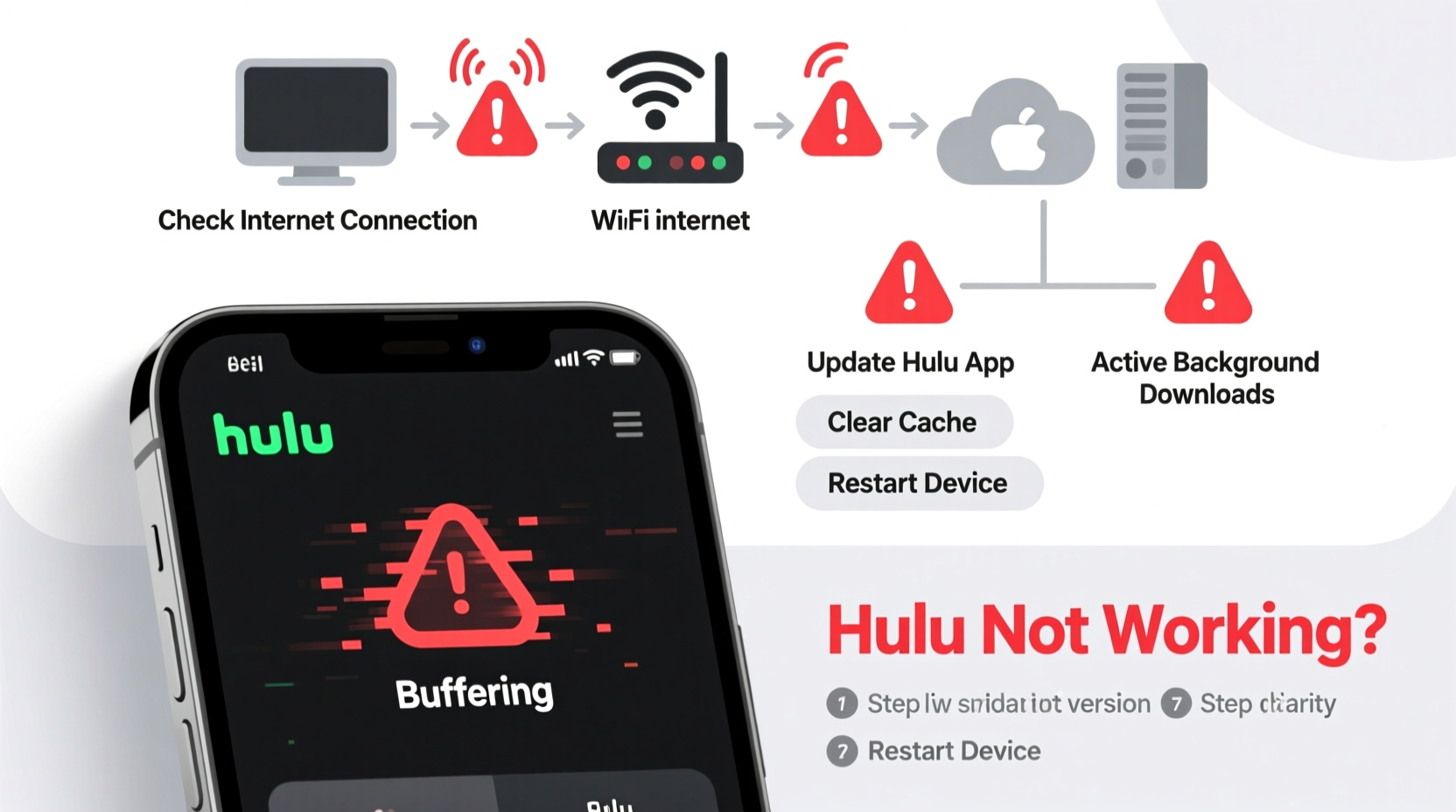
Hulu may stop functioning due to a variety of technical factors. Identifying the root cause is the first step toward resolution. The most frequent culprits include:
- Internet connectivity problems: Buffering, low video quality, or failed playback usually point to weak or unstable Wi-Fi.
- Outdated app versions: Older versions may lack compatibility fixes or security updates, leading to crashes.
- Device-specific glitches: Memory leaks, corrupted caches, or firmware bugs can interfere with app performance.
- Account or login errors: Incorrect credentials, expired subscriptions, or session timeouts prevent access.
- Server-side outages: Occasionally, Hulu’s own servers experience downtime affecting users globally.
Step-by-Step Troubleshooting Guide
Follow this structured approach to isolate and resolve the issue efficiently. Start from basic checks and move to advanced solutions as needed.
- Check Hulu’s Service Status
Visit Downdetector or search “Is Hulu down?” to see if others are reporting outages. If there's a widespread outage, wait for Hulu to restore service. - Verify Your Internet Connection
Test your connection speed using a tool like Fast.com or Speedtest.net. For HD streaming, Hulu recommends at least 5 Mbps; 16 Mbps for 4K. If speeds are low:- Move closer to the router.
- Switch from Wi-Fi to Ethernet (on compatible devices).
- Restart your modem/router by unplugging it for 30 seconds.
- Close and Reopen the Hulu App
Force-close the app completely, then relaunch it. On mobile, swipe the app away from recent apps. On smart TVs or streaming boxes, use the device’s task manager or unplug the device briefly. - Clear Cache and Data (Android & Fire TV)
Navigate to Settings > Apps > Hulu > Storage:- Select “Clear Cache” first. This removes temporary files without deleting account data.
- If the problem persists, choose “Clear Data.” Note: You’ll need to log in again.
- Update the Hulu App
Open your device’s app store (Google Play, Amazon Appstore, Apple App Store, etc.) and check for Hulu updates. An outdated version may lack critical patches. - Reinstall the Hulu App
If updating doesn’t help, uninstall Hulu completely, restart the device, then reinstall the latest version from the official store. - Check Device Software Updates
Outdated operating systems can cause compatibility issues. Go to your device settings and install any pending system updates (e.g., iOS, Android TV, Roku OS).
Troubleshooting by Device Type
Different platforms require slightly different approaches. Below is a comparison of key actions based on device category.
| Device Type | Cache Clear Option? | App Reinstall Method | System Update Path |
|---|---|---|---|
| Android Phone/Tablet | Yes (Settings > Apps > Hulu > Storage) | Uninstall via App Info or home screen | Settings > System > Software Update |
| Amazon Fire TV/Stick | Yes (Settings > Applications > Manage Installed Apps) | Long-press app icon > Uninstall | Settings > My Fire TV > About > Check for Updates |
| iOS (iPhone/iPad) | No cache option; delete app to clear data | Delete app, reinstall from App Store | Settings > General > Software Update |
| Roku | No direct cache clear; remove and reinstall channel | Roku Channel Store > Search Hulu > Remove > Add | Auto-updates enabled by default |
| Smart TVs (Samsung, LG, etc.) | Limited; use app reset or reinstallation | Remove from Home Screen, reinstall from app store | Support/About section in Settings menu |
Mini Case Study: Resolving Persistent Hulu Crashes on Fire Stick
Sarah, a long-time Hulu subscriber, noticed her app kept crashing after the latest Fire OS update. She tried restarting the device multiple times, but Hulu would freeze during playback. After checking Downdetector and confirming no outage, she followed these steps:
- She cleared the Hulu app’s cache and data through Fire TV settings.
- Next, she checked for system updates—her Fire Stick was running an older version.
- After installing the OS update, she reinstalled Hulu from the Amazon Appstore.
The combination of system update and fresh app installation resolved the crash issue. Sarah’s case highlights how software updates on both the app and device level can interact unexpectedly—and why comprehensive troubleshooting matters.
Expert Insight on Streaming Stability
“Streaming apps like Hulu rely on a chain of dependencies: network stability, hardware performance, and software synchronization. A break in any link causes failure. Regular maintenance—like clearing cache and updating firmware—is just as important as having fast internet.” — Marcus Lin, Senior Streaming Technology Analyst at Broadband Insights Group
Do’s and Don’ts When Fixing Hulu Issues
| Do | Don't |
|---|---|
| Restart your router and streaming device regularly | Ignore slow internet speeds when diagnosing playback issues |
| Keep your device’s OS and apps updated | Use third-party app stores to download Hulu |
| Log out and back in if authentication fails | Assume the problem is always with Hulu’s servers |
| Test Hulu on another device to isolate the issue | Overlook storage space—low memory affects app performance |
FAQ: Common Hulu Problems and Solutions
Why does Hulu keep logging me out?
This can happen due to app glitches, expired sessions, or multiple logins across devices. Try logging out on all devices via your Hulu account settings, then log back in on your primary device. Also ensure your app is up to date.
How do I fix constant buffering on Hulu?
Buffering is typically caused by insufficient bandwidth. Pause the video to let it buffer fully, reduce stream quality in settings, or switch to a wired connection. Close other devices using the network, such as gaming consoles or phones downloading large files.
Can a factory reset fix Hulu issues?
Yes, but only as a last resort. Resetting your streaming device erases all apps and settings. It can resolve deep-seated software conflicts, but you’ll need to set up your device again and reinstall apps. Use this option if nothing else works.
Conclusion: Take Control of Your Streaming Experience
When Hulu isn’t working, the solution is rarely one-size-fits-all. Success lies in methodical testing—starting with connectivity, moving through app health, and addressing device-level concerns. Most issues can be resolved in under 20 minutes with the right approach. Don’t accept constant buffering or app crashes as inevitable. By applying regular maintenance and understanding how streaming ecosystems function, you regain control over your entertainment.




 浙公网安备
33010002000092号
浙公网安备
33010002000092号 浙B2-20120091-4
Comments
No comments yet. Why don't you start the discussion?