
Printing from an iPad should be seamless, especially with Apple’s AirPrint technology designed for wireless simplicity. Yet many users face frustrating moments when their iPad won’t connect to a printer—despite both devices being on the same network, seemingly ready to go. Whether you're trying to print a school assignment, work document, or photo, a failed print job disrupts productivity. The good news is that most iPad printing issues stem from predictable causes: network misconfigurations, outdated software, or misunderstood printer compatibility. By methodically addressing each potential point of failure, you can restore reliable printing in minutes.
Understanding How iPad Printing Works
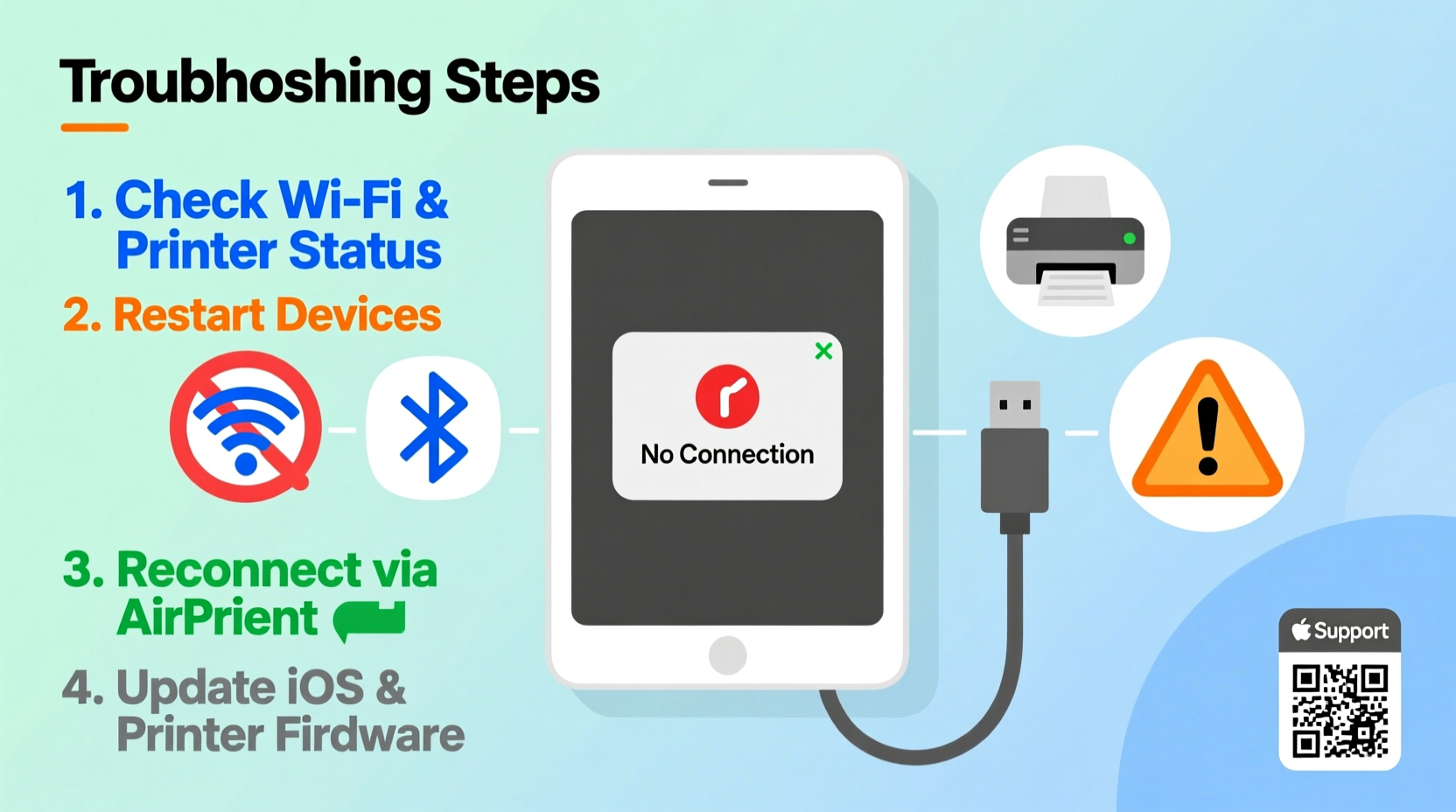
iPad printing primarily relies on AirPrint, Apple’s proprietary wireless printing protocol introduced in 2010. Unlike traditional setups requiring drivers or cables, AirPrint allows compatible printers to appear automatically in supported apps when connected to the same Wi-Fi network. When you tap “Print” in Mail, Safari, or Notes, your iPad broadcasts a discovery signal. If a compatible printer responds, it shows up in the list.
However, this convenience depends on precise conditions:
- Both iPad and printer must be on the same Wi-Fi network (not just the same physical network, but the same subnet).
- The printer must support AirPrint natively or be connected via a computer sharing its services.
- No firewall or network setting should block Bonjour (mDNS), the service that enables device discovery.
- iOS must be updated to a version supporting current AirPrint standards.
When any of these elements fail, the printer doesn’t appear—or appears but fails to respond. The challenge lies in identifying which component broke down.
Step-by-Step Guide to Restore iPad Printing
Follow this structured troubleshooting sequence to isolate and resolve the root cause of your iPad’s printing failure.
- Confirm printer compatibility. Check if your printer supports AirPrint by visiting Apple’s official AirPrint guide. Older or budget models may not support direct AirPrint and require intermediary software.
- Verify network alignment. Ensure both your iPad and printer are connected to the same Wi-Fi network. On your iPad, go to Settings > Wi-Fi and confirm the network name matches the one your printer uses. Printers connected via Ethernet must still be on the same subnet as the Wi-Fi network.
- Restart all components. Power cycle your iPad, printer, and Wi-Fi router. Unplug each for 30 seconds, then restart in order: router, printer, iPad. This resets network handshakes and clears stale mDNS entries.
- Check proximity and interference. Move the iPad closer to the router and printer. Thick walls, microwaves, or Bluetooth devices can interfere with 2.4 GHz signals essential for device discovery.
- Test printing from another device. Try printing from an iPhone or Mac on the same network. If it fails too, the issue is network- or printer-related. If it works, focus on iPad-specific settings.
- Update firmware and iOS. Outdated software often breaks AirPrint functionality. Update your iPad to the latest iOS version via Settings > General > Software Update. Consult your printer manufacturer’s website for firmware updates.
- Re-add the printer manually (if applicable). Some third-party printing apps allow manual IP entry. In extreme cases, bypass AirPrint discovery by entering the printer’s static IP address directly.
Common Pitfalls and What Not to Do
Well-intentioned attempts to fix printing issues can sometimes make them worse. Avoid these common mistakes:
| Do | Don't |
|---|---|
| Use the same network name (SSID) for 2.4 GHz and 5 GHz bands if your router splits them. | Assume dual-band routers automatically handle device bridging—many don’t sync mDNS across bands. |
| Assign a static IP to your printer via router settings to prevent IP changes. | Relay on dynamic IPs that change after reboots, breaking discovery. |
| Keep iOS and printer firmware updated monthly. | Ignore update notifications—they often contain critical AirPrint patches. |
| Use WPA2/WPA3 encryption; avoid enterprise networks with captive portals. | Try printing on public or guest networks where AirPrint is typically blocked. |
Real-World Example: Home Office Breakdown
Sarah, a freelance graphic designer in Portland, couldn’t print client contracts from her iPad Pro. Her HP OfficeJet had worked fine for months until she upgraded her router. After the switch, the printer vanished from her print menu. She checked power, Wi-Fi bars, and even reinstalled the HP Smart app—nothing helped.
The breakthrough came when she noticed her new mesh router used separate SSIDs for 2.4 GHz and 5 GHz bands. Her iPad was on 5 GHz; the printer, limited to 2.4 GHz, was invisible. Merging the network names under a single SSID allowed automatic band steering and restored AirPrint detection within seconds. Sarah later assigned a static IP to her printer to prevent future disruptions during reboots.
“AirPrint isn’t magic—it’s network-dependent. Most failures trace back to segmentation, not hardware.” — Raj Patel, Network Engineer & Apple Certified Technician
Troubleshooting Checklist
- ✅ Printer powered on and online
- ✅ iPad and printer on same Wi-Fi network
- ✅ Router and printer restarted
- ✅ iOS updated to latest version
- ✅ Printer firmware updated
- ✅ No active VPN or firewall blocking mDNS
- ✅ Single unified SSID for dual-band Wi-Fi
- ✅ Printer appears in another device’s AirPrint menu
- ✅ Paper and ink levels sufficient
- ✅ Test print initiated from a simple app (e.g., Notes)
Frequently Asked Questions
Why does my iPad say \"No AirPrint Printers Found\"?
This message usually means the iPad cannot detect any compatible printers on the network. Causes include being on different Wi-Fi networks, disabled Bonjour services, printer not supporting AirPrint, or temporary network glitches. Start with restarting all devices and verifying network alignment.
Can I print from iPad to a non-AirPrint printer?
Yes, but not natively. Use manufacturer apps like Epson iPrint, Canon PRINT, or HP Smart, which enable cloud-based or local printing for non-AirPrint models. Alternatively, share the printer through a macOS or Windows computer using system-level printer sharing.
Does Bluetooth affect iPad printing?
No. AirPrint uses Wi-Fi and Bonjour (mDNS) over IP networks. Bluetooth is not involved in the printing process, though nearby Bluetooth devices can interfere with Wi-Fi signal quality on the 2.4 GHz band.
Final Steps and Long-Term Prevention
Once printing resumes, take steps to prevent recurrence. Assign static IP addresses to all networked printers through your router’s DHCP reservation settings. Disable automatic band steering if it inconsistently routes devices across frequencies. Regularly check for iOS and printer firmware updates—set calendar reminders if needed.
If AirPrint continues to fail despite correct configuration, consider switching to a dedicated print server or using cloud print solutions like Google Cloud Print (though deprecated, some third-party tools offer similar functionality). For households with multiple Apple devices, ensure all iPads and iPhones run compatible iOS versions—older systems may not recognize newer printers.
Remember, AirPrint is designed for simplicity, not robustness. It excels in stable, well-maintained networks but falters when configurations drift. Proactive maintenance beats reactive troubleshooting every time.




 浙公网安备
33010002000092号
浙公网安备
33010002000092号 浙B2-20120091-4
Comments
No comments yet. Why don't you start the discussion?