
If you recently upgraded to the iPhone 16 and noticed that your iMessage stickers aren’t appearing, responding slowly, or failing to load altogether, you're not alone. Many users have reported sticker functionality issues after updating or switching devices. While Apple has improved iMessage integration in iOS 18, bugs still occasionally interfere with sticker packs—especially third-party ones. The good news is that most of these problems are fixable without needing a factory reset or visiting Apple Support.
This guide breaks down the root causes behind non-functional stickers on the iPhone 16 and walks you through practical, step-by-step solutions. Whether you’re using Animoji, Memoji, App Store sticker packs, or custom stickers from social apps, this article will help restore seamless messaging.
Why iPhone 16 Stickers Stop Working
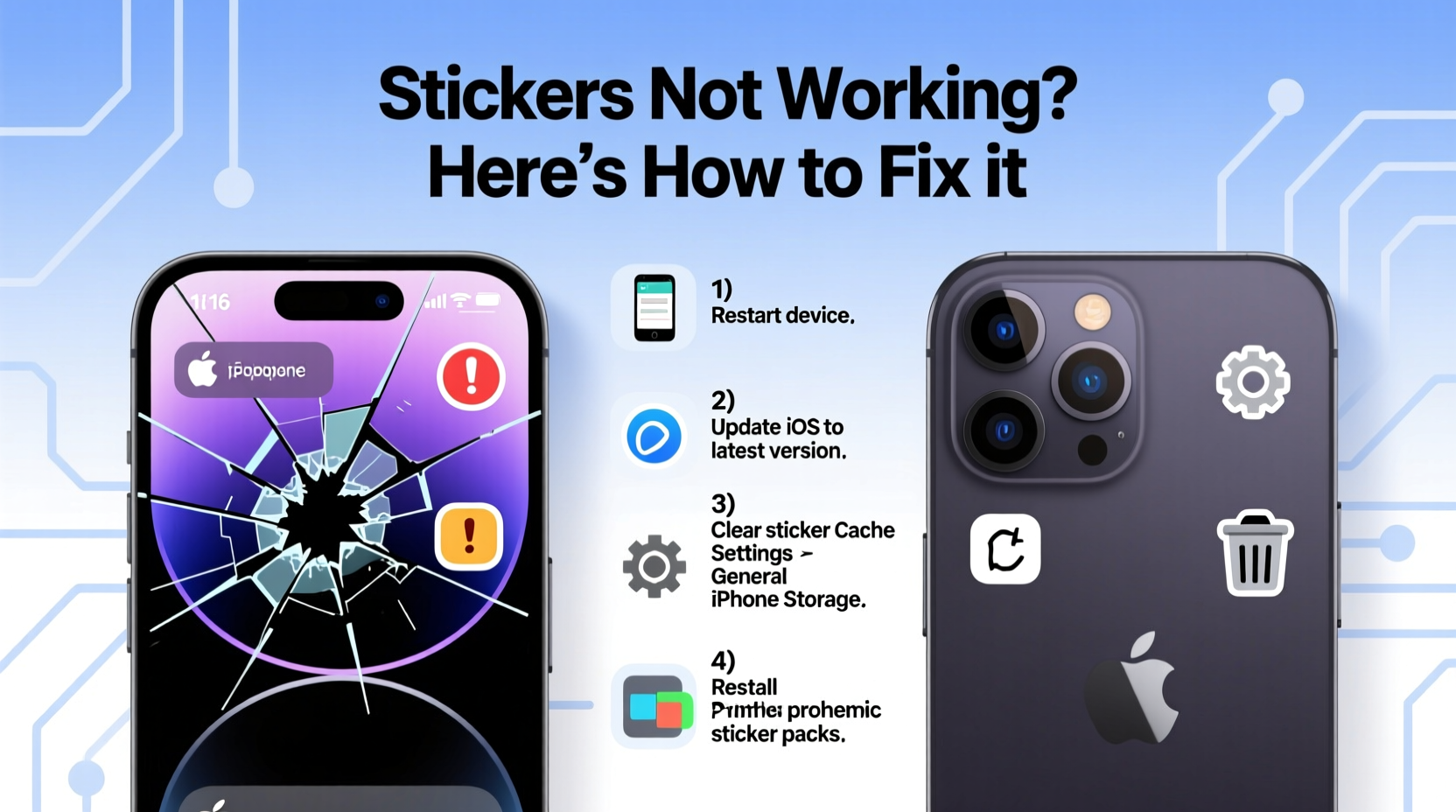
Stickers on the iPhone 16 rely on a combination of app permissions, network connectivity, iOS settings, and proper app integration. When any one of these components fails, stickers may not appear, fail to send, or disappear from the keyboard drawer.
Common underlying reasons include:
- iOS software glitches – Temporary bugs after an update can disrupt sticker rendering.
- Disabled iMessage or FaceTime – Sticker functionality is tied to iMessage activation.
- Low storage space – Insufficient storage prevents apps from loading sticker assets.
- Network issues – Poor Wi-Fi or cellular data can block sticker downloads.
- Outdated or misconfigured apps – Third-party sticker apps may not be updated for iOS 18 compatibility.
- Keyboard access restrictions – Some parental controls or screen time settings block third-party keyboards.
Step-by-Step Fixes to Restore Sticker Functionality
Before assuming hardware failure or permanent software damage, try these troubleshooting steps in order. Most users regain full sticker access within minutes.
- Restart Your iPhone 16
Press and hold the side button and either volume button until the power slider appears. Slide to power off, wait 30 seconds, then turn it back on. - Check iMessage & FaceTime Activation
Go to Settings > Messages and ensure iMessage is toggled on. Wait up to a minute for verification. Repeat for Settings > FaceTime. - Ensure Internet Connectivity
Test Wi-Fi or cellular by loading a webpage. If network is unstable, toggle Airplane Mode on/off or reconnect to Wi-Fi. - Update iOS to the Latest Version
Navigate to Settings > General > Software Update. Install any available updates—Apple often patches sticker bugs in minor releases. - Reinstall Problematic Sticker Apps
If only certain stickers are missing (e.g., GIPHY, Bitmoji), delete and reinstall the app from the App Store. - Reset Keyboard Settings
Go to Settings > General > Transfer or Reset iPhone > Reset > Reset Keyboard Dictionary. This clears corrupted input cache.
Do’s and Don’ts When Troubleshooting Stickers
| Action | Do | Don't |
|---|---|---|
| Updating Apps | Update all messaging and sticker apps regularly | Ignore update notifications for months |
| Storage Management | Keep at least 2GB free for system operations | Let storage drop below 500MB |
| Permissions | Allow sticker apps to access photos and microphone if needed | Block all permissions without review |
| Network Use | Use Wi-Fi when downloading large sticker packs | Try to load animated stickers on slow 3G |
Real User Case: Fixing Missing Memoji Stickers After Upgrade
Sophia, a digital marketer in Austin, upgraded from an iPhone 14 Pro to the iPhone 16 at launch. After setting up her new device via iCloud backup, she noticed her custom Memoji stickers no longer appeared in Messages. She tried tapping the App Drawer icon repeatedly, but only default emoji showed.
She checked iMessage status—it was active. Then she opened the Memojis app and saw her avatars were missing. Realizing they hadn’t synced, she went to Settings > [Her Name] > iCloud and confirmed \"Messages\" and \"Memoji\" were enabled. She turned both off and on again, then restarted the phone. Within two minutes, her Memojis reappeared in Messages, and her sticker tray was fully restored.
This case highlights how sync issues during migration can cause sticker loss—even when everything seems correctly configured.
Expert Insight on iMessage Stability
“With each new iPhone release, there's a short window where cloud-synced features like stickers and Memojis face hiccups. Ensuring iCloud sync is active and giving the system 10–15 minutes to stabilize post-setup prevents most issues.” — David Lin, Senior iOS Support Analyst at Apple Authorized Service Center
Comprehensive Checklist: Fix iPhone 16 Stickers Fast
- Restart the iPhone
- Verify iMessage and FaceTime are activated
- Check internet connection (Wi-Fi/cellular)
- Update iOS to latest version
- Update or reinstall sticker apps
- Free up storage if below 1GB
- Toggle off/on iCloud sync for Messages
- Reset keyboard dictionary if App Drawer is frozen
- Check Screen Time restrictions on app downloads
- Contact app developer if issue persists
Frequently Asked Questions
Why do my stickers show on one iPhone but not another?
This usually indicates incomplete iCloud sync. Ensure both devices are signed into the same Apple ID, have iMessage enabled, and allow time for sticker data to propagate across devices. Also check that “Messages in iCloud” is turned on under Settings > [Your Name] > iCloud > Messages.
Can I use third-party stickers without installing the app?
No. Apps like GIPHY, Bitmoji, or TikTok require their companion app to be installed and granted keyboard access. Even if you previously used them, a fresh iPhone setup requires reinstallation and permission approval.
Why do some stickers appear blurry or pixelated?
Low-resolution sticker packs or poorly optimized third-party apps can result in blurry visuals. Stick to verified sticker apps with high user ratings and frequent updates. Also, avoid sending stickers over SMS/MMS—stick to iMessage (blue bubbles) for full quality.
Conclusion: Take Control of Your Messaging Experience
The iPhone 16 delivers powerful communication tools, but even advanced hardware depends on smooth software performance. When stickers stop working, it’s rarely a permanent flaw—it’s usually a minor configuration gap or transient bug. By methodically checking connectivity, app status, and system settings, you can resolve most issues in under 15 minutes.
Don’t let glitchy stickers dampen your expressive conversations. Apply the fixes outlined here, keep your system updated, and maintain healthy storage habits. Your iMessage experience should be vibrant, fast, and fun.




 浙公网安备
33010002000092号
浙公网安备
33010002000092号 浙B2-20120091-4
Comments
No comments yet. Why don't you start the discussion?