
Facebook remains one of the most widely used social networks, but there are countless reasons you might want to take a break. Whether it’s for mental wellness, privacy concerns, or digital detox, deactivating your account is a practical first step. Unlike permanent deletion, deactivation allows you to return anytime without losing your photos, messages, or profile history. The process is straightforward when done correctly—especially from a mobile device. This guide walks you through each stage with precision, ensuring you retain full control over your digital footprint.
Understanding Deactivation vs. Deletion
Before proceeding, it’s essential to distinguish between deactivating and deleting your Facebook account. Deactivation is temporary. Your profile, photos, and posts disappear from public view, but all data remains stored on Facebook’s servers. You can reactivate your account at any time by simply logging back in. Deletion, on the other hand, is permanent. After a 30-day grace period, all your information—including messages, photos, and friend connections—is erased forever.
For those unsure about leaving permanently, deactivation offers a safe middle ground. It gives you space while preserving your ability to return seamlessly.
Step-by-Step Guide to Deactivate Facebook on Mobile
The following instructions apply to both iOS and Android devices using the official Facebook app (as of 2024). Ensure you’re logged into the correct account before beginning.
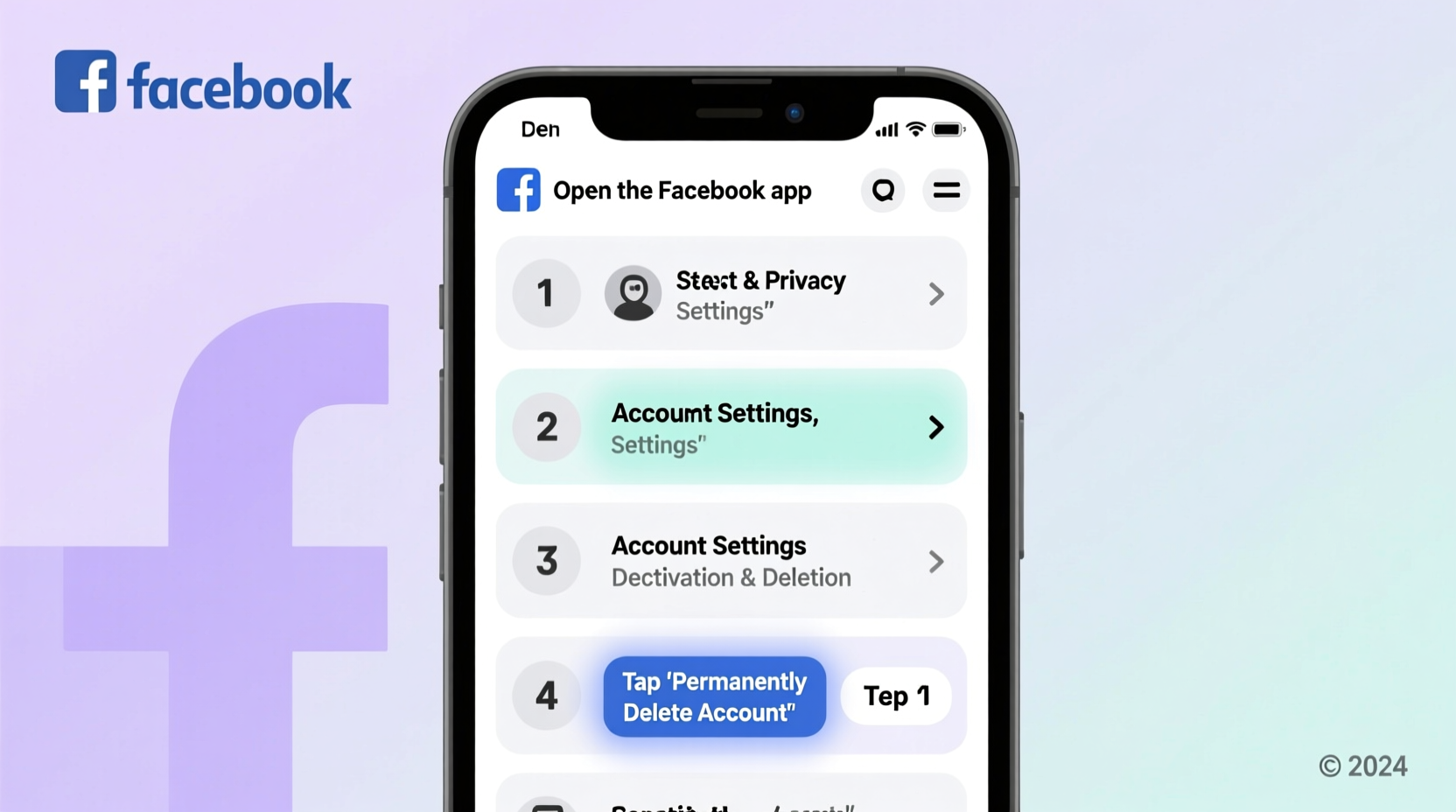
- Open the Facebook App: Tap the blue-and-white “f” icon on your home screen or app drawer.
- Access the Menu: In the bottom right corner (iOS) or top right corner (Android), tap the menu icon (three horizontal lines).
- Navigate to Settings & Privacy: Scroll down and select “Settings & Privacy,” then tap “Settings.”
- Select Account Settings: Under the “Account” section, tap “Your Facebook Information.”
- Choose Deactivation and Deletion: Tap “Deactivation and Deletion” from the list of options.
- Select Deactivate Account: Choose the “Deactivate Account” option (not “Delete Account”) and tap “Continue to Account Deactivation.”
- Review Impact Summary: Facebook will display what happens when you deactivate—your profile becomes invisible, but friends may still see past comments or messages you sent.
- Optional: Share Feedback: You may be prompted to select a reason for leaving. This is optional and doesn’t affect the deactivation process.
- Enter Password: Confirm your identity by entering your current password.
- Tap “Continue” Then “Confirm”: Finalize the action. Your account is now deactivated.
You’ll receive a confirmation message: “Your account has been deactivated.” At this point, your profile no longer appears in searches, and friends cannot message you directly through Facebook (though existing message threads remain).
| Action | Effect | Reversible? |
|---|---|---|
| Deactivate Account | Profile hidden, data saved, not visible to others | Yes – log in to reactivate |
| Delete Account | All data permanently removed after 30 days | No |
| Log Out Only | Session ends; profile remains active | Yes |
What Happens After Deactivation?
Once deactivated, several changes take effect immediately:
- Your name and profile will no longer appear in News Feeds, search results, or friend lists.
- Posts you’ve made on others’ timelines remain visible, but your name appears as “Former Member.”
- You won’t receive notifications or friend requests until reactivation.
- Messages you sent in private chats are still accessible to recipients unless deleted manually.
- Any scheduled posts or ads will stop running.
Importantly, Facebook continues to store your data securely during deactivation. This includes photos, videos, friend lists, and preferences. Reactivation restores everything exactly as it was—no re-uploading or reconfiguring required.
“Taking a break from social media isn’t quitting—it’s reclaiming agency over your attention and emotional energy.” — Dr. Lena Torres, Digital Wellness Researcher
Common Mistakes to Avoid
While the deactivation process is simple, users often make avoidable errors that lead to confusion or unintended consequences.
- Mistaking deletion for deactivation: The two options appear together. One wrong tap could trigger irreversible data loss.
- Not logging out of other devices: If you use Facebook on multiple phones or tablets, deactivate from the primary device and manually log out elsewhere.
- Expecting complete invisibility: Old comments, group posts, or tags may still be traceable through search engines or cached pages.
- Ignoring Messenger access: Deactivating Facebook does not automatically disable Messenger. To stop receiving messages, adjust Messenger settings separately.
Mini Case Study: Sarah’s Social Media Reset
Sarah, a 29-year-old graphic designer from Portland, felt overwhelmed by constant notifications and comparison-driven scrolling. After reading about digital minimalism, she decided to pause her Facebook usage. Using her iPhone, she followed the steps outlined above to deactivate her account. She skipped the feedback form and confirmed with her password. Within minutes, her profile vanished.
Over the next six weeks, Sarah noticed improved focus and reduced anxiety. When she eventually logged back in—simply by entering her email and password—her entire timeline, photo albums, and friend network were intact. “It felt like coming home,” she said. “I got the break I needed without losing years of memories.”
FAQ: Frequently Asked Questions
Can people still message me after I deactivate?
No. Once deactivated, others cannot send you new messages via Facebook. However, previous conversations remain in their inbox unless deleted. Note: Facebook Messenger may still function unless disabled separately.
How long does deactivation last?
Indefinitely. There’s no time limit. You can reactivate your account anytime by logging in with your credentials. If you don’t log back in, your account stays inactive until you choose to return—or decide to delete it permanently.
Will my friends be notified?
No. Facebook does not send alerts when you deactivate. Friends may notice your absence if they try to visit your profile, but no formal notification is issued.
Final Checklist Before Deactivating
Use this quick checklist to ensure a smooth transition:
- ✅ Back up important photos or posts you want to keep offline
- ✅ Log out of Facebook on shared or public devices
- ✅ Decide whether to disable Messenger separately
- ✅ Confirm you’re selecting “Deactivate,” not “Delete”
- ✅ Save your login details securely in case you return later
Conclusion
Deactivating your Facebook account from a mobile device is fast, reversible, and empowering. With just a few taps, you can step back from the noise without sacrificing your digital history. Whether you're seeking clarity, protecting your privacy, or simply need a pause, this small action can yield significant mental relief. Technology should serve you—not the other way around. Take control today, and remember: stepping away is never failure. It’s often the smartest move you can make.




 浙公网安备
33010002000092号
浙公网安备
33010002000092号 浙B2-20120091-4
Comments
No comments yet. Why don't you start the discussion?