
It’s a common frustration: your iPhone feels slower, dies faster, and the Battery Health percentage in Settings keeps shrinking—sometimes by several points in just a few weeks. You’re not imagining it. Lithium-ion batteries naturally degrade over time, but certain behaviors and settings can accelerate that process dramatically. The good news is that many of these factors are within your control. By understanding what’s harming your battery and making strategic adjustments, you can slow degradation and extend the usable lifespan of your device.
Why Battery Health Degrades Faster Than Expected
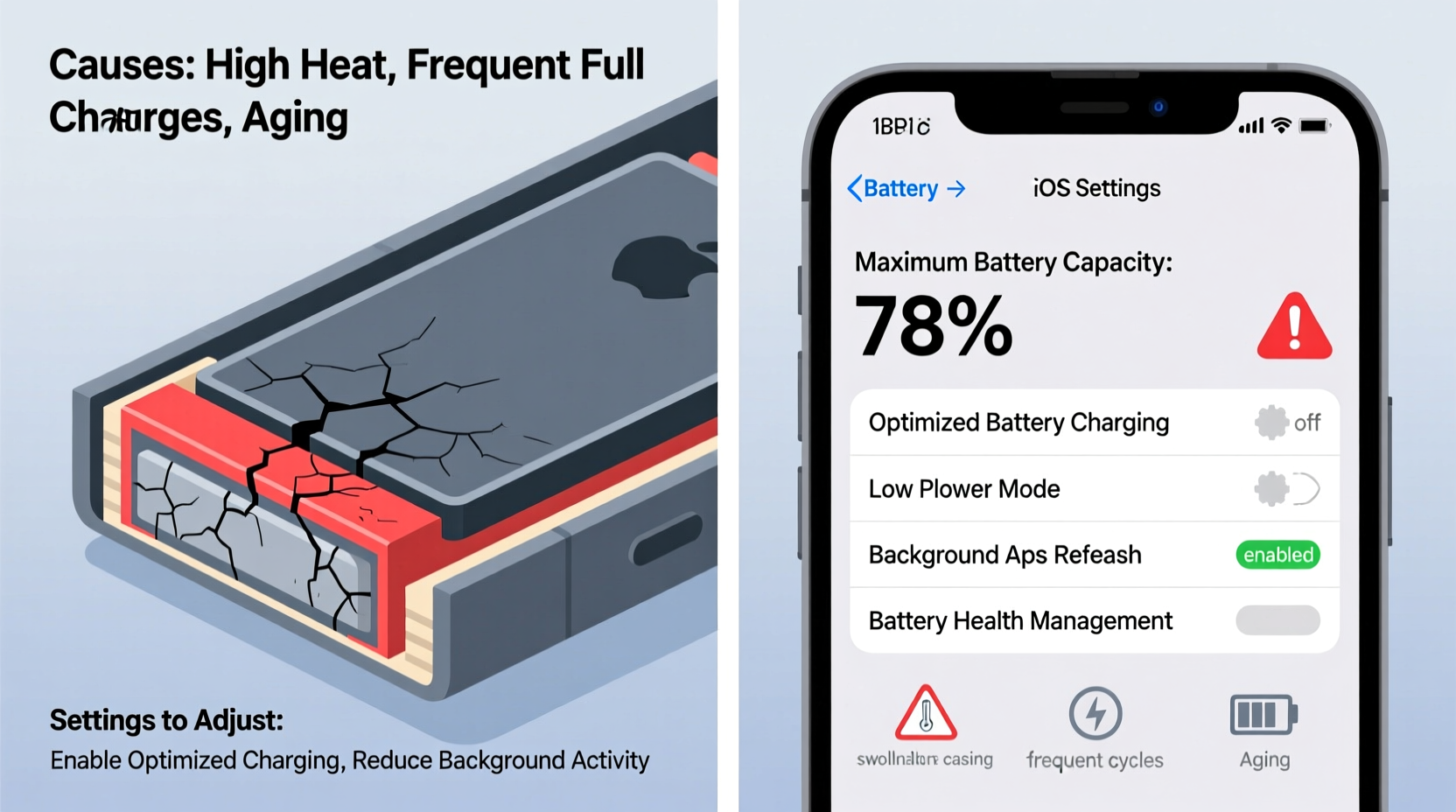
Battery health on an iPhone measures the maximum capacity of the battery compared to when it was new. Apple defines 100% as full original capacity and considers 80% the threshold at which performance may begin to noticeably decline. While all batteries degrade, some users report drops from 100% to 85% in under six months—a rate far beyond normal wear.
The root causes are often environmental and behavioral. Heat is the single most damaging factor to lithium-ion batteries. Exposure to temperatures above 35°C (95°F), whether from direct sunlight, hot cars, or intensive app usage, can cause irreversible chemical changes inside the battery. Even charging while playing graphics-heavy games or using GPS navigation in a heated car multiplies this effect.
Another major contributor is charge cycling. Every time you drain and recharge your battery, it completes a “cycle.” While modern iPhones are designed to handle around 500 full cycles before significant degradation, partial charges still add up. Frequent deep discharges—from 100% down to near 0%—stress the battery more than shallow top-ups.
“Lithium-ion batteries thrive on stability. Avoiding extremes in temperature and charge levels is key to preserving long-term health.” — Dr. Alan Park, Battery Technology Researcher, MIT Energy Initiative
Settings That Accelerate Battery Degradation (And How to Fix Them)
Your iPhone’s default settings prioritize convenience over longevity. But with a few adjustments, you can shift that balance toward sustained battery health.
1. Disable Optimized Battery Charging If It’s Not Working Right
Introduced in iOS 13, Optimized Battery Charging learns your daily routine and delays charging past 80% until you need to use the phone. In theory, this reduces time spent at full charge, which slows degradation.
However, if your schedule is irregular or location services are limited, the feature may misfire—keeping your phone at 80% when you actually need a full charge. Worse, constantly hovering near 80–100% without full cycles can confuse the battery calibration system.
To adjust:
Go to Settings > Battery > Battery Health & Charging. Toggle off “Optimized Battery Charging” if it's causing inconvenience, or leave it on if your routine is predictable.
2. Turn Off Background App Refresh for Non-Essential Apps
Background App Refresh allows apps to download new content even when you’re not using them. This constant network activity increases CPU load and prevents the phone from entering low-power states, generating heat and draining the battery unnecessarily.
High background activity means more frequent charging, which accelerates cycle count and thermal stress.
Recommended action:
Go to Settings > General > Background App Refresh. Disable it entirely or limit it to only critical apps like Messages or Mail.
3. Reduce Screen Brightness and Auto-Brightness Sensitivity
The display is one of the biggest power consumers. Maximum brightness, especially on OLED models, draws significant current and generates heat. Auto-Brightness helps, but it often overcompensates in bright environments, pushing brightness higher than needed.
Manually set brightness to 70–80% in most conditions and enable Dark Mode to reduce pixel energy use on OLED screens.
4. Disable Location Services for Power-Hungry Apps
Apps like social media platforms, weather services, and ad trackers constantly ping your location in the background. This not only drains battery but also contributes to cumulative heat buildup over time.
Navigate to Settings > Privacy & Security > Location Services. For non-essential apps, set location access to “Never” or “While Using.”
5. Limit Push Email and Notifications
Push email checks your inbox continuously, waking the device multiple times per hour. Switching to Fetch or Manual mode reduces background activity.
Go to Settings > Mail > Accounts > Fetch New Data. Select “Fetch” and set intervals to hourly or manually.
Environmental and Usage Habits That Damage Battery Health
Even with perfect settings, poor habits can ruin your battery. These real-world behaviors are often overlooked but have measurable impacts.
Charging Overnight Regularly
Leaving your iPhone plugged in for 8+ hours keeps it at 100% charge for extended periods. While modern circuits prevent overcharging, staying at peak voltage stresses the battery chemistry.
Use a smart plug or charging timer to stop power delivery after 2–3 hours if you must charge overnight.
Using Fast Chargers Excessively
Fast charging (especially with 20W+ adapters) generates more heat than standard 5W charging. While convenient, regular use accelerates long-term degradation.
Best practice: Use fast charging during the day when you need a quick boost, but switch to a 5W charger at night or when doing light tasks.
Exposing iPhone to Direct Sunlight or Hot Environments
Leaving your iPhone on a car dashboard, near a window, or in direct sunlight—even for 30 minutes—can raise internal temperatures beyond safe limits. The phone may display a “Temperature Warning,” but damage occurs before that alert appears.
Step-by-Step Guide to Preserving iPhone Battery Health
Follow this daily and weekly routine to maximize battery longevity:
- Morning (Under 80%): If battery is below 20%, plug in using a 5W charger. Avoid fast charging unless urgent.
- During the Day: Keep brightness below 80%, use Wi-Fi over cellular when possible, and close unused apps.
- Avoid Deep Discharge: Plug in when battery reaches 30–40%. Never routinely let it drop below 20%.
- Night Charging: Charge to 80–85%, then unplug or use a timer. If using Optimized Charging, ensure your routine is consistent.
- Weekly Maintenance: Once a week, fully charge to 100% to recalibrate the battery gauge, then discharge to 20% before recharging. This maintains accuracy without excessive strain.
- Monthly Check: Review Battery Health (Settings > Battery > Battery Health & Charging). If degradation exceeds 1–2% per month, reassess your habits.
Do’s and Don’ts: Battery Health Best Practices
| Do | Don’t |
|---|---|
| Charge between 30% and 80% for daily use | Leave the phone at 0% or 100% for hours |
| Use 5W charging when possible | Use third-party fast chargers without MFi certification |
| Keep the phone in a cool, dry place | Expose it to direct sunlight or hot cars |
| Enable Low Power Mode during heavy use | Run GPS, camera, and games simultaneously for long periods |
| Update iOS regularly for battery optimizations | Ignore software updates that include battery management fixes |
Real Example: A Case of Premature Battery Failure
Consider Mark, a rideshare driver who uses his iPhone 13 daily for navigation, calls, and music. He leaves the phone mounted on his dashboard, charging it via a 27W fast charger throughout 10-hour shifts. After five months, his battery health dropped from 100% to 86%.
An analysis revealed three main issues:
First, the phone was consistently exposed to temperatures above 38°C due to direct sun and engine heat.
Second, continuous fast charging kept the battery at high voltage and temperature.
Third, GPS, cellular data, and screen brightness were all running at maximum for hours each day.
After switching to a shaded mount, using a 5W charger during breaks, and enabling Low Power Mode, Mark slowed further degradation. Over the next four months, his battery health only declined by an additional 2%, demonstrating how behavior changes make a measurable difference.
Frequently Asked Questions
Can I replace my iPhone battery to restore 100% health?
Yes. Apple and authorized service providers can replace your battery with a new one, which will show as 100% health after installation. Apple recommends replacement when capacity falls below 80%. The cost varies by model but typically ranges from $69 to $99 in the U.S.
Does turning off the iPhone help preserve battery when not in use?
Yes. If storing your iPhone for more than a few days, power it down completely and ensure it’s charged to about 50%. This minimizes chemical stress and prevents deep discharge during storage. Avoid leaving it powered on with a full or empty battery for extended periods.
Is it bad to use the phone while charging?
It depends. Light use (like texting or browsing) is generally safe. However, intensive tasks—gaming, video editing, or navigation—while charging generate excess heat, especially with fast chargers. This combination is one of the fastest ways to degrade battery health. Avoid heavy usage during charging whenever possible.
Checklist: 10 Actions to Slow Battery Degradation
- ✅ Keep battery level between 30% and 80% daily
- ✅ Use 5W (or lower) charging for routine top-ups
- ✅ Disable Background App Refresh for non-essential apps
- ✅ Enable Dark Mode on OLED models (iPhone X and later)
- ✅ Turn off Location Services for apps that don’t need it
- ✅ Avoid direct sunlight and hot environments
- ✅ Limit push notifications and fetch email manually
- ✅ Update iOS regularly for battery improvements
- ✅ Recalibrate battery once a week (full charge to 20% discharge)
- ✅ Consider disabling Optimized Charging if your schedule varies
Conclusion: Take Control Before It’s Too Late
iPhone battery health doesn’t have to plummet in less than a year. With awareness and small, consistent changes, you can nearly double the time it takes to reach 80% capacity. The key is treating your battery like a high-performance component—it thrives on moderation, not extremes. Temperature, charge habits, and software settings all play interconnected roles. Ignoring one can undermine the others.
You don’t need to sacrifice functionality to protect your battery. Simple switches—like lowering brightness, managing background apps, and avoiding overnight charging—add up to meaningful gains. And if you’ve already seen rapid decline, it’s not too late to slow the process.




 浙公网安备
33010002000092号
浙公网安备
33010002000092号 浙B2-20120091-4
Comments
No comments yet. Why don't you start the discussion?