
If your iPhone is sending incoming calls directly to voicemail without ringing, you're not alone. This issue affects users across models and iOS versions, often at the worst possible time—like when waiting for an important call. The good news is that most causes are fixable without visiting a technician. From simple settings misconfigurations to carrier-related glitches, this guide breaks down the root causes and delivers actionable solutions.
Why Your iPhone Sends Calls Straight to Voicemail
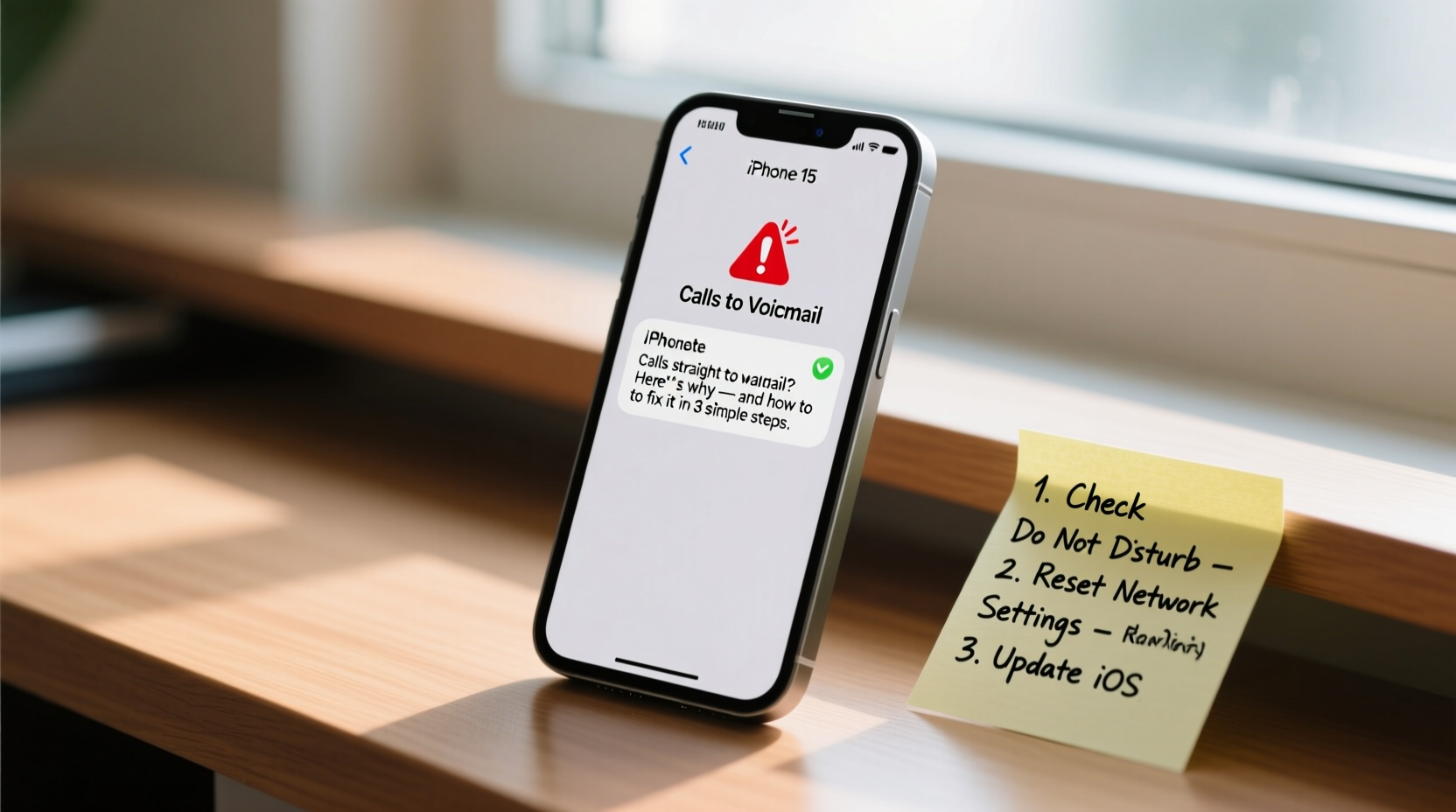
The problem isn’t always hardware failure or a broken phone. More often than not, it stems from overlooked settings, network issues, or temporary software bugs. Understanding the underlying cause is half the battle. Here are the most common culprits:
- Do Not Disturb (DND) mode is enabled — Silences all incoming calls unless exceptions are set.
- Call Forwarding is accidentally turned on — Redirects calls to voicemail even if your phone is on.
- Airplane Mode or poor signal — Prevents your device from receiving cellular signals.
- Blocked contacts or numbers — Blocked callers go straight to voicemail silently.
- Carrier network or SIM card issues — A damaged SIM or service outage can disrupt call reception.
- iOS software bugs after updates — Recent system updates may introduce call handling glitches.
Step-by-Step Fixes to Restore Normal Call Function
Before assuming hardware damage or contacting support, try these systematic fixes in order. Many users resolve the issue within minutes using just the first few steps.
- Check Do Not Disturb Settings
Go to Settings > Focus > Do Not Disturb. Ensure it's turned off. Also, check if any custom Focus modes (e.g., Work, Sleep) are active and silencing calls. You can allow calls from specific contacts under \"People\" in Focus settings. - Disable Call Forwarding
Navigate to Settings > Phone > Call Forwarding. If enabled, toggle it off. You can also dial*#21#to check your current forwarding status. This code shows whether calls are being redirected—and where. - Verify Airplane Mode and Cellular Signal
Swipe down Control Center and ensure Airplane Mode is off. Check the top bar for signal bars. No signal? Try moving to a different location or restarting your phone to re-establish network connection. - Restart Your iPhone
A simple reboot clears temporary software hiccups. Press and hold the side button and either volume button, then slide to power off. Wait 30 seconds, then turn it back on. - Check for Carrier Settings Updates
Go to Settings > General > About. If a carrier update is available, a prompt will appear. These updates often fix call routing and network compatibility issues.
Common Mistakes That Worsen the Problem
Sometimes, well-intentioned actions make things worse. Avoid these common errors when troubleshooting:
| Mistake | Why It’s Harmful | Better Alternative |
|---|---|---|
| Ignoring software updates | Older iOS versions may have unresolved bugs affecting call handling | Update to the latest iOS version via Settings > General > Software Update |
| Removing SIM card unnecessarily | Risks damaging the tray or misaligning the SIM | Only remove SIM if advised by carrier or after trying other fixes |
| Assuming it’s a hardware issue too soon | Leads to costly repairs or replacements when settings could fix it | Rule out software and network causes first |
“Over 70% of ‘no ring’ call issues stem from user-enabled features like Do Not Disturb or Call Forwarding—not hardware faults.” — Lisa Tran, Senior Apple Support Technician
Real-World Example: How Sarah Fixed Her iPhone in 10 Minutes
Sarah, a freelance designer in Austin, missed a client’s call because her iPhone rang once and went straight to voicemail. She assumed her phone was broken. After reading online forums, she checked her Focus settings and discovered her “Work” focus was still active from the previous day. It was set to silence all calls except those from her family. Once she disabled the focus mode, calls returned to normal. The entire process took less than five minutes—and saved her from an unnecessary trip to the Apple Store.
This scenario is more common than you think. Temporary Focus modes don’t always deactivate automatically, especially if manually activated. Always double-check your active Focus modes before concluding something is wrong with your device.
Detailed Checklist: Fix iPhone Calls Going to Voicemail
Use this checklist to methodically eliminate potential causes:
- ✅ Turn off Do Not Disturb and all Focus modes
- ✅ Disable Call Forwarding in Settings > Phone
- ✅ Confirm Airplane Mode is off
- ✅ Restart your iPhone
- ✅ Check for carrier or iOS updates
- ✅ Verify that the caller isn’t blocked
- ✅ Test with another phone calling yours
- ✅ Remove and reinsert SIM card (if applicable)
- ✅ Reset Network Settings (Settings > General > Transfer or Reset iPhone > Reset > Reset Network Settings)
- ✅ Contact your carrier to confirm voicemail setup and account status
When to Contact Your Carrier or Apple
If you’ve completed all the above steps and calls still go straight to voicemail, the issue may lie with your carrier. Some carriers require proper voicemail activation or have network-level call filtering. Contact them to:
- Confirm your line is active and not suspended.
- Verify voicemail is properly set up.
- Check if call blocking or filtering services are enabled on your account.
- Request a network refresh or SIM replacement if needed.
If the carrier confirms everything is working, but your iPhone still doesn’t ring, visit an Apple Store or authorized service provider. There may be a hardware issue with the cellular antenna or logic board—though this is rare.
Frequently Asked Questions
Why do some calls go through while others go straight to voicemail?
This usually means certain numbers are blocked or filtered by Focus modes. For example, if your Focus mode allows calls only from favorites, anyone else will be sent to voicemail. Check Settings > Focus > [Active Mode] > People to adjust permissions.
Can a dead battery or low power mode cause this issue?
Low Power Mode does not disable calls. However, if your iPhone shuts down due to a drained battery, incoming calls will go to voicemail. Ensure your phone is charged and functioning normally.
I reset network settings and it worked—why?
Resetting network settings clears corrupted Wi-Fi, Bluetooth, and cellular configurations. Sometimes, incorrect APN (Access Point Name) settings or call routing data get corrupted during updates, causing calls to fail. This reset restores defaults and often resolves the issue.
Conclusion: Take Control of Your iPhone’s Call Settings
Your iPhone should work reliably when it comes to receiving calls. When calls bypass ringing and jump to voicemail, the disruption can affect personal and professional life. Fortunately, the solution is usually simple—adjusting a setting, disabling a feature, or restarting the device. By understanding how Do Not Disturb, Call Forwarding, and Focus modes interact with incoming calls, you gain control over your communication experience.




 浙公网安备
33010002000092号
浙公网安备
33010002000092号 浙B2-20120091-4
Comments
No comments yet. Why don't you start the discussion?