
Apple’s location sharing feature is a powerful tool for staying connected with family, friends, or coworkers. Whether you're coordinating meetups, checking in on loved ones, or using shared locations during emergencies, seamless functionality is essential. But when iPhone location sharing stops working—showing outdated data, failing to update, or refusing to turn on—frustration sets in quickly. The good news: most issues are software-related and can be resolved without visiting a service center.
This guide walks through the most common causes of location sharing failures and provides step-by-step fixes that restore real-time tracking across iMessage, Find My, and Family Sharing.
Why Location Sharing Fails on iPhone
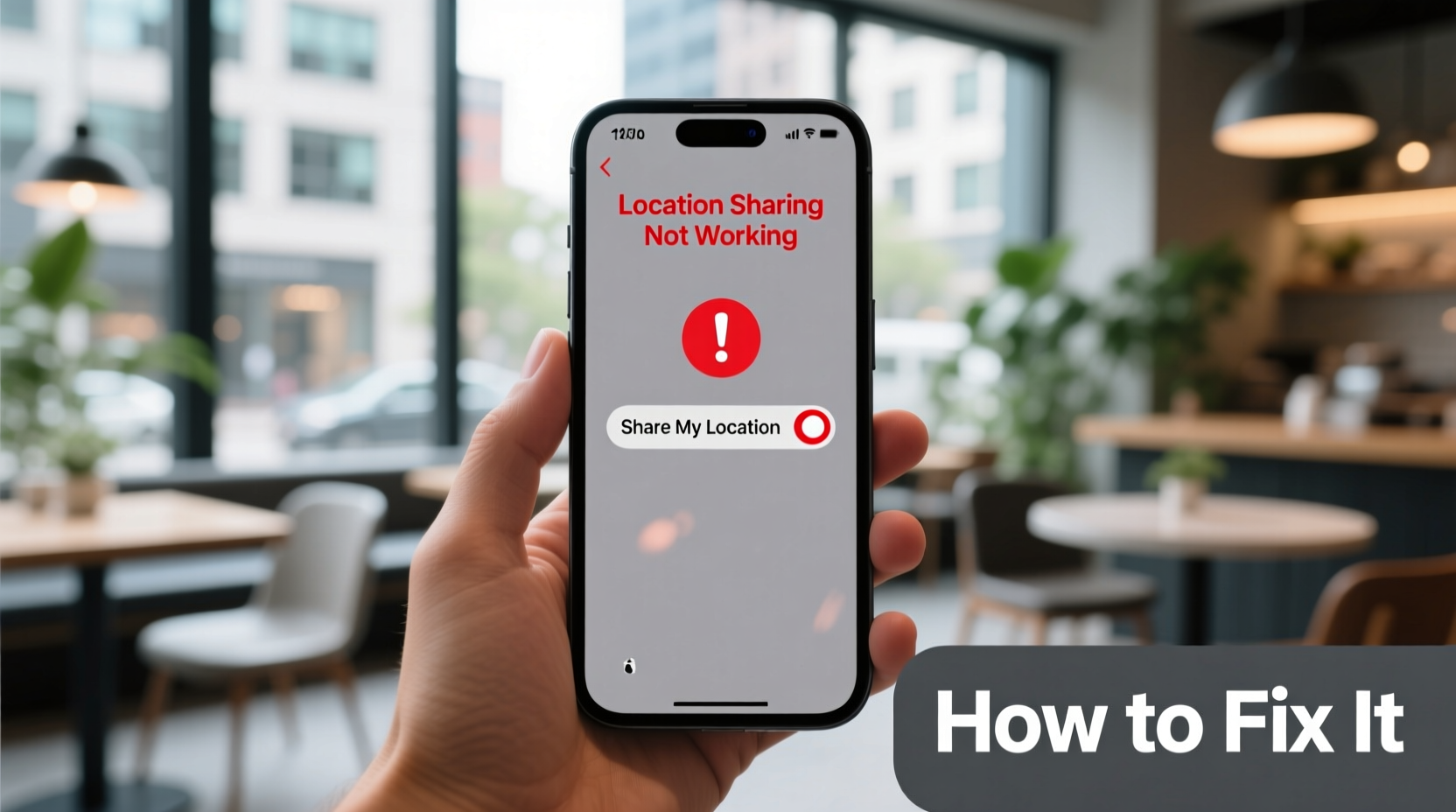
Location sharing relies on multiple systems working together: GPS, Wi-Fi, cellular data, Bluetooth, background app refresh, and Apple ID authentication. A breakdown in any one component can disrupt the entire process. Common culprits include:
- Disabled Location Services or incorrect permissions
- Outdated iOS version with known bugs
- Poor network connectivity (Wi-Fi or cellular)
- Low Power Mode limiting background activity
- iCloud sign-in issues or sync errors
- Incorrect date and time settings
- Third-party apps interfering with system functions
Before assuming hardware failure, systematically rule out these software and configuration issues.
Step-by-Step Troubleshooting Guide
Follow this logical sequence to diagnose and resolve location sharing problems efficiently.
- Check Internet Connectivity
Location sharing requires an active internet connection. Ensure your iPhone has stable Wi-Fi or cellular data. Test by loading a webpage or sending a message. If data isn’t working, restart your router or toggle Airplane Mode on/off. - Verify Location Services Are Enabled
Go to Settings > Privacy & Security > Location Services. Make sure it’s turned on. Then scroll down and confirm that both Find My and Messages have access set to “While Using” or “Always,” depending on your needs. - Enable Share My Location
Open Settings > [Your Name] > Find My > Share My Location. This must be toggled on. If grayed out, check your internet connection and iCloud login status. <4>
Restart Your iPhone
- Disable Low Power Mode
Low Power Mode disables background app refresh, which prevents location updates. Turn it off via Settings > Battery > Low Power Mode. - Ensure Accurate Date & Time
Incorrect time settings interfere with location syncing. Go to Settings > General > Date & Time and enable “Set Automatically.” - Update iOS to the Latest Version
Software bugs affecting location services are often patched in updates. Navigate to Settings > General > Software Update and install any available updates. - Re-enable Location Sharing in Messages
In the conversation where sharing failed, tap the contact’s name at the top, select info, then disable and re-enable “Share My Location.”
A simple reboot clears temporary glitches. Press and hold the side button and either volume button, then slide to power off. Wait 30 seconds before turning it back on.
Advanced Fixes When Basic Steps Fail
If the standard troubleshooting doesn’t work, deeper system-level adjustments may be required.
Sign Out and Back Into iCloud
Authentication errors can block location syncing. Sign out of iCloud completely, then sign back in:
- Go to Settings > [Your Name]
- Scroll down and tap Sign Out
- Confirm and enter your Apple ID password
- After signing out, restart your phone
- Return to Settings and sign back into your Apple ID
- Re-enable “Share My Location”
This forces a full sync of your iCloud account, including Find My data.
Reset Network Settings
Corrupted network configurations can prevent location pings from transmitting. Resetting restores defaults:
- Navigate to Settings > General > Transfer or Reset iPhone > Reset > Reset Network Settings
- Enter your passcode if prompted
- Confirm the reset
Note: You’ll need to reconnect to Wi-Fi networks and re-enter passwords.
Check Do Not Disturb or Screen Time Restrictions
Screen Time can restrict location access under certain categories. Review:
- Settings > Screen Time > Content & Privacy Restrictions > Location Services
- Ensure no restrictions are blocking access
Similarly, Do Not Disturb won’t stop location sharing directly, but combined settings might delay notifications related to requests.
“Over 70% of location sharing issues stem from permission misconfigurations or outdated OS versions. Most users don’t realize how deeply Low Power Mode affects background processes.” — David Lin, Senior iOS Support Analyst at Apple Authorized Service Provider
Do’s and Don’ts of iPhone Location Sharing
| Do | Don't |
|---|---|
| Keep iOS updated regularly | Leave Low Power Mode on indefinitely |
| Use “Always” for location access in critical apps | Disable Background App Refresh globally |
| Test sharing with one trusted contact first | Assume hardware failure without checking software |
| Verify iCloud account status daily if used for family tracking | Ignore persistent “Location Unavailable” alerts |
| Restart your device weekly to clear cache | Install untrusted third-party battery savers |
Real-World Example: Fixing Family Location Sync Failure
Sarah, a mother of two in Seattle, relied on Family Sharing to monitor her teenagers’ whereabouts after school. One afternoon, her daughter’s location froze near school despite confirmation she’d arrived home. Sarah tried calling—phone rang normally—but the map showed no movement for over two hours.
She followed the checklist: verified Wi-Fi, checked Low Power Mode (off), confirmed “Share My Location” was enabled. Nothing worked. Then she remembered updating her daughter’s iPhone the night before. After restarting the device and toggling Location Services off and on again, the location refreshed within 90 seconds. The issue? A post-update glitch had disabled background permissions silently.
This case highlights why even small changes—like an OS update—can disrupt core features without warning.
FAQ
Why does my friend’s location say “No Location Found”?
This usually means their iPhone is powered off, has poor signal, or they’ve disabled location sharing. It could also appear if “Hide My Location” is active or their battery died.
Can someone see I’m checking their location?
No. Merely viewing a shared location doesn’t notify the other person. However, initiating a new request or changing sharing duration will send a notification.
How accurate is iPhone location sharing?
Accuracy varies based on environment. Indoors or in dense urban areas, it may be within 50–100 meters. Outdoors with clear sky view, accuracy improves to within 10 meters using GPS, Wi-Fi triangulation, and cell towers.
Final Checklist: Restore Location Sharing in 5 Minutes
- ✅ Confirm internet connection (Wi-Fi or cellular)
- ✅ Turn on Location Services and allow access for Find My and Messages
- ✅ Enable “Share My Location” in Find My settings
- ✅ Disable Low Power Mode
- ✅ Restart your iPhone
- ✅ Re-initiate sharing request in Messages or Find My app
If all else fails, contact Apple Support with your serial number and a description of steps already taken. They can check server-side sync issues or escalate to engineering if needed.
Conclusion
iPhone location sharing not working doesn’t mean your device is broken. In nearly every case, the solution lies in permissions, connectivity, or minor software resets. By methodically verifying each layer—from network access to iCloud authentication—you regain control over one of Apple’s most valuable safety and coordination tools.




 浙公网安备
33010002000092号
浙公网安备
33010002000092号 浙B2-20120091-4
Comments
No comments yet. Why don't you start the discussion?