
Nothing disrupts your day quite like an iPhone that refuses to connect to Wi-Fi. Whether you're at home, in the office, or trying to access public internet, a failed connection can block essential tasks—from sending emails to streaming content. While frustrating, most Wi-Fi issues on iPhones are solvable without professional help. Understanding the root causes and applying targeted fixes can restore connectivity in minutes.
Modern iPhones are designed for seamless wireless performance, but network inconsistencies, software bugs, or misconfigured settings can interfere. The good news is that Apple provides multiple built-in tools and recovery methods. With a methodical approach, you can identify and resolve the issue efficiently—often without resetting your device or losing data.
Common Causes of Wi-Fi Connection Problems
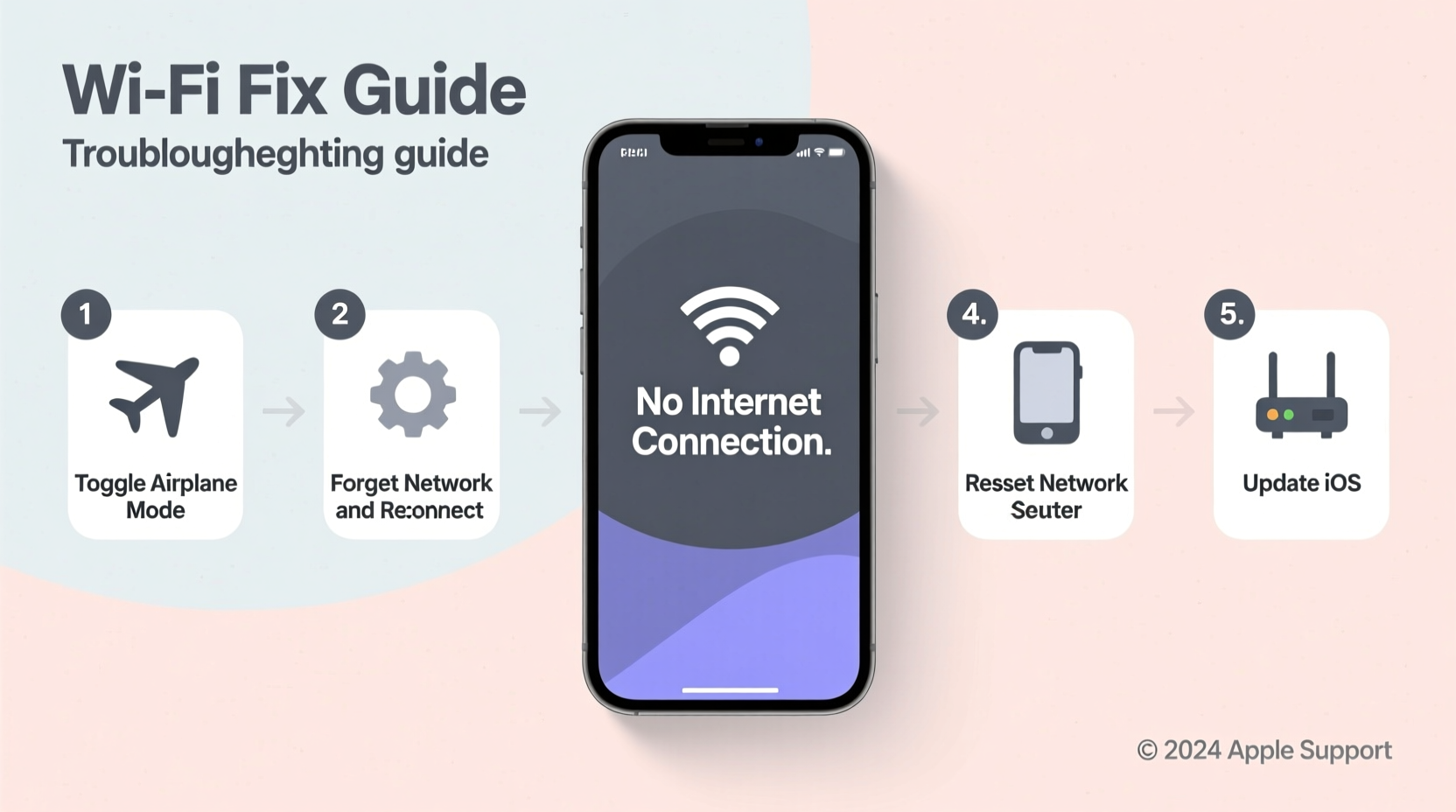
Before jumping into fixes, it’s important to understand what might be causing the disconnect. Identifying the source helps avoid unnecessary steps and speeds up resolution.
- Router or modem issues: The problem may not be your iPhone at all. Routers can overheat, lose sync, or require firmware updates.
- Incorrect password entry: A mistyped or outdated Wi-Fi password blocks connection even if the network appears available.
- Software glitches: iOS updates sometimes introduce bugs that affect network management.
- Network congestion: Too many devices on one network can degrade signal quality or prevent new connections.
- IP address conflicts: When two devices claim the same IP, one may be kicked offline.
- Location and interference: Thick walls, microwaves, or Bluetooth devices can weaken or disrupt Wi-Fi signals.
- Outdated iOS version: Older operating systems may lack compatibility with newer router security protocols.
“Over 70% of reported Wi-Fi issues on iPhones are resolved by restarting the router or toggling Airplane Mode.” — James Lin, Senior Network Support Engineer at Apple Authorized Service Center
Step-by-Step Troubleshooting Guide
Follow this logical sequence to isolate and correct the issue. Start with simple checks before progressing to advanced solutions.
- Check Wi-Fi is enabled: Swipe down from the top-right corner (iPhone X and later) or up from the bottom (older models) to open Control Center. Ensure the Wi-Fi icon is highlighted.
- Verify the network name: Tap Settings > Wi-Fi and confirm your desired network is selected. If another network is connected, tap the blue “i” icon and choose “Forget This Network,” then reconnect.
- Restart your iPhone: Hold the side button and either volume button until the power slider appears. Slide to power off, wait 30 seconds, then turn it back on.
- Toggle Airplane Mode: In Control Center, enable Airplane Mode for 10 seconds, then disable it. This forces all radios—including Wi-Fi—to reset.
- Reboot your router: Unplug the power cable from your router, wait 60 seconds, then plug it back in. Allow 2–3 minutes for full restart.
- Test other devices: Check if a laptop or tablet connects to the same Wi-Fi. If none do, the issue is likely with the router.
- Enter password again: After forgetting the network, rejoin and type the password carefully. Use copy-paste from a trusted device if possible.
Advanced Fixes for Persistent Issues
If basic steps fail, deeper system-level actions may be required. These target software configuration problems specific to iOS.
Renew IP Address
iPhones receive dynamic IP addresses from routers. If the assignment fails or conflicts arise, connectivity breaks.
- Go to Settings > Wi-Fi.
- Tap the blue “i” next to your network.
- Scroll down and tap “Renew Lease.”
- Wait a few seconds and check if connection restores.
Reset Network Settings
This clears saved Wi-Fi passwords, Bluetooth pairings, and cellular settings. It often resolves deep-seated network bugs.
- Navigate to Settings > General > Transfer or Reset iPhone > Reset.
- Select “Reset Network Settings.”
- Enter your passcode when prompted.
- Confirm and wait for the phone to restart.
Afterward, reconnect to Wi-Fi using your password. Note: You’ll need to re-pair Bluetooth devices.
Update iOS
Apple frequently releases patches for connectivity bugs. Outdated software can cause persistent dropouts.
- Open Settings > General > Software Update.
- If an update is available, download and install it.
- Ensure your iPhone is charged above 50% or connected to power.
Check Date & Time Settings
Incorrect time settings can interfere with secure Wi-Fi logins (e.g., WPA2/Enterprise). Enable automatic time:
- Settings > General > Date & Time.
- Turn on “Set Automatically.”
| Issue | Quick Fix | When to Use |
|---|---|---|
| Wi-Fi won’t join any network | Reset Network Settings | After failed reboots and password resets |
| Connects but no internet | Renew IP Lease | Signal shows bars but pages don’t load |
| Only one network fails | Forget Network + Reconnect | Password changed or router settings updated |
| Intermittent drops | Update iOS | After recent update or known bug reports |
Real-World Example: Home Office Connectivity Failure
Sarah, a freelance graphic designer in Portland, suddenly lost Wi-Fi on her iPhone 13 during a client video call. Her MacBook remained connected, ruling out a router outage. She first toggled Airplane Mode—no change. Restarting the iPhone didn’t help. She then checked Settings > Wi-Fi and noticed her network was listed as “No Internet.”
She tapped the “i” icon, saw an IP address conflict warning, and selected “Renew Lease.” Within seconds, the iPhone acquired a new IP and restored full connectivity. The issue stemmed from a recent firmware update on her router that temporarily misassigned IPs. By renewing the lease, she forced a clean handshake between devices.
This case highlights how localized network errors can affect only one device—even on the same network—and why targeted fixes matter.
Troubleshooting Checklist
Use this checklist to systematically eliminate potential causes:
- ✅ Is Wi-Fi turned on in Control Center?
- ✅ Is the correct network selected?
- ✅ Has the password been entered correctly?
- ✅ Did you restart both the iPhone and router?
- ✅ Does another device connect to the same Wi-Fi?
- ✅ Have you toggled Airplane Mode?
- ✅ Did you try “Renew Lease” under Wi-Fi settings?
- ✅ Is iOS up to date?
- ✅ Have you reset network settings as a last resort?
Frequently Asked Questions
Why does my iPhone show Wi-Fi connected but no internet?
This usually means your iPhone has joined the local network but can’t reach the internet. Causes include router DNS issues, ISP outages, or IP conflicts. Try renewing your IP lease or rebooting the router.
Can a router firmware update affect my iPhone's connection?
Yes. Routers that update to WPA3-only encryption or disable older protocols (like WEP or WPA) may block older iPhones or those not updated to support new standards. Ensure your iOS version is current.
Will resetting network settings delete my photos or messages?
No. Resetting network settings only removes saved Wi-Fi networks, passwords, and Bluetooth configurations. Your personal data remains intact.
Final Steps and Prevention Tips
If all troubleshooting fails, consider contacting Apple Support or visiting an Apple Store. Rare hardware issues—such as a damaged Wi-Fi antenna—require professional diagnostics. Before doing so, ensure you’ve backed up your device via iCloud or Finder.
To prevent future issues:
- Keep your iPhone updated to the latest stable iOS version.
- Reboot your router monthly to clear memory and refresh connections.
- Avoid overcrowding the 2.4 GHz band; use 5 GHz where possible for faster, cleaner connections.
- Label your router’s admin credentials and keep them accessible.
“Most Wi-Fi problems aren’t permanent—they’re temporary mismatches between devices. Consistent maintenance prevents 90% of recurring issues.” — Lisa Tran, Apple Certified Technician
Take Action Today
Your iPhone is designed to stay connected. When it doesn’t, a few precise steps are usually all it takes to restore functionality. Don’t tolerate daily disruptions—apply these fixes now and reclaim reliable Wi-Fi. Share your experience or ask questions in the comments to help others facing similar challenges.




 浙公网安备
33010002000092号
浙公网安备
33010002000092号 浙B2-20120091-4
Comments
No comments yet. Why don't you start the discussion?