
If your iPhone suddenly stops sending pictures via Messages, it can be frustrating—especially when you're trying to share important moments or documents. While the issue may seem technical or mysterious, most causes are simple and fixable without visiting a technician. Whether you're using iMessage, MMS, or third-party apps, this guide breaks down the most common reasons your iPhone might not be sending photos and provides immediate solutions.
Why Your iPhone Might Not Be Sending Pictures
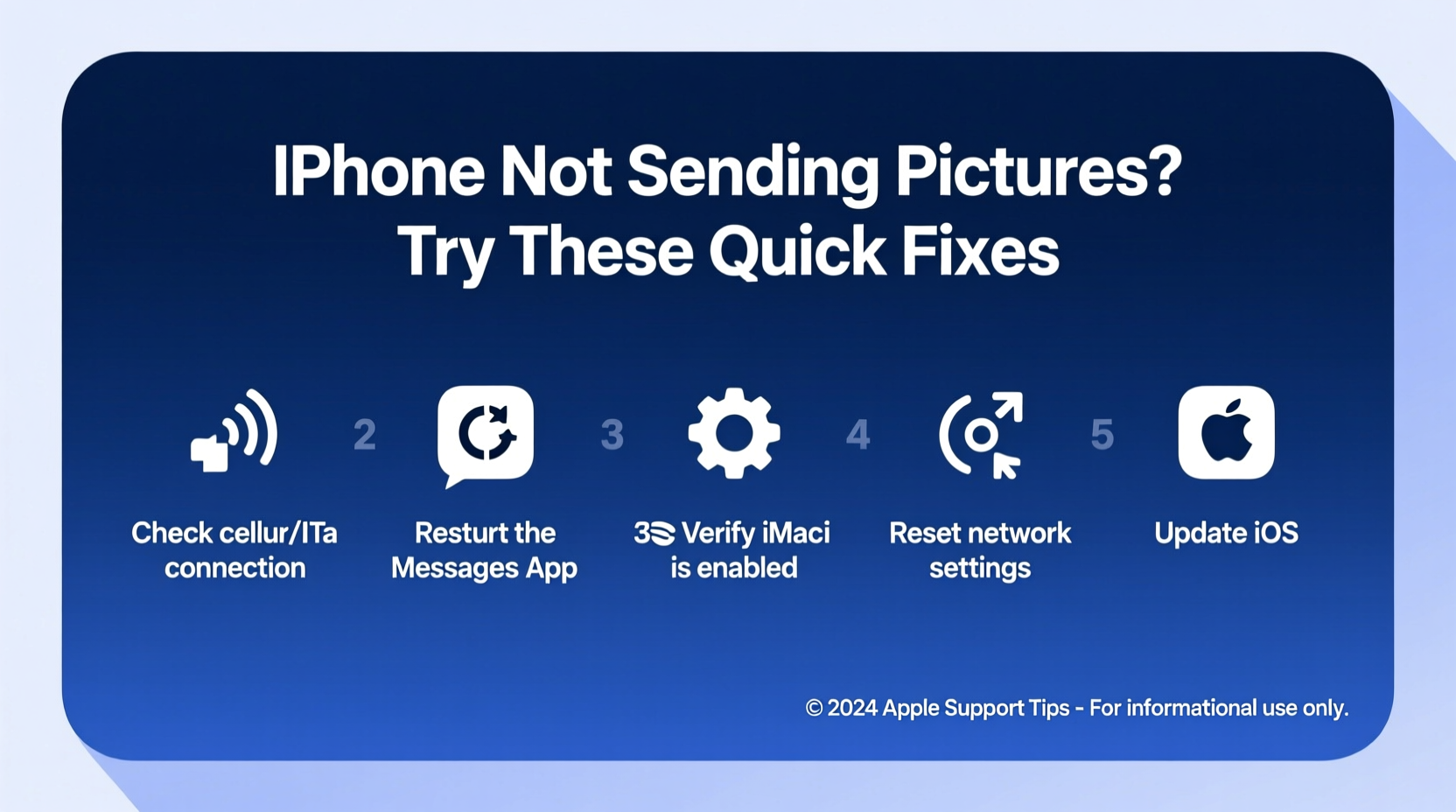
The inability to send pictures from an iPhone usually stems from one of several key areas: connectivity issues, incorrect settings, carrier limitations, software bugs, or account problems. Unlike older phones, iPhones rely heavily on data connections—either Wi-Fi or cellular—to transmit media. When any part of that chain fails, picture messages fail to go through.
iMessage uses Apple’s internet-based messaging system, which requires either Wi-Fi or cellular data. If iMessage is disabled or malfunctioning, your phone may fall back to MMS (Multimedia Messaging Service), which depends on your carrier's network and SMS/MMS settings. If both systems are misconfigured, no images will send.
Common Causes at a Glance
- Disabled MMS or iMessage settings
- Poor or no internet connection (Wi-Fi or cellular)
- Outdated iOS version
- Carrier settings not updated
- Insufficient storage space
- Restricted message size limits
- Incorrect date and time settings
Step-by-Step Troubleshooting Guide
Follow this logical sequence to identify and fix the root cause efficiently. Start with the simplest checks before moving to more advanced solutions.
- Check Internet Connection: Ensure Wi-Fi or cellular data is active. Try loading a webpage to confirm connectivity.
- Verify Message Settings: Go to Settings > Messages and confirm that both iMessage and MMS Messaging are enabled.
- Restart Your iPhone: A soft reboot clears temporary glitches. Press and hold the side button and volume down until the slider appears, then slide to power off. Turn it back on after 30 seconds.
- Update Carrier Settings: Under Settings > General > About, if a carrier update is available, a prompt will appear.
- Check Storage Space: Full storage can prevent message attachments. Go to Settings > General > iPhone Storage to review available space.
- Reset Network Settings: This refreshes Wi-Fi, Bluetooth, and cellular configurations. Found under Settings > General > Transfer or Reset iPhone > Reset > Reset Network Settings.
- Update iOS: Install the latest iOS version via Settings > General > Software Update.
When iMessage Isn’t Working Properly
iMessage must be activated with your Apple ID and phone number. If it shows as \"Not Delivered\" or remains blue (indicating iMessage) but doesn’t send, verify your sign-in status.
Navigate to Settings > Messages > Send & Receive. Ensure your phone number and Apple ID are selected under “You can be reached by iMessage at.” If your number isn’t listed, sign out of iMessage and sign back in.
“Over 70% of photo sending failures stem from misconfigured message settings or outdated carrier profiles. Most users fix it within minutes once they know where to look.” — Jordan Lee, Mobile Support Specialist at Apple Authorized Service Center
Do’s and Don’ts When Fixing Picture Messaging
| Action | Do | Don't |
|---|---|---|
| Enabling MMS | Turn on MMS Messaging in Settings > Messages | Assume MMS works automatically—many carriers disable it by default |
| Using Data | Ensure cellular data is enabled for Messages | Try sending large photos over slow or unstable networks |
| Updating Software | Install iOS updates promptly | Ignore update notifications—they often contain critical fixes |
| Storage Management | Delete unused apps or photos to free up space | Send high-resolution images when storage is below 1GB |
Real-World Example: Sarah’s Photo Fail
Sarah was trying to send concert photos to her friend during an event. Despite multiple attempts, each picture failed with a red exclamation mark. She checked her Wi-Fi—strong signal. Restarted her phone—no change. Then she remembered reading about MMS settings.
She opened Settings > Messages and noticed “MMS Messaging” was turned off. After toggling it on, she successfully sent the photos within seconds. The issue wasn’t her network or phone—it was simply a disabled feature. This is a common oversight, especially after switching carriers or restoring from backup.
Troubleshooting Checklist
Use this checklist to quickly diagnose and resolve the issue:
- ✅ Is Wi-Fi or cellular data connected and working?
- ✅ Are Airplane Mode and Do Not Disturb turned off?
- ✅ Is iMessage enabled (Settings > Messages > iMessage)?
- ✅ Is MMS Messaging turned on?
- ✅ Can you send a text-only message?
- ✅ Is your phone number verified under Send & Receive?
- ✅ Is there enough storage space?
- ✅ Are carrier settings up to date?
- ✅ Have you tried restarting the device?
- ✅ Is iOS updated to the latest version?
Frequently Asked Questions
Why do my picture messages fail while texts go through?
Text messages (SMS) use minimal data and work even on weak signals. Picture messages require more bandwidth and depend on either iMessage (data/Wi-Fi) or MMS (cellular data). If MMS is disabled or data is restricted, photos won’t send even if texts do.
What does a red exclamation mark mean in Messages?
A red exclamation mark indicates the message failed to send. Tap it and choose “Try Again.” If it persists, check your connection, storage, and message settings. You can also try sending the photo via another app like Mail or AirDrop to isolate the issue.
Can I send pictures without cellular data?
Yes—if you’re connected to Wi-Fi. iMessage and MMS both support Wi-Fi for sending photos. However, some carriers limit MMS over Wi-Fi, so iMessage is more reliable in such cases. Ensure iMessage is enabled and your recipient also uses an Apple device for best results.
Final Tips for Reliable Picture Sharing
Prevention is better than repair. To avoid future hiccups with sending pictures, adopt these habits:
- Regularly update your iPhone’s software and carrier settings.
- Monitor storage space and offload old photos to iCloud or a computer.
- Double-check message settings after switching SIM cards or restoring backups.
- Use iMessage when possible—it’s more stable and supports larger attachments.
- Compress large photos before sending if network conditions are poor.
Most importantly, don’t assume the worst when a photo fails to send. In nearly every case, the solution lies in a setting few users routinely check. With the right knowledge, you can restore full functionality in under five minutes.




 浙公网安备
33010002000092号
浙公网安备
33010002000092号 浙B2-20120091-4
Comments
No comments yet. Why don't you start the discussion?