
Keeping your iPhone updated is essential for security, performance, and access to new features. But when an update fails to install—whether it’s stuck downloading, won’t verify, or crashes during installation—it can be frustrating. The good news is that most iOS update problems are fixable with the right approach. This guide walks through practical, tested solutions to resolve common update issues across all iPhone models.
Common Reasons Why iPhones Fail to Update
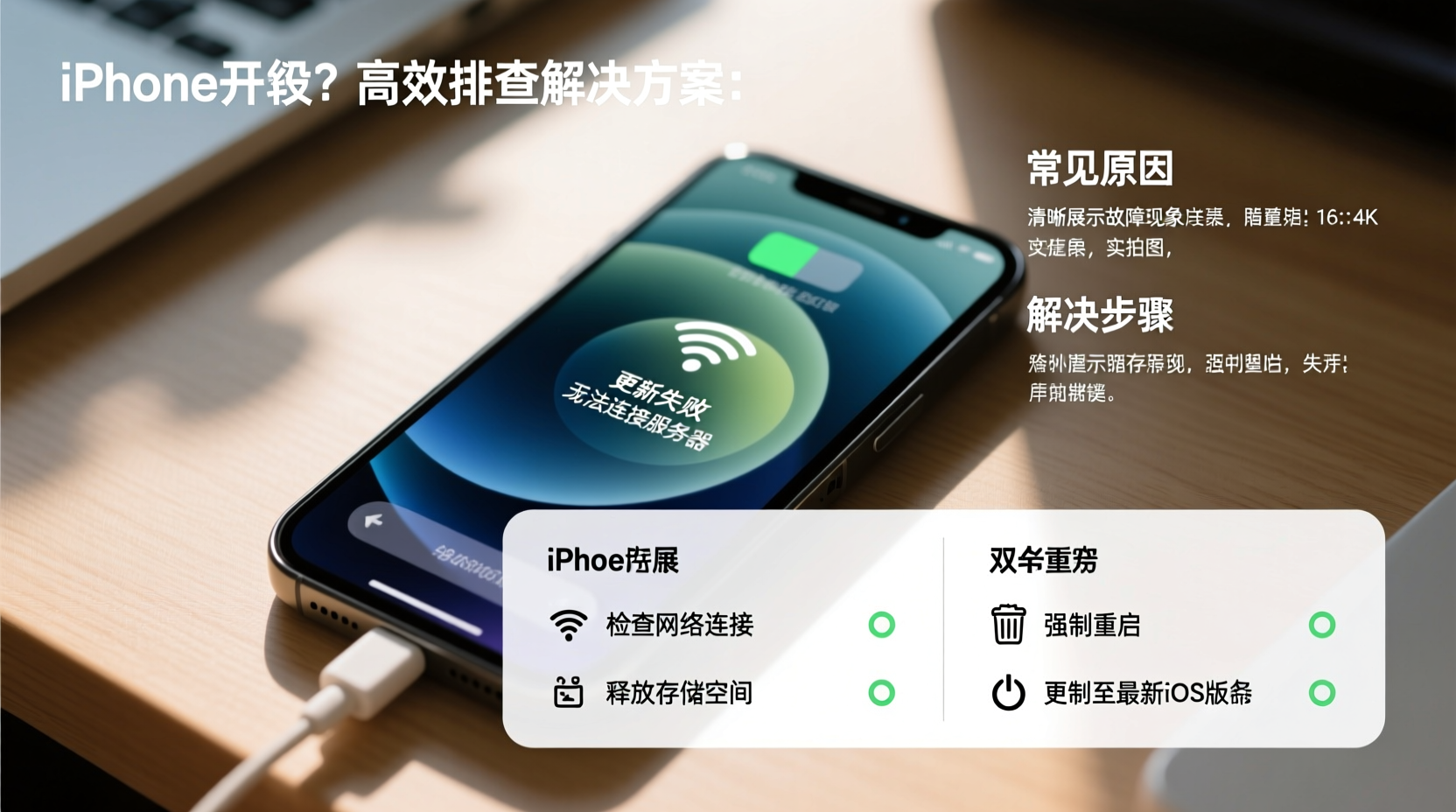
iOS updates can fail for a variety of reasons, ranging from minor glitches to deeper system conflicts. Understanding the root cause helps you apply the correct fix quickly.
- Insufficient storage: iOS updates require several gigabytes of free space. If your device is nearly full, the update cannot proceed.
- Poor internet connection: A weak or unstable Wi-Fi signal can interrupt download or verification processes.
- Battery or power issues: iPhones may block updates if the battery is below 50% or not connected to power.
- Software bugs: Occasionally, iOS itself contains bugs that interfere with the update process.
- Server congestion: Apple’s servers can become overloaded during major release days, delaying downloads.
Step-by-Step Troubleshooting Guide
Follow this structured sequence of solutions, starting with the simplest and progressing to more advanced fixes.
- Check Wi-Fi Connection
Ensure your iPhone is connected to a stable Wi-Fi network. Open Safari and load a webpage to confirm connectivity. If possible, restart your router or switch networks. - Verify Battery Level
Plug your iPhone into a charger. iOS requires at least 50% battery or a direct power source to begin an update. Use the original Apple charger for best results. - Free Up Storage Space
Go to Settings > General > iPhone Storage. Delete unused apps, old photos, or videos. Aim for at least 5–8 GB of free space. Offload large media files to iCloud or a computer. - Restart Your iPhone
A simple reboot clears temporary glitches. Press and hold the side button and either volume button until the power slider appears. Slide to power off, wait 30 seconds, then turn it back on. - Remove and Re-download the Update
Go to Settings > General > Software Update. Tap the “i” icon next to the pending update and select Remove Update. Then re-check for updates and download again.
Advanced Fixes When Basic Steps Fail
If the update still won’t install, try these deeper interventions.
Use iTunes (or Finder) to Update
Updating via computer often bypasses mobile network and storage limitations.
- Connect your iPhone to a Mac or PC using a USB cable.
- Open Finder (macOS Catalina and later) or iTunes (older systems).
- Select your device when it appears.
- Click Check for Update.
- Follow the prompts to download and install the latest iOS version.
This method uses your computer’s storage and internet connection, reducing strain on the iPhone.
Reset Network Settings
Corrupted network configurations can block update downloads.
Navigate to Settings > General > Transfer or Reset iPhone > Reset > Reset Network Settings. You’ll need to re-enter Wi-Fi passwords afterward, but this often resolves connectivity-related update failures.
Put iPhone in Recovery Mode
As a last resort, recovery mode forces a complete OS reinstall.
- Connect your iPhone to a computer and open Finder/iTunes.
- Quickly press and release Volume Up, then Volume Down, then press and hold the Side button until the recovery mode screen appears.
- When prompted, choose Update (not Restore) to reinstall iOS without erasing data.
Note: An “Update” option may not always succeed. If it fails, you may need to restore, which wipes the device. Ensure you have a backup first.
| Solution | Difficulty | Data Risk | Best For |
|---|---|---|---|
| Restart Device | Easy | None | Minor glitches |
| Free Up Storage | Easy | Low (if deleting files) | “Not Enough Space” errors |
| Computer Update | Moderate | Very Low | Failed downloads or verification |
| Recovery Mode | Advanced | High (if restoring) | Stuck on Apple logo or boot loops |
“Over 70% of iOS update issues stem from connectivity or storage constraints—not hardware failure. Most users can resolve them at home.” — David Lin, Senior Apple Support Technician
Real-World Example: Fixing a Stuck iOS 17 Update
Sarah, an iPhone 13 user, tried installing iOS 17 the day it launched. Her phone downloaded the update but got stuck on “Verifying Update” for over two hours. She tried restarting multiple times, but the issue persisted.
After checking her storage, she found only 2 GB free—insufficient for the update. She deleted several video files and cleared her message attachments, freeing up 7 GB. She then removed the partial update via Settings and restarted her phone.
Upon rechecking for updates, the download began fresh and installed successfully within 15 minutes. The key was combining storage management with a clean restart and update re-download.
Troubleshooting Checklist
- ✅ Back up your iPhone (iCloud or computer)
- ✅ Connect to a strong Wi-Fi network
- ✅ Charge to at least 50% or plug in
- ✅ Free up 6+ GB of storage
- ✅ Restart your iPhone
- ✅ Remove and re-download the update
- ✅ Try updating via computer (Finder/iTunes)
- ✅ Reset network settings if connection is spotty
- ✅ Use recovery mode as a final step
Frequently Asked Questions
Why does my iPhone say \"Preparing Update\" forever?
This message appears while your iPhone configures the update file. If it lasts more than an hour, the process may be stuck. Try restarting the device. If the issue continues, delete the update and re-download it.
Can I update my iPhone without Wi-Fi?
No. iOS updates must be downloaded over Wi-Fi due to their large size. Using cellular data is not supported and could incur high charges.
Will updating erase my photos and messages?
A standard over-the-air or computer-based update preserves all data. However, if you restore via recovery mode, everything will be erased unless you have a backup. Always back up before troubleshooting deeply.
Final Thoughts and Next Steps
An iPhone that won’t update doesn’t mean the device is broken. In most cases, the solution lies in managing storage, improving connectivity, or using a computer-assisted update. By following the steps outlined here—from basic resets to recovery mode—you regain control over your device’s software health.
Regular updates protect your privacy, improve app compatibility, and enhance performance. Don’t delay critical patches out of fear of complications. With the right preparation and knowledge, updating your iPhone should be routine and reliable.




 浙公网安备
33010002000092号
浙公网安备
33010002000092号 浙B2-20120091-4
Comments
No comments yet. Why don't you start the discussion?