
If you've ever struggled to stream a video, join a Zoom call, or even load a webpage in a specific part of your house, you're not alone. Many homeowners experience frustrating Wi-Fi dead zones—especially in basements, bedrooms, or distant corners. The issue isn't always faulty equipment; more often, it's about signal interference, router placement, or structural obstacles. Understanding the root causes and applying practical solutions can dramatically improve your connectivity without costly upgrades.
Common Causes of Weak Wi-Fi in One Room
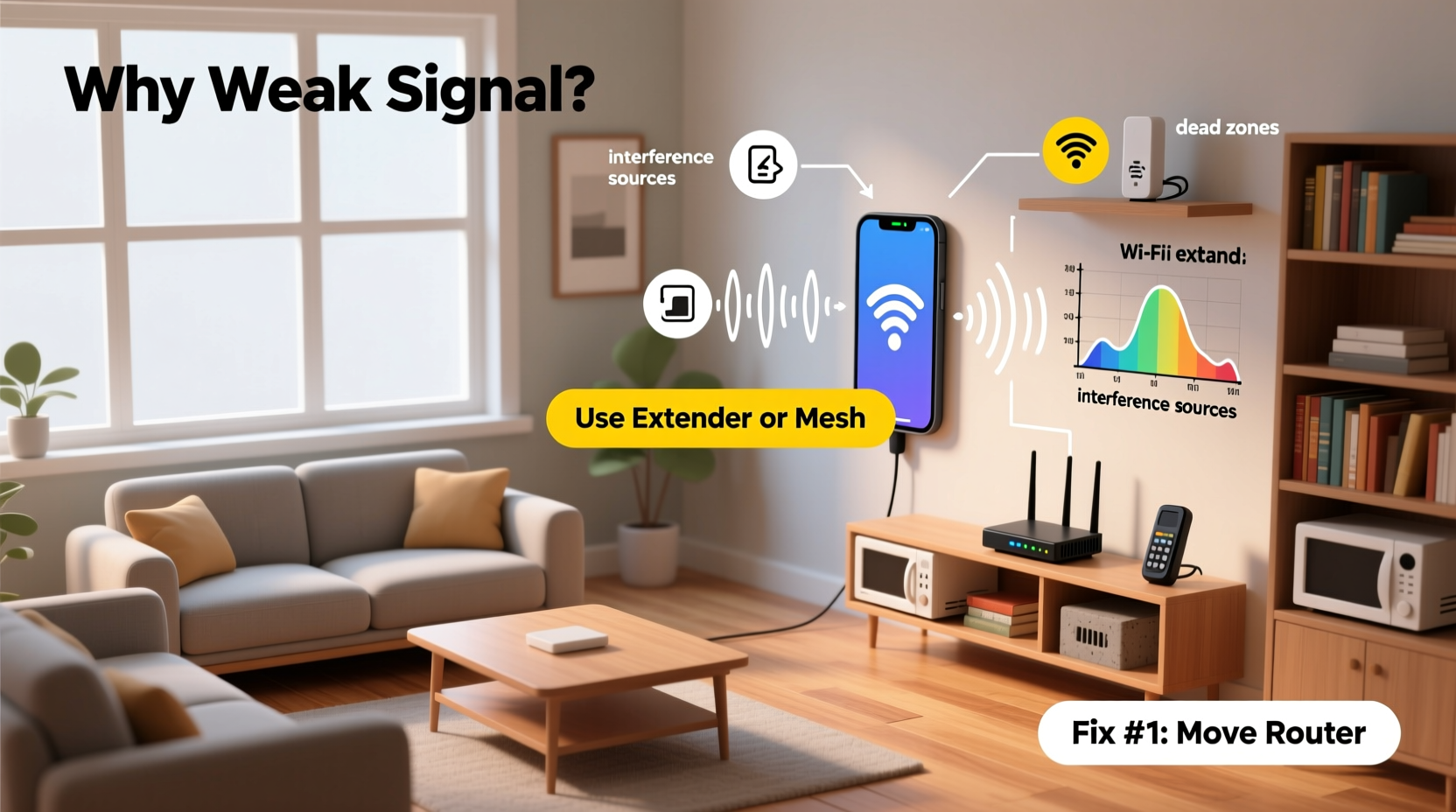
Wi-Fi signals are radio waves, much like those used by radios or cell phones. They travel from your router through the air but can be weakened or blocked by various factors. Identifying what’s interfering with your signal is the first step toward fixing it.
- Physical barriers: Thick walls, especially those made of concrete, brick, or metal lath, absorb or reflect Wi-Fi signals. Floors and ceilings between levels also degrade signal strength.
- Distance from the router: The farther you are from your router, the weaker the signal becomes. This is particularly noticeable in large homes or multi-story buildings.
- Electronic interference: Devices like cordless phones, microwaves, baby monitors, and Bluetooth gadgets operate on the same 2.4 GHz frequency band as many routers, causing signal congestion.
- Router age and capability: Older routers may only support outdated standards (like 802.11b/g/n) and lack modern features such as beamforming or dual-band transmission.
- Building materials: Mirrors, metal filing cabinets, water pipes, and even large aquariums can scatter or block signals due to their reflective or conductive properties.
Step-by-Step Guide to Diagnose and Fix Weak Signal Issues
Before investing in new hardware, follow this logical sequence to troubleshoot and resolve poor Wi-Fi in a specific room.
- Map Your Current Coverage
Walk through your home with a smartphone or laptop, measuring download/upload speeds and signal strength in each area. Note where connectivity fails. - Check Router Placement
Ensure your router is centrally located, elevated off the floor, and away from obstructions like bookshelves or appliances. - Restart Your Equipment
Power cycle your modem and router. Unplug both for 30 seconds, then plug them back in. This clears temporary glitches. - Update Firmware
Log into your router’s admin interface (usually via 192.168.1.1 or similar) and check for firmware updates that could improve stability and range. - Switch Wi-Fi Bands
If your router supports dual-band (2.4 GHz and 5 GHz), connect devices in the weak-signal room to the 2.4 GHz band. It travels farther and penetrates walls better than 5 GHz, though it’s slower. - Change Wi-Fi Channel
In crowded neighborhoods, multiple networks on the same channel cause interference. Use a tool like WiFi Analyzer (Android) to find the least congested channel and adjust settings accordingly.
Practical Fixes to Boost Wi-Fi in Problem Rooms
Once you’ve diagnosed the issue, apply targeted solutions based on your home layout and usage needs.
Reposition the Router Strategically
The location of your router has a greater impact than most people realize. Even small adjustments can yield noticeable improvements.
- Avoid placing the router in closets, basements, or behind TVs and entertainment centers.
- Elevate it—ideally on a shelf near the center of your home.
- Position external antennas vertically for optimal horizontal signal spread.
Use a Wi-Fi Extender or Mesh System
For persistent dead zones, consider expanding your network intelligently.
| Solution | Best For | Pros | Cons |
|---|---|---|---|
| Wi-Fi Range Extender | Single-room coverage gaps | Affordable, easy setup | Can halve bandwidth; may create separate network names |
| Mesh Wi-Fi System | Whole-home coverage, multi-floor homes | Seamless roaming, unified network name, self-healing | Higher upfront cost |
| Powerline Adapter with Wi-Fi | Homes with stable electrical wiring | Uses existing outlets; good for basements | Performance varies with circuit quality |
Optimize Network Settings
Beyond hardware, software tweaks can enhance performance:
- Enable Quality of Service (QoS) settings to prioritize streaming or video calls in the affected room.
- Assign static IP addresses to critical devices to reduce latency.
- Disable unused services like guest networks or remote management if they consume resources.
Real-World Example: Solving a Basement Connectivity Issue
Consider Sarah, who lives in a two-story suburban home. Her office is in the basement, where her laptop frequently disconnects during virtual meetings. Despite having high-speed internet, her Wi-Fi was unusable downstairs.
She began by testing signal strength and found that the 5 GHz network didn’t reach the basement at all, while the 2.4 GHz signal was borderline. Her router was tucked behind her TV on the main floor, surrounded by electronics.
She moved the router to a central hallway shelf, updated its firmware, and switched her basement devices to the 2.4 GHz band. When that wasn’t enough, she added a mesh node on the ground floor staircase landing. Within days, her basement had full-speed connectivity, and video calls became stable.
This case illustrates how combining simple repositioning with incremental upgrades can solve real-world problems without replacing service plans or infrastructure.
Expert Insight: What Professionals Recommend
Network engineers emphasize prevention and planning over reactive fixes. Their advice focuses on long-term reliability rather than quick patches.
“Most Wi-Fi issues stem from poor initial setup. Position matters more than price. A $300 router in a closet will underperform a $100 router placed openly in the center of your home.” — Marcus Tran, Senior Network Engineer at HomeNet Labs
“Don’t assume more power equals better coverage. Directional control, band steering, and interference avoidance are far more important than raw transmit strength.” — Dr. Lena Patel, Wireless Communications Researcher
Quick Checklist: How to Improve Room-Specific Wi-Fi
Follow this concise action plan to address weak signals efficiently:
- ✅ Test current speeds in the weak-signal room using a reliable app.
- ✅ Relocate the router to a central, elevated, unobstructed position.
- ✅ Switch to the 2.4 GHz band for better wall penetration.
- ✅ Change your Wi-Fi channel to avoid neighbor network overlap.
- ✅ Update router firmware to ensure peak performance.
- ✅ Install a mesh node or extender if needed.
- ✅ Consider wired Ethernet for stationary devices (e.g., desktops, smart TVs).
Frequently Asked Questions
Can thick walls really block Wi-Fi?
Yes. Materials like concrete, brick, plaster with metal lath, and insulated drywall significantly attenuate Wi-Fi signals. Each wall can reduce signal strength by up to 50%, especially at higher frequencies like 5 GHz.
Is a Wi-Fi extender as good as a mesh system?
Not quite. While extenders are cheaper and simpler, they often reduce throughput because they rebroadcast the same signal. Mesh systems use dedicated backhaul channels and provide seamless roaming, making them more reliable for whole-home coverage.
Should I use both 2.4 GHz and 5 GHz networks?
Yes, strategically. Use 5 GHz for high-bandwidth activities (gaming, 4K streaming) in close proximity to the router. Reserve 2.4 GHz for devices far from the router or those requiring broader coverage, like smart home sensors or older gadgets.
Final Thoughts: Take Control of Your Home Network
Weak Wi-Fi in one room doesn’t have to be a permanent annoyance. Often, the solution lies not in spending more money, but in understanding how wireless signals behave and adjusting your environment accordingly. From optimizing router placement to leveraging modern networking tools like mesh systems, you have multiple options—many of which require minimal effort or expense.
Start with the basics: test your signal, reposition your router, and eliminate interference. If those don’t suffice, gradually introduce extenders or mesh nodes tailored to your space. With a methodical approach, every room in your home can enjoy reliable, high-speed internet.




 浙公网安备
33010002000092号
浙公网安备
33010002000092号 浙B2-20120091-4
Comments
No comments yet. Why don't you start the discussion?