
Losing important notes on your iPhone can be frustrating—especially if they contain meeting summaries, personal reminders, or critical to-do lists. The good news is that Apple builds multiple layers of redundancy into its ecosystem, making recovery possible in most cases. Whether your notes vanished after an update, were accidentally deleted, or seem to have disappeared due to sync issues, this guide walks you through reliable methods to locate and restore them.
Check the “Recently Deleted” Folder First
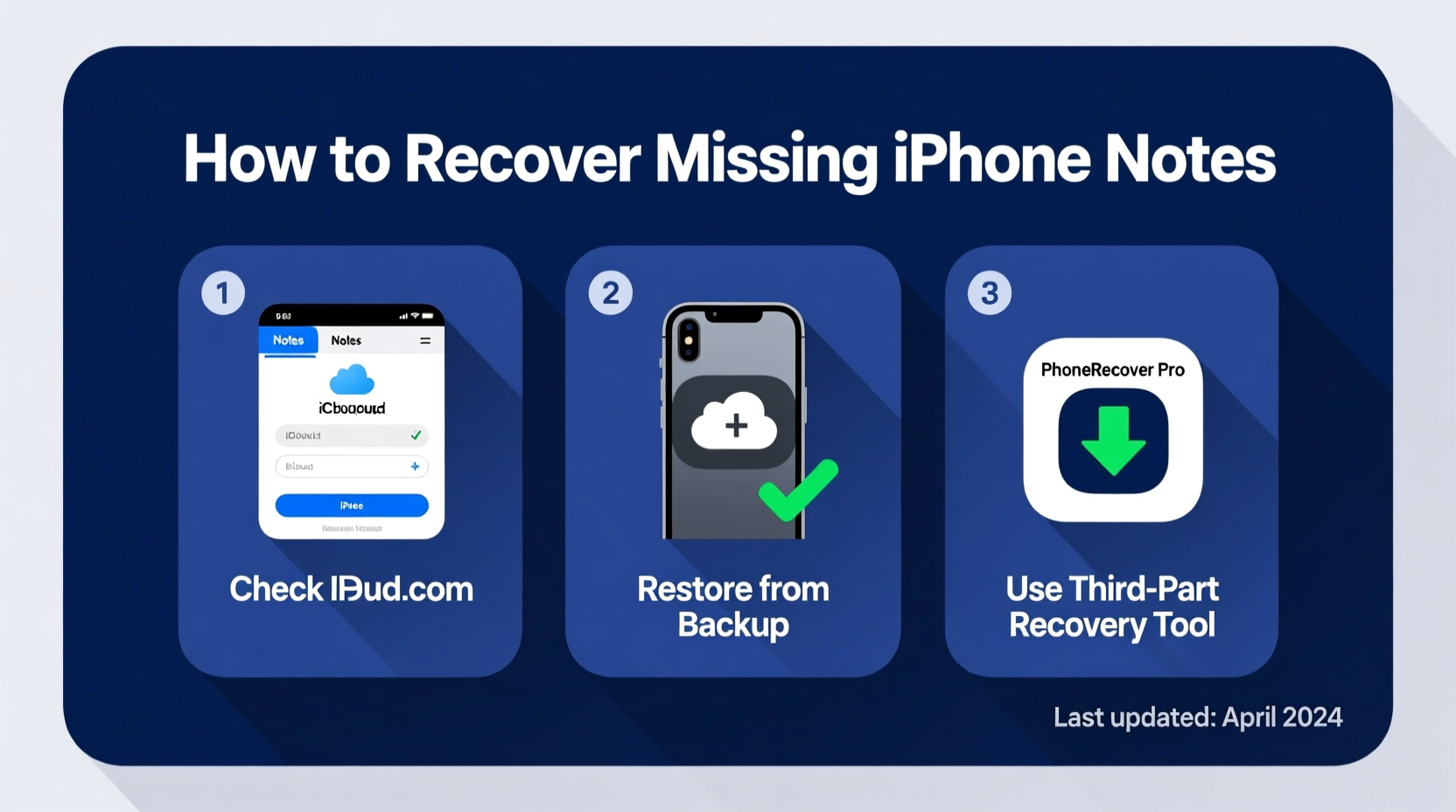
Apple’s Notes app includes a safety net: the Recently Deleted folder. When you delete a note, it isn’t permanently erased immediately. Instead, it remains in this folder for 30 days, giving you time to recover it.
- Open the Notes app on your iPhone.
- Tap Folders at the bottom left.
- Scroll down and select Recently Deleted.
- Locate the missing note(s) by date or content preview.
- Tap Select, choose the note(s), then tap Move to restore them to your main inbox or another folder.
Verify iCloud Sync Settings
Many note disappearances are caused by syncing misconfigurations rather than actual data loss. If iCloud syncing is turned off or malfunctioning, your notes may only exist locally and could vanish during updates or device changes.
To confirm iCloud sync is active:
- Go to Settings > [Your Name] > iCloud.
- Ensure Notes is toggled on.
- If it was off, turn it on and wait a few minutes for syncing to complete.
- Open the Notes app and check if your missing notes reappear.
If you use multiple devices (iPad, Mac), verify that all are signed into the same Apple ID and have Notes syncing enabled. Inconsistent settings across devices often lead to confusion about where notes are stored.
“Over 60% of ‘missing’ notes cases stem from iCloud sync being disabled or delayed. Always rule out configuration issues before assuming data loss.” — Jordan Lee, iOS Support Specialist at AppleCare
Recover from an iCloud Backup
If your notes were synced to iCloud but still aren’t visible, and they’re not in Recently Deleted, restoring from a backup might be necessary. This method works best if you’ve recently backed up your iPhone via iCloud.
Step-by-Step: Restore Notes via iCloud Backup
- Back up your current data to avoid overwriting new information.
- Go to Settings > [Your Name] > iCloud > iCloud Backup.
- Note the date and time of your latest backup.
- If that backup predates the note loss, proceed with restoration.
- Go to Settings > General > Transfer or Reset iPhone > Erase All Content and Settings.
- After the reset, follow setup prompts until you reach the “Apps & Data” screen.
- Select Restore from iCloud Backup and sign in.
- Choose the backup taken before the notes went missing.
- Wait for the restore to complete—this may take several minutes to hours depending on size.
Once restored, open the Notes app and verify whether your missing notes have returned.
Use iTunes or Finder to Recover from a Computer Backup
If you regularly back up your iPhone to a computer using iTunes (Windows) or Finder (Mac), you can extract notes without erasing your entire phone by using third-party tools. While Apple doesn’t allow partial restores natively, software like iMazing, AnyTrans, or PhoneRescue lets you browse and export notes from backups safely.
Recommended Workflow Using iMazing (Example)
- Download and install iMazing on your computer.
- Connect your iPhone via USB and trust the computer.
- In iMazing, select your device and click Notes.
- Browse through backups and locate one containing your missing notes.
- Select the note(s) and click Copy to PC or Export as Text/HTML.
- Save the file and optionally import it back into your iPhone’s Notes app.
This approach preserves your current device data while recovering only what you need.
| Recovery Method | Success Rate | Data Risk | Time Required |
|---|---|---|---|
| Recently Deleted Folder | High | None | 5–10 minutes |
| iCloud Sync Check | Medium-High | Low | 5 minutes |
| iCloud Full Restore | High | High (erases current data) | 30+ minutes |
| Computer Backup Extraction | High | Low (with proper tools) | 20–40 minutes |
Mini Case Study: Recovering Academic Notes After iOS Update
Sophia, a university student, updated her iPhone to iOS 17 and noticed her semester-long research notes were gone. Panicked, she assumed the update had wiped them. She first checked Recently Deleted—nothing. Then, she realized she hadn’t checked iCloud settings in months.
Upon reviewing her iCloud settings, she discovered that Notes syncing was turned off. She re-enabled it, waited five minutes, and her notes reappeared across her iPhone, iPad, and Mac. The issue wasn’t data loss—it was a sync interruption during the update process.
Sophia now checks her iCloud settings monthly and keeps automatic backups enabled. Her experience highlights how easily syncing issues can mimic data loss.
Prevention Checklist: Avoid Losing Notes in the Future
Recovering lost notes is possible, but preventing loss is far better. Follow this checklist to protect your data:
- ✅ Enable iCloud Notes syncing across all Apple devices.
- ✅ Regularly back up your iPhone to iCloud or computer.
- ✅ Review Recently Deleted weekly and clear only when confident.
- ✅ Use strong passwords and two-factor authentication to secure your Apple ID.
- ✅ Before major iOS updates, ensure a recent backup exists.
- ✅ Store critical notes in multiple formats (e.g., export as PDF or email to self).
FAQ
Can I recover notes if I never used iCloud?
Yes, but only if you have a local backup via iTunes or Finder. Without any backup, recovery is unlikely unless the note still exists in Recently Deleted (within 30 days).
Why do my notes appear on one device but not another?
This usually indicates inconsistent iCloud sync settings. Ensure all devices are logged into the same Apple ID and have Notes syncing enabled under iCloud settings.
Are deleted notes stored anywhere else besides Recently Deleted?
No—not within the native Notes app. However, if you forwarded a note via email or shared it externally, those copies may still exist. Also, backups (iCloud or computer) may retain older versions.
Conclusion
Missing iPhone notes don’t have to mean permanent loss. By systematically checking Recently Deleted, verifying iCloud sync, and leveraging backups, most users can recover their data successfully. The key is acting quickly and understanding how Apple’s ecosystem handles note storage and synchronization.




 浙公网安备
33010002000092号
浙公网安备
33010002000092号 浙B2-20120091-4
Comments
No comments yet. Why don't you start the discussion?