
Printing from an iPhone should be simple—tap a document, select print, and it comes out. But when it doesn’t work, the frustration is real. Whether you’re trying to print boarding passes, school assignments, or work reports, a failed print job can disrupt your day. The good news: most iPhone printing problems are fixable with the right approach. This guide breaks down the common causes of printing failures and provides clear, step-by-step solutions so you can get back to seamless wireless printing.
Why Printing Fails: Common Causes
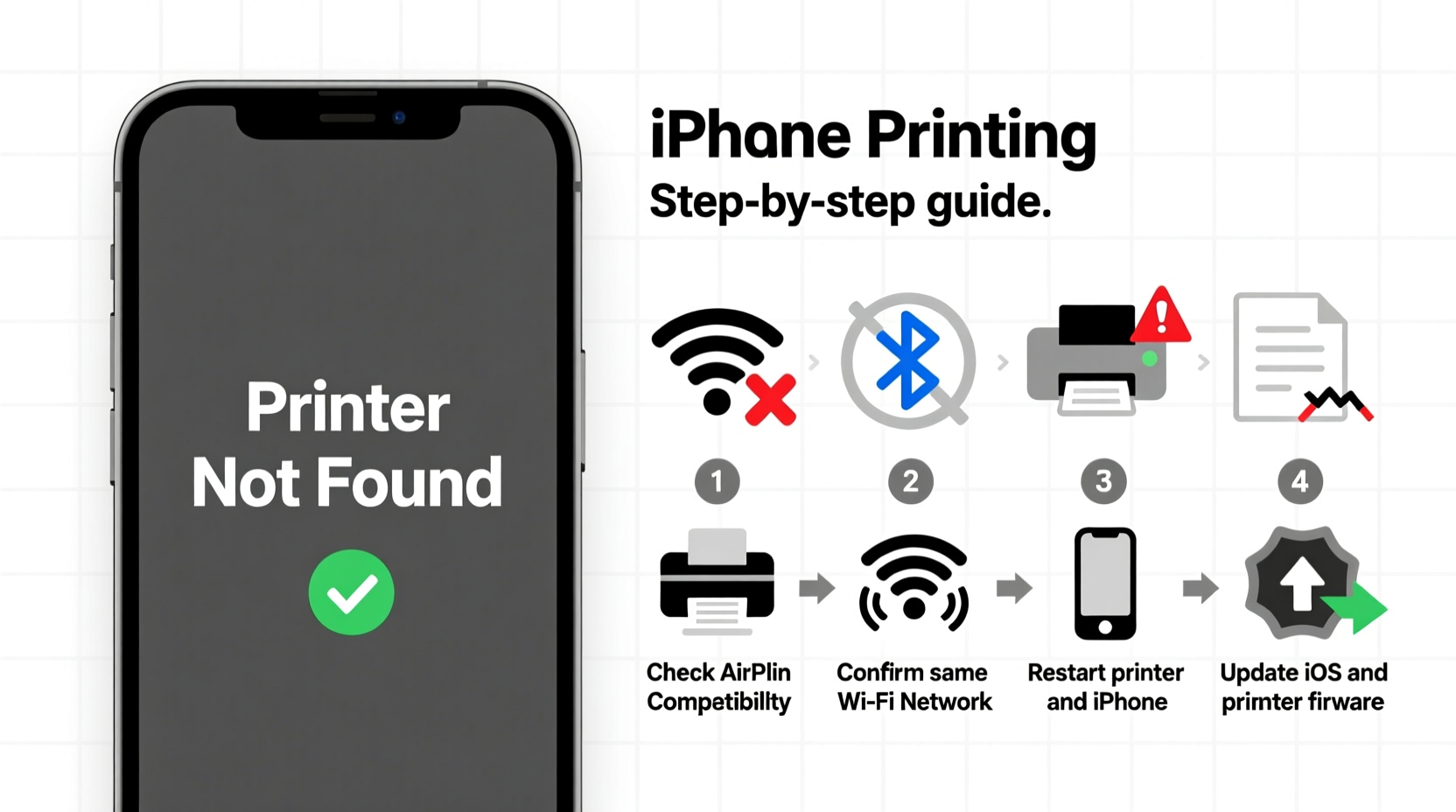
iOS uses Apple’s AirPrint technology to enable wireless printing, which relies on a stable network connection, compatible hardware, and correct settings. When any part of this chain fails, printing stops. The most frequent culprits include:
- Printer not connected to the same Wi-Fi network as the iPhone
- Outdated printer firmware or iOS version
- AirPrint compatibility issues
- Weak or unstable Wi-Fi signal
- Printer in sleep mode or offline
- Firewall or router restrictions blocking AirPrint
Before diving into complex fixes, eliminate the basics. Many users spend time troubleshooting software when the issue is simply that the printer is off or disconnected.
Step-by-Step Troubleshooting Guide
Follow this logical sequence to isolate and resolve the root cause of your printing problem.
- Check Wi-Fi Connection: Confirm both devices are on the same network. Open Settings > Wi-Fi on your iPhone and verify the network name matches the one your printer uses.
- Restart Devices: Reboot your iPhone, printer, and router. A quick restart resolves many temporary glitches.
- Verify Printer Status: On the printer’s display (if available), check if it shows “Ready” or “Online.” If it’s in sleep mode, wake it manually.
- Test AirPrint Discovery: Open any app (e.g., Notes or Mail), tap Share > Print. If no printers appear, AirPrint isn’t detecting your device.
- Update Software: Ensure your iPhone runs the latest iOS version (Settings > General > Software Update) and your printer has the latest firmware—check the manufacturer’s website.
- Re-add the Printer: Remove the printer from your network and reconfigure it through its setup process.
If the printer still doesn’t appear, move to advanced diagnostics.
Network-Level Fixes
Wi-Fi configuration plays a critical role in AirPrint functionality. Some routers split networks into 2.4 GHz and 5 GHz bands. While iPhones connect to both, some older printers only support 2.4 GHz. If your network uses band steering, it may cause discovery issues.
To fix this:
- Log into your router settings and disable band steering temporarily.
- Assign the printer to the 2.4 GHz network explicitly.
- Ensure multicast DNS (mDNS) is enabled—this allows AirPrint to discover devices on the network.
“AirPrint relies heavily on mDNS and Bonjour protocols. If your router blocks these, printing will fail—even if everything else seems correct.” — David Lin, Network Infrastructure Engineer
Compatibility and Printer Support
Not all printers support AirPrint. While most modern models do, older or budget printers may require third-party apps or cloud printing services like Google Cloud Print (now discontinued) or manufacturer-specific tools (e.g., HP Smart, Epson iPrint).
If your printer lacks native AirPrint support, consider:
- Using a computer as a bridge: Share the printer via macOS or Windows and print through it.
- Installing the manufacturer’s iOS app, which often includes mobile printing features.
- Investing in an AirPrint-compatible model—most major brands now offer them.
| Printer Brand | Native AirPrint? | Recommended App (if needed) |
|---|---|---|
| HP | Yes (most models) | HP Smart |
| Epson | Select models | Epson iPrint |
| Canon | Yes (PIXMA series) | Cannon PRINT Inkjet/SELPHY |
| Brother | Limited support | Brother iPrint&Scan |
| Lexmark | Varies by model | Lexmark Mobile Print |
Real-World Example: Sarah’s Home Office Issue
Sarah, a freelance graphic designer, couldn’t print client contracts from her iPhone 14. She’d used the same HP Envy printer for months without issues. One morning, “No AirPrint Printers Found” appeared every time she tried to print.
She checked the basics: iPhone and printer were on the same Wi-Fi, both updated. Restarting didn’t help. Then she noticed her router had been reset during a power outage. After logging in, she found that the 5 GHz and 2.4 GHz networks were broadcasting under different names. Her printer was on the 2.4 GHz network, but her iPhone preferred the 5 GHz band.
Solution: She renamed both networks to the same SSID, enabling seamless roaming. Within minutes, her iPhone detected the printer again. The fix wasn’t about the devices—it was the network structure.
Essential Checklist: Fix iPhone Printing Fast
Use this checklist when your iPhone won’t print. Work through each item methodically.
- ✅ Both iPhone and printer on the same Wi-Fi network
- ✅ Printer powered on and not in sleep mode
- ✅ Wi-Fi signal strong near the printer
- ✅ iOS updated to the latest version
- ✅ Printer firmware up to date
- ✅ AirPrint supported by the printer model
- ✅ Router allows mDNS/Bonjour traffic
- ✅ No IP address conflicts or DHCP issues
- ✅ Tried printing from multiple apps (Mail, Notes, Safari)
- ✅ Restarted iPhone, printer, and router
Frequently Asked Questions
Can I print from iPhone without AirPrint?
Yes. Use manufacturer apps (like HP Smart or Canon PRINT), share via email to a computer, or use a USB-to-Lightning cable with a compatible printer and the appropriate app. Some third-party apps also enable non-AirPrint printing over Wi-Fi.
Why does my iPhone see the printer but nothing prints?
This often indicates a data transmission issue. Try clearing the print queue on the printer, restarting both devices, or printing a test page directly from the printer’s control panel. It could also be a file format issue—try printing a simple note instead of a complex PDF.
Does Bluetooth printing work with iPhone?
No. iOS does not support Bluetooth printing. All wireless printing must go through Wi-Fi using AirPrint or a manufacturer’s app with cloud-based processing.
Final Steps and When to Upgrade
If you’ve followed all steps and still can’t print, consider environmental factors: thick walls, interference from other electronics, or outdated router hardware. Older routers may not handle mDNS properly, breaking AirPrint discovery.
In persistent cases, upgrading to a newer AirPrint-compatible printer is often the fastest long-term solution. Modern printers are more reliable, energy-efficient, and easier to set up. Brands like HP, Epson, and Canon consistently deliver strong iOS integration.
“The biggest hurdle isn’t the iPhone—it’s outdated infrastructure. Most printing problems vanish when users upgrade their printer or router.” — Maria Tran, Mobile Tech Consultant
Take Action Today
Don’t let printing issues slow you down. Most problems stem from small oversights—a mismatched network, a sleeping printer, or a missed update. By following the steps in this guide, you can diagnose and resolve the issue quickly. Start with the checklist, test each fix, and restore seamless printing.




 浙公网安备
33010002000092号
浙公网安备
33010002000092号 浙B2-20120091-4
Comments
No comments yet. Why don't you start the discussion?