
When you send a message from your iPhone, you might notice that some text bubbles appear blue, while others are green. This isn't random—it reflects how your message was delivered. Blue messages use Apple’s iMessage system, while green ones fall back to traditional SMS/MMS via your carrier. Understanding this distinction helps clarify whether iMessage is working properly or if there's an underlying issue affecting delivery.
The confusion often peaks when users ask: “Is iMessage down?” after seeing only green texts. The reality is usually more personal than global—most of the time, the problem lies with settings, connectivity, or recipient compatibility, not a widespread outage. Let’s break down what these colors mean, why they change, and how to resolve common issues.
What Do Blue and Green Texts Mean on iPhone?
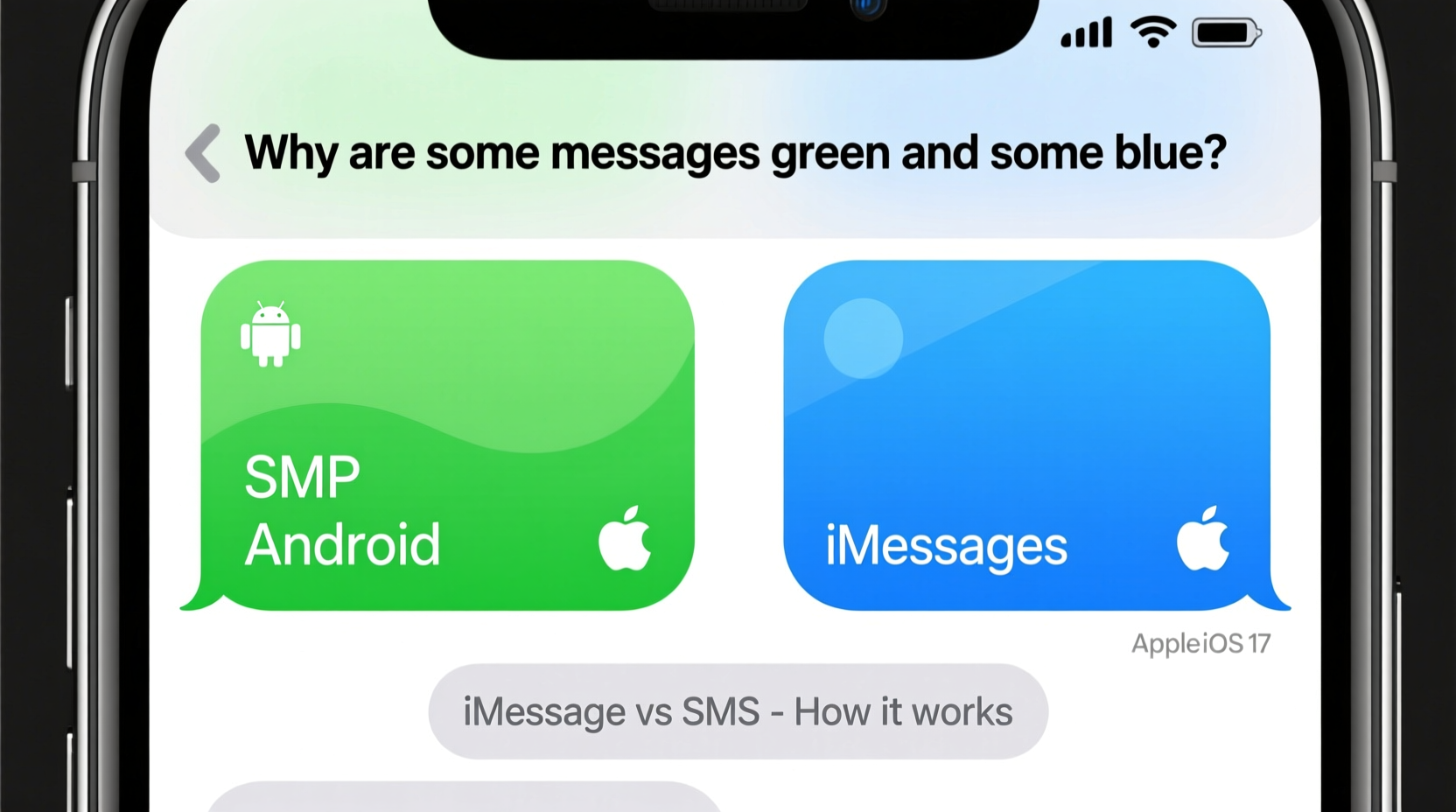
The color of your message bubble indicates the protocol used to send it:
- Blue Bubbles: These are iMessages—Apple’s encrypted, internet-based messaging service. They require Wi-Fi or cellular data and work only between Apple devices (iPhone, iPad, Mac).
- Green Bubbles: These are standard SMS (text) or MMS (multimedia) messages sent through your cellular provider. They work with any phone, including Android devices.
iMessage offers enhanced features like read receipts, typing indicators, high-quality photo sharing, and end-to-end encryption. SMS lacks these capabilities and may incur charges depending on your plan.
“iMessage transforms texting into a richer experience, but its reliance on internet connectivity means it’s not always available.” — Lisa Tran, Mobile Experience Analyst at TechPulse Insights
Common Reasons for Green Texts (And When iMessage Might Be 'Down')
Seeing green texts doesn’t automatically mean iMessage is down globally. More often, the cause is local. Here are the most frequent explanations:
- Recipient Uses a Non-Apple Device: If you're messaging someone with an Android, their device can't receive iMessages. Your iPhone defaults to SMS (green).
- iMessage Is Turned Off on Your Device: Check Settings > Messages to ensure iMessage is enabled.
- No Internet Connection: iMessage requires Wi-Fi or cellular data. Without it, your phone sends the message as SMS instead.
- Phone Number Not Registered with iMessage: Sometimes, after switching SIM cards or restoring a backup, your number fails to re-register with Apple’s servers.
- Do Not Disturb or Blocked Contact: While this won’t change bubble color directly, it can affect delivery and create confusion about message status.
Troubleshooting: Is iMessage Down or Just Not Working for You?
Before assuming a system-wide outage, verify your setup. Follow this step-by-step guide to diagnose and fix iMessage issues.
Step 1: Check Your Internet Connection
Ensure you’re connected to Wi-Fi or have strong cellular data. Open Safari or another app to confirm internet access. iMessage won’t function without it.
Step 2: Restart iMessage
Go to Settings > Messages and toggle iMessage off. Wait 30 seconds, then turn it back on. This forces your device to reconnect to Apple’s servers.
Step 3: Sign Out and Back Into Your Apple ID
Navigate to Settings > [Your Name] > iCloud, scroll down and sign out. Then sign back in. This refreshes your account sync, which can resolve iMessage registration glitches.
Step 4: Verify Your Phone Number and Email Are Enabled for iMessage
In Settings > Messages > Send & Receive, confirm that your phone number and Apple ID email are listed and selected. If your number shows as “waiting for activation,” wait a few minutes or restart your phone.
Step 5: Restart Your iPhone
A simple reboot clears temporary software hiccups. Hold the side button and either volume button until the power slider appears. Slide to power off, then restart.
Step 6: Check Apple’s System Status Page
Visit Apple’s Official System Status Page. Look for any red alerts next to iMessage. A green dot means the service is operational worldwide.
| Symptom | Possible Cause | Solution |
|---|---|---|
| All messages are green | iMessage disabled or no internet | Enable iMessage, check Wi-Fi/data |
| Only one contact’s messages are green | Contact uses Android or blocked you | Verify their device type or test with another Apple user |
| \"Sent as Text Message\" appears frequently | Weak signal or iMessage not syncing | Toggle iMessage, restart phone |
| iMessage stays gray during activation | Server delay or network issue | Wait 5–10 minutes; reset network settings if persistent |
Real-World Example: When iMessage Seems Down But Isn’t
Consider Sarah, a marketing professional who suddenly noticed all her messages turning green. She panicked, thinking iMessage was down globally, especially after seeing social media posts about outages. However, she followed a structured approach:
- First, she confirmed her Wi-Fi was working by browsing news sites.
- She checked Apple’s system status page—iMessage showed green.
- She toggled iMessage off and on, waited, and restarted her iPhone.
- After rebooting, her messages turned blue again.
The root cause? A minor sync error after her phone updated overnight. No outage—just a brief glitch resolved with basic troubleshooting.
Quick Checklist: Fix iMessage Issues Fast
- ✅ Confirm Wi-Fi or cellular data is active
- ✅ Toggle iMessage off and on in Settings
- ✅ Ensure your phone number is registered under Send & Receive
- ✅ Restart your iPhone
- ✅ Check Apple’s System Status for outages
- ✅ Test messaging with another iPhone user
Frequently Asked Questions
Can I force a message to send as iMessage instead of SMS?
Not directly—but if iMessage is enabled and both you and the recipient are connected to the internet, it will send as blue automatically. If it defaults to green, it means iMessage isn’t available for that conversation at that moment.
Why does iMessage say “Not Delivered”?
This usually means the recipient has no internet connection, iMessage is turned off on their device, or your own connection is unstable. It doesn’t necessarily mean the message failed—it may still deliver later or fall back to SMS if enabled.
Does turning off iMessage save data?
Slightly, since SMS doesn’t use data. However, SMS may incur per-message charges on older plans. Most modern plans include unlimited texting, so leaving iMessage on improves functionality without cost.
Final Thoughts: Stay Calm, Diagnose Smartly
Seeing green texts doesn’t mean iMessage is down. In most cases, it simply reflects the nature of the recipient’s device or a temporary connectivity hiccup on your end. By understanding what the colors signify and following a clear troubleshooting path, you can quickly restore full iMessage functionality.
Apple’s ecosystem is designed for seamlessness, but occasional glitches happen. Instead of jumping to conclusions, take a methodical approach: verify settings, check connections, and consult official sources before assuming a broader issue.




 浙公网安备
33010002000092号
浙公网安备
33010002000092号 浙B2-20120091-4
Comments
No comments yet. Why don't you start the discussion?